
Show a "typing..." bubble on WhatsApp while your automation gets ready to reply
A customer messages you on WhatsApp, and then... nothing. Even if your automation is busy fetching an answer, all they see is silence. And silence reads as "nobody's there."
So they send the message again, or they give up and go elsewhere.
There's now a simple fix for that.
What landed
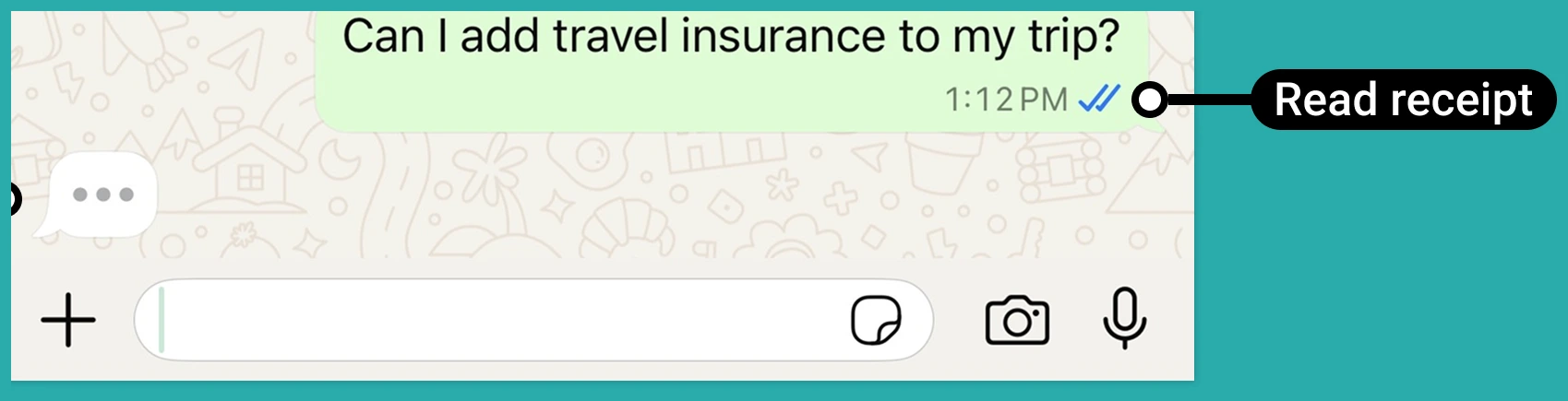
You can add a typing indicator action to any WhatsApp workflow that replies to an incoming message. Your customer sees the familiar "typing..." bubble in their chat, exactly as they would from a real person, while your workflow or AI agent prepares the reply.
It tells them straight away that their message landed and an answer is coming. That small reassurance keeps people in the conversation instead of wandering off.
How it behaves
- Instant reassurance: drop it into any workflow that answers an incoming WhatsApp message, and the customer sees "typing..." right away.
- Built for the waiting moments: place it just before an AI agent's reply, a lookup, or a wait step, so the time your automation spends working no longer feels like dead air.
- Clears itself: the bubble disappears the moment your reply arrives, or after 25 seconds, whichever comes first.
You decide where it fires
The indicator only shows up where you add it, so it appears in the conversations you're about to answer and nowhere else.
One thing worth knowing: showing the typing indicator also marks the customer's message as read - the blue ticks. Because you're placing the action yourself, that's a deliberate choice rather than something happening behind your back.
Where it earns its keep
- AI agents answering questions: a customer asks about pricing and sees "typing..." straight away while your AI agent prepares the answer, instead of wondering if anyone is there.
- Booking and order lookups: the bubble holds their attention while your workflow fetches appointment or delivery details.
- After-hours enquiries: even when your team is offline, your automation still feels attentive.
How to set it up
Go to Automation, then Workflows, and open a workflow triggered by an incoming WhatsApp message.
Click the + to add an action and search for typing indicator. Place it right before the step that sends your reply.
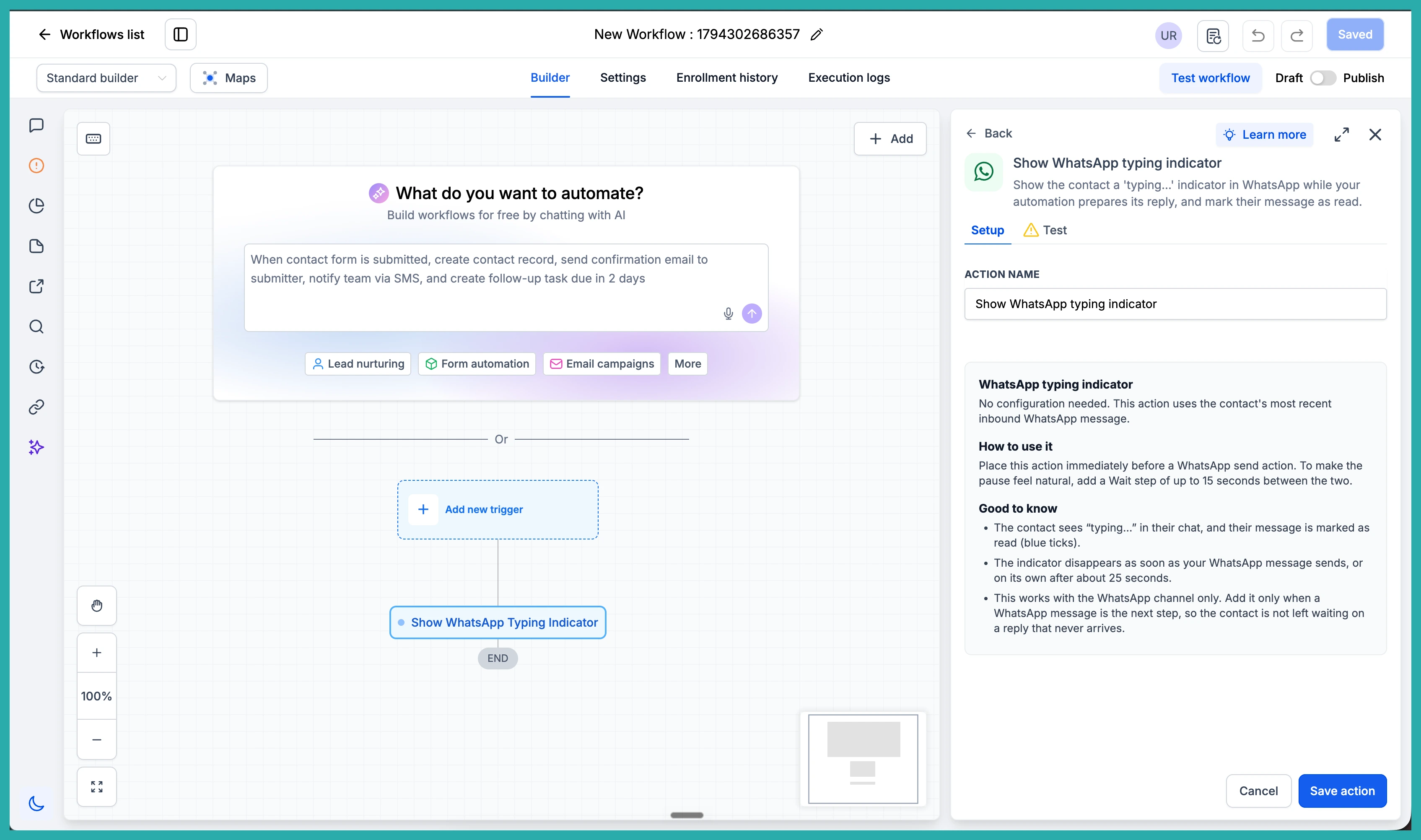
Then save and publish your workflow. That's all it takes.
One honest tip: only add the indicator where your workflow will actually send a reply. Showing "typing..." and then sending nothing is a worse experience than showing nothing at all.
Open your busiest WhatsApp reply workflow and add the typing indicator before the reply. It's a thirty-second change that makes your automation feel a whole lot more human.
