
Take and Make Voice Calls Right Inside Your WhatsApp Chats
Sometimes a customer is three messages deep, getting frustrated, or so close to booking they just need to hear a voice. Typing it all out takes ages. A two-minute call sorts it.
Now you can make that call without ever leaving the conversation. WhatsApp Calling has come through its beta and is generally available on both web and the mobile app.
What you get
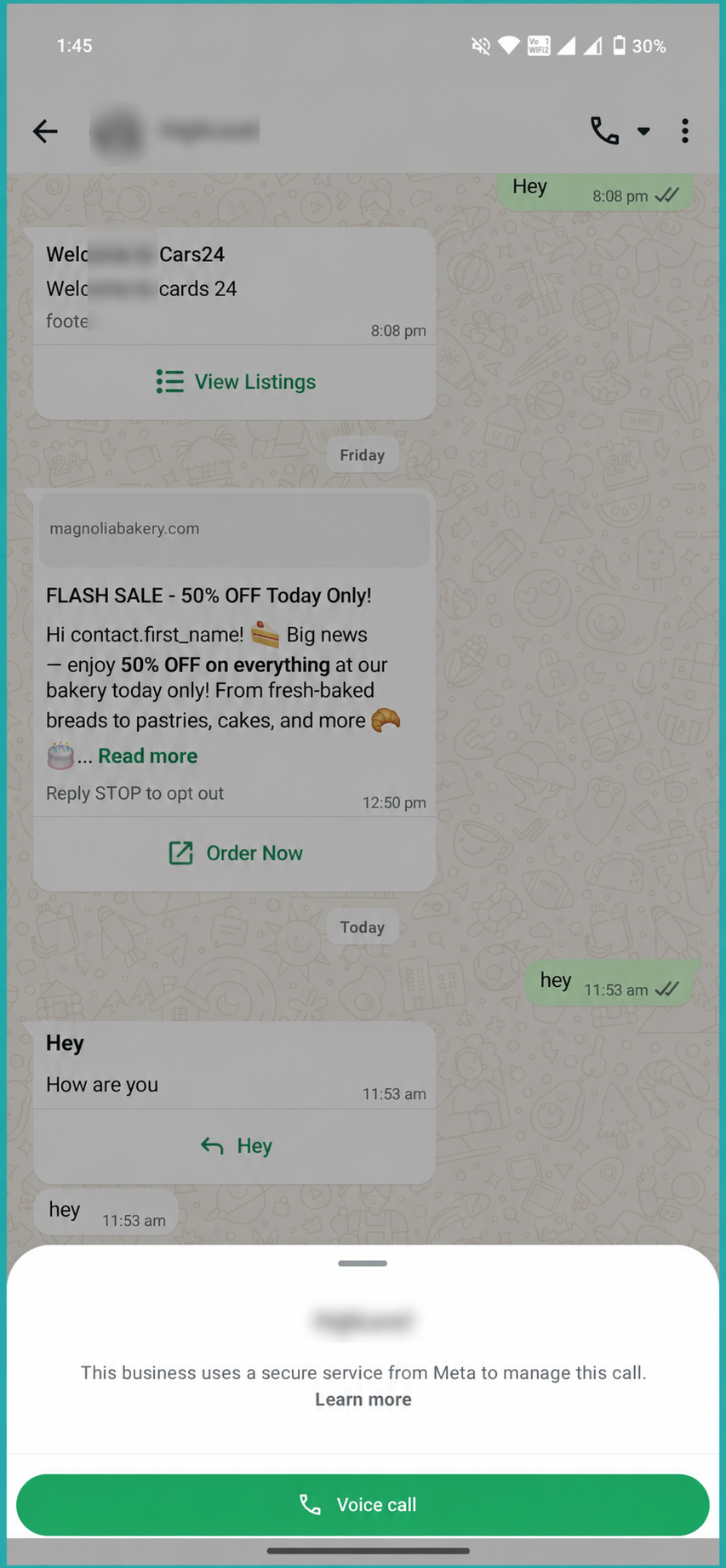
Real-time voice calls inside the same WhatsApp thread. No external dialer, no sharing your number, no pulling people onto a separate line. Your team can take inbound calls and place outbound ones, all in the conversation view, with a call button right there for one-click escalation from chat to voice.
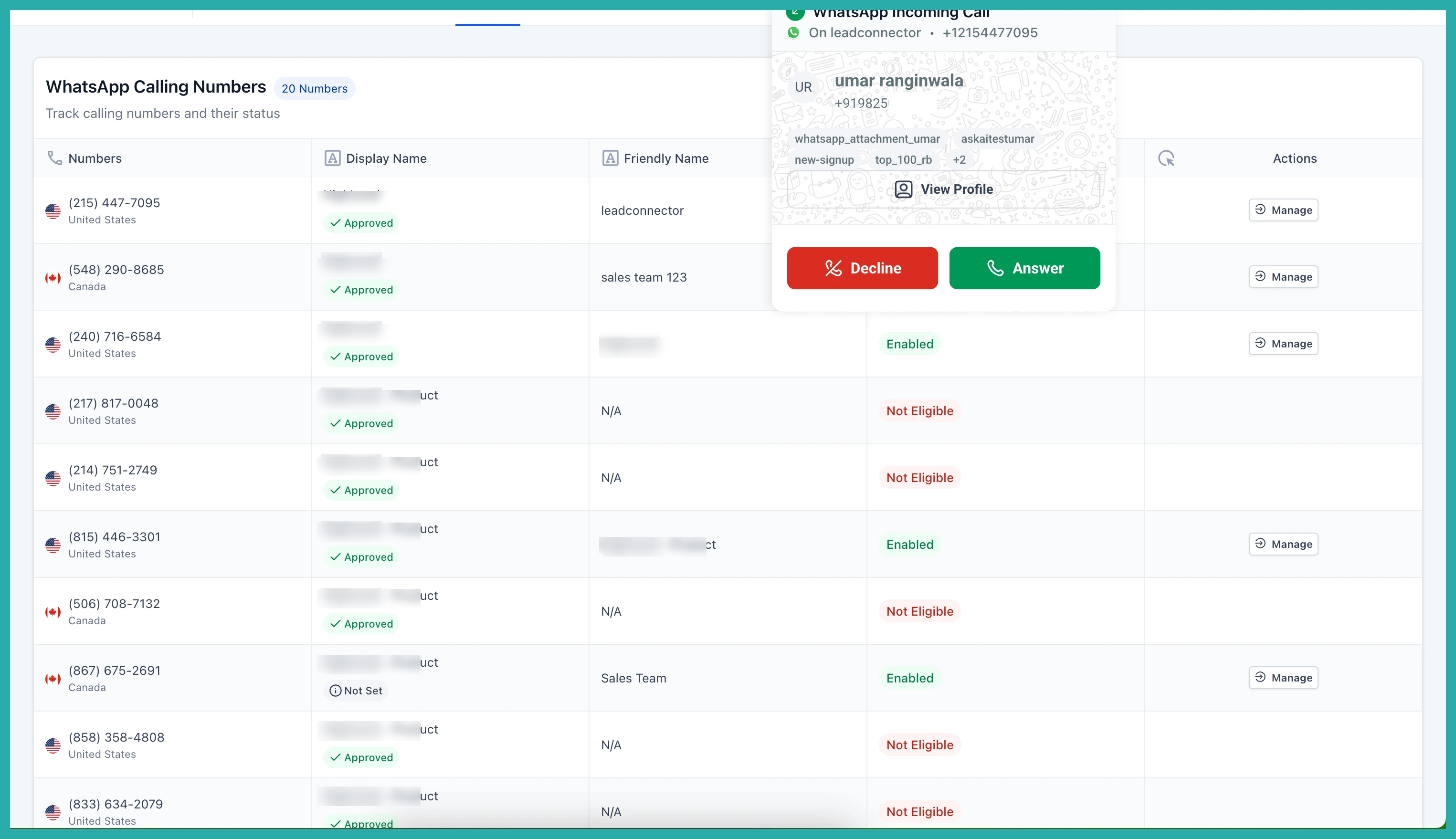
Every call gets logged alongside your other calls, and you can tag the outcome the moment it ends. More on that below.
Before you start
Each account needs a phone number in connected state, a WhatsApp messaging limit at the 2,000 tier or higher, and a number that is not on coexistence. Once that is in place, you are ready to switch it on.
Turning it on (web)
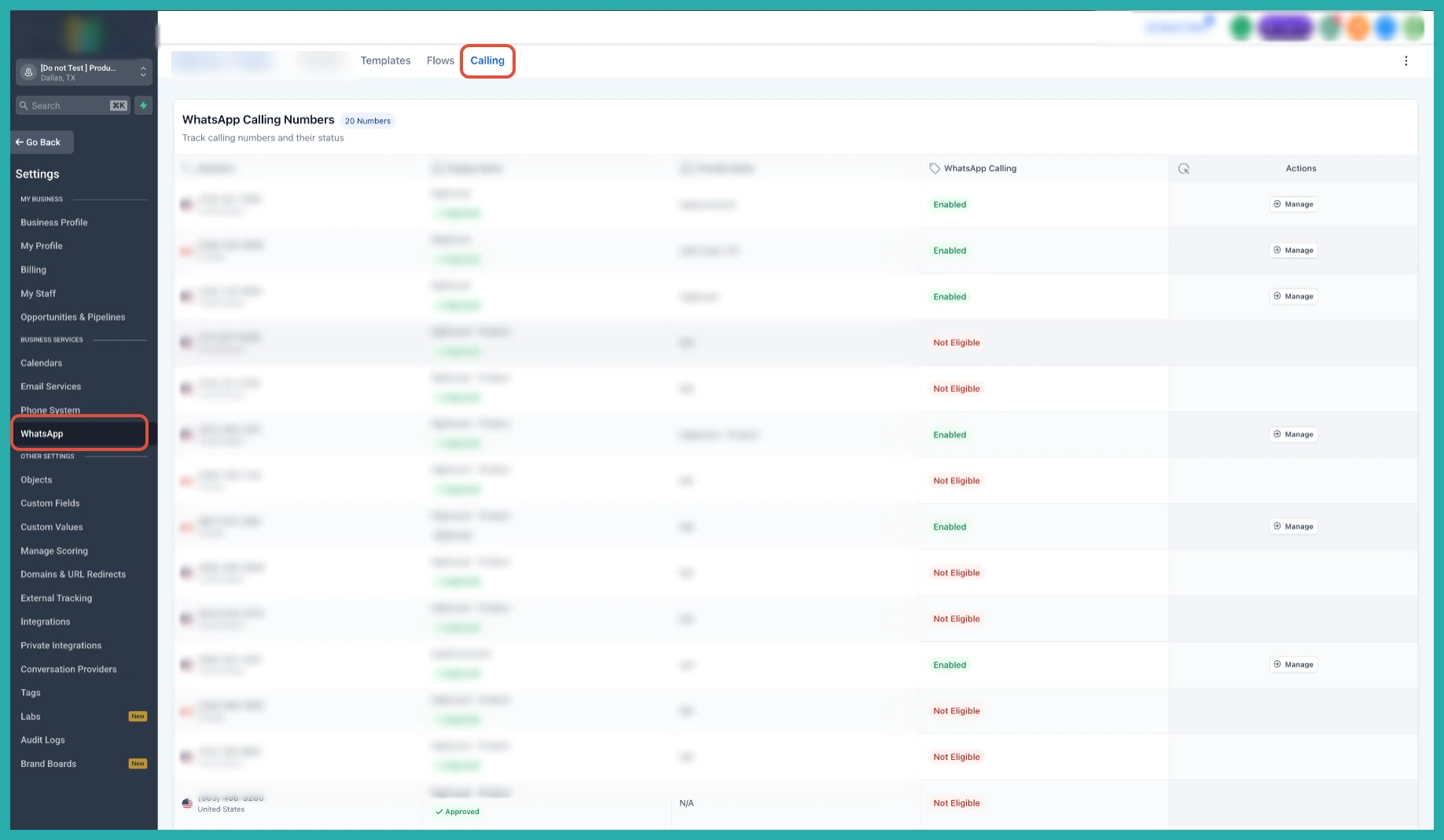
Go to Settings, then WhatsApp, then Calling, and select your phone number.
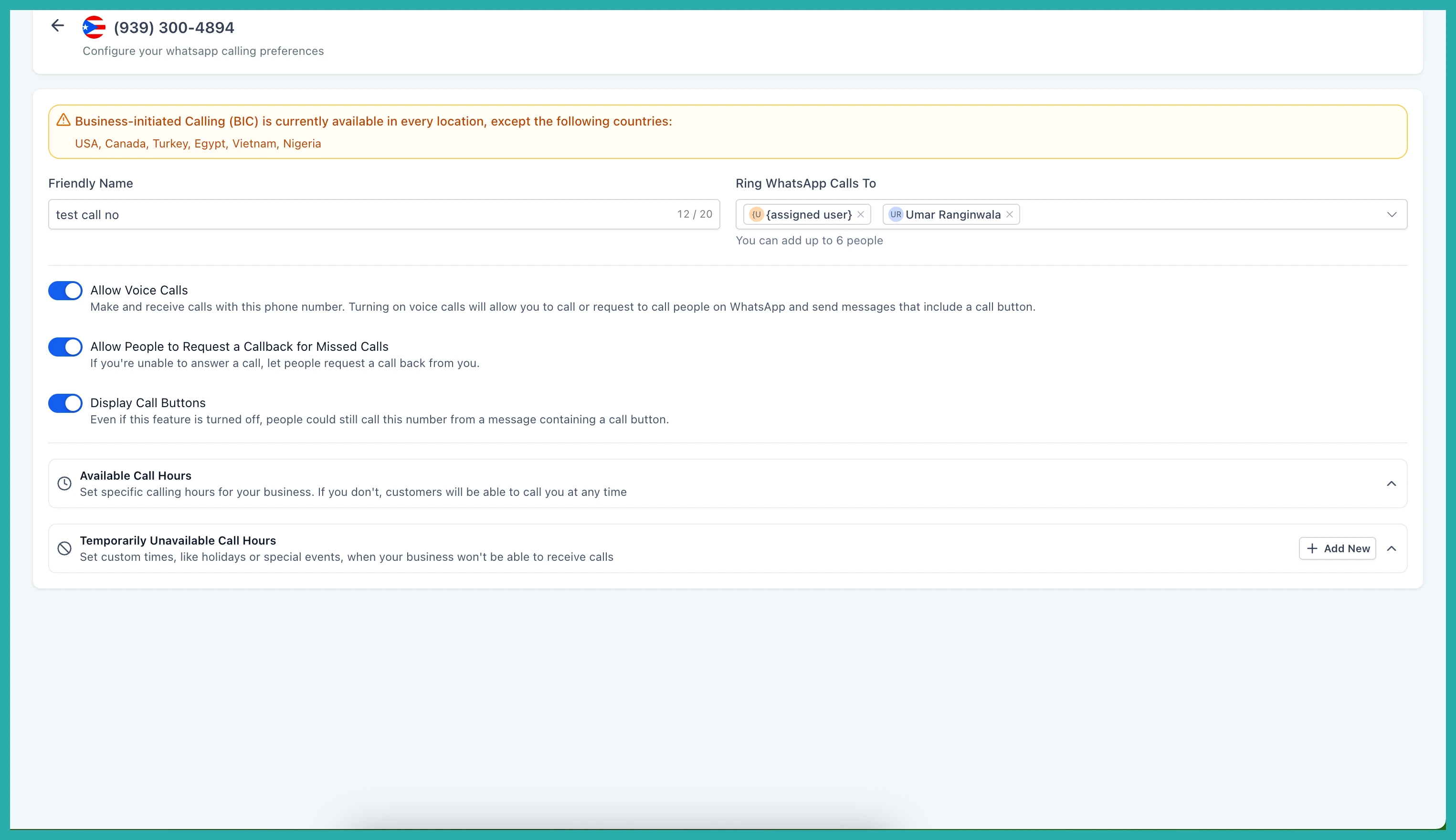
From here:
- Give it a Friendly Name so it stays easy to recognise as you grow (for example "Sales Team" or "Front Desk").
- Choose who calls ring under: Ring WhatsApp Calls To. You can add up to 6 people.
- Turn on Allow Voice Calls so you can make and receive calls.
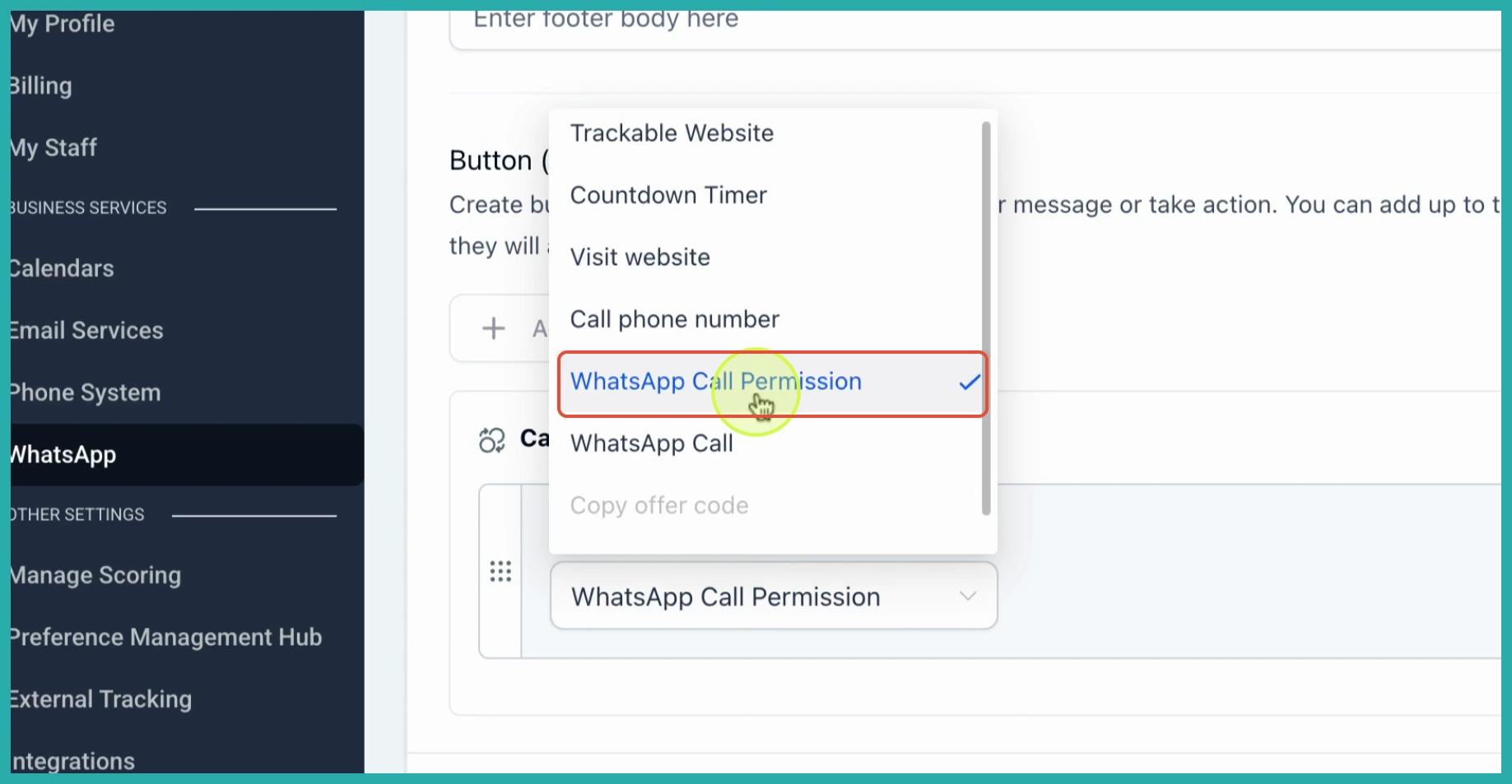
- Optionally turn on Allow People to Request a Callback for Missed Calls, and Display Call Buttons.
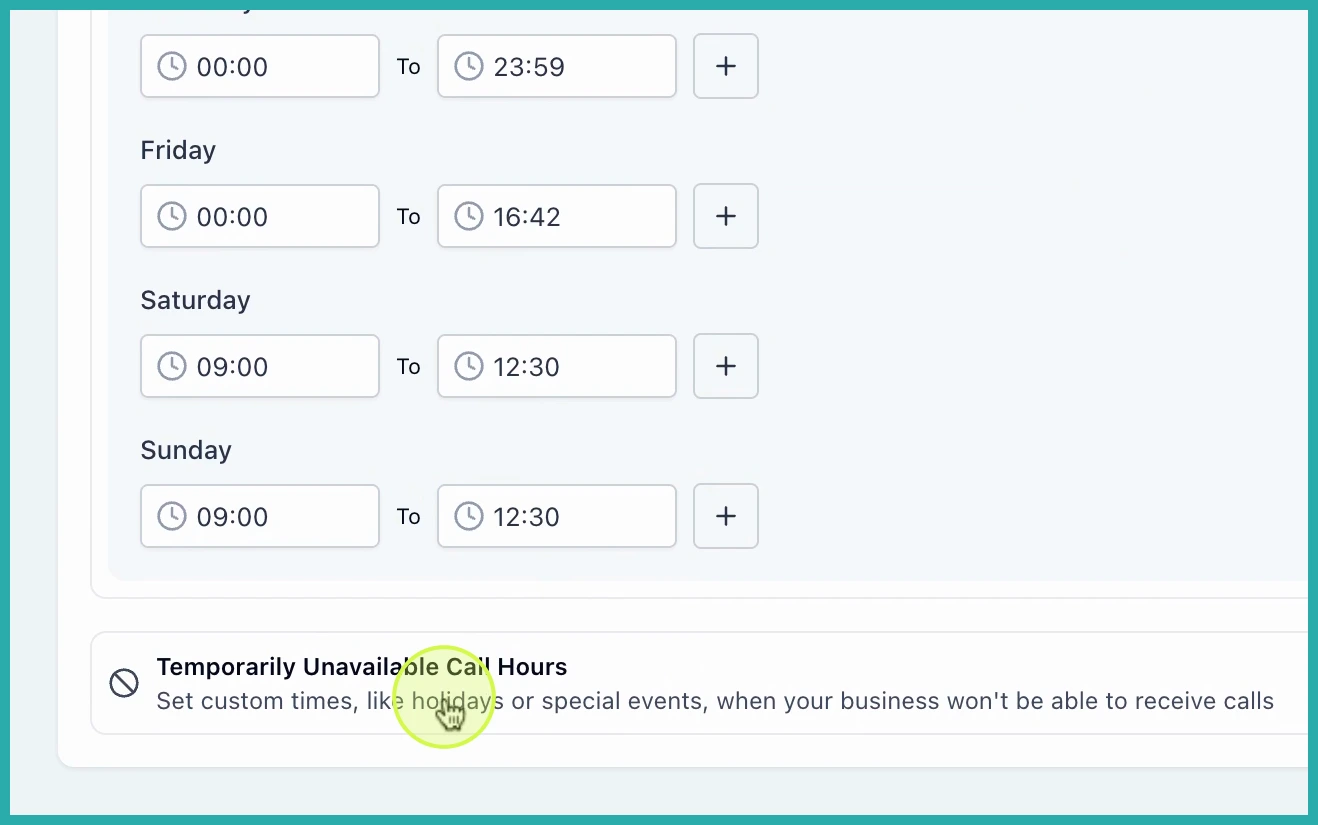
- Set your Available Call Hours, plus Temporarily Unavailable Call Hours for breaks and holidays.
Deciding who picks up
The Ring WhatsApp Calls To list is how you avoid a missed call because one person stepped away. Add up to 6 team members and an inbound call rings all of them at once, so the first free person answers.
You have two ways to route:
- Named users: add specific people who should always get calls on this number.
- Assigned user token: use the {assigned user} token to ring the contact's owner automatically, so customers reach the rep who already knows them instead of a general queue.
Taking calls on mobile
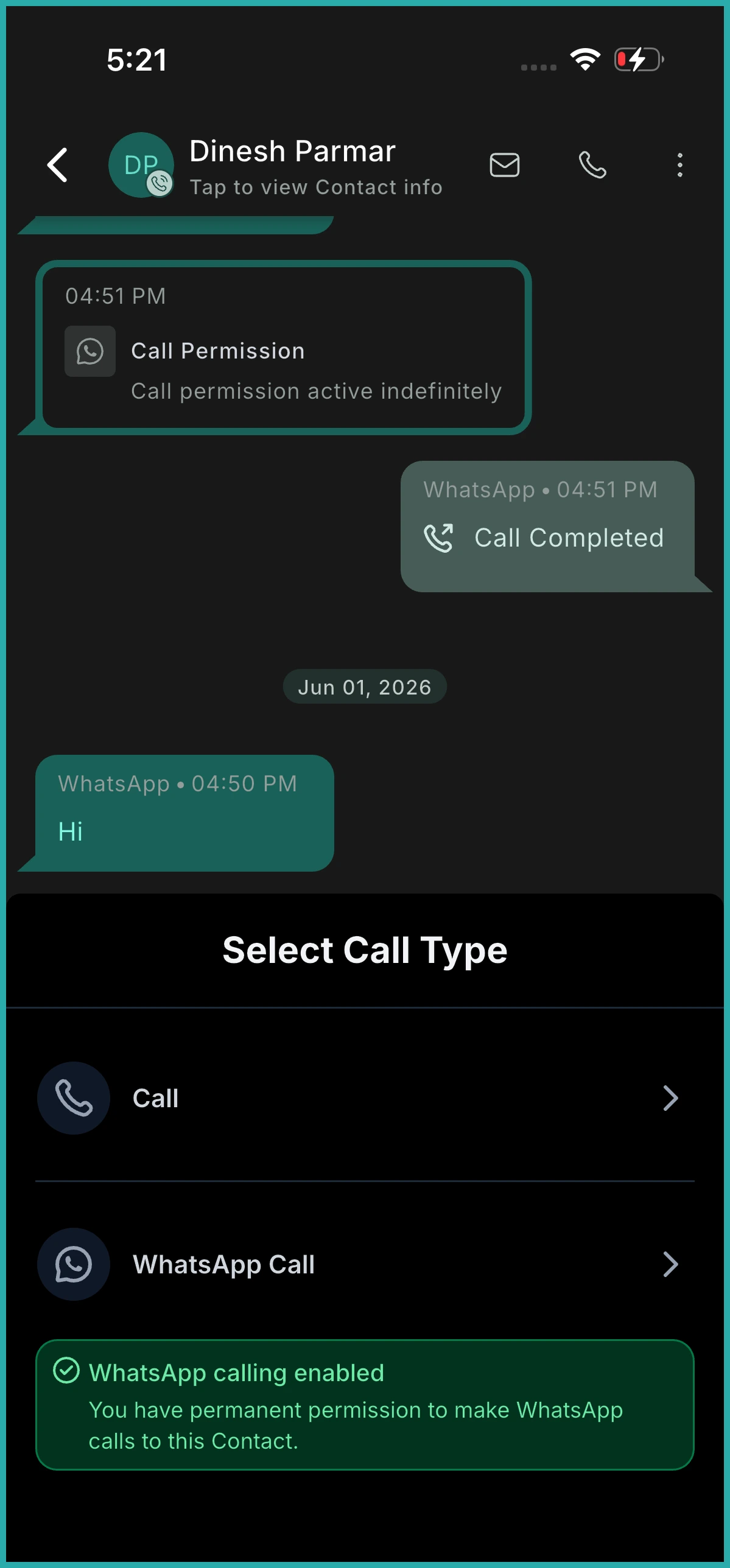
Update your app to the latest version, then open a conversation and tap the call button.
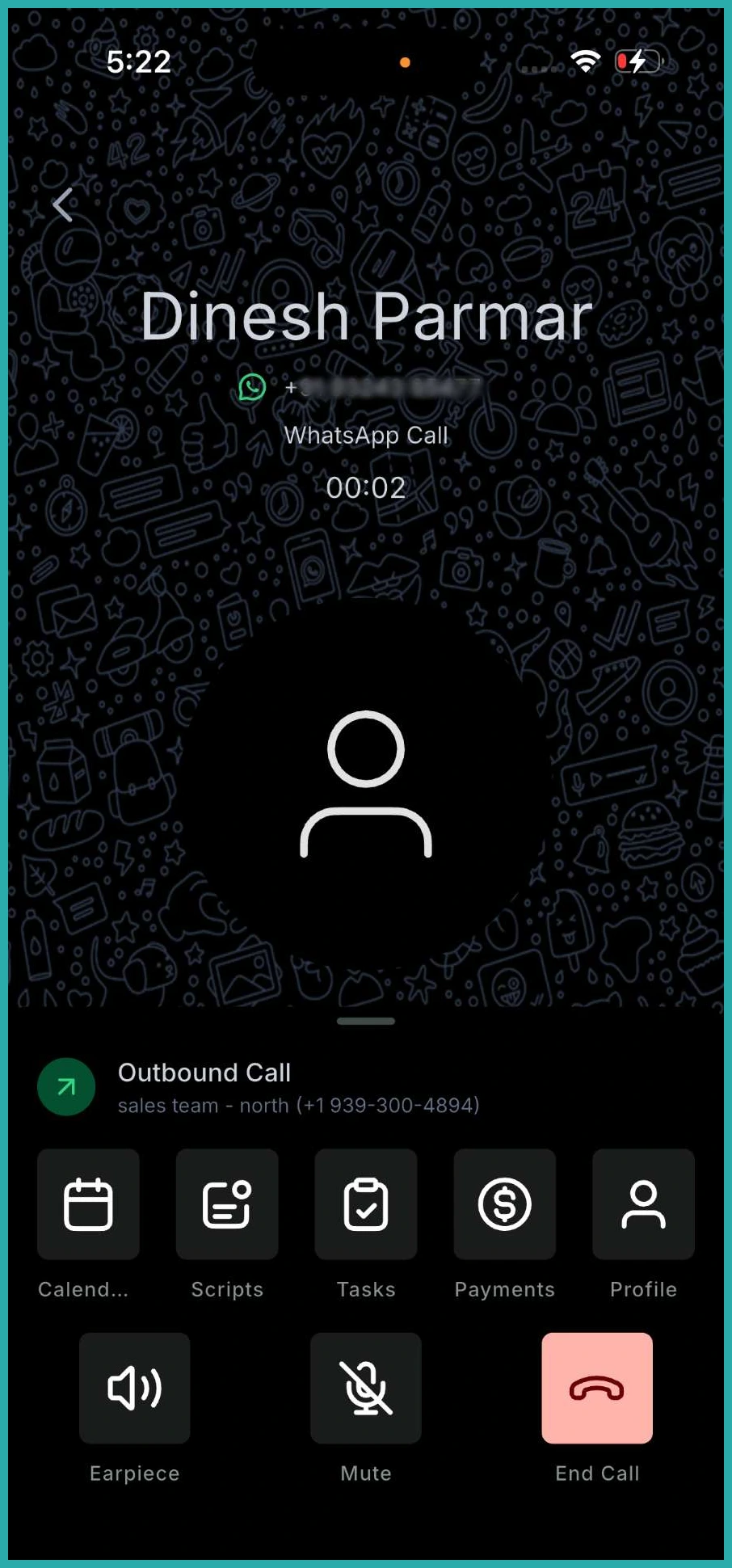
Choose WhatsApp Call in the Select Call Type sheet and connect. If a call cannot be placed, you will see exactly why.
Inbound calls reach you no matter which account is selected, with no setup needed per account. Every inbound and outbound call lands in your call logs, and call permissions stay in the thread.
Logging the outcome of every call
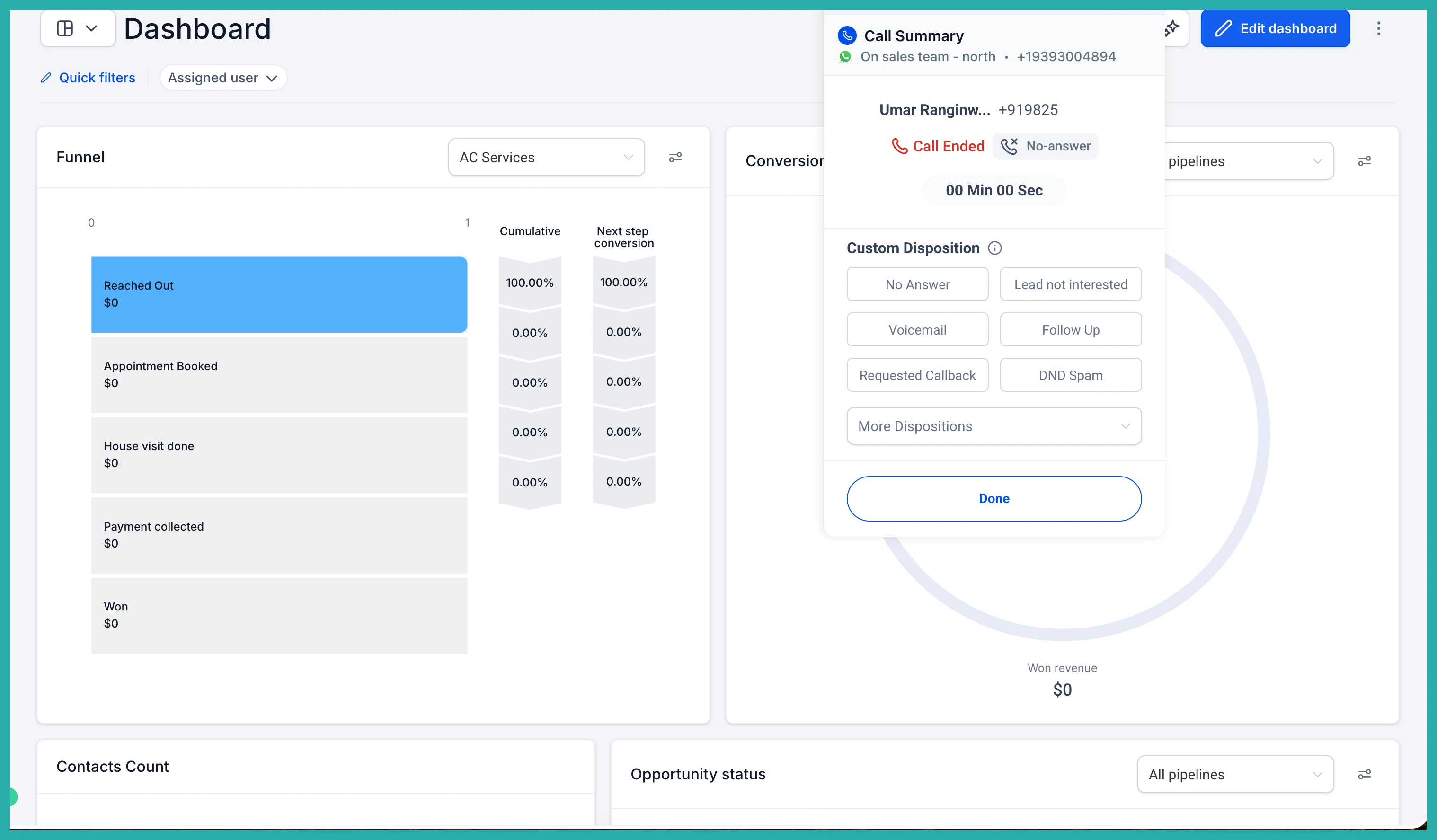
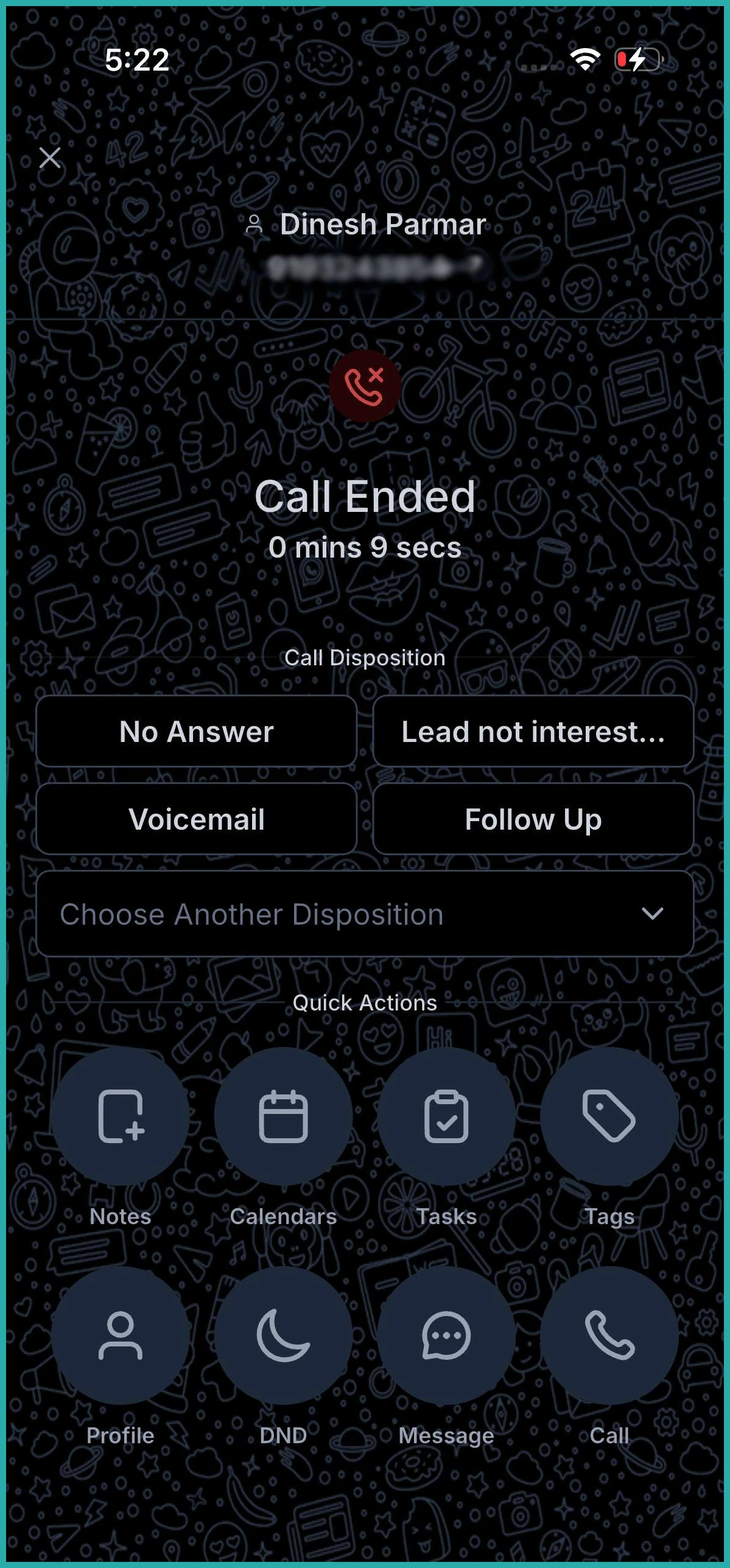
When a call ends, you get a Call Summary showing the contact, the number, the status, and the duration, then a prompt to pick a disposition.
Every account starts with defaults like No Answer, Lead not interested, Voicemail, Follow Up, Requested Callback, and DND Spam. Admins can edit these or add their own under Settings, then Phone System, then Voice, then Call Dispositions, up to 10 per account.
This works on mobile too, on both iOS and Android, straight from the call end screen. One note for mobile: disposition options only show when the selected account matches the call's account, so use Switch if you handle calls across more than one.
Turning an outcome into action
Dispositions can do more than sit in a log. In Automation, add a Call Details trigger, set the filter to Custom Disposition, and choose which outcomes fire which follow-ups - send an SMS or email, book an appointment, or drop the contact into a pipeline or campaign.
And in Reporting, then Call Reporting, every disposition shows up as a column and filter, so you can see outcomes by person or team and spot patterns, like how many calls ended in Requested Callback.
How calling permission works
The rules depend on who starts the call. When a customer calls you, no permission is needed - as long as Allow Voice Calls is on, they can reach you any time from anywhere WhatsApp is available.
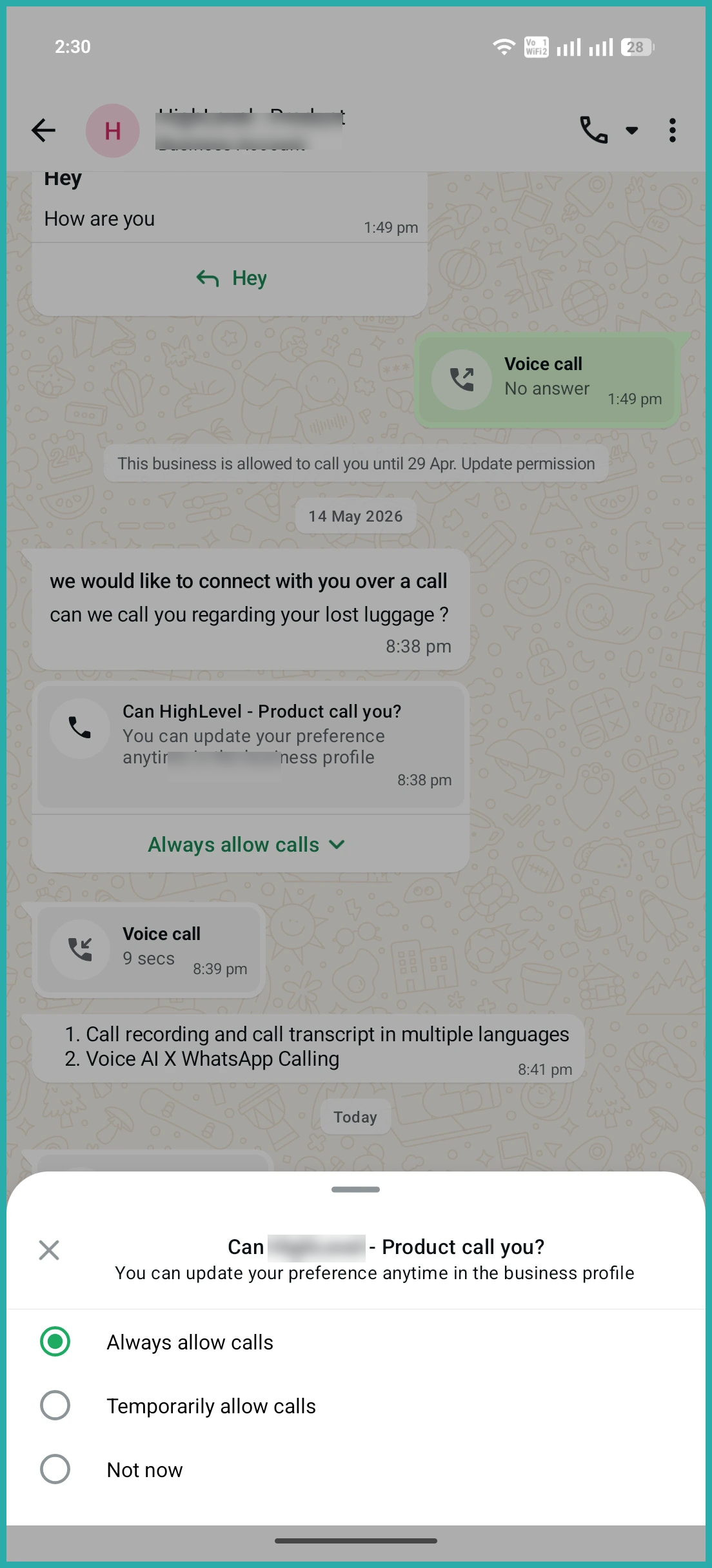
When you call a customer, you need their permission first. You request it through a template message, and they can choose Always allow, Temporarily allow (valid 7 days), or Not now. Once granted, you can place up to 5 connected calls in any 24-hour window, and as soon as a call connects the limit resets.
A few guardrails set by WhatsApp: one permission request every 24 hours, up to two in any 7-day period if there is no response, and if 4 calls in a row go unanswered, permission is revoked and you ask again.
Where outbound calling works
Inbound calls work everywhere WhatsApp is available. Business-initiated calling (you calling the customer) works everywhere except the USA, Canada, Turkey, Egypt, Vietnam, and Nigeria, where WhatsApp does not allow it yet. In those places you can still take inbound calls and display call buttons so customers reach you with one tap.
If most of your conversations already happen on WhatsApp, this is the piece that closes the loop. Go switch it on, set who picks up, and the next high-intent message can turn into a call without anyone leaving the thread.
