
Choose Exactly Who on Your Team Can Change Your WhatsApp Setup
WhatsApp is often one of your most important channels, and until now access to it was all-or-nothing. Hand someone the keys to WhatsApp settings and they could do anything, including delete an approved template or disconnect the whole thing.
That's changed. You can now decide exactly who on your team can touch each part of WhatsApp, down to seven separate actions.
What you get
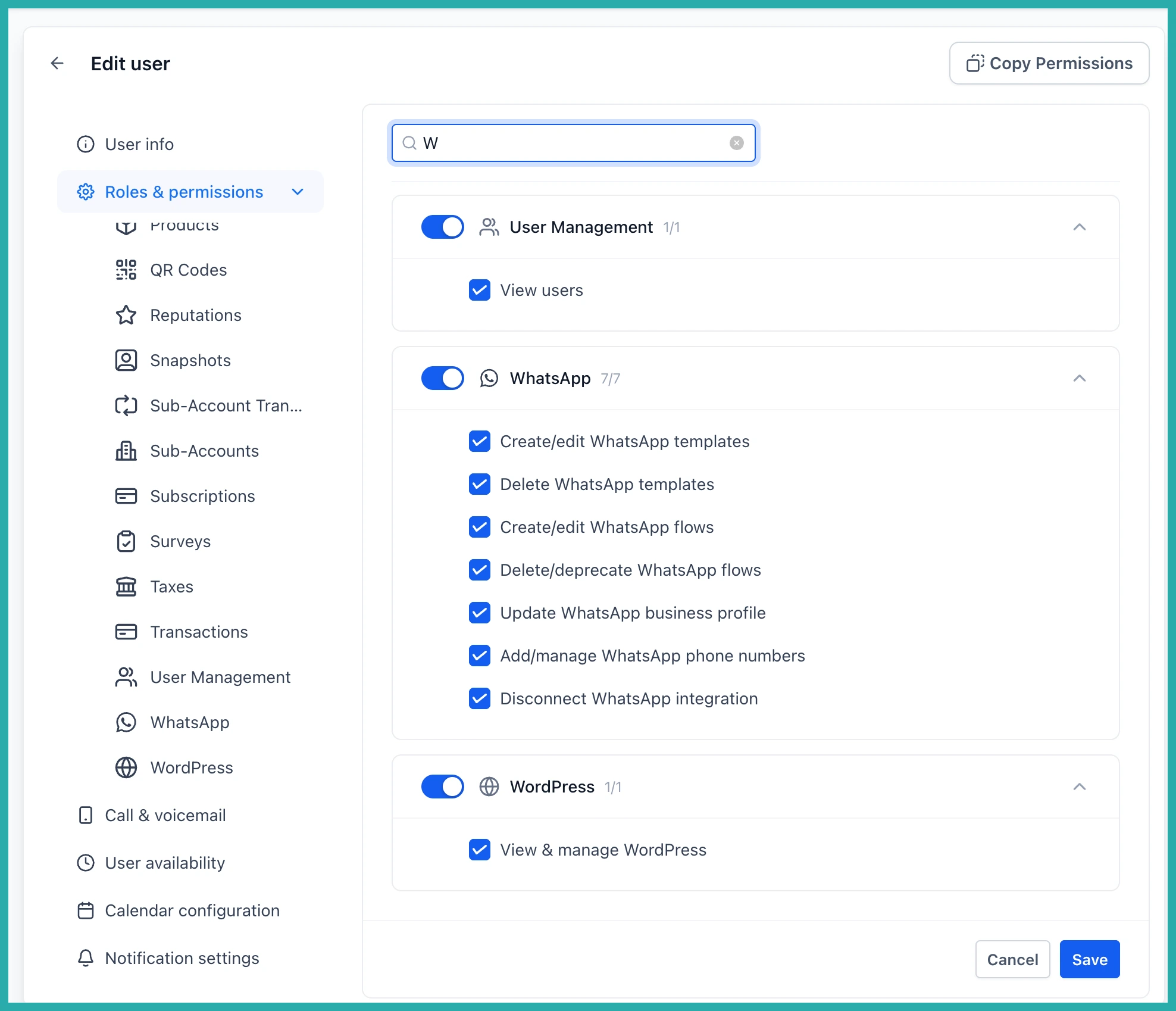
WhatsApp is now its own permission section, with a toggle for each of the actions that actually carry risk:
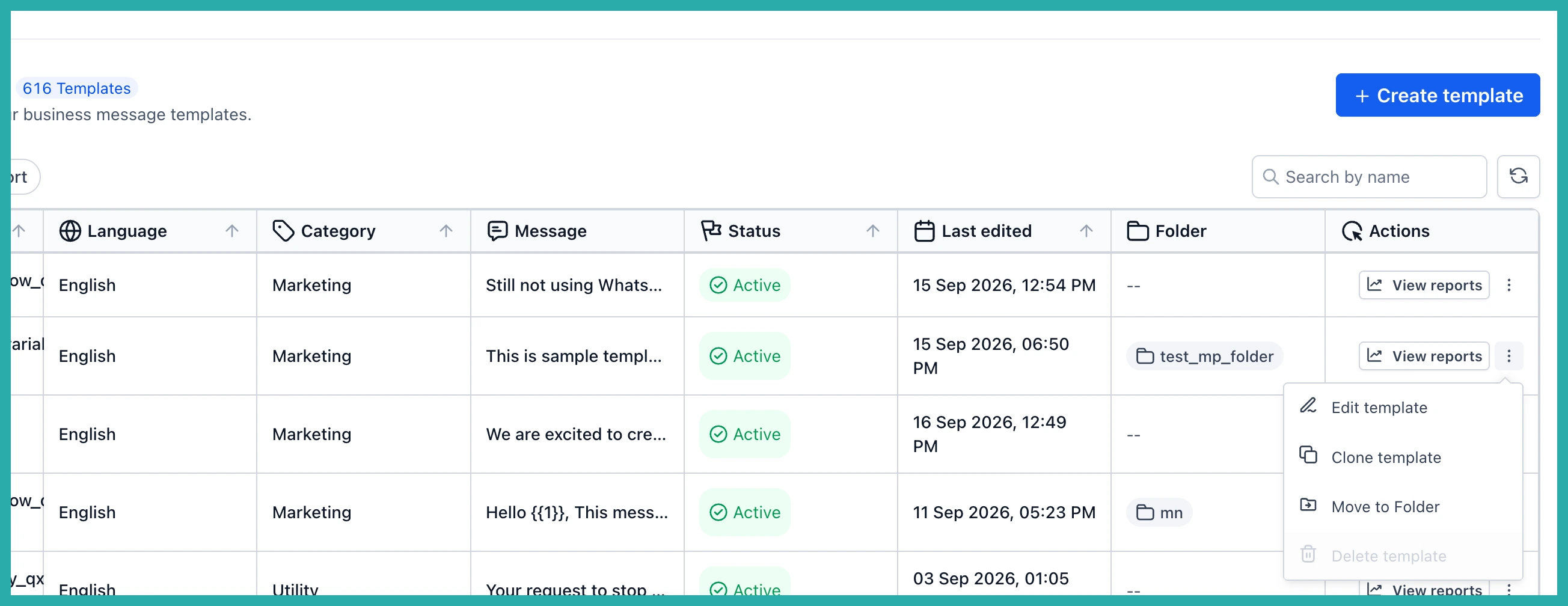
- Create and edit templates - an edited template goes back to Meta for review, so this stops an unplanned edit from pulling a working template out of service.
- Delete templates - keeps your approved library safe from accidental removal.
- Create and edit flows - decides who can build or change your WhatsApp flows.
- Delete or deprecate flows - protects the live flows your automations rely on.
- Update business profile - your profile is what customers see, so only the right people can change it.
- Add and manage phone numbers - controls who can attach or manage the numbers you send from.
- Disconnect WhatsApp - the most sensitive action of all, now lockable to your trusted admins only.
These toggles turn off restricted actions right in the WhatsApp settings screen, with a tooltip explaining why, and the same rules are enforced behind the scenes. A permission you switch off is genuinely off.
Nothing breaks on day one
You don't need to do anything to keep things running. All seven permissions are granted by default to every role, so your team keeps exactly what they had. Nothing changes until you decide to tighten it - no migration, no scramble, no disruption.
How to set it up
Setting it up takes a minute:
- Go to Settings, then Users.
- Select the person you want to adjust and click Edit.
- Open Roles & permissions.
- Find the WhatsApp section and toggle the seven permissions to match the access you want to give them.
- Save, and it applies straight away.
In the screenshot below, you'll see the WhatsApp section sitting under Roles & permissions, with each action listed as its own toggle.
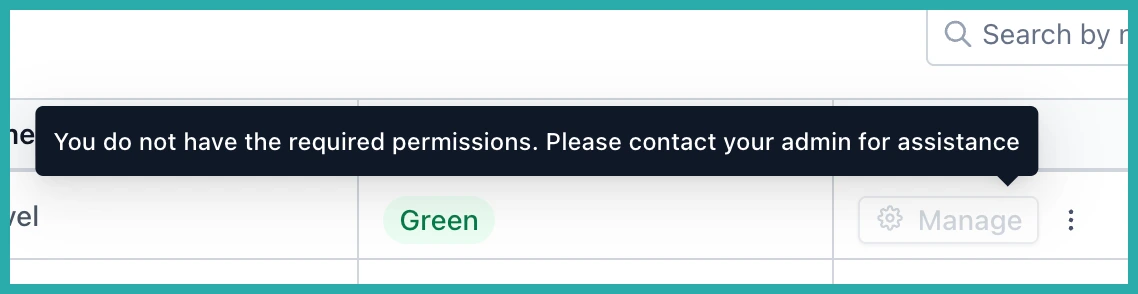
Turn off any action a person shouldn't have, and it's instantly locked for them across the accounts they belong to. Permissions follow the user, so you set them once rather than fiddling account by account.
Good to know
- Permission changes appear in your audit logs at the agency view, under Users, so you can always answer "who changed this?"
- The toggles show up under Users whether or not WhatsApp reselling is switched on.
- The whole section is translated, so global teams see it in their own language.
This is the kind of control that lets you delegate with confidence. Give a new hire or a contractor exactly the access their job needs and nothing more, and keep a live revenue channel safe while you grow. Head to Settings, then Users, and set your WhatsApp access up the way it should be.
