
Automatically Add Internal Notes to Conversations With Workflows
A new lead comes in, and you want your team to know exactly what to do next. Until now, that meant someone opening the conversation and typing an internal note by hand - every single time.
Now your account can do it for you.
What landed
There's a new workflow action called Add Internal Comment. When a workflow runs, it can post a note straight into the conversation history - context, instructions, a heads-up for whoever's handling it. You can even @mention a specific team member so they're pulled in directly.
These comments are internal only. Nothing goes to the customer. They simply sit in the conversation where your team can see them, right next to all the customer context.
How to set it up
Head to Automation, then Workflows, and either create a new workflow or open one you already use.
Add the Add Internal Comment action where it makes sense in your flow.
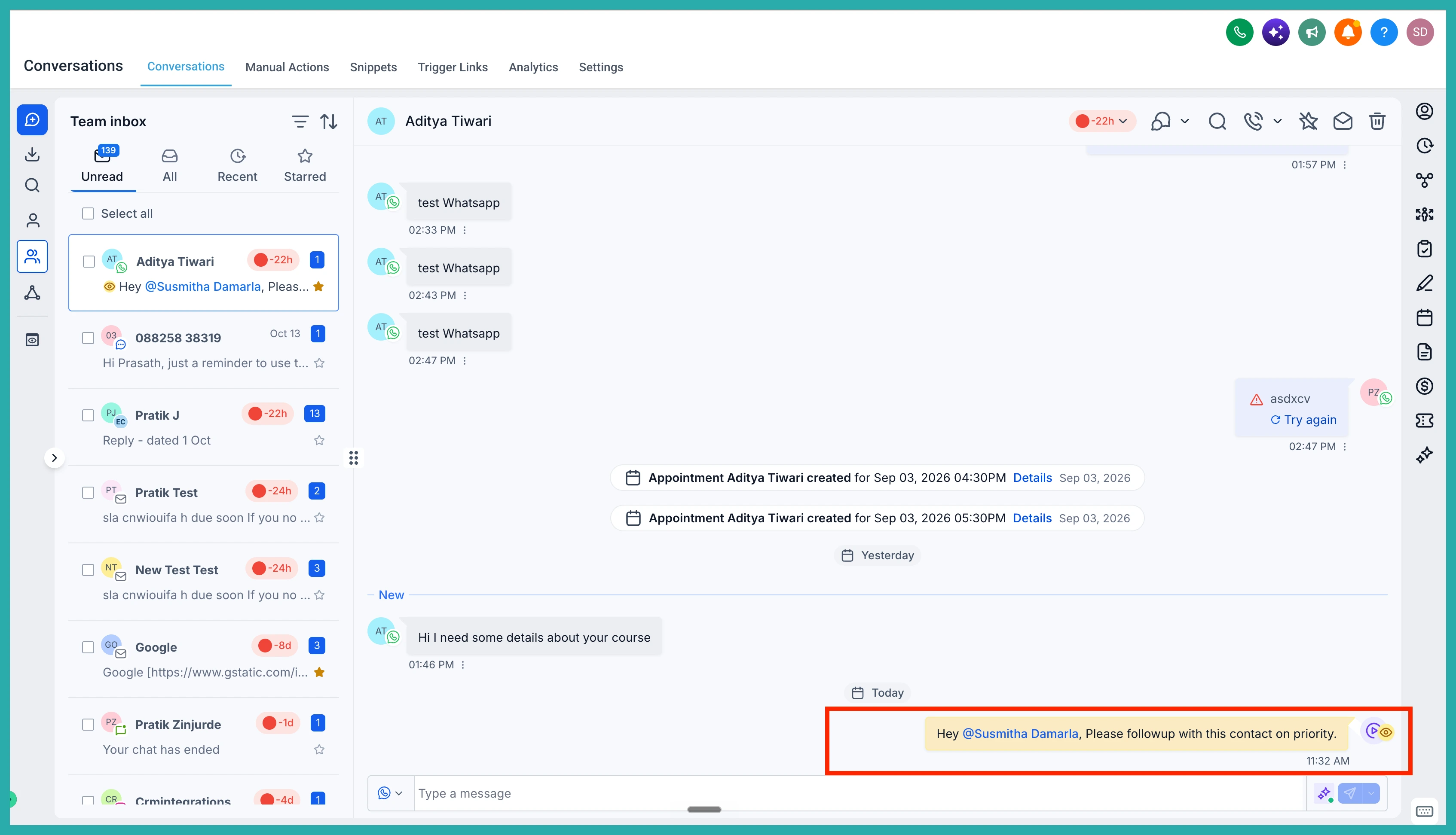
Type out your comment. If you want someone to see it, use @ to mention them by name. For example, when a high-priority lead enters the workflow, you might drop in a note tagging the assigned team member with the next steps spelled out.
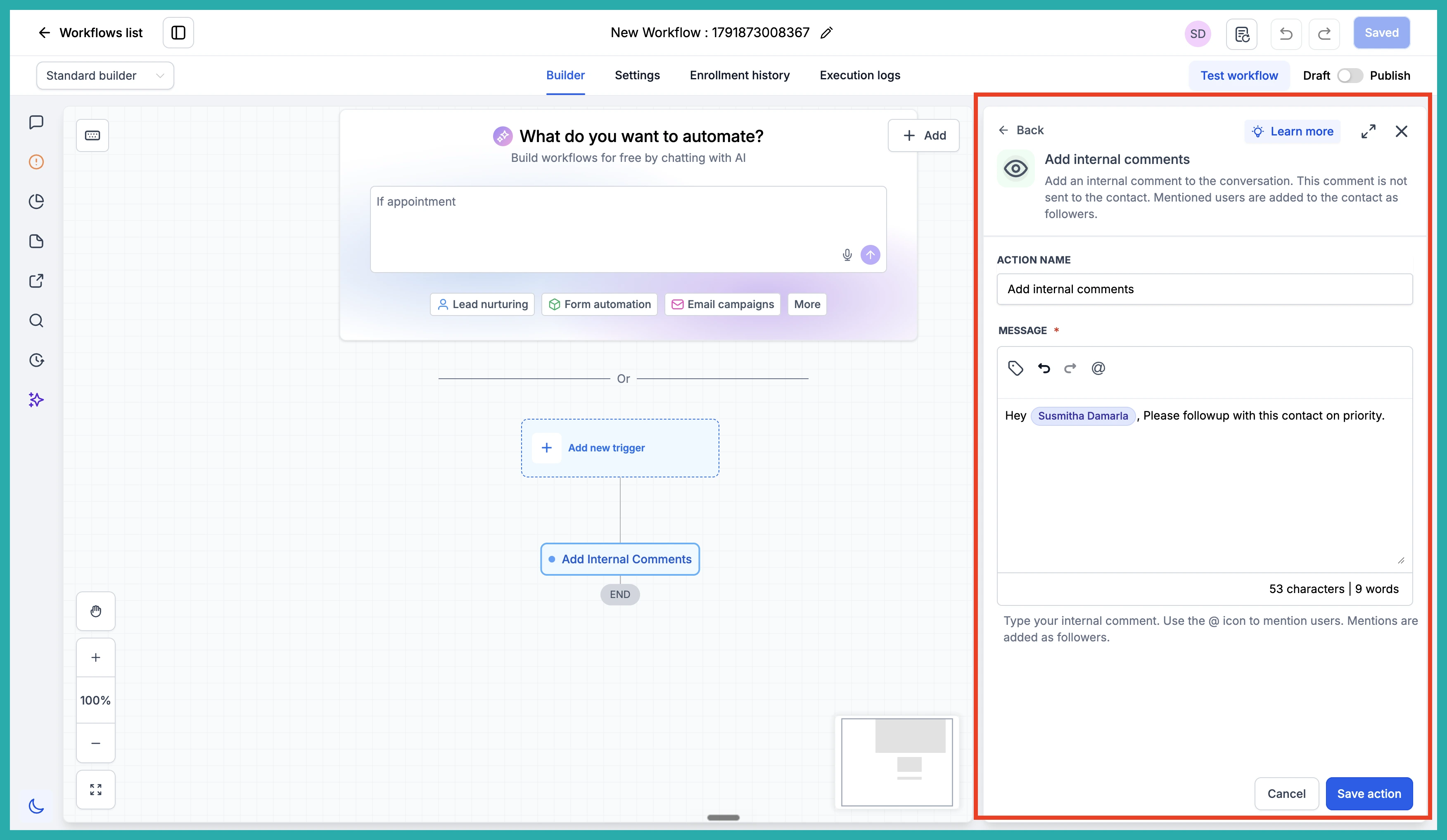
Then save and publish, and you're done. From that point on, the comment posts itself every time the workflow runs.
A few ways to use it
- Flag a hot lead and tag whoever's meant to follow up
- Leave standing instructions so nobody has to remember the process
- Keep your team informed when a contact hits a certain stage
It's a small action that saves a repetitive little job and keeps everyone on the same page. Open a workflow you already run, add one comment, and let it do the reminding for you.
