
How to add DNS records for ESC Hub with any other provider
If your domain is not at GoDaddy, Namecheap, Cloudflare, Squarespace, Wix, Bluehost, Hostinger or IONOS, you can still connect it to ESC Hub. You add the same kinds of DNS records. The page at your provider just has a different name.
This guide covers what those records are, where to look for the DNS page, and how to add an A record and a CNAME. If we already have a guide for your provider, use that one instead: GoDaddy, Namecheap, Cloudflare, Squarespace, Wix, Bluehost, Hostinger or IONOS.
Or bring your domain into ESC Hub
You can add the records at your current provider and leave the domain where it is. You can also transfer it into ESC Hub, so registration, DNS, your website and email are all in the same account.
When you transfer, you pay for one more year. You do not lose any time you have already paid for. The leftover time carries over, and the extra year is added on top. So if you paid for a year a month ago, you will then have 23 months until your next charge.
It also makes it much easier for us to help you. If something is off with DNS, email or your site setup, the ESC Hub team can look at it with you in one place. You do not have to log in to a separate registrar just to change a record.
The steps are in How to Bring Your Domain Into ESC Hub (And Why It's Worth It).
If you would rather keep the domain where it is, follow the steps below.
What a DNS record is
A DNS record tells the internet how to use your domain. An A record points a name at an IP address. A CNAME record points a name at another hostname. ESC Hub will show you the exact type, host and value to add. You do not need to invent any of those.
The host @ usually means the root domain (yourdomain.com). The host www means www.yourdomain.com. Some providers want a blank host instead of @, or they want the full domain name. If the form rejects @, try a blank host, and check your provider's help article if you are unsure.
Leave any records you do not recognise in place, unless ESC Hub has asked you to replace a specific row. Be especially careful with MX or TXT records that already deliver your email.
Copy the records from ESC Hub
Start here, so you have the exact values in front of you before you change anything at your provider.
- In ESC Hub, open Settings in the left menu. Under OTHER SETTINGS, select Domains & URL Redirects, then the Domains tab.
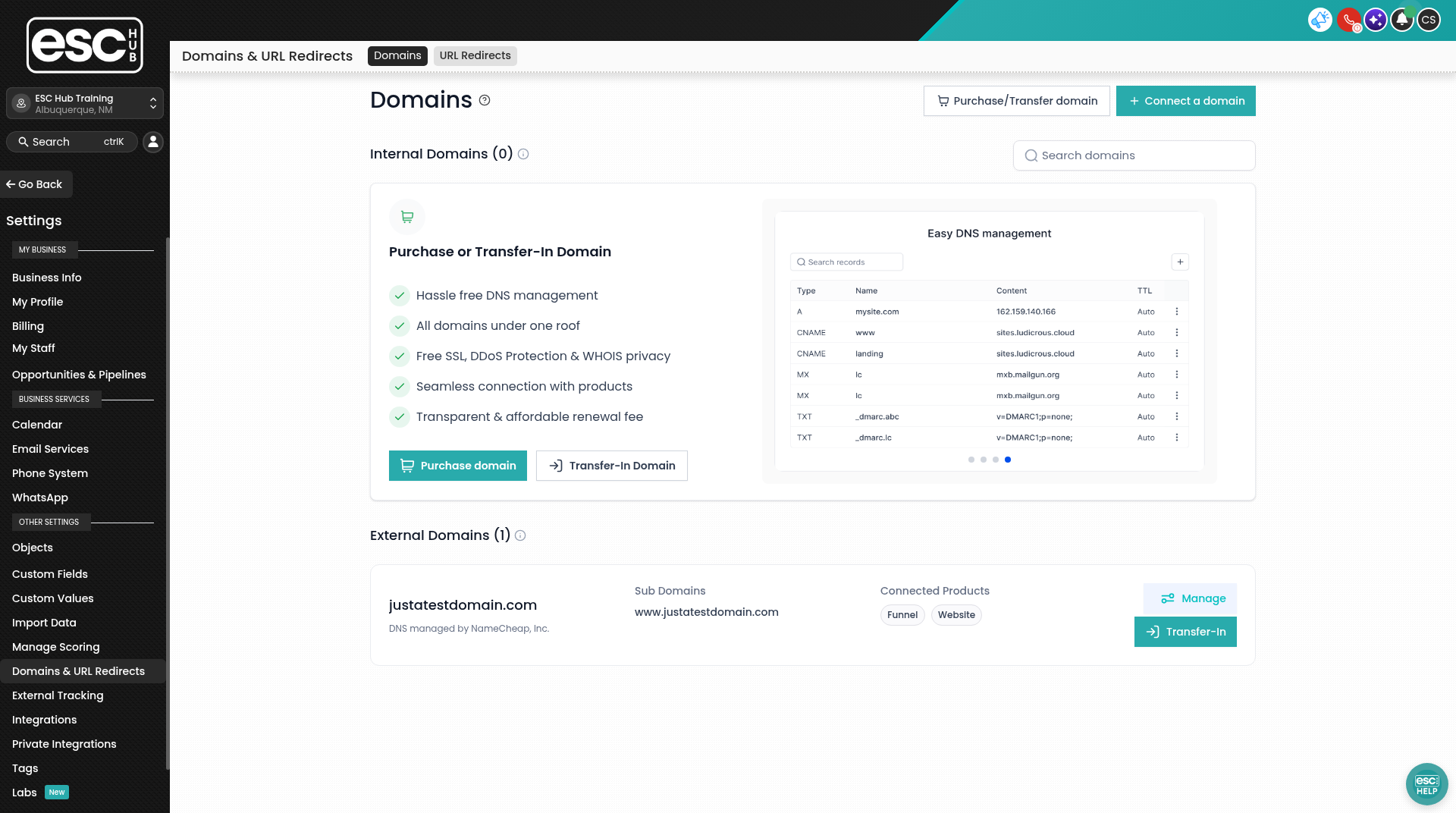
- Select + Connect a domain.
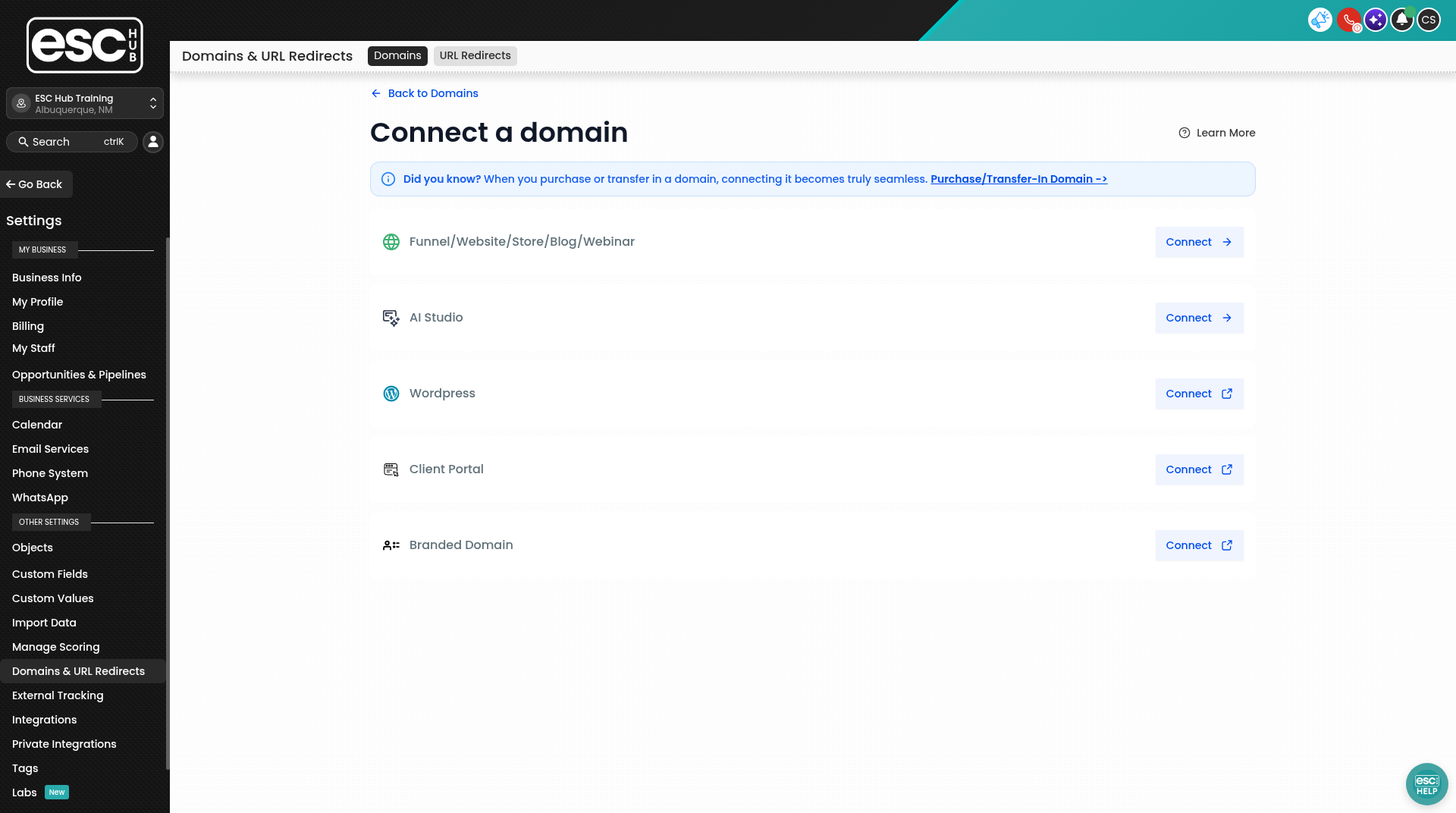
- Next to Funnel/Website/Store/Blog/Webinar, select Connect. If you are connecting something else, choose that row instead and copy every record ESC Hub shows you.
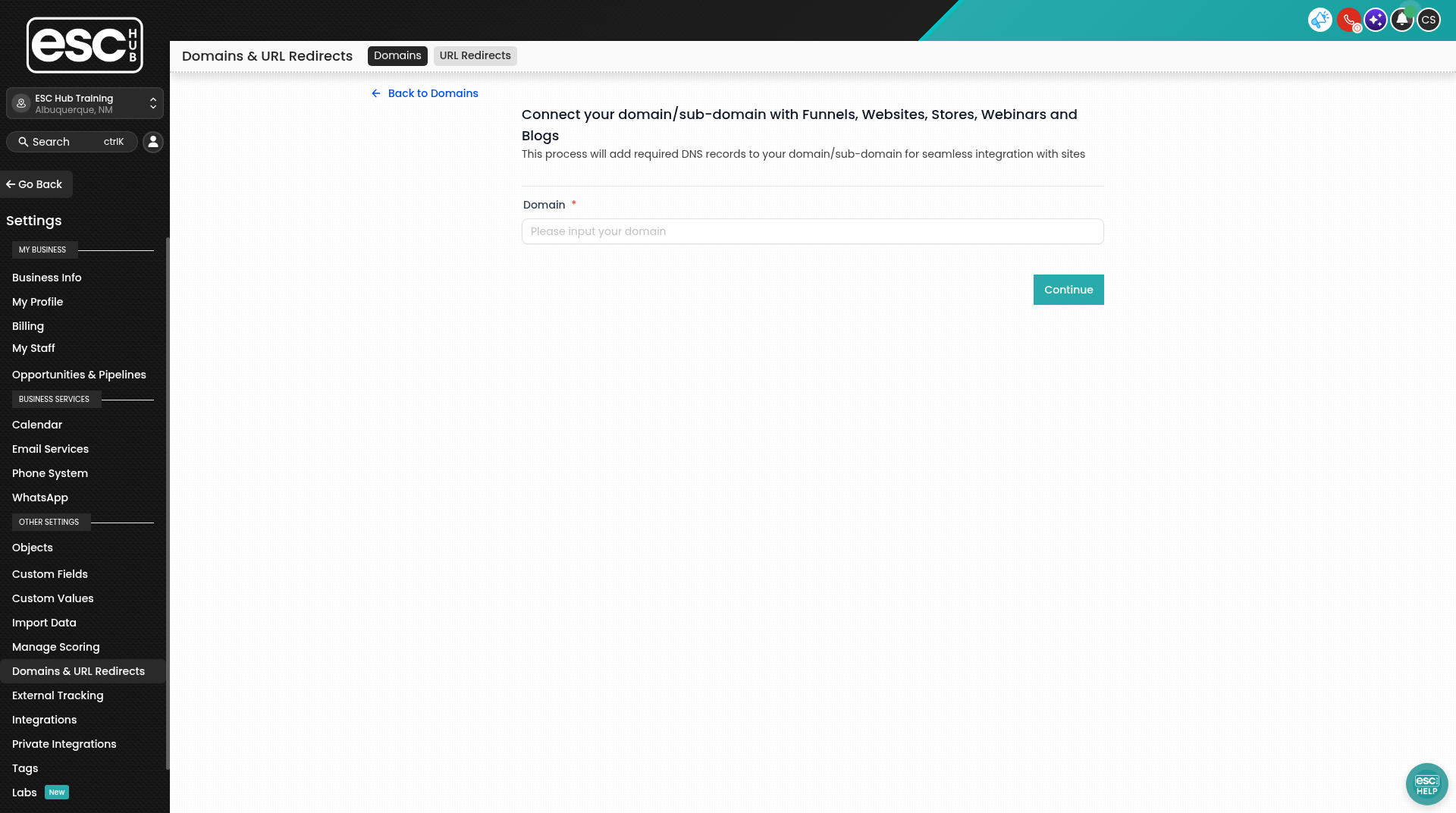
- In the
Domain *field, enter your domain and select Continue.
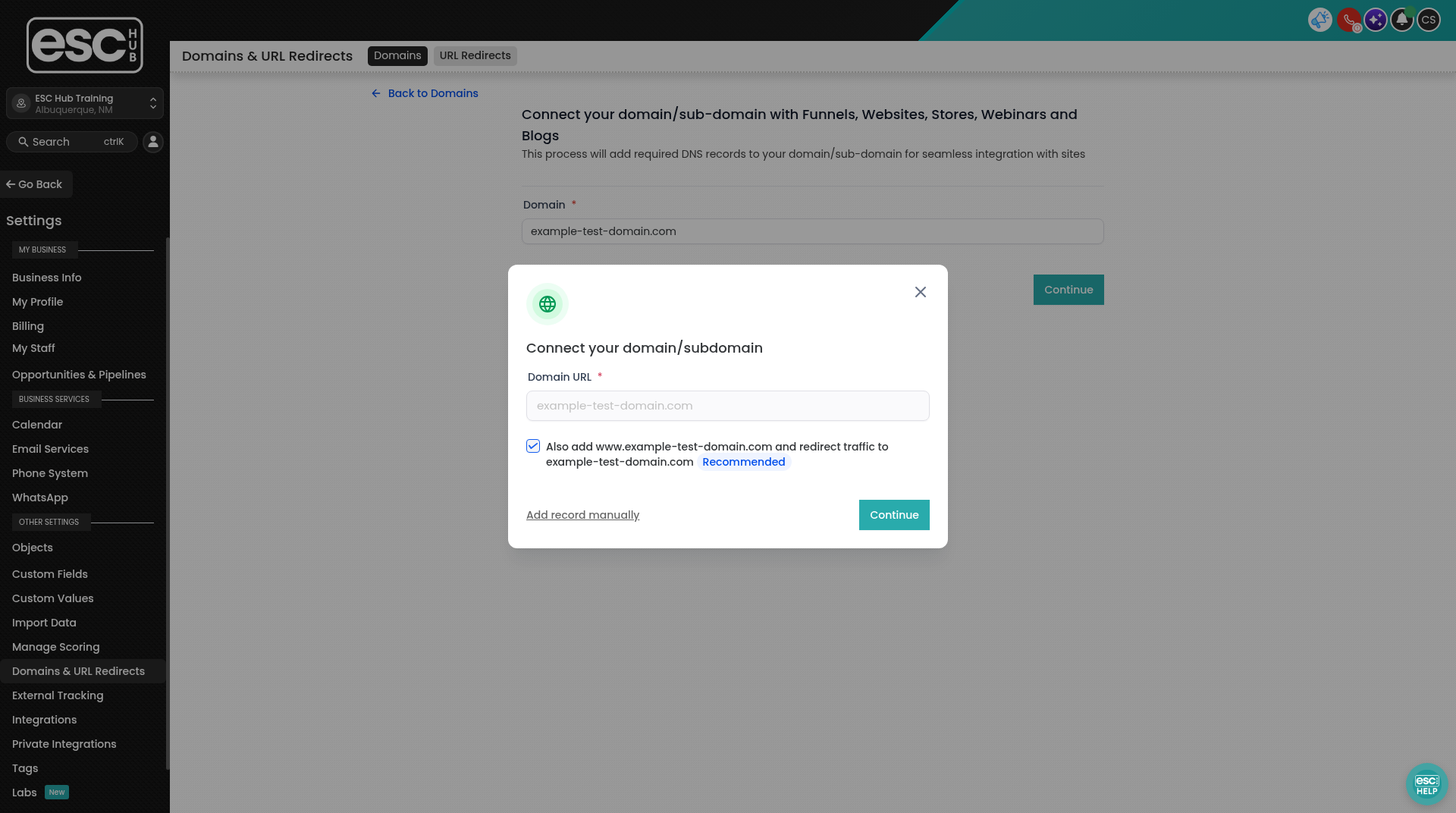
- In the Connect your domain/subdomain dialog, you will see a
Domain URL *field. Leave Also add www.[domain] and redirect traffic to [domain] ticked if you want the www version to work as well. It is marked Recommended. Then select Add record manually.
- You will land on Set up your domain manually by adding the following records. The table has three columns: Record, Host and Required value.
For a website or funnel connection, you will usually see two rows like this:
- A, Host @, Required value 162.159.140.166
- CNAME, Host www, Required value sites.ludicrous.cloud
Copy the exact values from your own screen. If ESC Hub shows different values, or also shows TXT or MX records (for example when you are connecting email), use those instead. The values above are an example of what the website setup often looks like, not a list to type from memory.
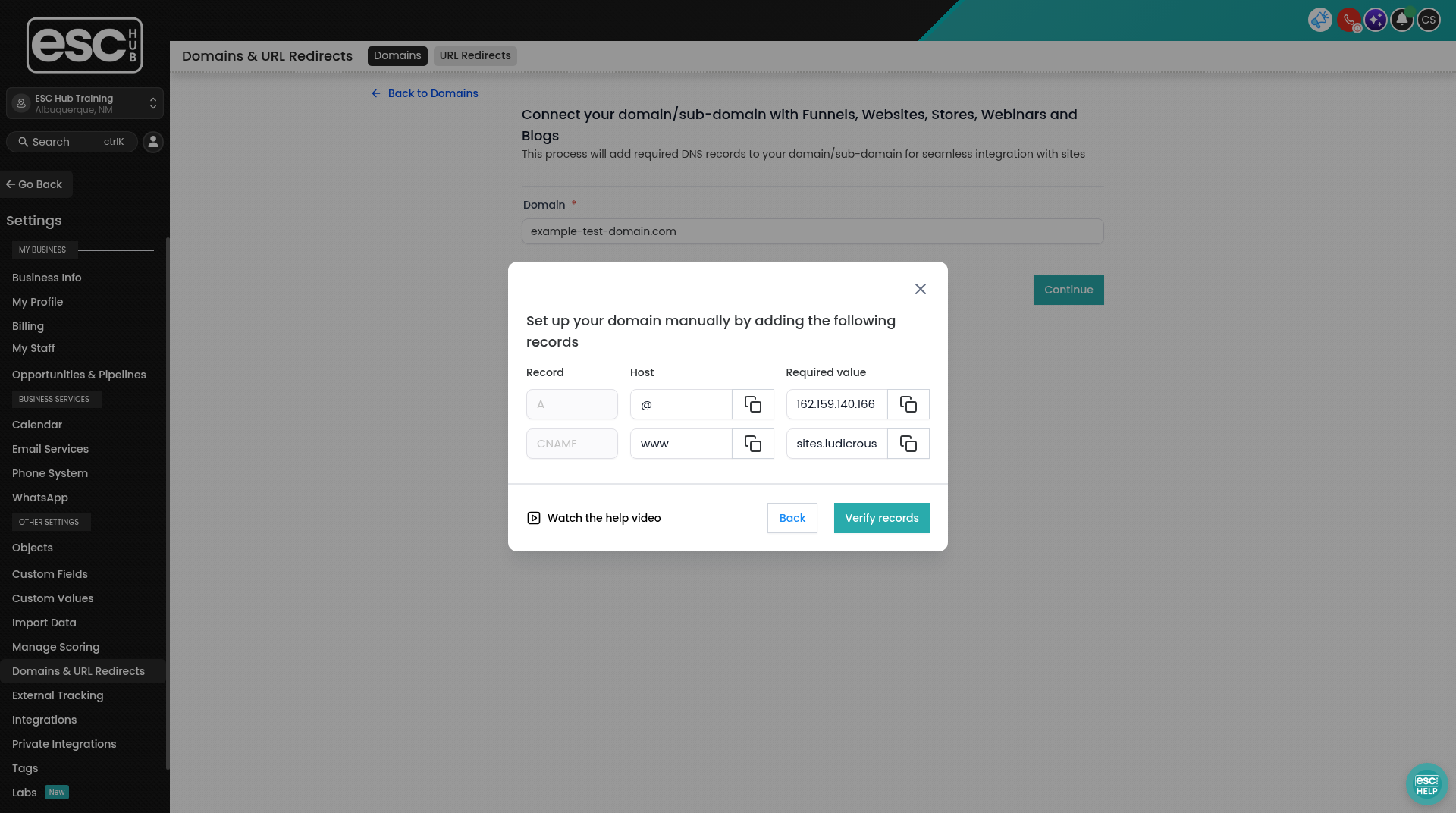
Keep this screen open, or copy the rows into a note. Then add each record at your provider, using the steps below. When the records are in place, return to ESC Hub and select Verify records.
Find the DNS page at your provider
DNS settings live under different names. Look in your domain or hosting account for a page called any of these:
- DNS
- DNS Zone or Zone File
- Manage DNS
- Advanced DNS
- DNS Management
- DNS Records or Host Records
You can usually get there by selecting your domain, then looking for DNS, DNS settings or nameservers. If the domain uses another company's nameservers (for example Cloudflare), add the records there, not at the registrar.
Add an A record
An A record points a name to an IPv4 address. ESC Hub will give you the IP. For the root domain, the host is usually @.
- On the DNS page, select the button to add a record. It might be labelled Add, Add Record, Add New Record or Create.
- Set the type to A.
- In the host or name field, enter
@for the root domain, or only the prefix ESC Hub shows. Do not type the full domain name if the form only wants the prefix. - In the value, points-to or IP field, paste the IP address from ESC Hub. For the website setup, that is often
162.159.140.166, but only if that is what your screen shows. - Leave the TTL at the default unless ESC Hub specifies a different setting.
- Save the record.
If the provider will not accept @, try leaving the host blank, or use the bare domain, then confirm in the provider's help article.
Add a CNAME record
A CNAME points a prefix, such as www, to another hostname. It cannot point to an IP address, and the host cannot usually be @.
- Add a new record and set the type to CNAME.
- In the host or name field, enter only the prefix from ESC Hub, such as
www. - In the value or points-to field, paste the hostname from ESC Hub. For the website setup, that is often
sites.ludicrous.cloud, but only if that is what your screen shows. - Leave the TTL at the default unless ESC Hub specifies a different setting.
- Save the record.
If ESC Hub also shows TXT or MX records, add those the same way. Paste the values exactly, including any underscores, quotes or full stops. For MX records, include the priority number ESC Hub shows.
How long it takes
Most DNS changes start working within an hour, and can take up to 48 hours to update everywhere. That wait is normal. You can use a public lookup tool such as dnschecker.org to see when the records appear.
Once they are visible, return to ESC Hub and select Verify records, then finish the connection there.
If you get stuck, send this to your provider's support
If you cannot find the DNS page, or a record will not save, you can paste this into a support request at your provider. Replace the example rows with the exact records from your ESC Hub screen.
Hi, I am connecting my domain to ESC Hub and need these DNS records added exactly as written.
Record: A. Host: @. Required value: 162.159.140.166
Record: CNAME. Host: www. Required value: sites.ludicrous.cloudPlease use the values I have pasted, not similar ones, and leave any existing records I have not asked you to change, especially mail records I have not listed.
Could you confirm once they are in place? Thank you.
Add or remove rows so the message matches what ESC Hub is showing you. If ESC Hub gave you TXT or MX records, include those too.
If something looks wrong
- Confirm you are editing DNS at the company that actually holds the nameservers for the domain.
- Compare every character of the host and value with ESC Hub, including underscores and full stops.
- For a CNAME, the host should be only the prefix, such as
www, not@. - For an A record, the value must be an IP address.
- If email suddenly stops, check whether an MX or TXT (SPF) record was changed by mistake.
If you get stuck, contact us through ESC Hub and we will help you get the records in place.
