
How to add DNS records in GoDaddy for ESC Hub
When you connect a custom domain or an email sending domain to ESC Hub, you add a few DNS records in GoDaddy. Those records tell the internet where your website should load, and they help inboxes trust mail that comes from your domain.
Copy the exact values from your ESC Hub account. Then add them in GoDaddy, one record at a time. You do not need to guess any IP addresses, hostnames or text strings.
What you'll need
- Your GoDaddy login
- Access to your ESC Hub account, with the DNS records on screen
- About 10 minutes, plus waiting time for the records to update around the internet
Copy the records from ESC Hub
Start here, so you have the exact values in front of you before you change anything at GoDaddy.
- In ESC Hub, open Settings in the left menu. Under OTHER SETTINGS, select Domains & URL Redirects, then the Domains tab.
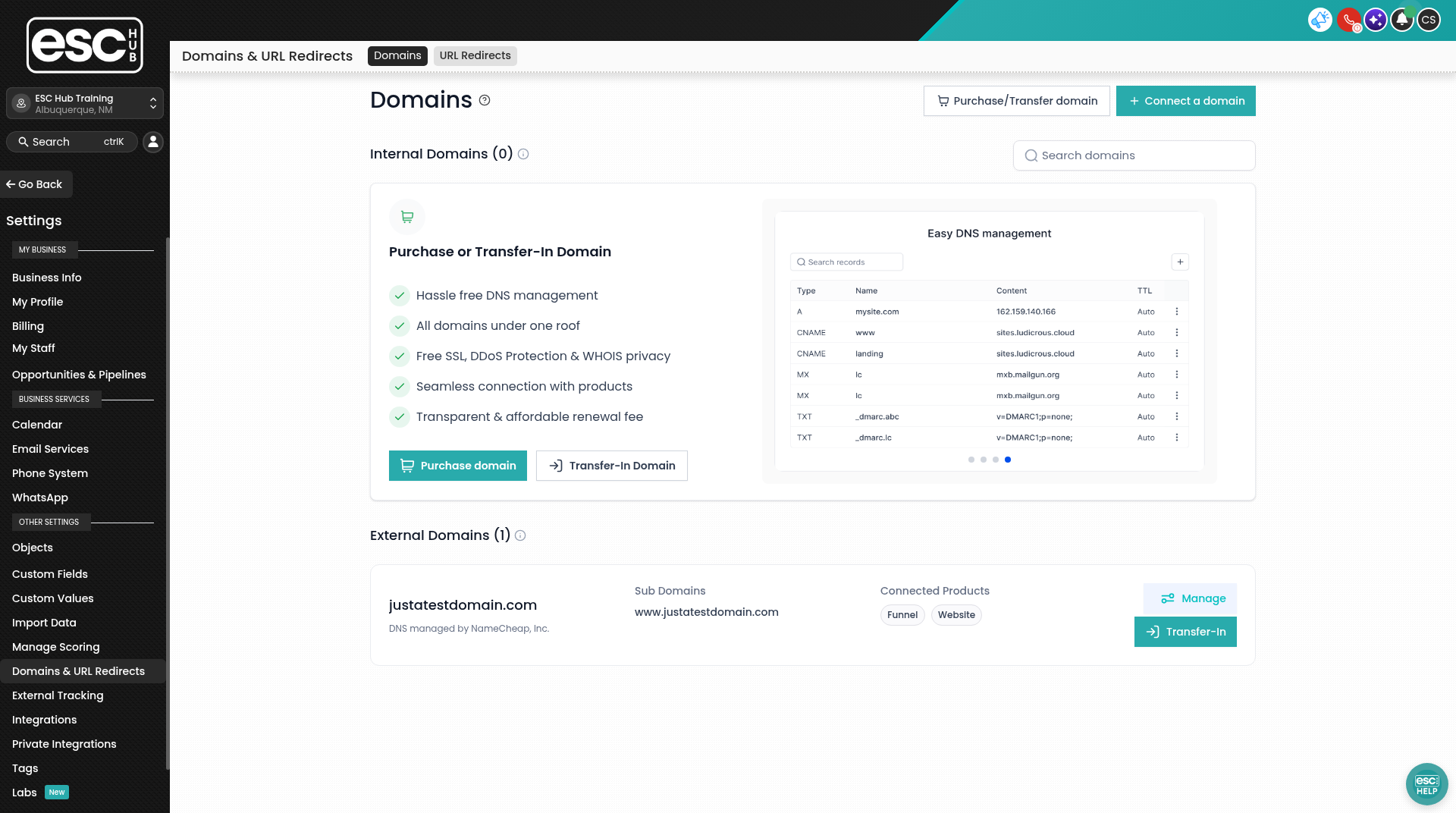
- Select + Connect a domain.
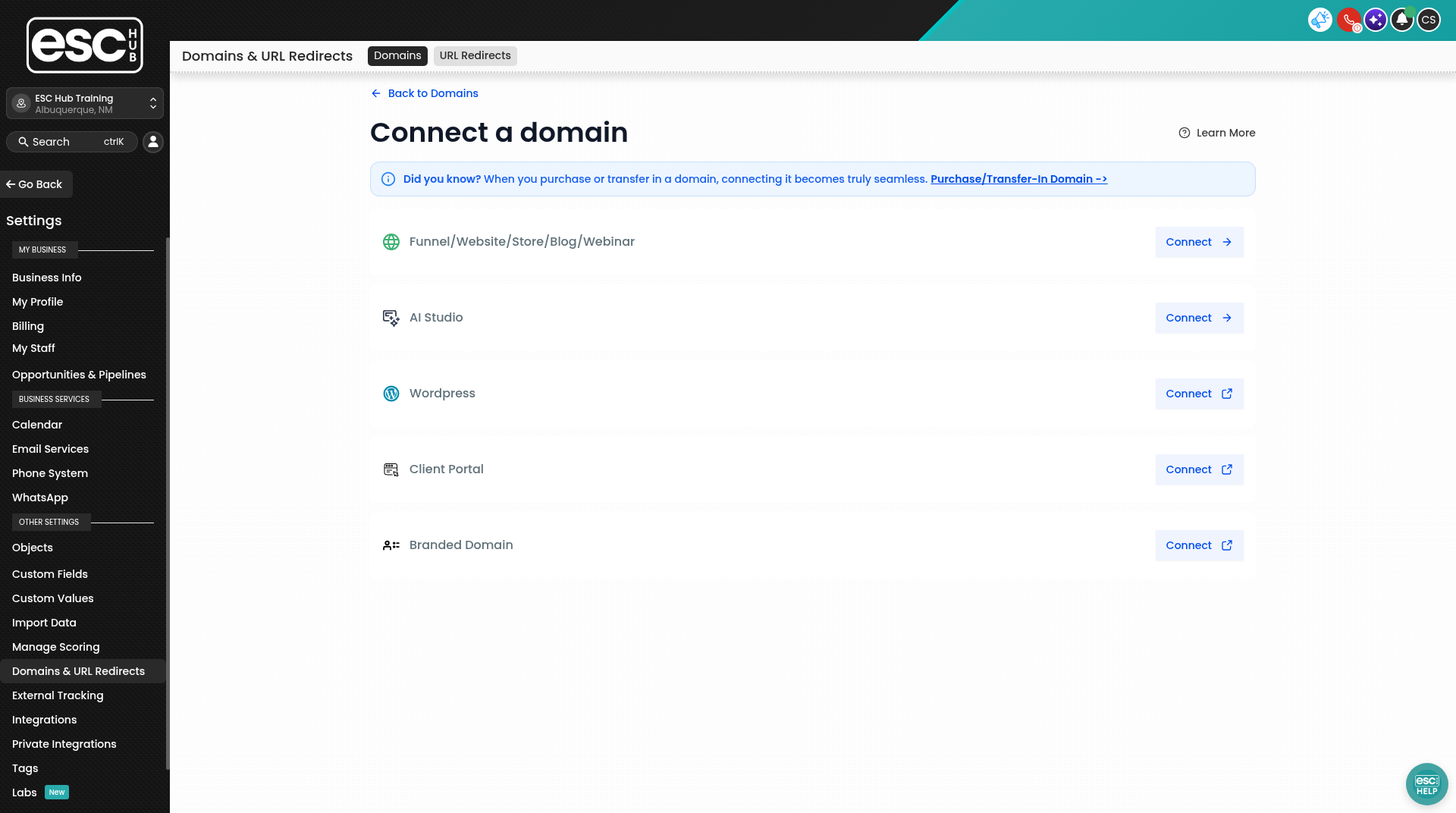
- Next to Funnel/Website/Store/Blog/Webinar, select Connect. If you are connecting something else, choose that row instead and copy every record ESC Hub shows you.
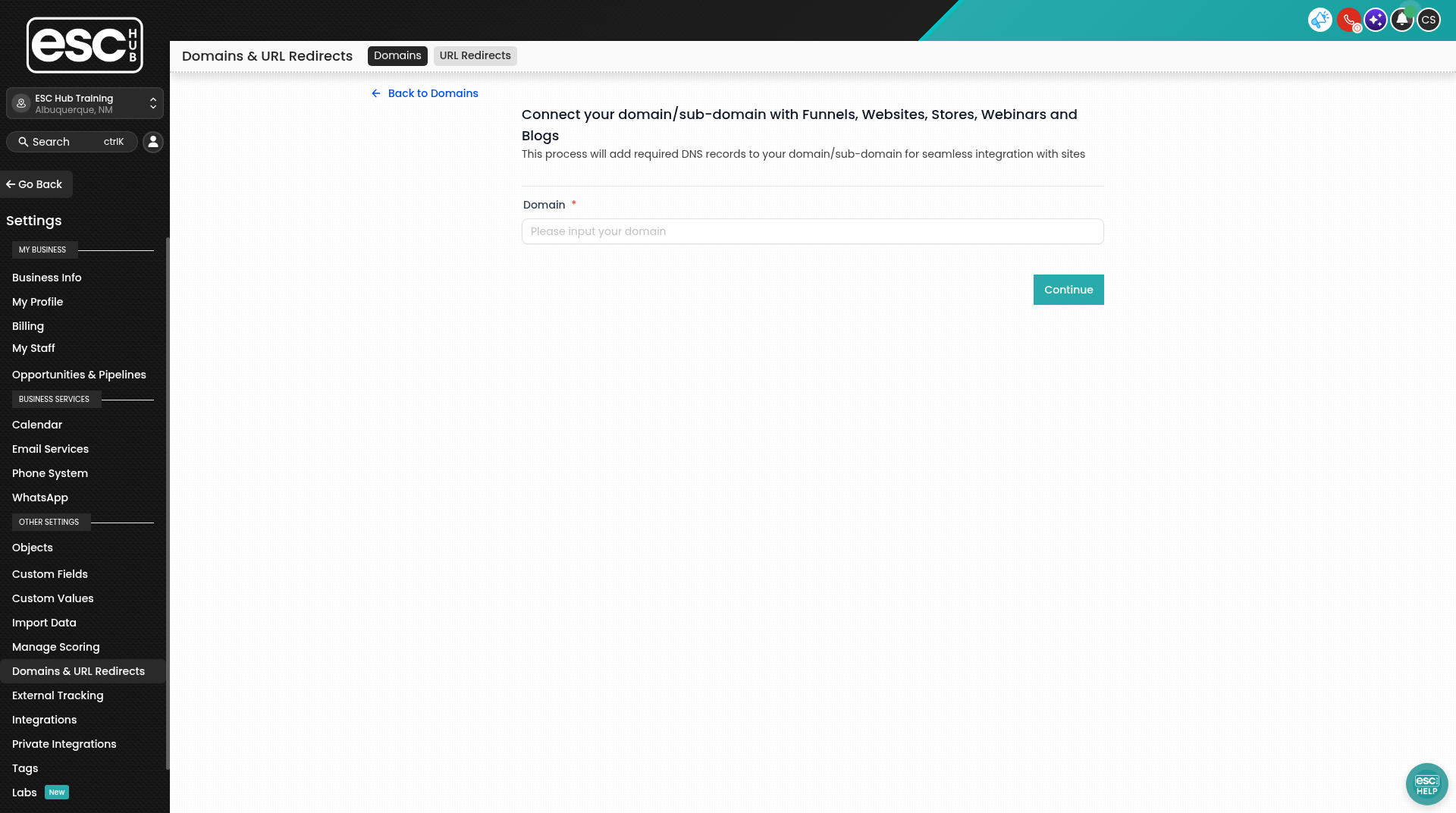
- In the
Domain *field, enter your domain and select Continue.
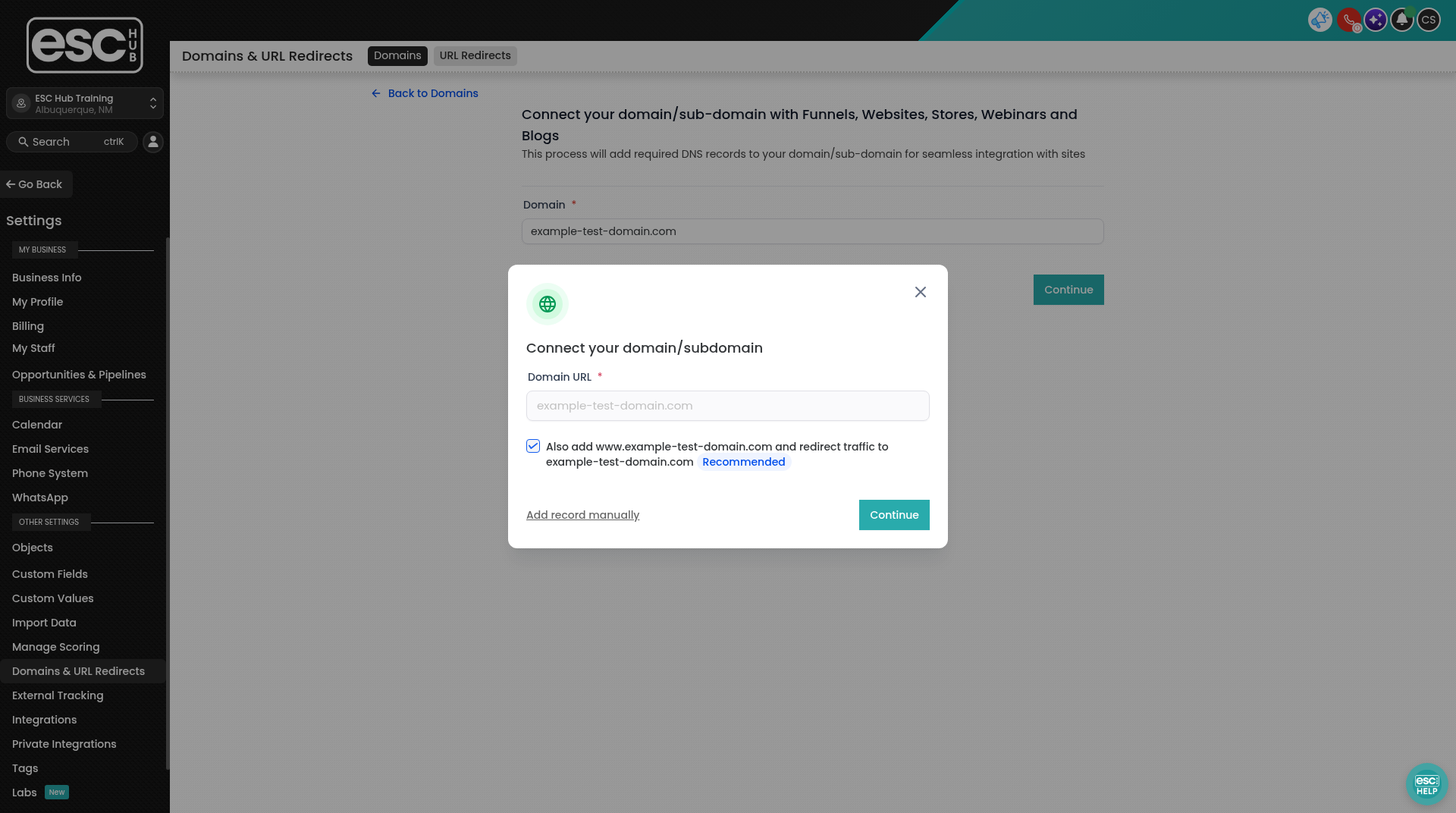
- In the Connect your domain/subdomain dialog, you will see a
Domain URL *field. Leave Also add www.[domain] and redirect traffic to [domain] ticked if you want the www version to work as well. It is marked Recommended. Then select Add record manually.
- You will land on Set up your domain manually by adding the following records. The table has three columns: Record, Host and Required value.
For a website or funnel connection, you will usually see two rows like this:
- A, Host @, Required value 162.159.140.166
- CNAME, Host www, Required value sites.ludicrous.cloud
Copy the exact values from your own screen. If ESC Hub shows different values, or also shows TXT or MX records (for example when you are connecting email), use those instead. The values above are an example of what the website setup often looks like, not a list to type from memory.
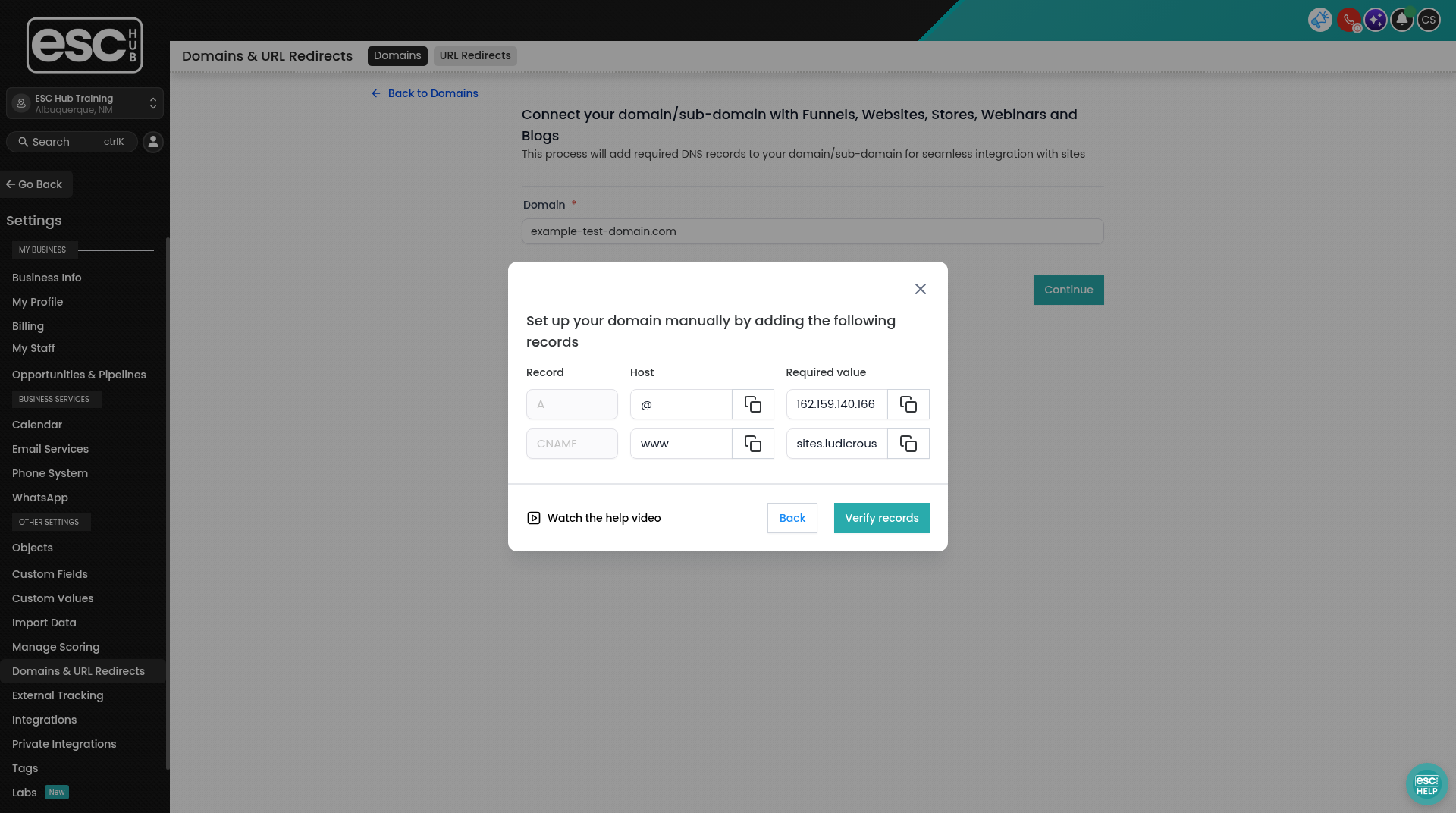
Keep this screen open, or copy the rows into a note. Then add each record at GoDaddy, using the steps below. When the records are in place, return to ESC Hub and select Verify records.
Before you start
DNS only works at GoDaddy if your domain is using GoDaddy nameservers. If you registered the domain at GoDaddy but pointed the nameservers to Cloudflare or another host, make the changes there instead.
Leave any records you do not recognise in place unless ESC Hub is asking you to replace a specific row, especially MX records that already deliver your email.
Or bring your domain into ESC Hub
You can add the records in GoDaddy and leave the domain where it is. You can also transfer it into ESC Hub, so registration, DNS, your website and email are all in the same account.
When you transfer, you pay for one more year. You do not lose any time you have already paid for. The leftover time carries over, and the extra year is added on top. So if you paid for a year a month ago, you will then have 23 months until your next charge.
It also makes it much easier for us to help you. If something is off with DNS, email or your site setup, the ESC Hub team can look at it with you in one place. You do not have to log in to a separate registrar just to change a record.
The steps are in How to Bring Your Domain Into ESC Hub (And Why It's Worth It).
1. Open your domain's DNS settings
- Sign in to your GoDaddy Domain Portfolio.
- Select the domain you want to connect.
- Select DNS to open the list of records.
2. Add an A record
An A record points a name to an IPv4 address. ESC Hub may ask for one or more of these for your root domain (yourdomain.com) or a subdomain.
- Select Add New Record, then choose A from the Type menu.
- In Name, enter
@for the root domain, or only the prefix ESC Hub shows, such asblog. Do not type the full domain name in this field. - In Value, paste the IP address from ESC Hub.
- Leave TTL at the default (1 hour) unless ESC Hub specifies a different setting.
- Select Save. If you are adding several records at once, select Save All Records.
If Domain Protection is on, GoDaddy may ask you to confirm your identity first.
3. Add a CNAME record
A CNAME points a prefix, such as www, to another hostname. It cannot point to an IP address, and the Name cannot be @.
- Select Add New Record, then choose CNAME.
- In Name, enter only the prefix from ESC Hub, such as
www. - In Value, paste the destination hostname from ESC Hub. Do not include
https://or a page path. - Leave TTL at the default unless ESC Hub says otherwise.
- Select Save.
4. Add a TXT record
TXT records are used for domain verification and for email authentication, including SPF, DKIM and DMARC. Paste the text exactly as ESC Hub shows it.
- Select Add New Record, then choose TXT.
- In Name, enter
@if the record belongs on the root domain, or the prefix ESC Hub shows (for example a DKIM host such asesc._domainkey). - In Value, paste the full text string. Do not add extra quotation marks unless they appear in ESC Hub.
- Leave TTL at the default.
- Select Save.
Repeat this for every TXT record ESC Hub lists.
5. Add an MX record, if ESC Hub shows one
MX records control where incoming email for your domain is delivered. Only add or change these if ESC Hub (or your email provider) has given you MX values. Changing MX records can interrupt existing email.
- Select Add New Record, then choose MX.
- In Name, enter
@for the root domain, unless ESC Hub shows a prefix. - In Priority, enter the number ESC Hub shows. A lower number is tried first.
- In Value, paste the mail server hostname. This must be a domain name, not an IP address.
- Select Save.
If a record already exists
To change a row instead of adding a new one, select Edit next to that record, update the fields, and select Save. Do not create a second A or CNAME with the same Name if GoDaddy is already using that name for something else. Edit the existing row, or remove only the record ESC Hub has asked you to replace.
How long it takes
GoDaddy says most DNS changes start working within an hour, and can take up to 48 hours to update everywhere. That wait is normal. You can check the Propagation column on the DNS page, or use a public lookup tool such as dnschecker.org.
Once the records are visible, return to ESC Hub and finish the connection or verification step there.
If something looks wrong
- Confirm you are editing the domain that uses GoDaddy nameservers.
- Compare every character of the Name and Value with ESC Hub, including underscores and full stops.
- For CNAME, make sure Name is only the prefix, not
@. - For A records, the Value must be an IP address.
- If email suddenly stops, check whether an MX or TXT (SPF) record was changed by mistake.
If your domain is not at GoDaddy, or the labels in this guide do not match what you see, use How to add DNS records for ESC Hub with any other provider.
Source: Add an A record, Add a CNAME record, Add a TXT record, Add an MX record and Manage DNS records in GoDaddy's official help centre. Pages verified 16 November 2026.
If you get stuck, contact us through ESC Hub and we will help you get the records in place.
