
How to add DNS records in Squarespace for ESC Hub
If your domain is registered with Squarespace, or it used to live at Google Domains, you add ESC Hub's DNS records in the Squarespace domains dashboard. Those records connect your website and help email from your domain get delivered.
Paste every value exactly as ESC Hub shows it. Squarespace often asks for your password or a 2FA check before it will save a change, so have that ready.
What you'll need
- A Squarespace login that can manage the domain
- The DNS records listed in your ESC Hub account
- About 10 to 15 minutes, plus 24 to 48 hours for the records to update everywhere
Copy the records from ESC Hub
Start here, so you have the exact values in front of you before you change anything at Squarespace.
- In ESC Hub, open Settings in the left menu. Under OTHER SETTINGS, select Domains & URL Redirects, then the Domains tab.
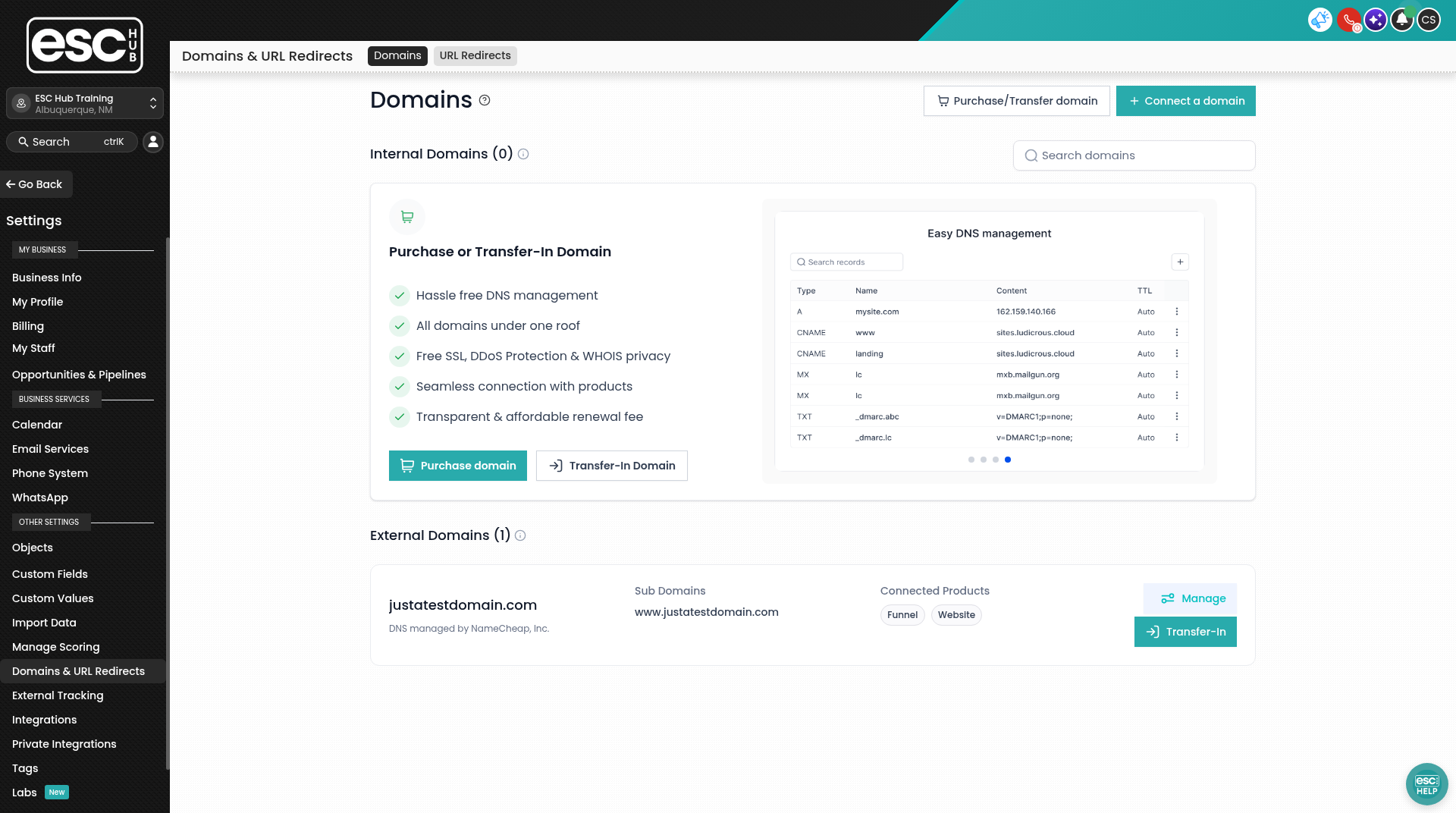
- Select + Connect a domain.
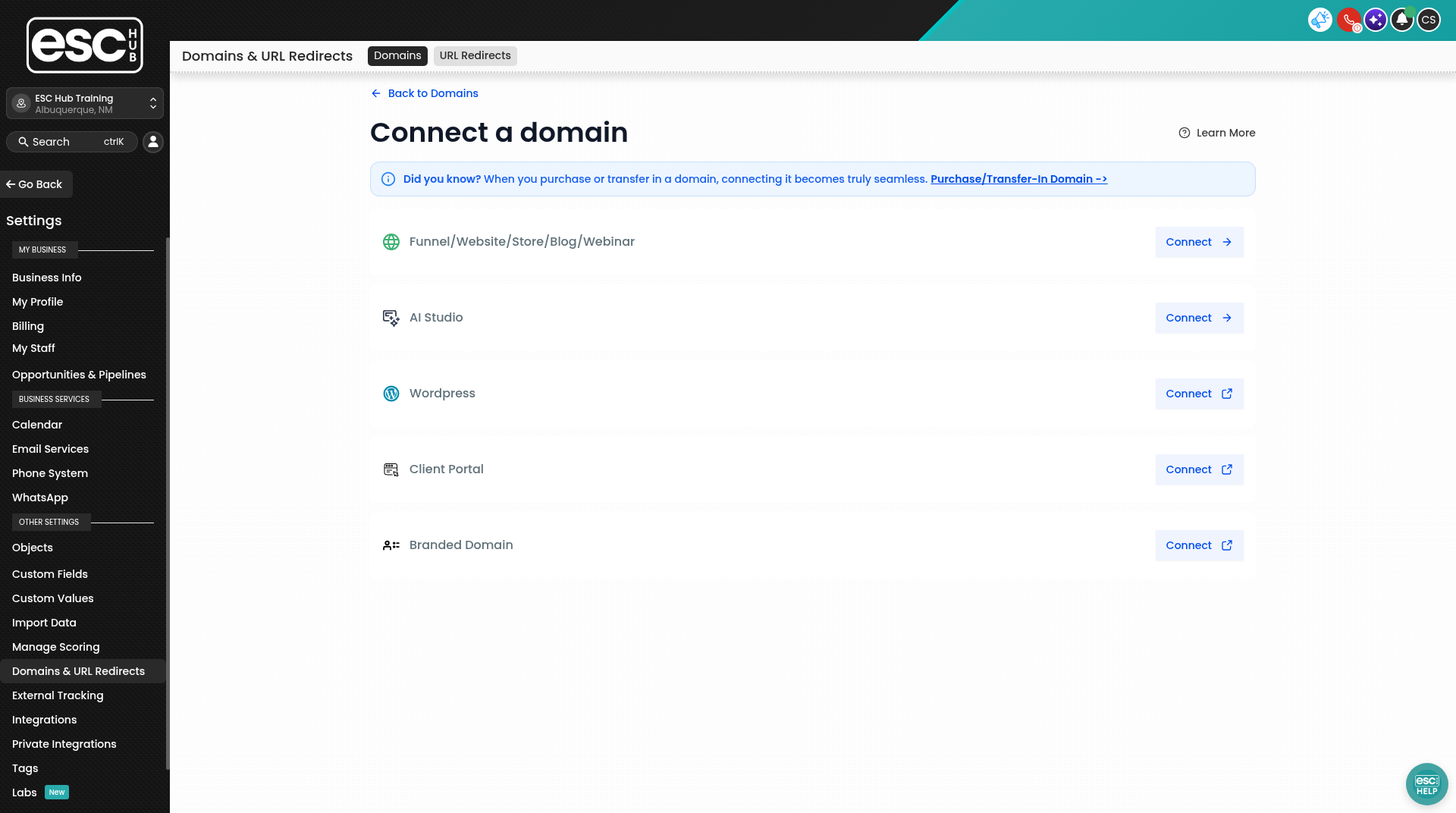
- Next to Funnel/Website/Store/Blog/Webinar, select Connect. If you are connecting something else, choose that row instead and copy every record ESC Hub shows you.
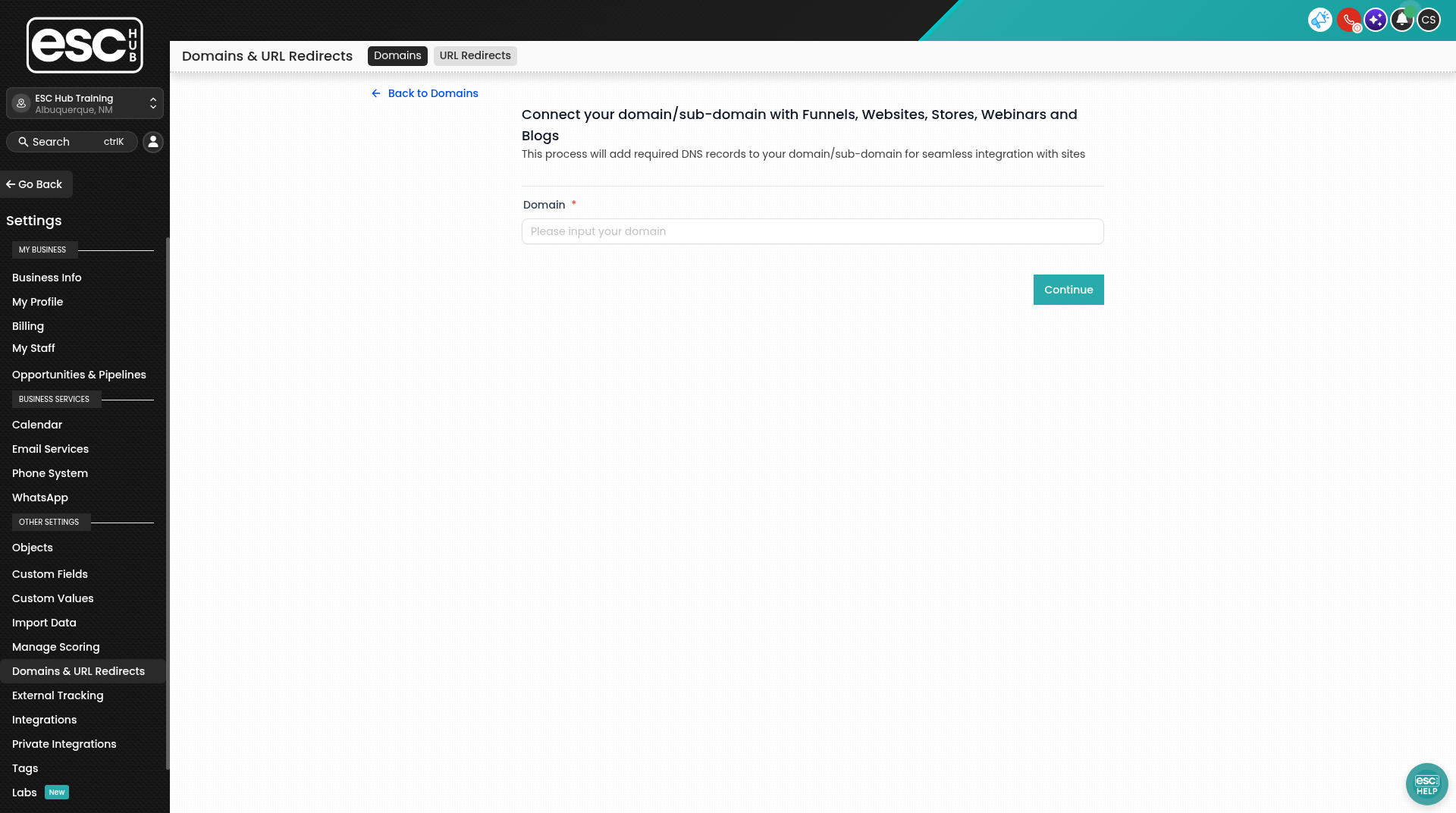
- In the
Domain *field, enter your domain and select Continue.
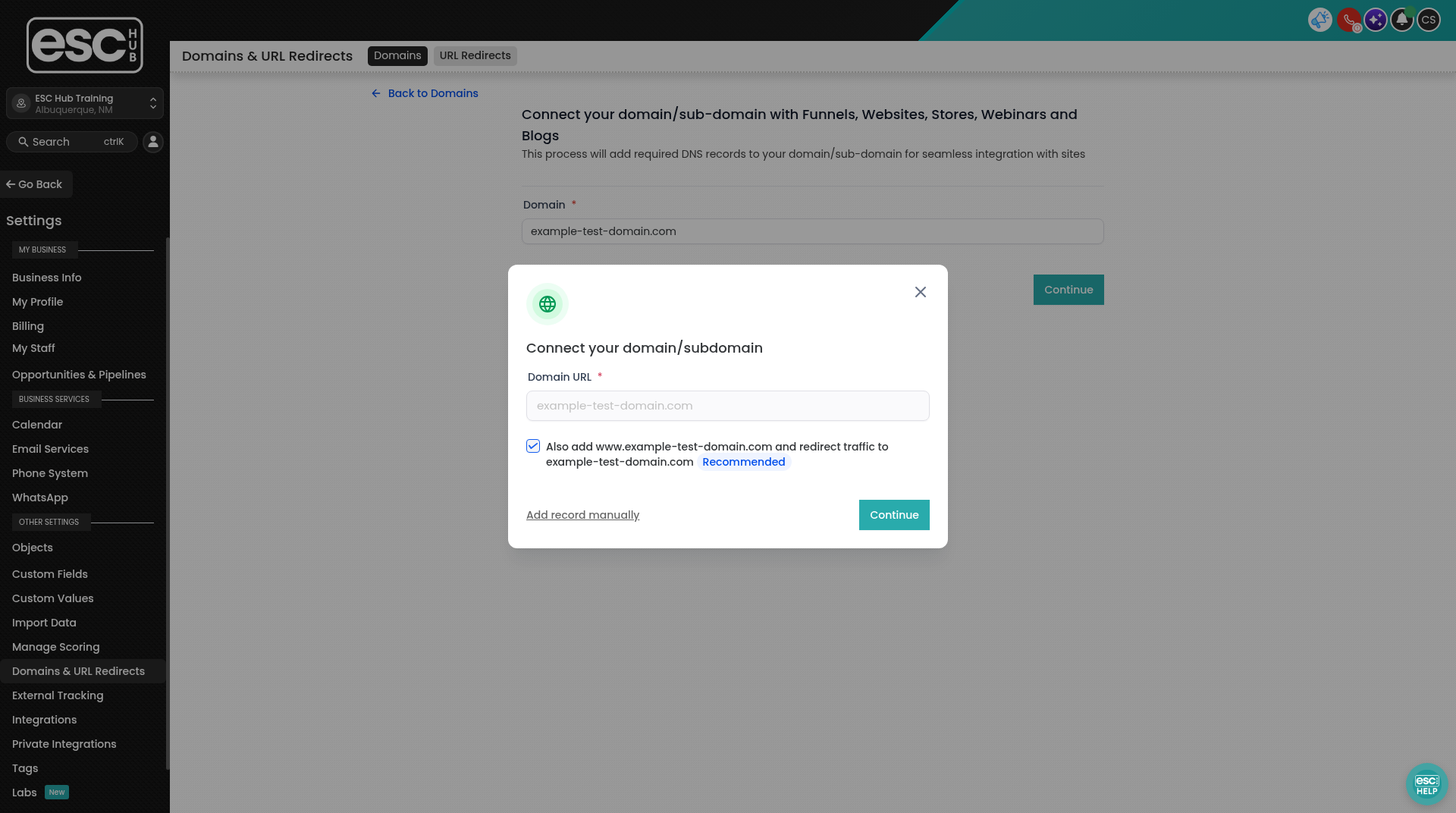
- In the Connect your domain/subdomain dialog, you will see a
Domain URL *field. Leave Also add www.[domain] and redirect traffic to [domain] ticked if you want the www version to work as well. It is marked Recommended. Then select Add record manually.
- You will land on Set up your domain manually by adding the following records. The table has three columns: Record, Host and Required value.
For a website or funnel connection, you will usually see two rows like this:
- A, Host @, Required value 162.159.140.166
- CNAME, Host www, Required value sites.ludicrous.cloud
Copy the exact values from your own screen. If ESC Hub shows different values, or also shows TXT or MX records (for example when you are connecting email), use those instead. The values above are an example of what the website setup often looks like, not a list to type from memory.
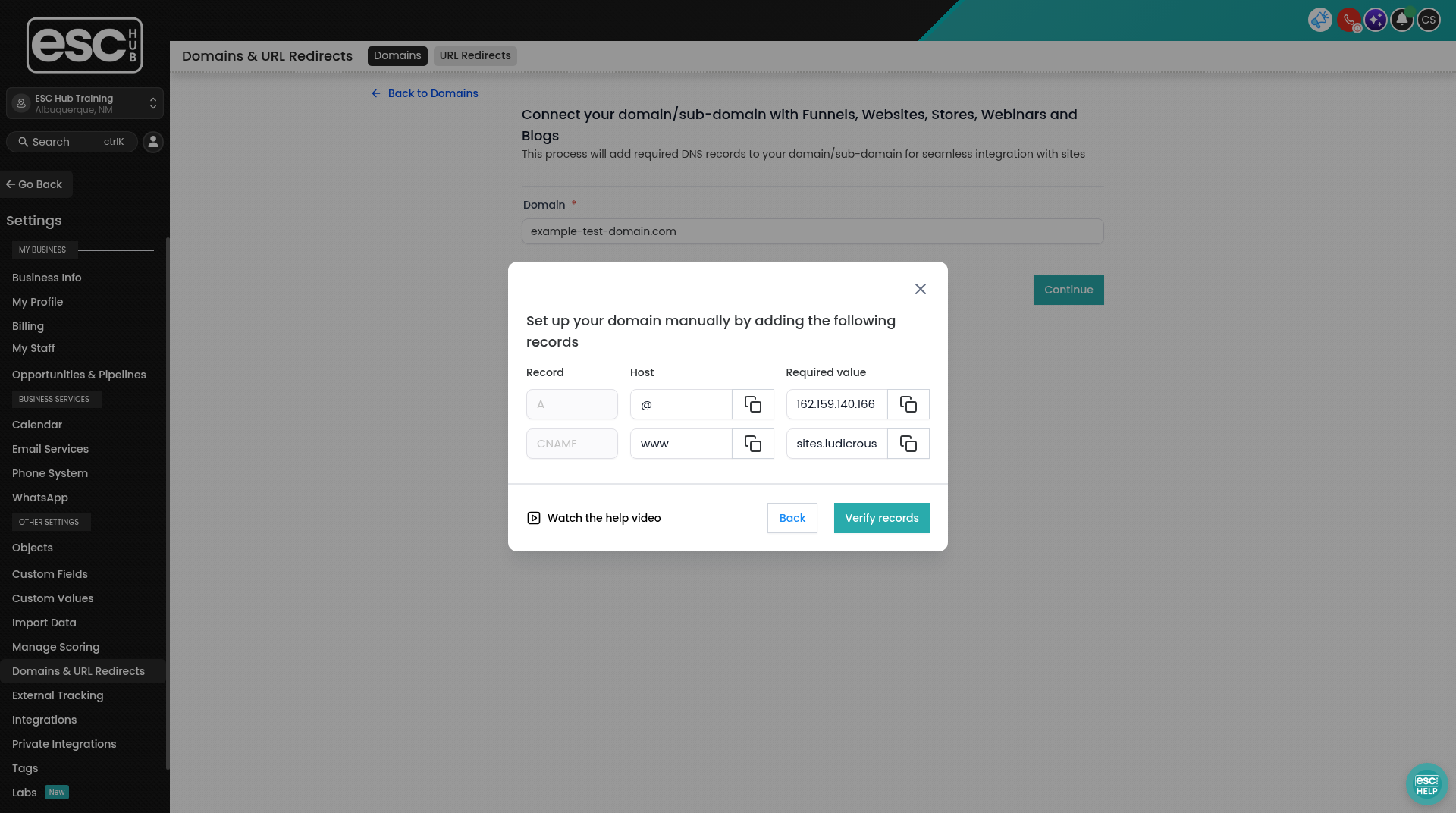
Keep this screen open, or copy the rows into a note. Then add each record at Squarespace, using the steps below. When the records are in place, return to ESC Hub and select Verify records.
If this domain came from Google Domains
Google Domains accounts moved to Squarespace. You now manage DNS in Squarespace, not in a Google Domains panel.
- If you already had a Squarespace account on the same email address, sign in at squarespace.com/login and open your domains dashboard.
- If you did not have a Squarespace account, one was created with your Google Domains email. On the login page, choose Continue with Google and use that same Google account.
- If you see an authorisation error, go back to the login page, choose Can't log in, then Send verification email. Open the message titled "Verification email for Squarespace Domains", verify, and create a password.
Once you are in, the steps below are the same as for any other Squarespace-managed domain.
Squarespace may already have added a unique CNAME ending in .googlehosted.com for Google services. Leave that record in place unless you know you no longer need it.
Before you start
You can edit DNS in Squarespace when the domain is registered there, or when a third-party domain is connected with Nameserver Connect. If the domain is only connected to a Squarespace website with DNS Connect, add the ESC Hub records at the original provider instead.
If you sign into Squarespace with an email address at this same domain, change that account email before you delete or replace MX records. Otherwise a mail outage can lock you out of password resets.
Or bring your domain into ESC Hub
You can add the records in Squarespace and leave the domain where it is. You can also transfer it into ESC Hub, so registration, DNS, your website and email are all in the same account.
When you transfer, you pay for one more year. You do not lose any time you have already paid for. The leftover time carries over, and the extra year is added on top. So if you paid for a year a month ago, you will then have 23 months until your next charge.
It also makes it much easier for us to help you. If something is off with DNS, email or your site setup, the ESC Hub team can look at it with you in one place. You do not have to log in to a separate registrar just to change a record.
The steps are in How to Bring Your Domain Into ESC Hub (And Why It's Worth It).
1. Open DNS Settings
- Open your domains dashboard and click the domain name. If you have more than one domain, each has its own records.
- Click DNS, then DNS Settings.
- Scroll down to Custom Records.
2. Add an A record
- Click Add record.
- Enter your current password, or complete 2FA, then click Continue.
- In the Type dropdown, select A.
- In Name, enter the host ESC Hub shows. Use
@for the root domain if that is what appears in ESC Hub. - In IP Address, paste the IPv4 address from ESC Hub.
- Click Save.
Repeat if ESC Hub lists more than one A record.
3. Add a CNAME record
A CNAME points a subdomain, including www, to another hostname. Squarespace does not allow @ in the Name field for a CNAME. The destination cannot include slashes or colons.
- Click Add record, then confirm your password or 2FA if asked.
- Set Type to CNAME.
- In Name, enter only the prefix from ESC Hub, such as
www. - In Data, paste the hostname from ESC Hub, with no
https://. - Click Save.
4. Add a TXT record
TXT records are used for verification, SPF, DKIM and DMARC. Squarespace adds your domain to the Name field automatically. If ESC Hub shows the full domain as the host, enter @. If it shows something like mail.yourdomain.com, enter mail.
- Click Add record, then confirm your password or 2FA if asked.
- Set Type to TXT.
- In Name, enter
@or the prefix from ESC Hub. - In Text, paste the value exactly.
- Click Save, then repeat for every TXT record.
Custom records default to a 4-hour TTL, which is fine unless ESC Hub asks for something else.
5. Add an MX record, if ESC Hub shows one
Only add MX records if ESC Hub has given you mail server values. Changing MX records can interrupt existing email.
Do not use Squarespace's email presets (Google Workspace, Titan and similar) for ESC Hub records. Add a custom MX record instead.
- Click Add record, then confirm your password or 2FA if asked.
- Set Type to MX.
- In Name, enter
@, or the subdomain if ESC Hub shows one. - In Priority, enter the number from ESC Hub. A lower number is tried first.
- Paste the mail server hostname into the remaining data field.
- Click Save. Add every MX record in the list.
How long it takes
Squarespace says DNS changes can take 24 to 48 hours. After you save the last record, go back to ESC Hub and complete verification once the records resolve.
If something looks wrong
- Confirm the domain is managed in Squarespace, not only connected with DNS Connect.
- If you cannot save a record, Squarespace may be reporting a conflict with an existing record or a forwarding rule. Review the current Custom Records list before adding a duplicate.
- Leave any
.googlehosted.comCNAME from the Google Domains migration in place unless you are sure it is unused. - If you use this domain as your Squarespace login email, do not remove MX records until you have changed that login address.
If your domain is not at Squarespace, or the labels in this guide do not match what you see, use How to add DNS records for ESC Hub with any other provider.
Source: Edit your domain's DNS records, DNS records for web hosting, Adding TXT records, Add DNS records for email and About the Google Domains migration to Squarespace. Pages verified 16 November 2026.
If you get stuck, contact us through ESC Hub and we will help you get the records in place.
