
Set Your Brand's Fonts Once in Brand Boards
Your brand isn't just your logo and colours. The fonts you use, and how they sit together, are a big part of how you look consistent everywhere.
Up to now the Typography tab in Brand Boards was fairly basic. That's changed. You can now set a full font hierarchy once, and reuse it.
What landed
The Typography tab now gives you a complete style set to work with: Headings 1 to 6, Subtitle 1 and 2, Body 1 and 2, Caption, and Overline, alongside the basic font settings.
The best part is that the system maps your fonts and sizes across that whole hierarchy by default. So you're not setting ten styles by hand. It makes sensible choices, and you tweak only what you want to change.
Any manual adjustment you make is saved and sticks. No redoing it next time you open the board.
How to set it up
Open your Brand Board and go to the Typography tab. You'll see the full set of styles laid out, already filled in with smart defaults.
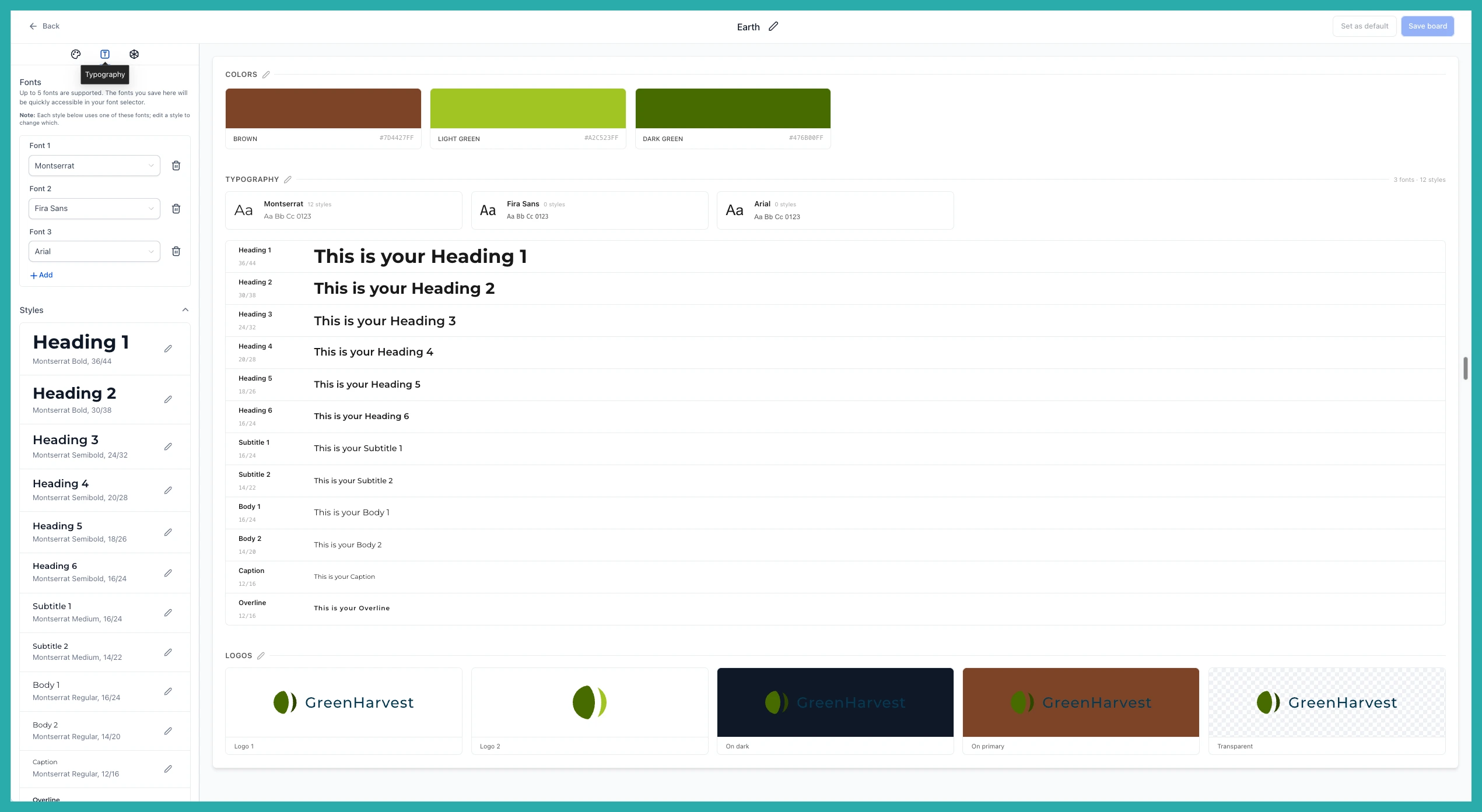
Have a look through Headings 1 to 6, Subtitle 1 and 2, Body 1 and 2, Caption, and Overline. For most people the defaults are a fine starting point.
If you want to change something, adjust the font style, size, weight and line height on any individual style. Those changes save and persist.
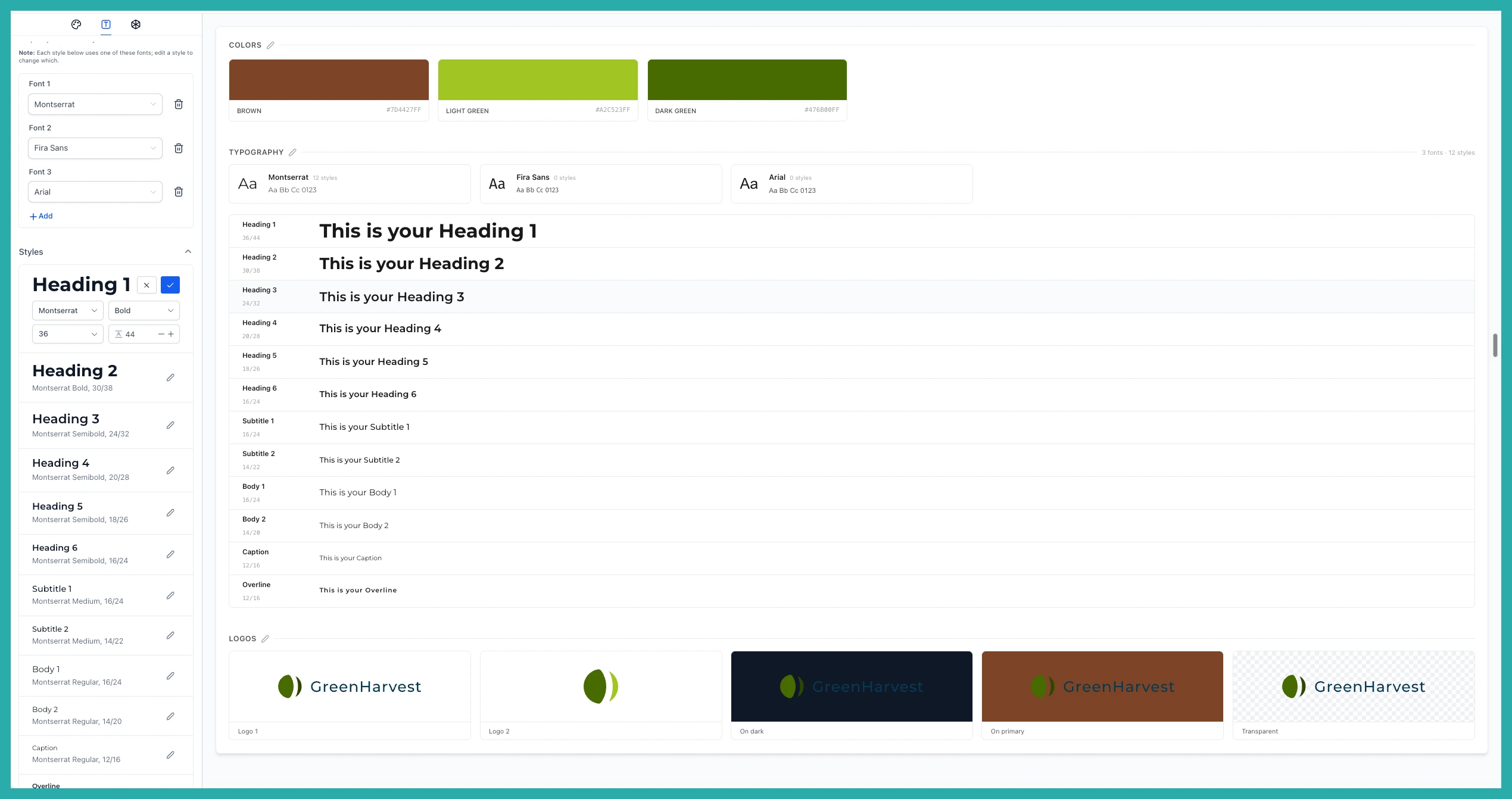
Before you commit, check the redesigned preview panel. It shows your whole hierarchy side by side - headings, subtitles, body, captions and overlines - so you can see how it all looks together rather than one style at a time.
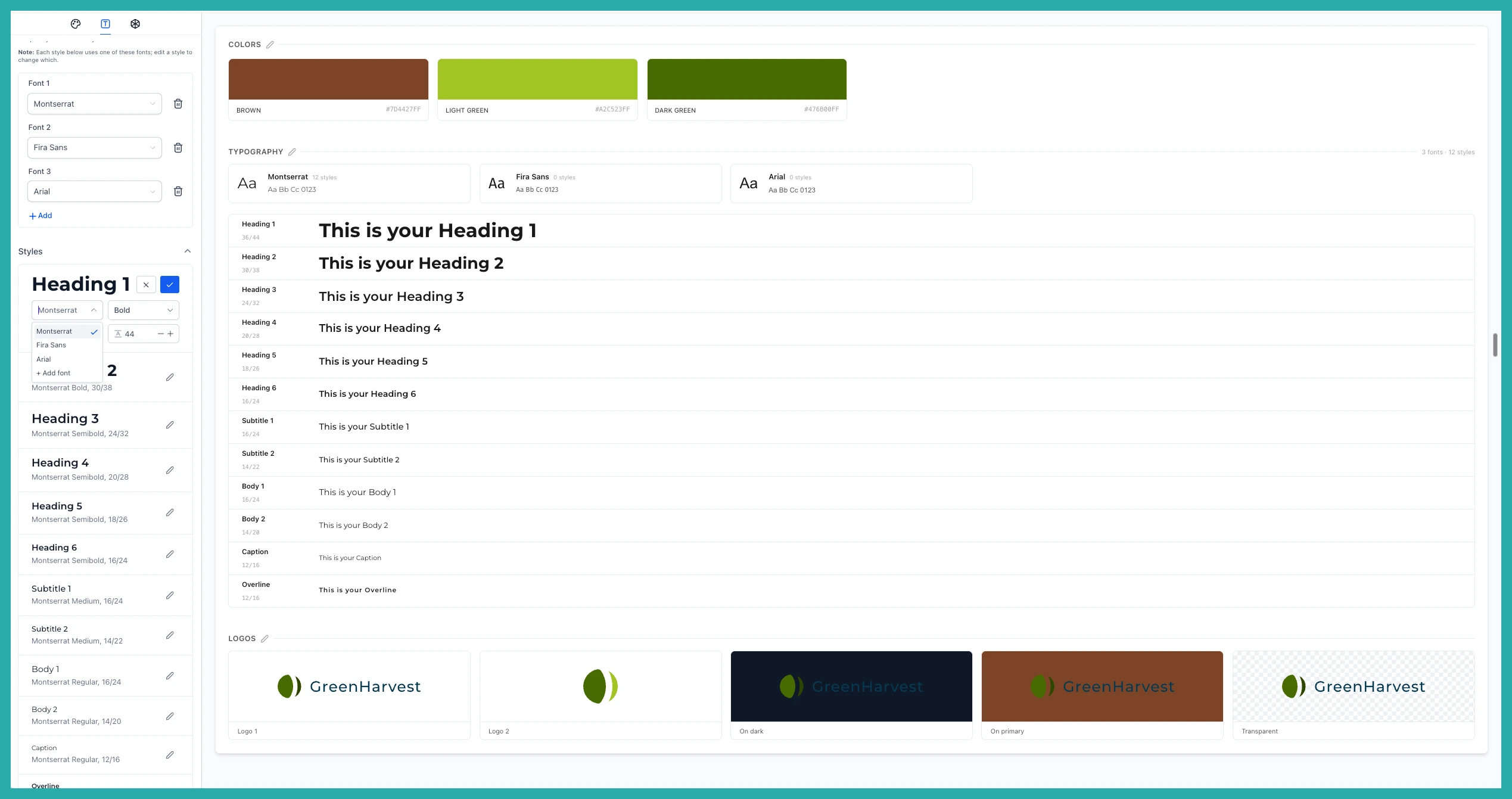
Happy with it? Save the board.
One note
This lives inside Brand Boards for now. Typography support is coming to the Funnels builder very soon, with Websites, Forms and Emails to follow after that.
Set it once now and your fonts will be ready to carry through as each builder comes online. A few minutes today saves you fiddling later.
