
Find Any Message in Conversations with Keyword Search
You remember a customer mentioned a price, or a date, or a competitor's name. You just can't remember who, or where in the thread it was. So you start scrolling, and guessing, and scrolling some more.
That's done. Conversations now lets you search by any word or phrase, both across your whole inbox and inside a single thread. Type what you remember, and the right message comes straight to you.
Two ways to search
There are two levels here, and you'll use both.
Across every conversation: type a keyword and the system finds every thread where that word or phrase was mentioned. You get a count, plus a preview of the matching message for each contact, with your keyword highlighted. The same box also takes a contact name, email address, or phone number, so it's one place for everything.
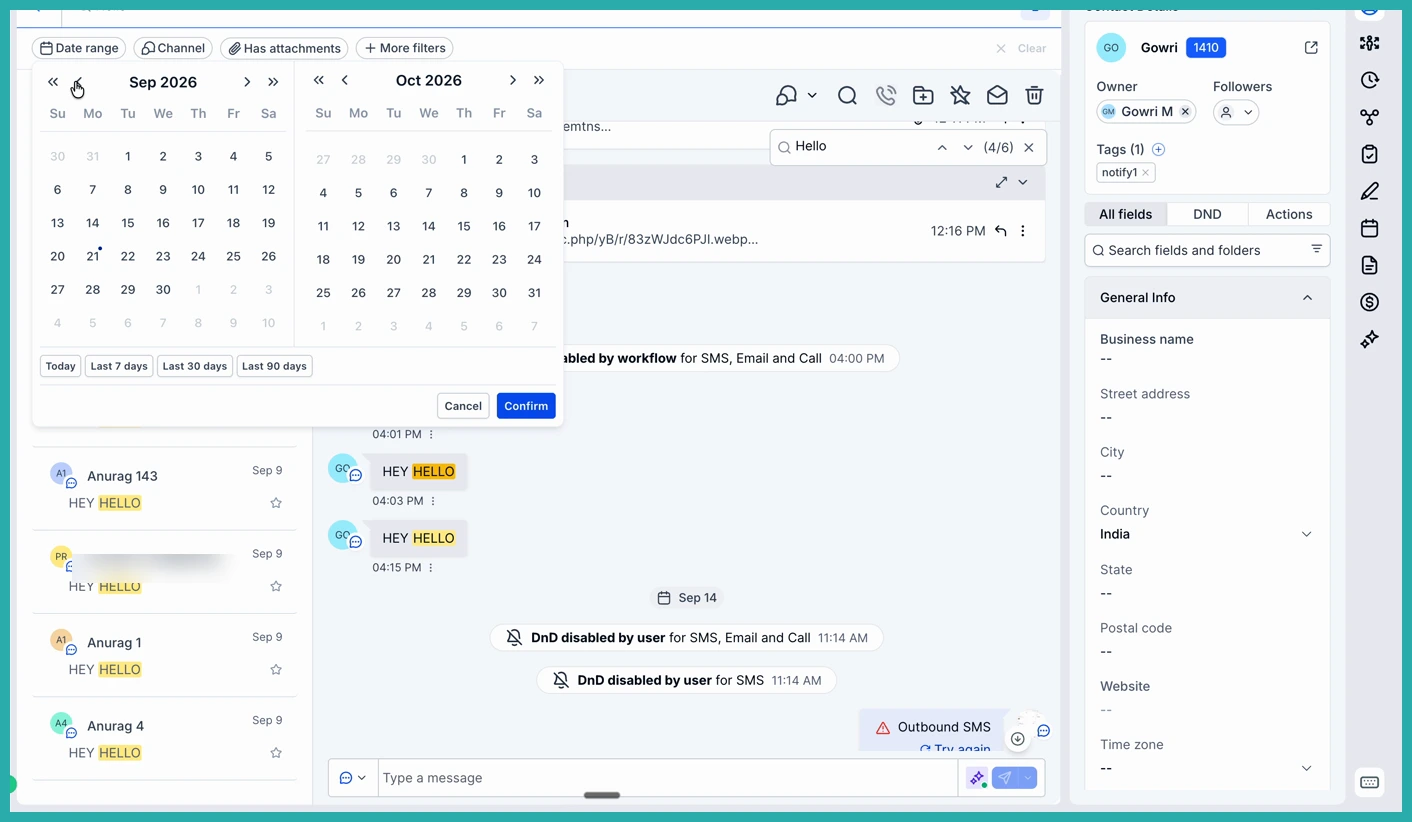
Inside one conversation: open a thread and search within it. Every match is highlighted, a little counter shows where you are (like 6/6), and up and down arrows jump you between matches. If you came in from an inbox-wide search, your keyword is already filled in for you.
How to use it
Go to Conversations and click the search icon at the top of the conversation list on the left.
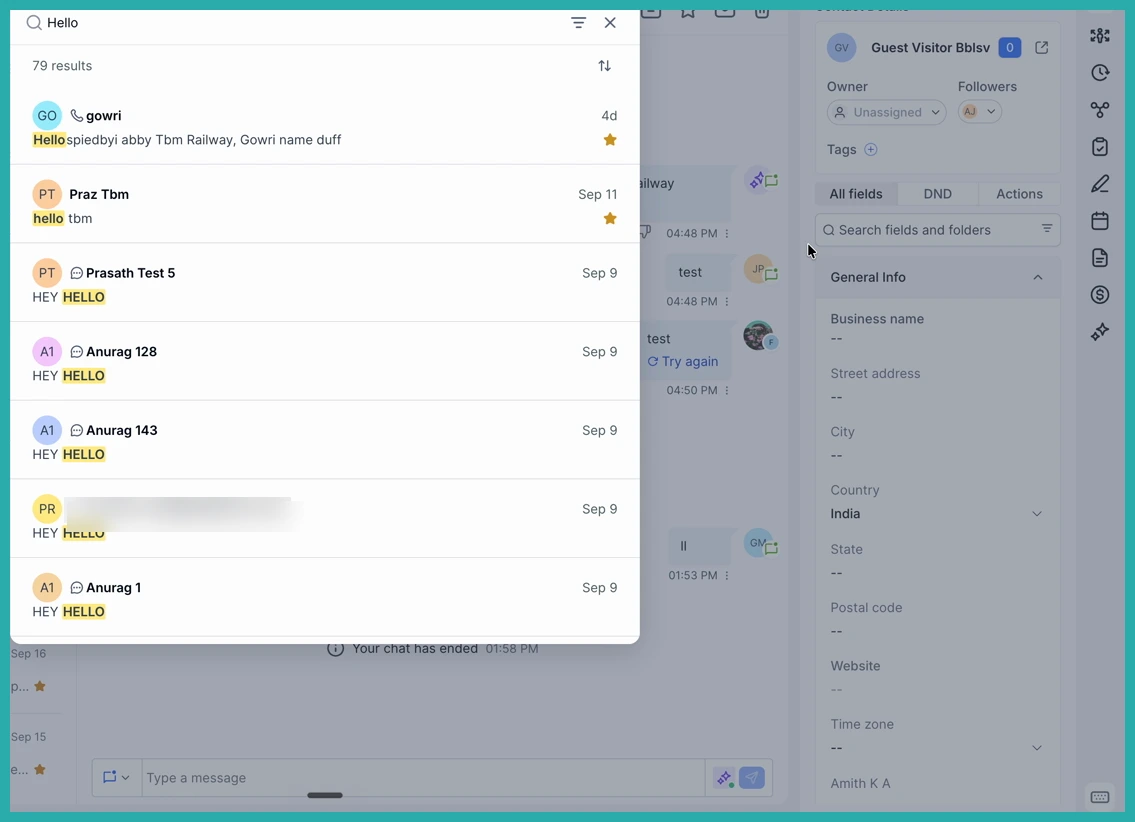
Type a keyword, name, email, or phone number. Results appear as you type, each with a preview and your word highlighted.
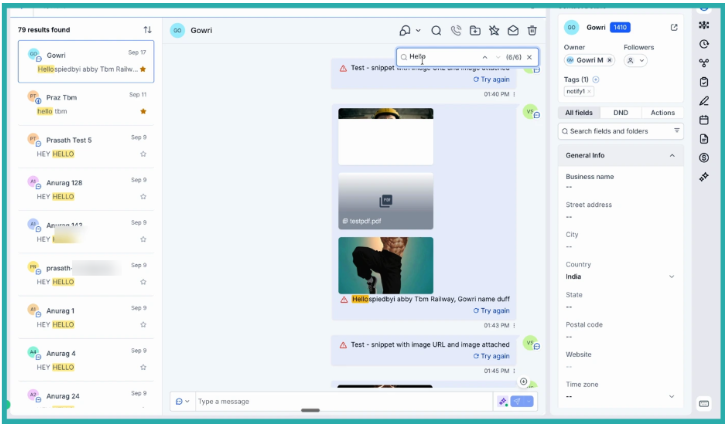
Click any result to open that conversation right at the matching message. No scrolling to find it.
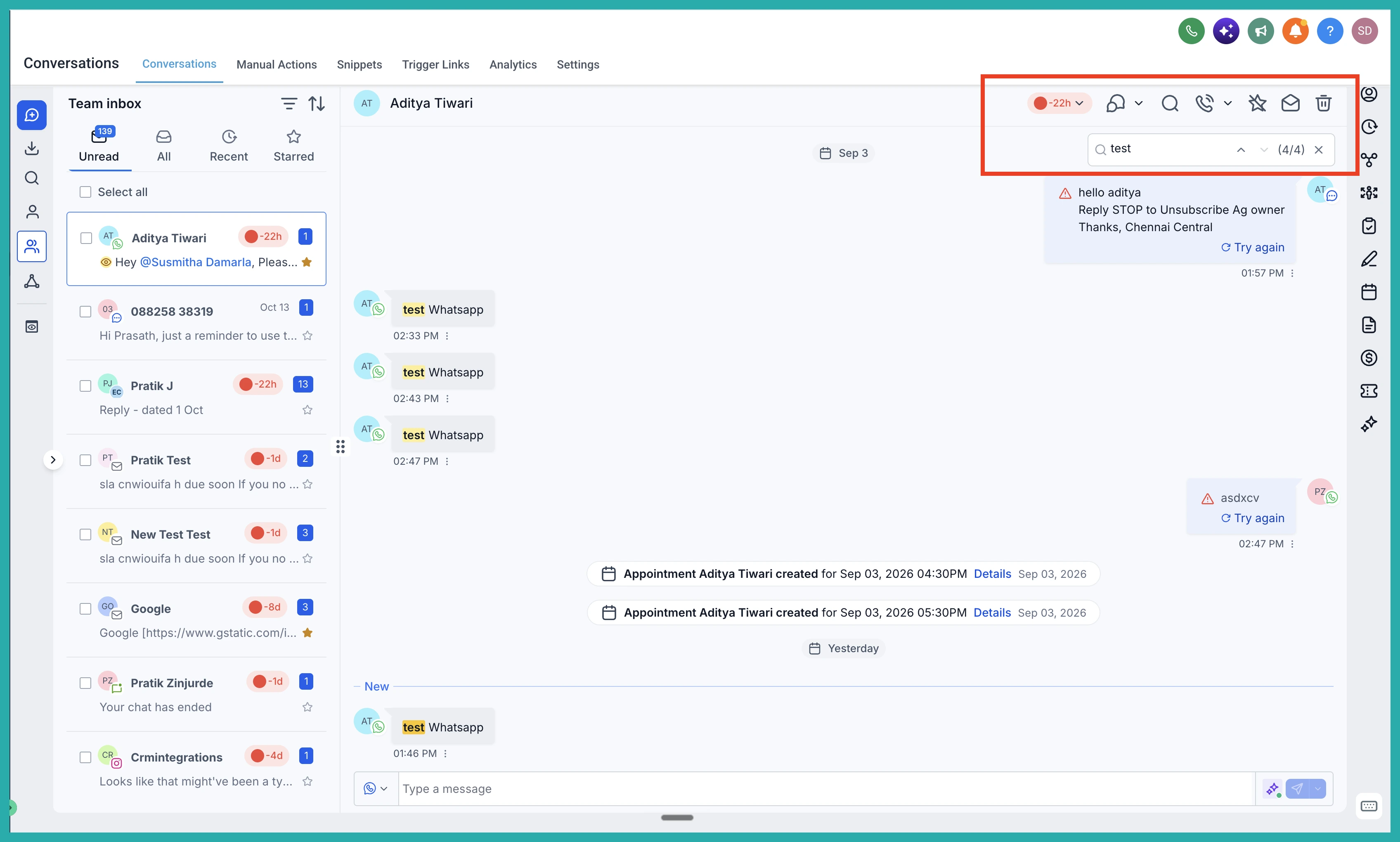
Once you're inside a thread, click the search icon in the header to search within that conversation. Use the up and down arrows to move between matches.
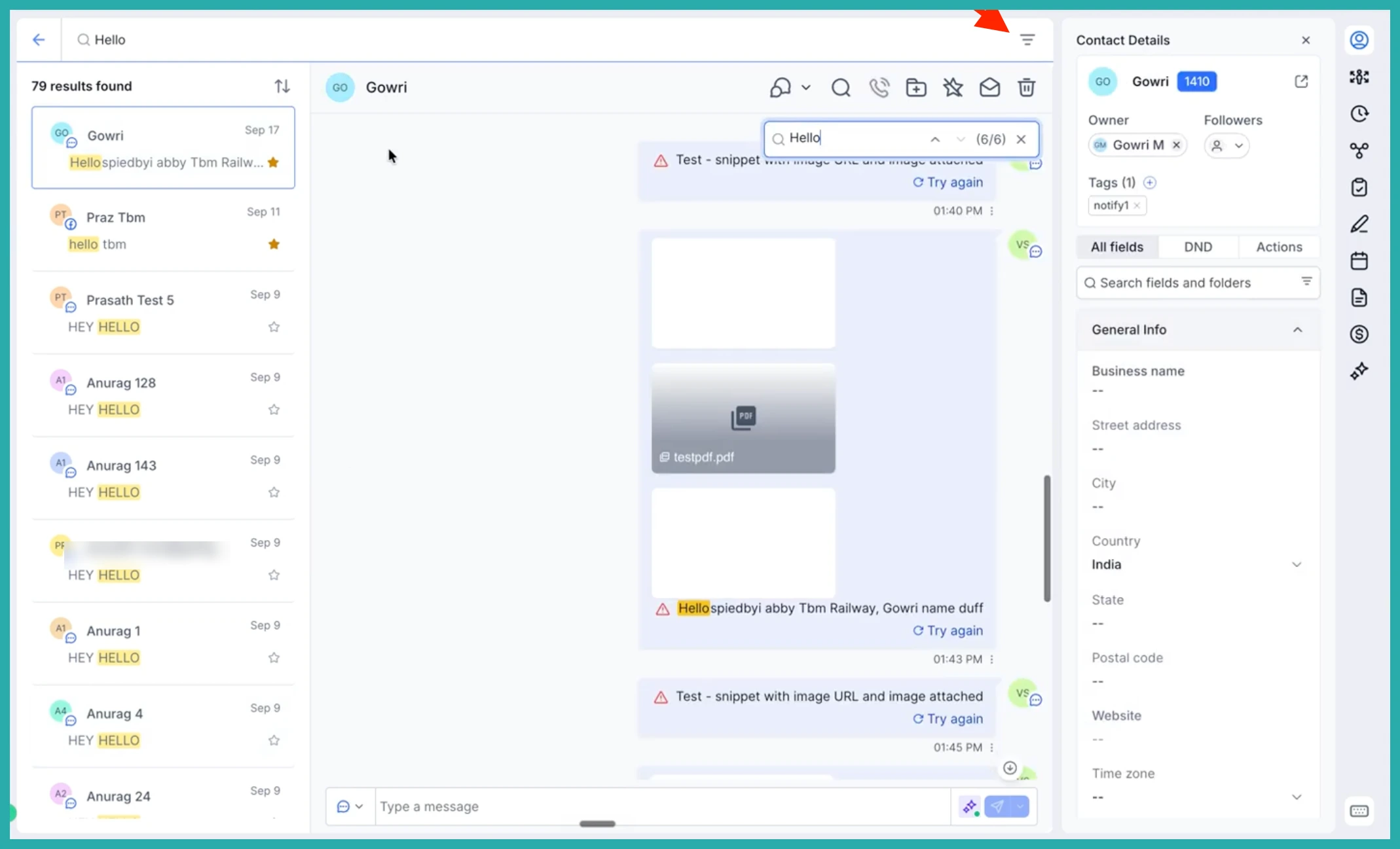
Narrow it down when you need to
If a keyword turns up a lot of results, use the filter icon on the results list. You can narrow by date range, channel (Email, SMS, Facebook, WhatsApp, Instagram), direction, owner, attachments, and followers.
Say a customer mentioned a competitor last week but you can't recall who. Search the name across your inbox and open the right thread in seconds. Or you're deep in a long conversation and need the amount you quoted. Search the figure and jump straight to it.
This was one of the most requested features on the Ideas Board, and it's the kind of thing you'll wonder how you managed without. Next time you're hunting for something someone said, just search for it.
