
Coming soon: Your AI Agent Can Now Reply With Buttons, Lists, Images and Files
Coming soon
This one isn't available in your account just yet. We're sharing it now so you know what's on the way, and we'll let you know as soon as you can use it.
Up to now, your AI agent could only talk back in plain text. Helpful, but a bit flat. If someone asked to see a property, a price list or a brochure, the best it could do was paste a link and hope.
That just changed. Your Conversation AI agent can now reply with proper rich elements: tappable buttons, menus, link buttons, images and files, plus bold and italic text on WhatsApp. They show up natively on WhatsApp, Facebook Messenger, Instagram and Live Chat.
What landed
There are six elements your agent can now use:
- Formatted text (bold and italic, WhatsApp only)
- Quick replies - tappable reply buttons
- Link button - a button that opens a URL
- List - a menu of options to choose from
- Image
- File - a document like a PDF or spreadsheet
And here's the part that keeps it safe: nothing is ever lost. If a channel can't show one of these elements, or a reply runs over that channel's limit, the content is simply written into the message text instead. So on SMS, Email and anywhere else, the same reply still arrives as readable text, with options as bullets and links spelled out in full.
Where to find it
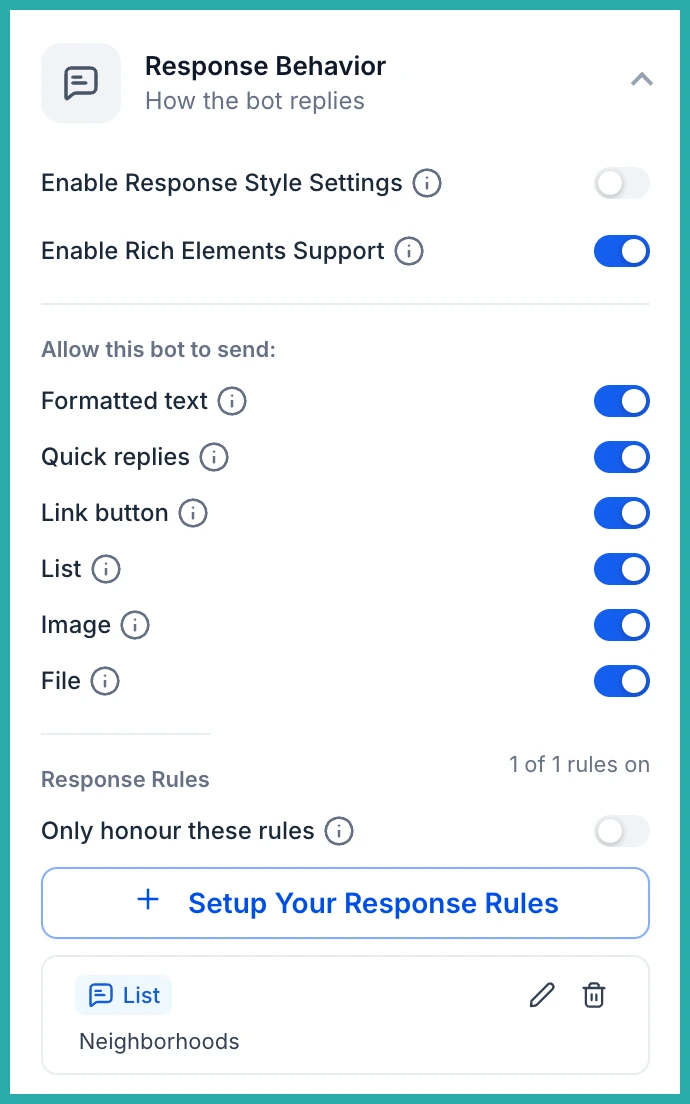
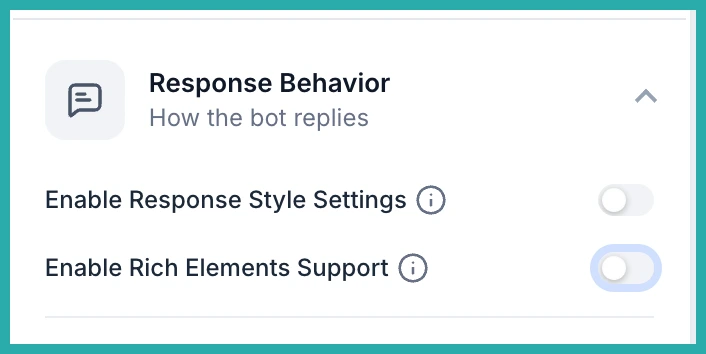
Open your agent under AI Agents, then Conversation AI. Expand Response Behavior and switch on Enable Rich Elements Support. That's the master switch that brings everything below to life.
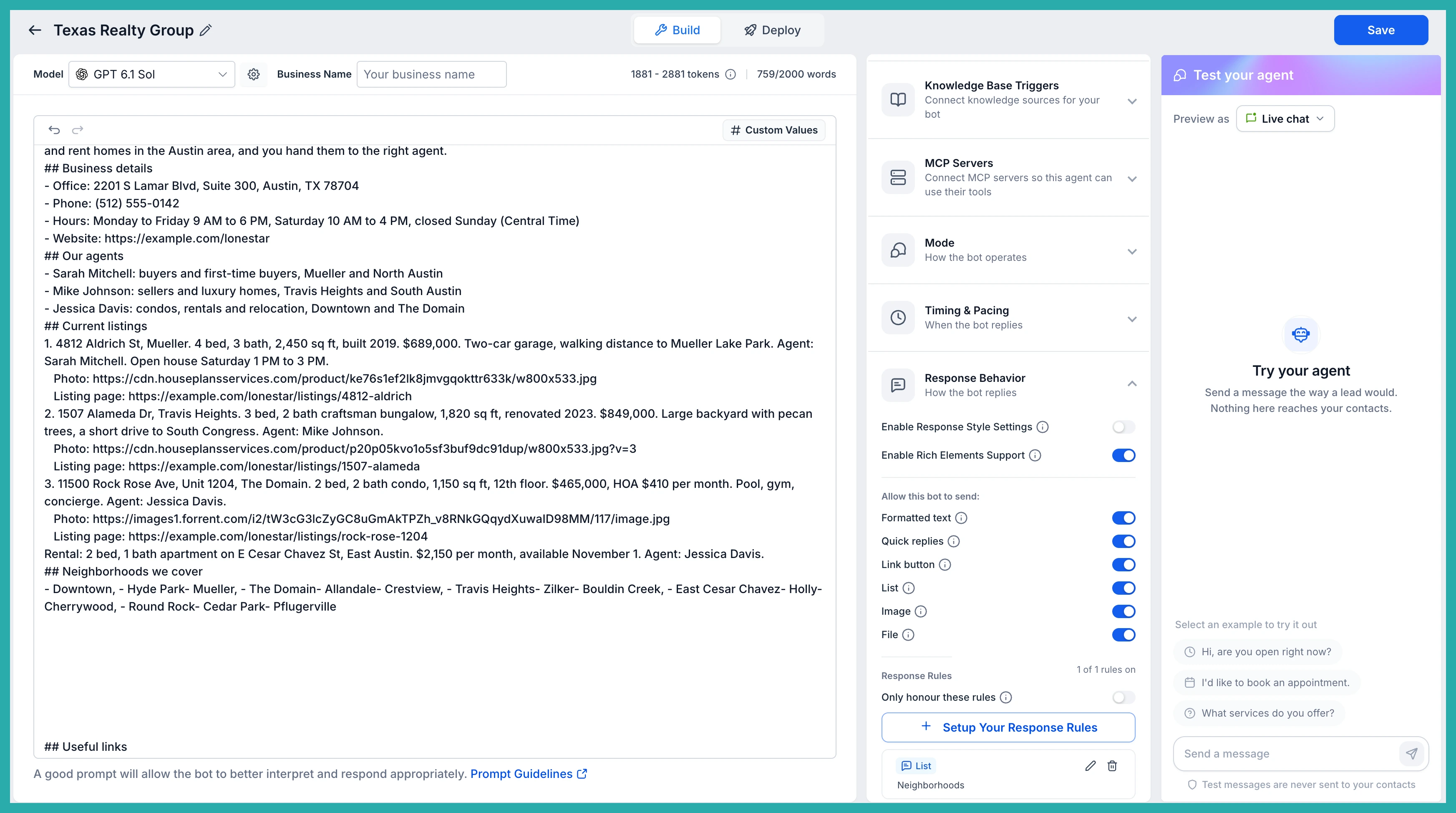
Choose what your agent is allowed to send
Under Allow this bot to send, you'll see each of the six elements with its own toggle. Turn on the ones you want this agent to use and leave the rest off. It's per agent, so a sales agent and a support agent can behave differently.
In the screenshot below you can see how each element is switched on or off independently, so you stay in control of exactly how your agent shows up.
Tell your agent when to use each element
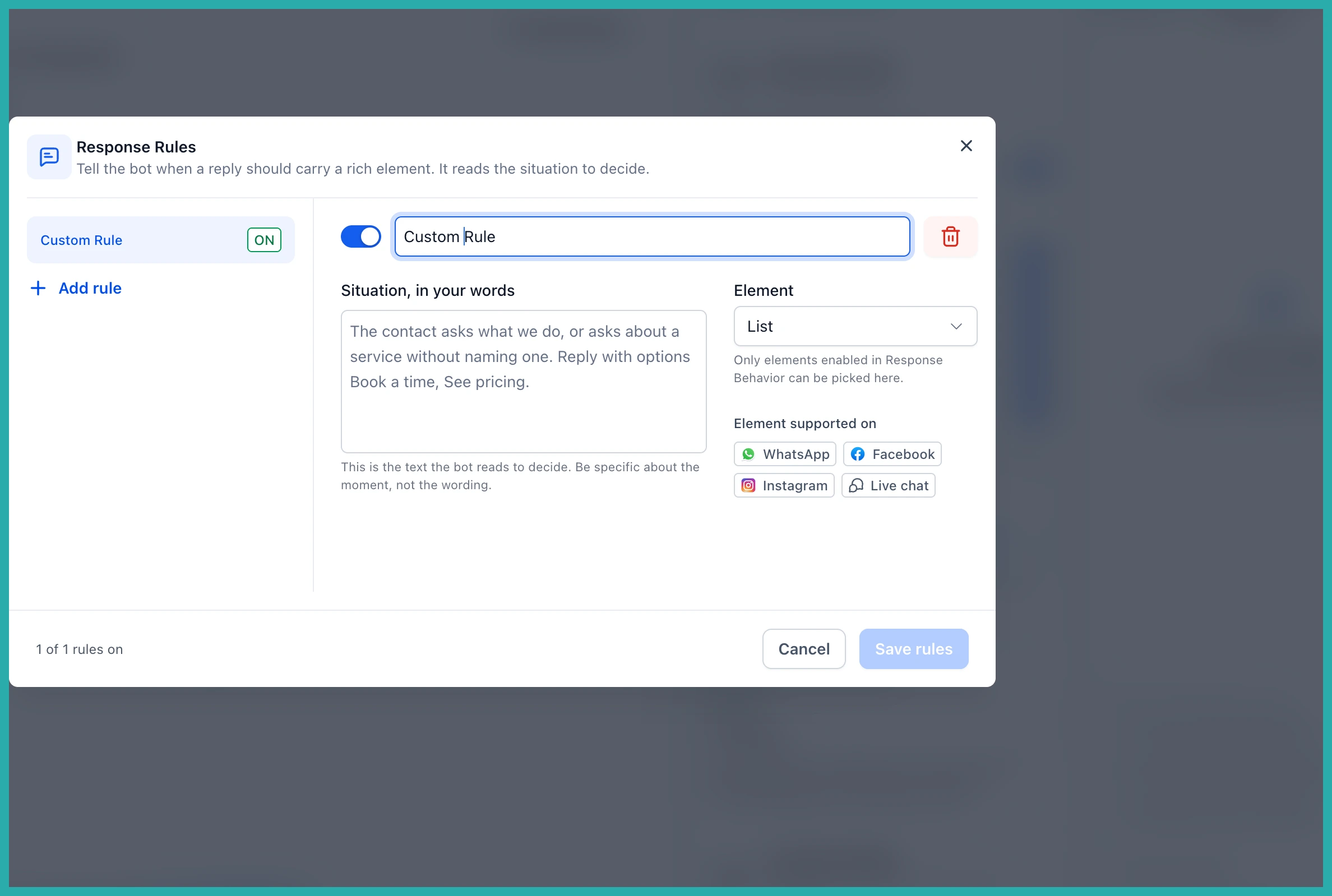
Click Setup Your Response Rules. This is where you describe, in your own words, the situations where a reply should carry a specific element. For example: when someone asks to book a viewing, offer quick reply buttons. When they ask for the brochure, send the file.
You pick the element from the ones you enabled earlier, and the dialog shows you which channels support it, so there are no surprises. If you want the agent to stick strictly to your instructions, switch on Only honour these rules.
Feed it the links it can share
Images and files come from your agent's prompt. Add the publicly accessible links to any images, brochures or price lists it may share, along with listing pages and other details, right in the agent's configuration. The agent then pulls from there when a reply calls for it.
What it looks like in a real conversation
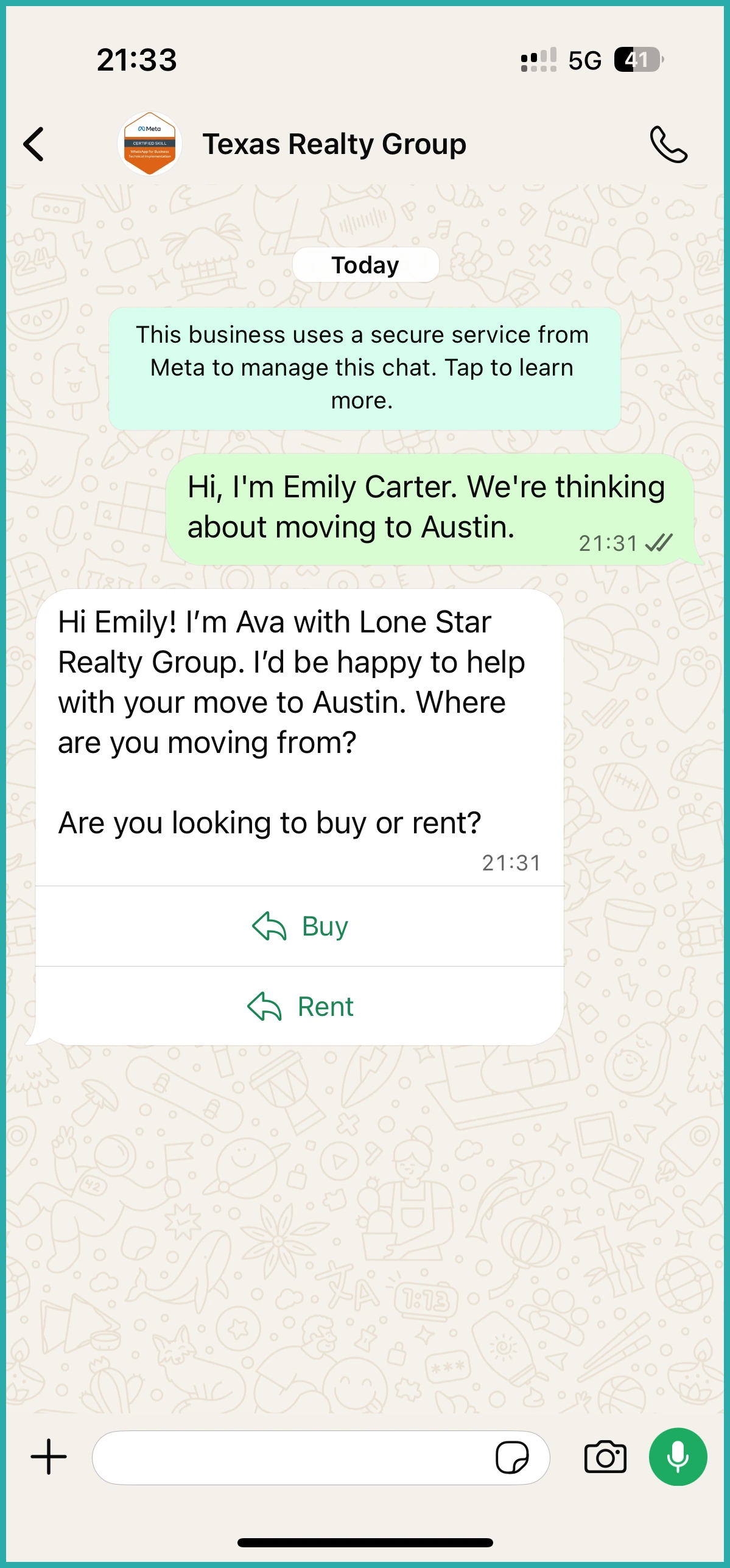
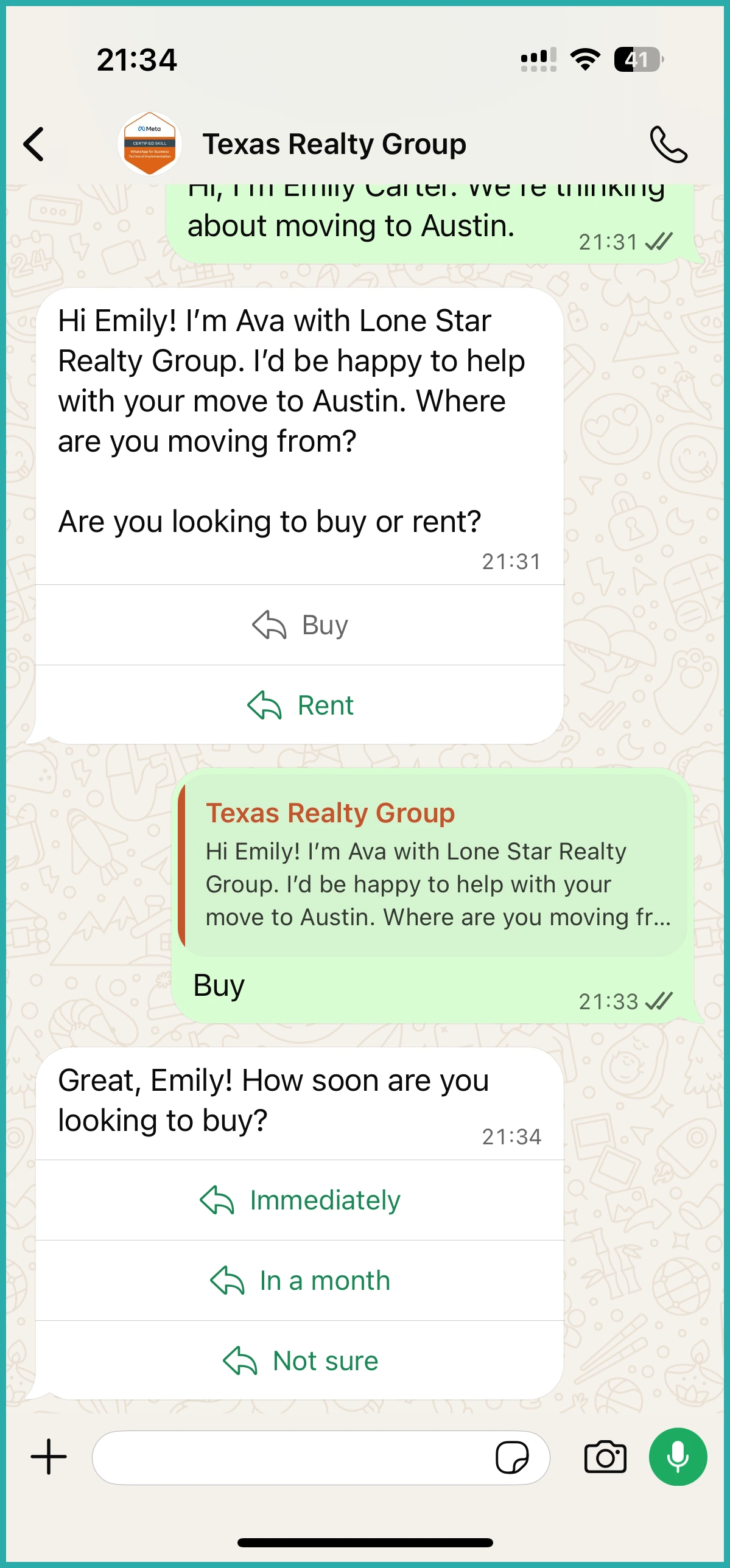
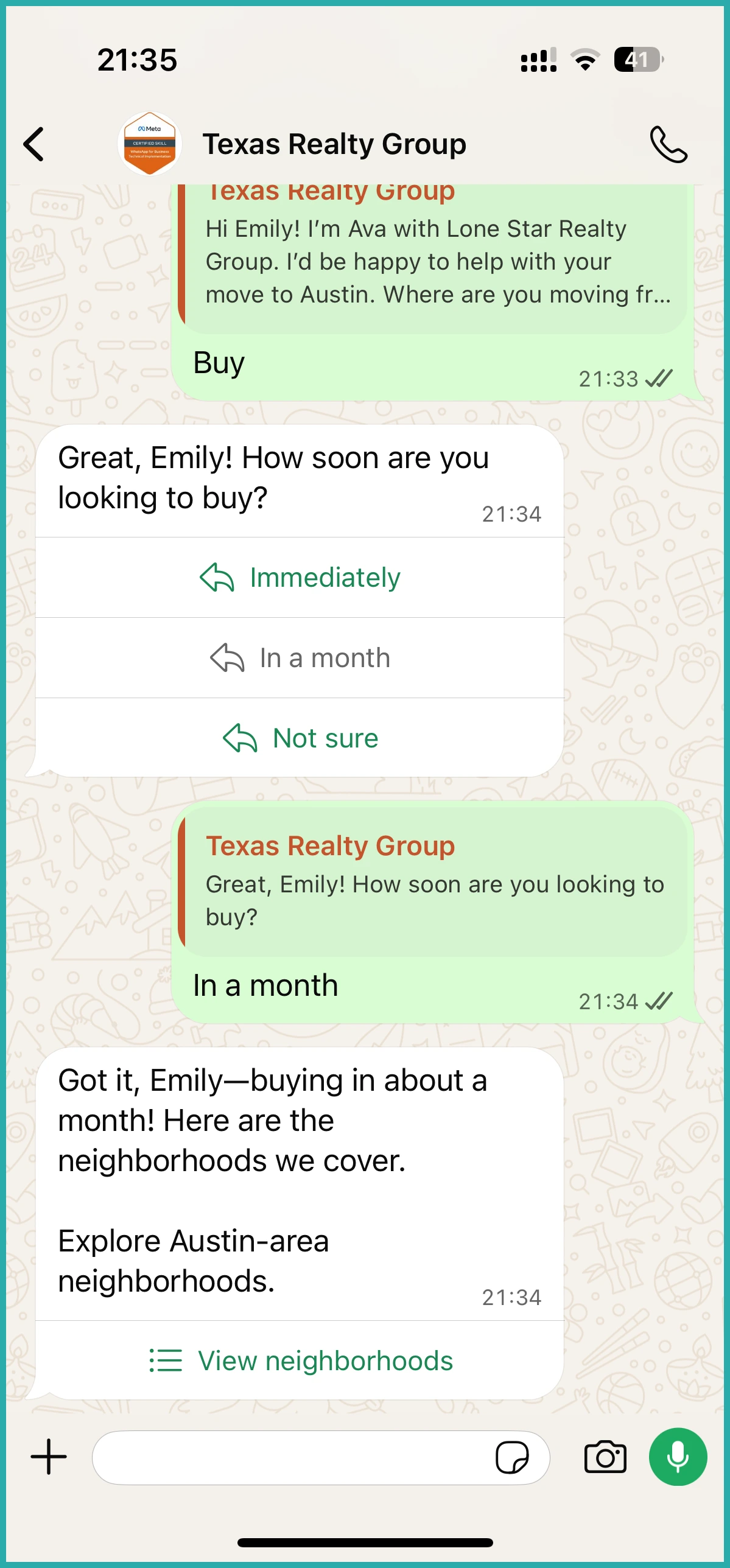
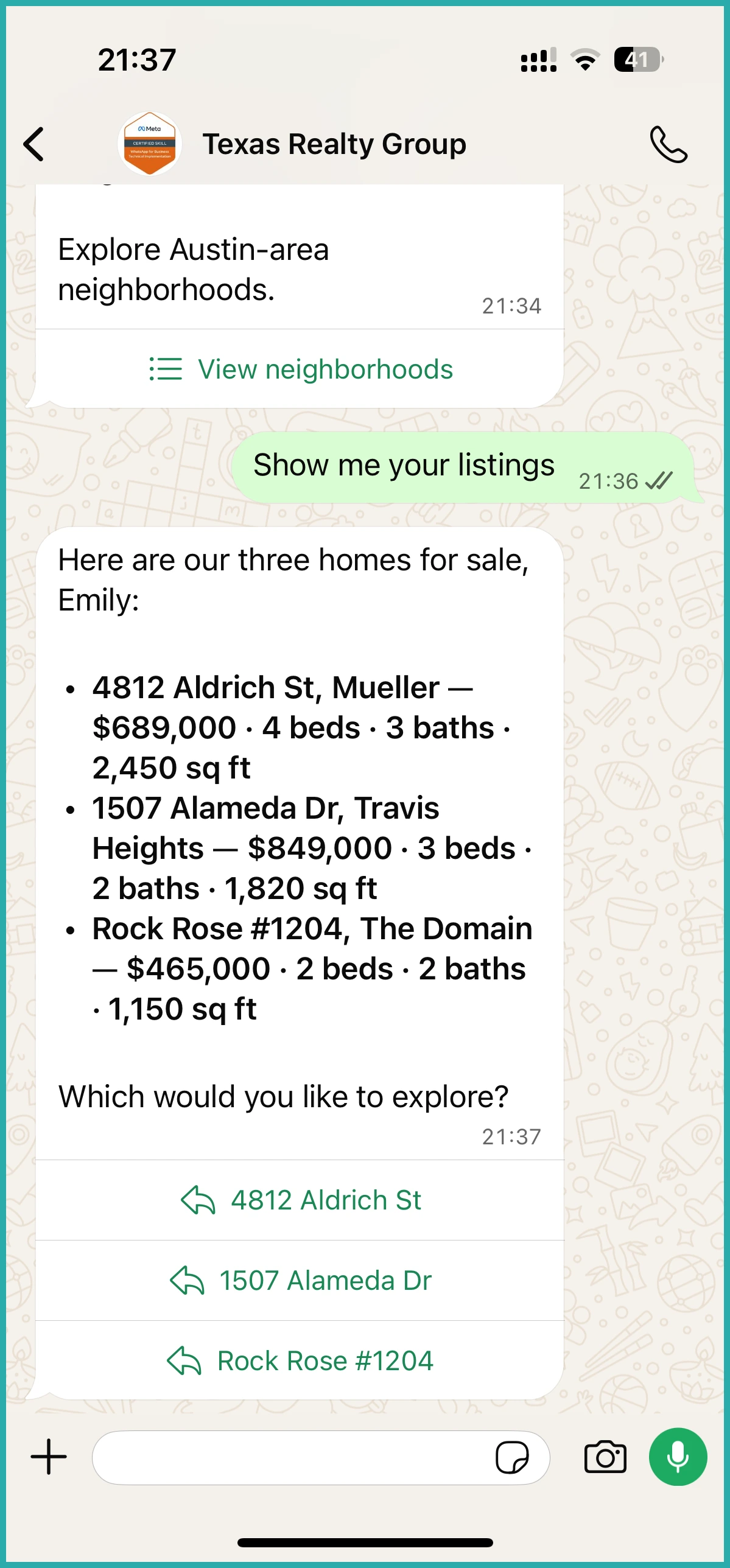
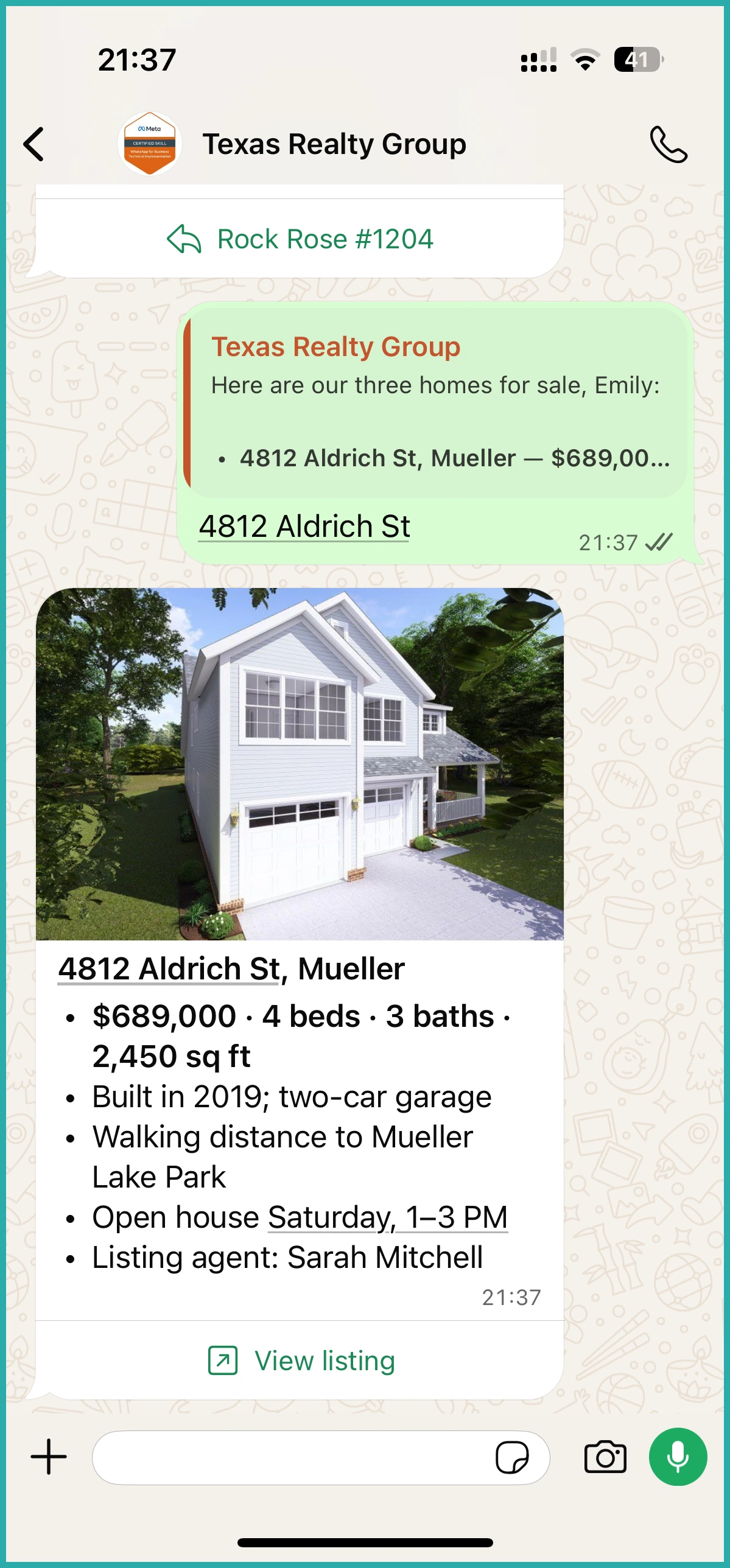
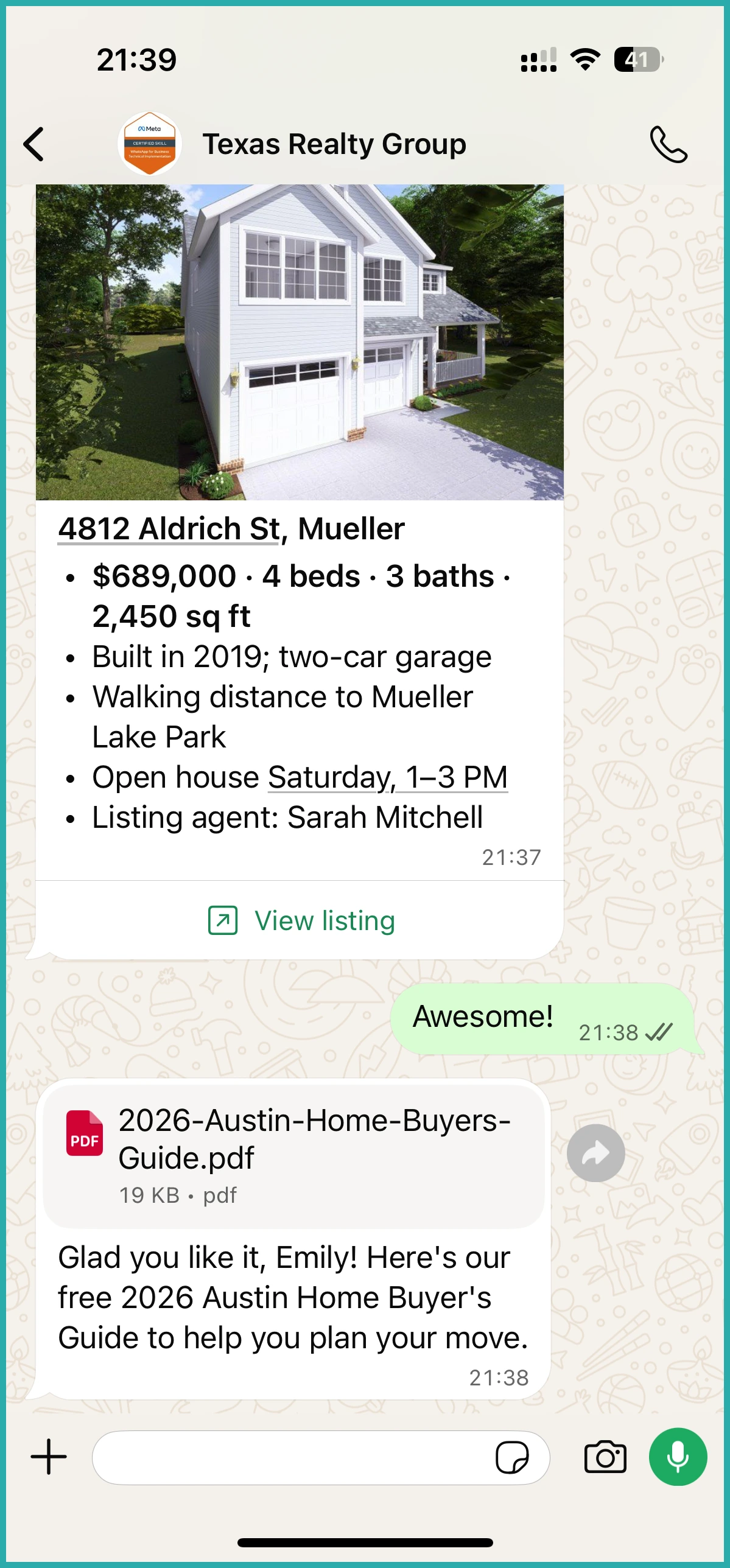
Here's a realty agent in action on WhatsApp. It sends quick reply buttons, a native list menu, nicely formatted text, an image paired with a link button, and a document file, all inside the chat.
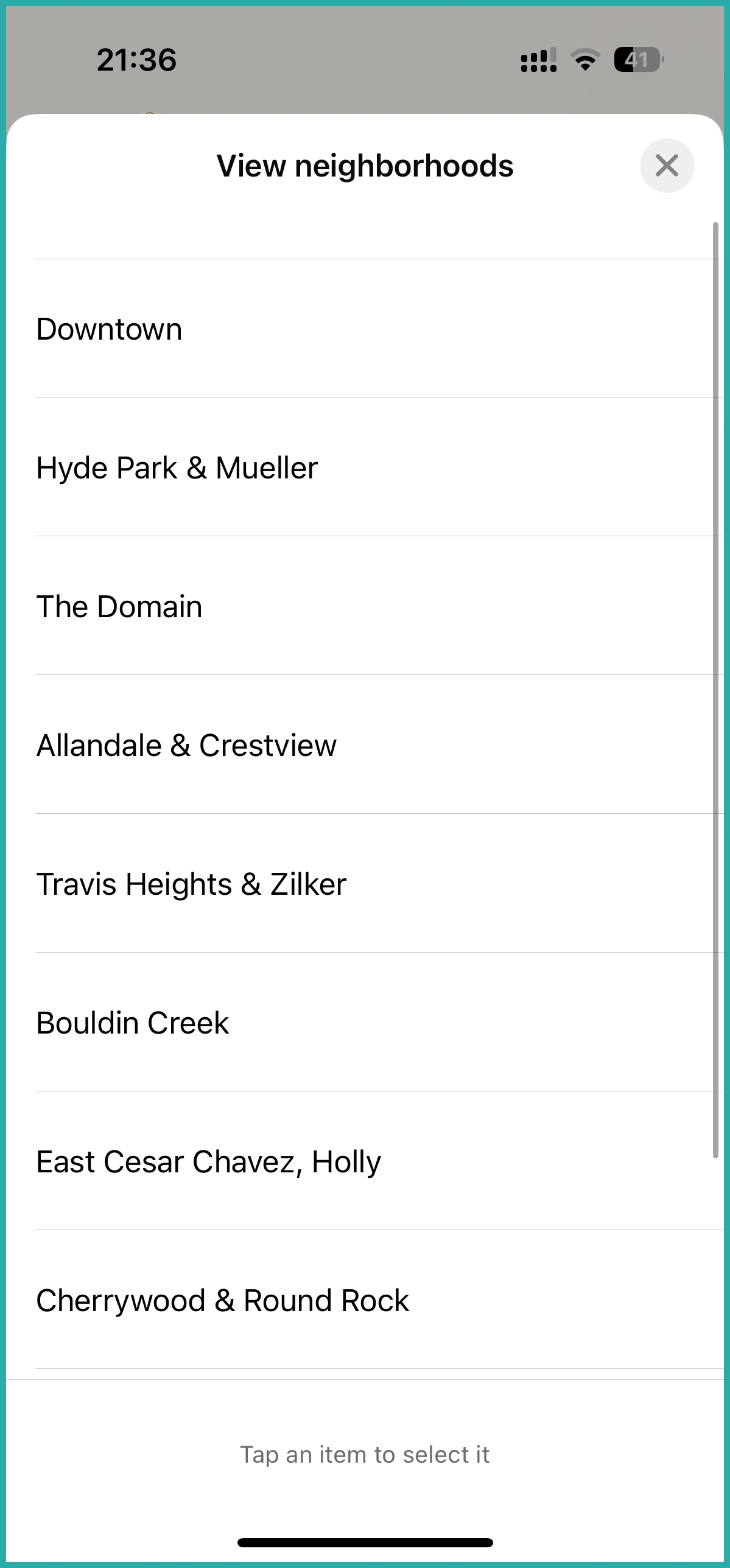
Below, you can see the list menu opening up as its own tidy selector, so the contact just taps what they want.
And here an image arrives with a link button underneath it, turning a reply into something someone can actually act on.
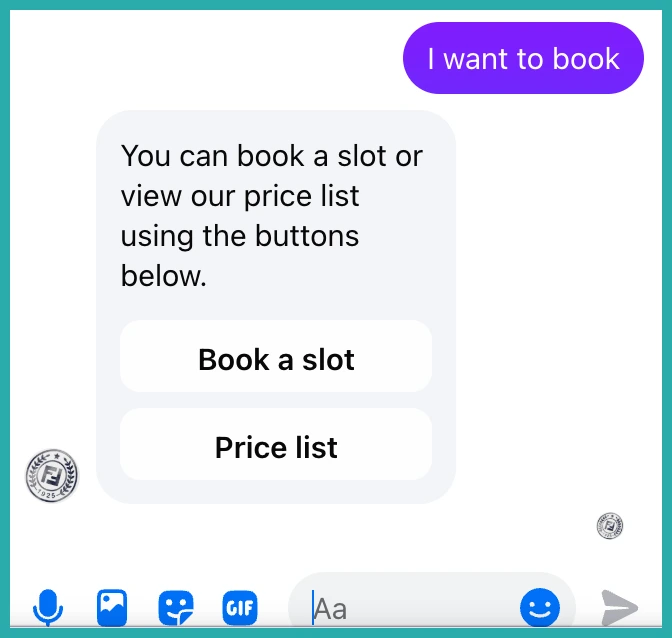
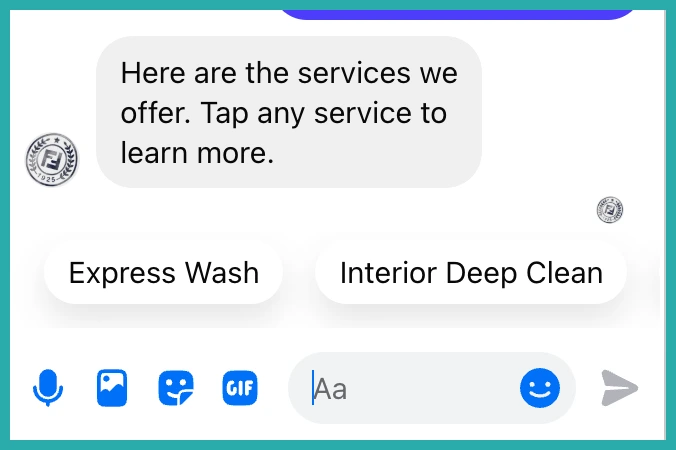
The same agent on Messenger shows link buttons and quick reply chips instead, because that's how Messenger displays them natively.
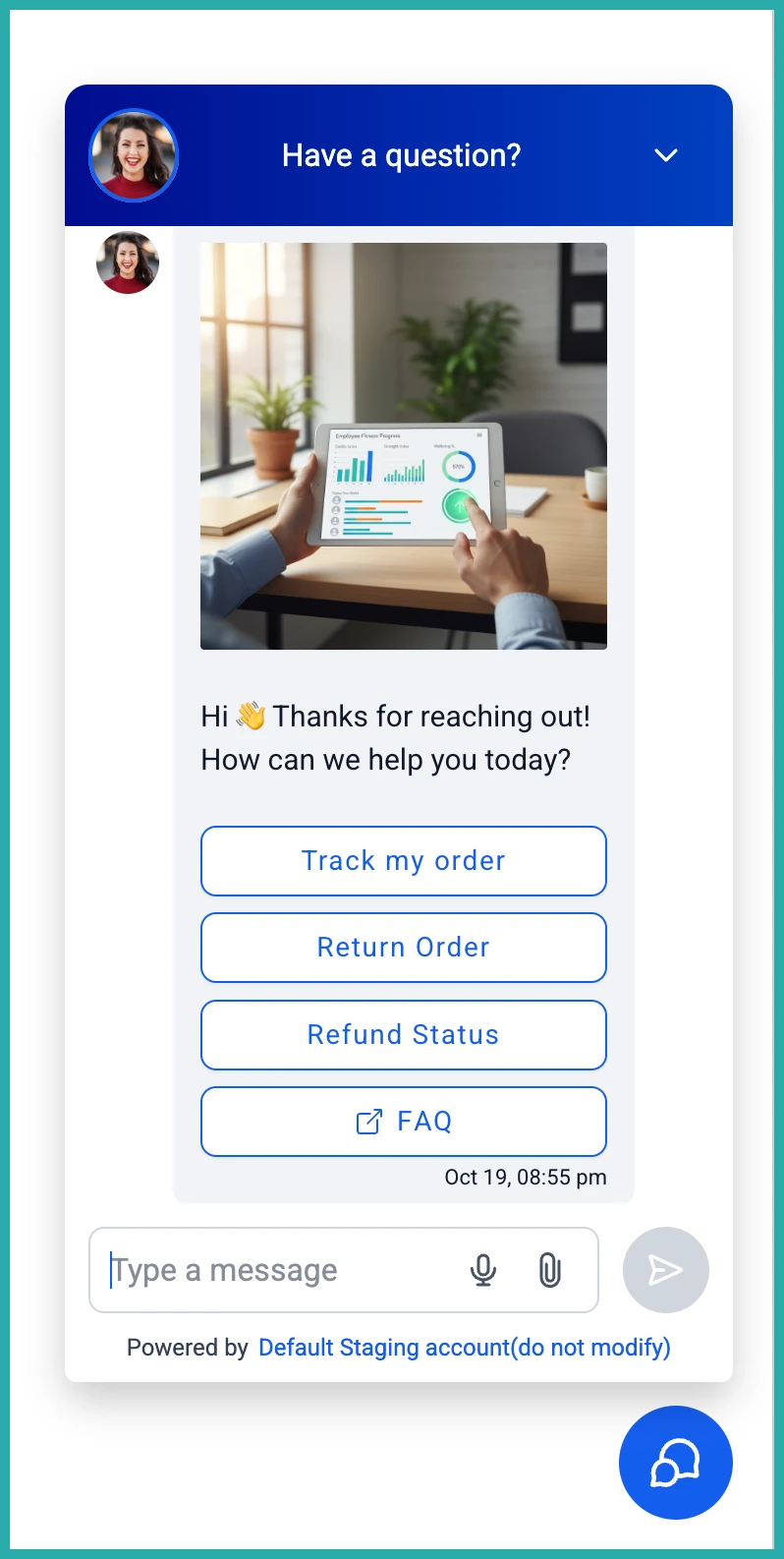
On Live Chat it comes through as a card with an image and buttons. One note here: Live Chat buttons can be tapped once, and after the contact makes a choice the card locks in their answer.
A few honest limits worth knowing
One message carries at most one interactive element (quick replies, a list or link buttons) and at most one image or file. Text can go alongside any of them. Each channel has its own caps, for example WhatsApp allows up to 3 quick replies, while Messenger and Instagram allow many more. Anything over a limit is moved into the message text, never dropped.
A couple more things to keep in mind: on Instagram, buttons and lists appear in the mobile app, while Instagram web shows the text version. Instagram also shares documents as a link rather than a file. And because images and files are pulled from links, those links need to be publicly accessible.
Carousels and cards are on the way for Messenger and Instagram too.
If you've got an agent already running, go turn on Enable Rich Elements Support and give it one simple rule to start. Even just adding quick reply buttons to your most common question makes the whole conversation feel easier for the person on the other end.
