
Workflow Maps: See How All Your Automations Connect in One View
Coming Soon: Workflow Maps isn't in your ESC Hub account yet. We'll let you know as soon as it arrives.
You build one workflow, then another, then a few more. A form kicks off one. A tag triggers the next. Before long you've got a whole customer journey spread across half a dozen automations, and the only way to see how it all fits together is to open each one and piece it together in your head.
That's about to get a lot easier.
What's coming
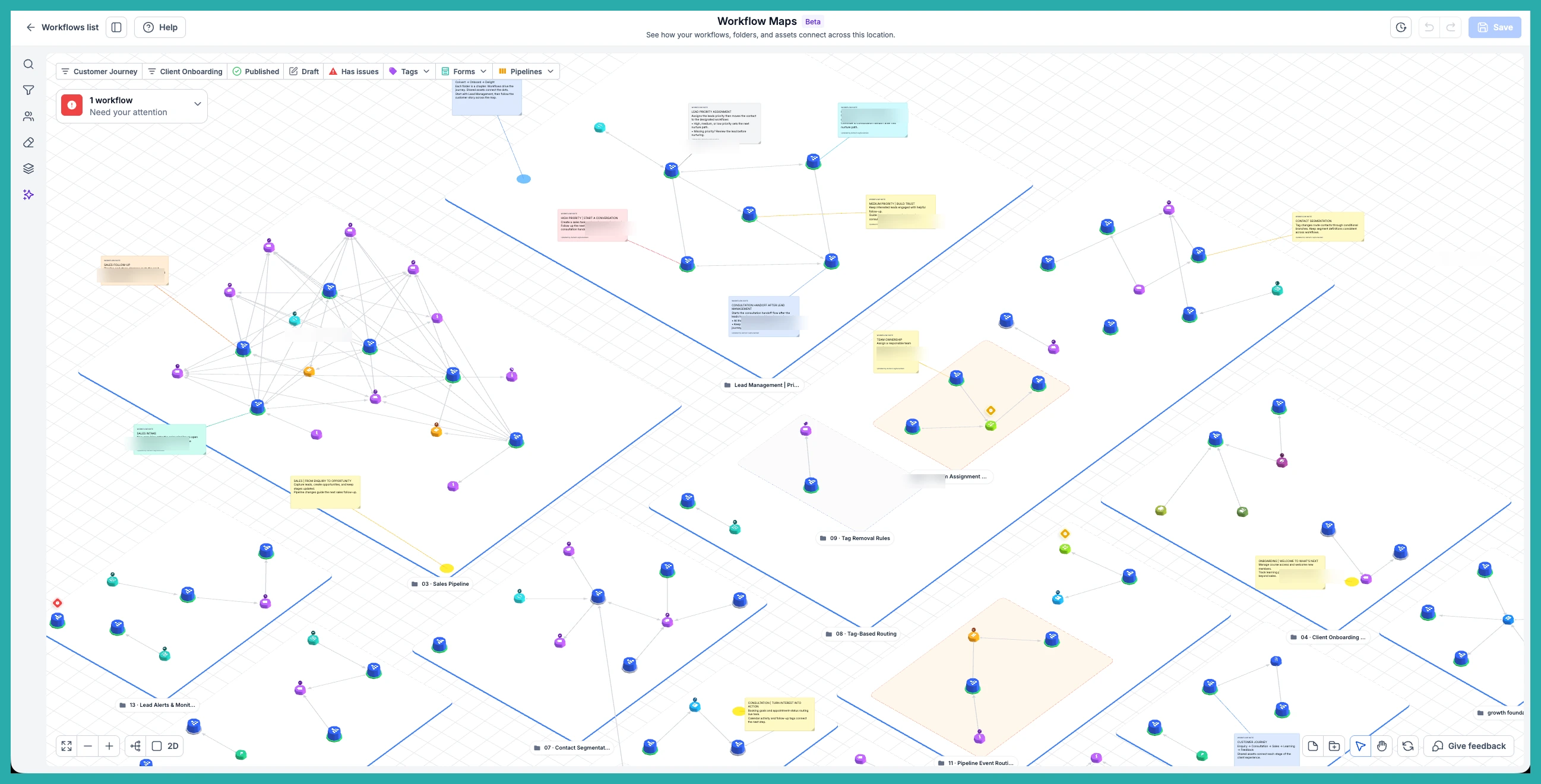
Meet Workflow Maps, a visual view that will bring all your workflows, folders, and connected assets together on one screen. You'll be able to see how everything links up: a form starts a workflow, that workflow adds a tag, that tag starts another workflow. The map will show you those connections so you can finally see the bigger picture.
Best part: it'll be built automatically from the workflows you already have. There'll be no diagram to draw or keep updated. You'll just open it and start exploring.
Where to find it
Once it arrives, you'll go to Automation, then Workflows, then Workflow Maps. You'll also be able to open Maps straight from inside a workflow's builder.
When it opens, you'll see your workflows grouped into their folders, with their connected assets - tags, forms, calendars, pipelines, custom fields - sitting around them so the relationships are clear.
Finding your way around
A few simple controls will make the map easy to move through:
- Search for a workflow, asset, trigger, or action by name and jump straight to it.
- Filter the view to show only the workflows and assets you want to look at.
- Pan and zoom, fit the map to your screen, and switch between a flat 2D view and a 3D one.
- Select any workflow or asset to open its details and see everything it connects to.
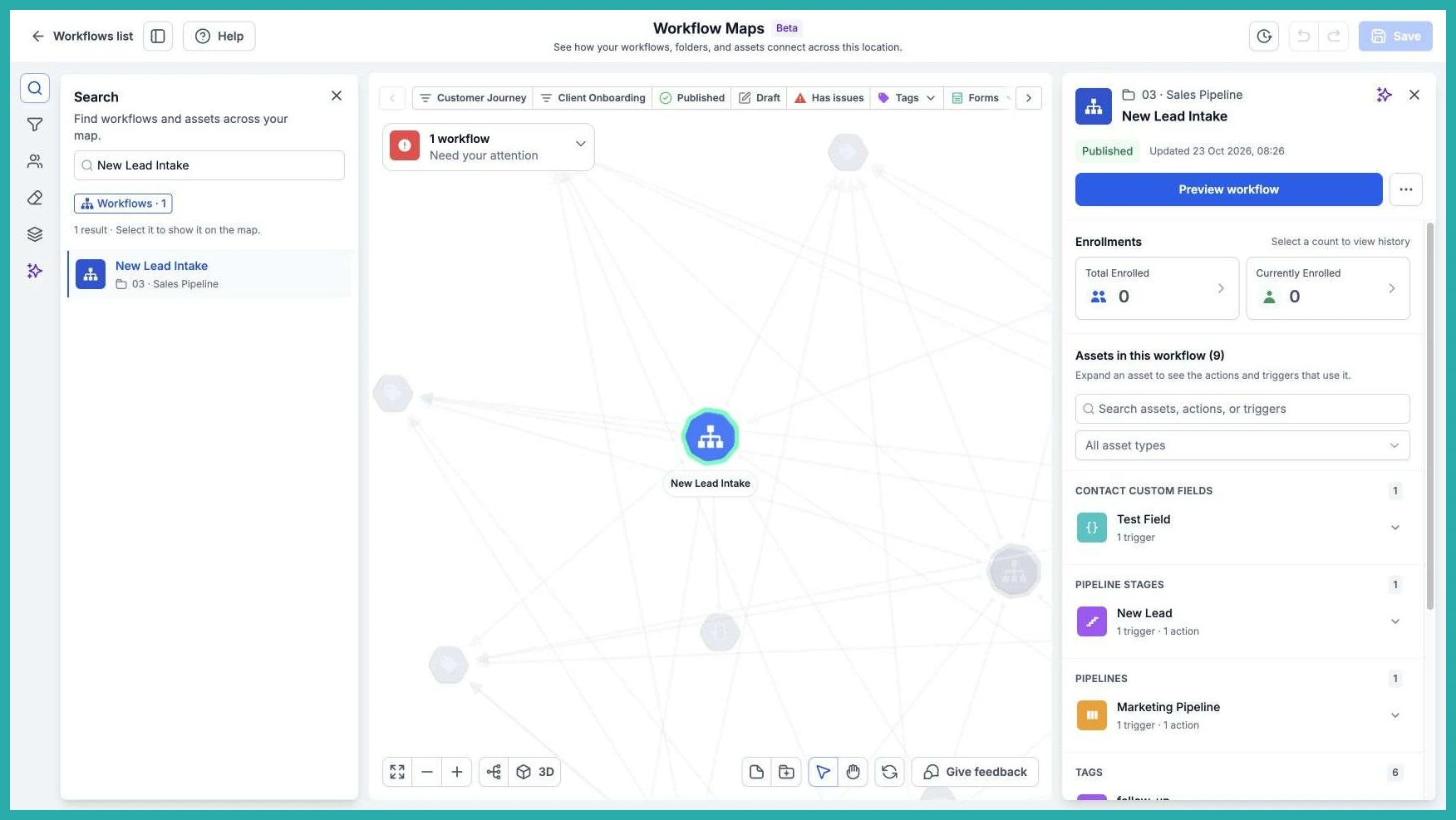
In the screenshot below, a workflow search shows its status, who's enrolled, and which assets it's linked to.
More you can do from the map
Workflow Maps will pull together a few handy ways to understand and tidy up your automations:
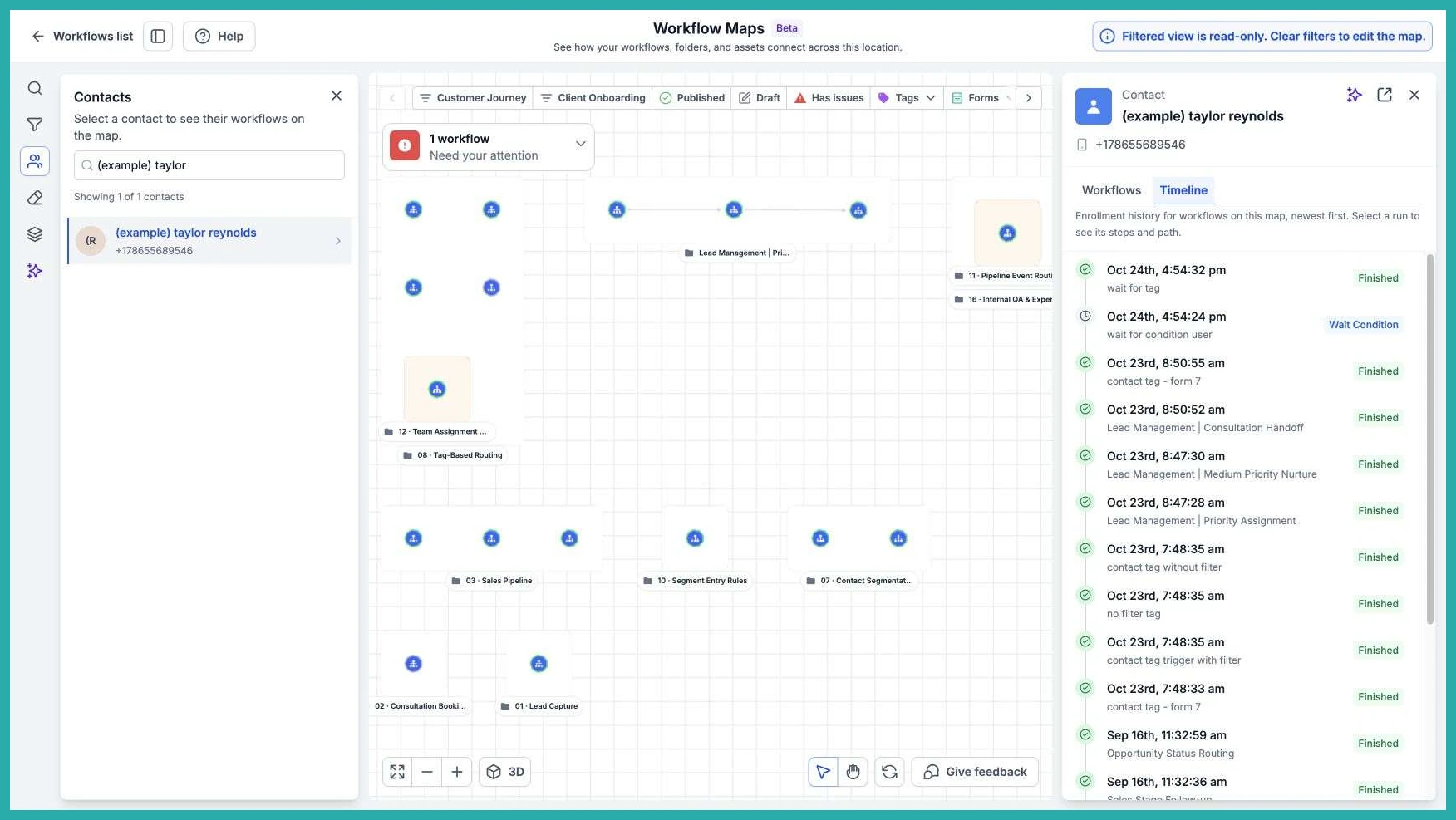
- Follow a contact's journey: find a contact and trace them across your workflows, see their enrollment history, and spot where they finished, are waiting, or hit an error.
- Troubleshoot: flag workflows that need attention, review failed runs, and inspect the exact step that went wrong.
- See linked workflows together with Workflow Canvas, so you can follow the handoffs that make up one bigger process.
- Clean up: find workflows still on their default names, ones with no recent enrollments, and empty folders worth clearing out.
- Ask the AI assistant questions about your automations and get help understanding or organising them, right from the map.
When you'll reach for it
A few moments where this will really earn its keep:
- Getting to grips with an account you haven't worked in much, and seeing how its workflows connect.
- Looking into a customer's experience - start at the map, then follow their journey or dig into the relevant workflow.
- Checking dependencies before you change something, so you can see how an asset is used across your workflows before you touch it.
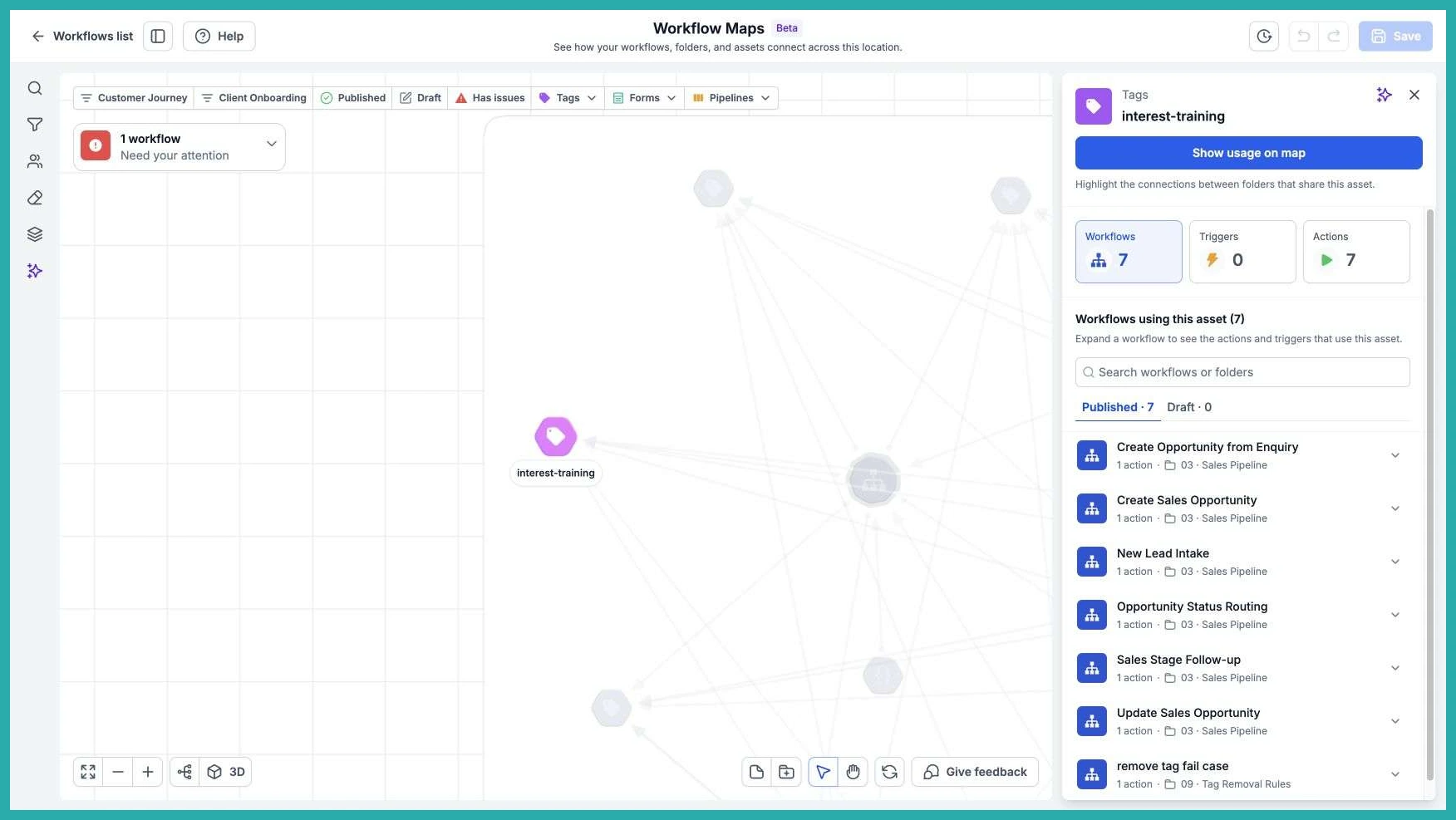
In the view below, selecting an asset instantly shows every workflow that uses it.
Each account will have its own map. When it arrives, pop in and have a look around your automations. Once you see them laid out, it's hard to go back to opening them one by one.
