
Draft WhatsApp Templates From a Plain Description, Meta-Ready
Building a WhatsApp template by hand is fiddly. You're guessing at the right category, checking Meta's formatting rules, dropping in variables one at a time, and hoping it doesn't come back rejected days later.
Now you can just describe what you want to say, and ESC Hub drafts the template for you - already categorised, already formatted to Meta's rules, and ready to personalise.
What landed
There's a new AI Template option when you create a WhatsApp template. Instead of building field by field, you write a plain description of your use case - a payment reminder, a delivery update, an appointment confirmation - and the system drafts the whole thing.
Three things happen automatically:
- It drafts from your description. Give it your scenario and audience, and it writes the template complete with the variables you can slot your contact details into.
- It picks the category for you. The draft gets classified as Utility, Marketing, or Authentication - the same categories Meta uses to decide which messaging rules apply.
- It checks as you go. You get recommendations on length, formatting, and policy fit before you ever submit, so problems get caught up front instead of after a rejection.
And you stay in control the whole way. Nothing goes to Meta until you've reviewed it and you're happy.
How to use it
Head to CRM, then WhatsApp, then Templates, and click Create Template. Choose AI Template.
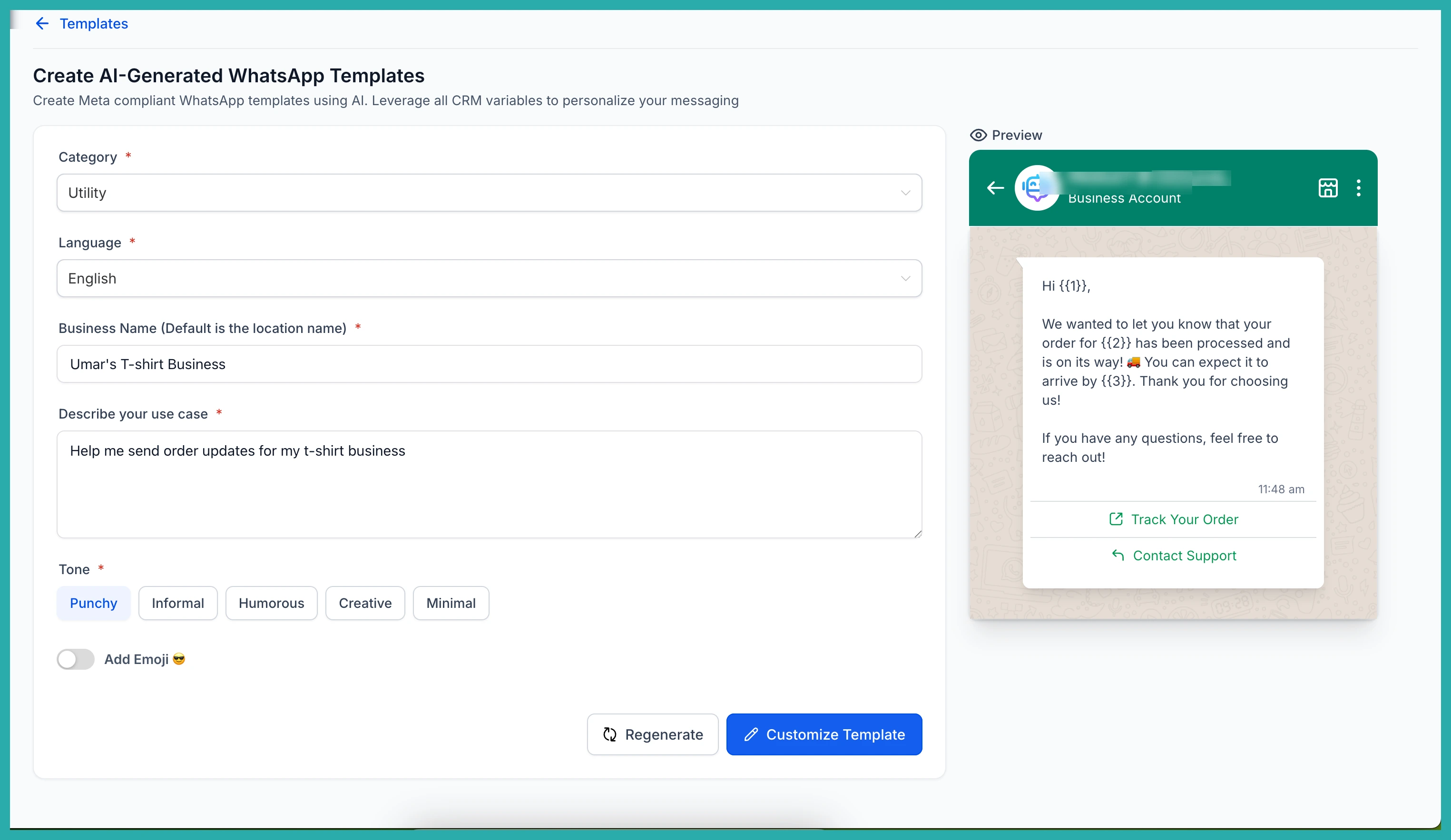
Describe your use case and who it's going to, then let it draft. In the screenshot below, you'll see the drafted template along with its category and the validation hints, so you can see exactly what you're submitting and why.
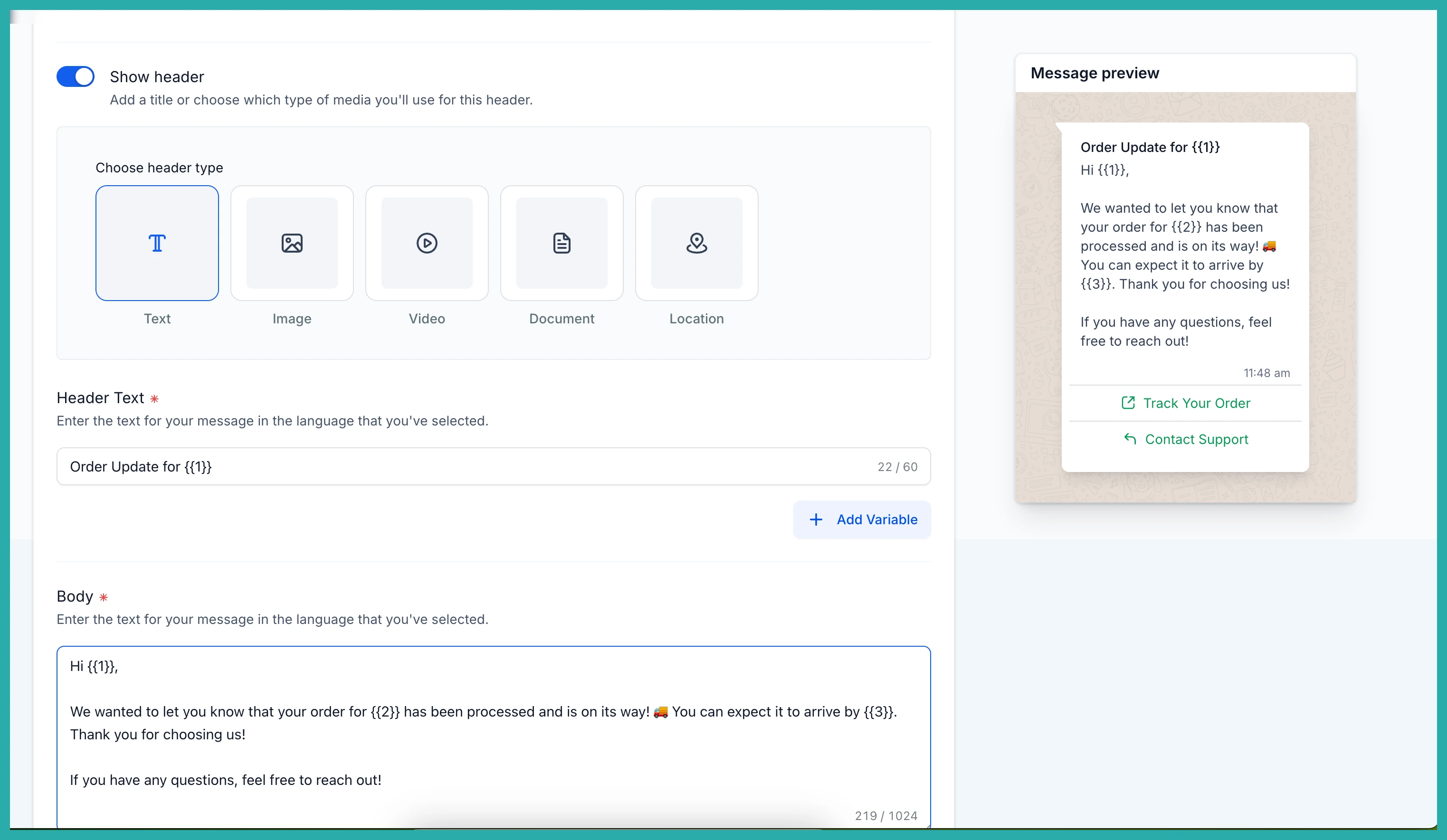
From there you can edit the copy, adjust the variables, tweak the call-to-action buttons, and then submit for Meta's approval when it looks right.
One thing worth knowing
Meta applies different rules depending on the template category. Utility templates, for example, aren't held to the same per-user marketing frequency limits that Marketing templates are. Getting the category and formatting right before you submit means fewer surprises at approval and at send time.
Next time you need a WhatsApp template, skip the field-by-field building. Just describe it, review the draft, and submit.
