
Transfer a Call to Any Staff Member From Your Phone - No Personal Number Needed
You're on a call, and it needs to go to someone else on your team. Maybe they handle the bookings, or the billing questions, or they just know the answer you don't.
Until now, transferring meant that person had to have their own phone number set up. If they didn't, you were stuck taking a message.
That's sorted. You can now transfer a call straight from the mobile app to any staff member, whether or not they have a personal phone number.
What you get
Any team member can now receive a transferred call on whatever device they already use - the web app, the mobile app, a desk phone, or a SIP line. No personal number required.
It works for warm transfers (you introduce the call first) and blind transfers (you hand it straight over). And it works on both outbound and inbound calls.
How to transfer a call
Start with a normal call in the mobile app, outbound or inbound, exactly as you always would.
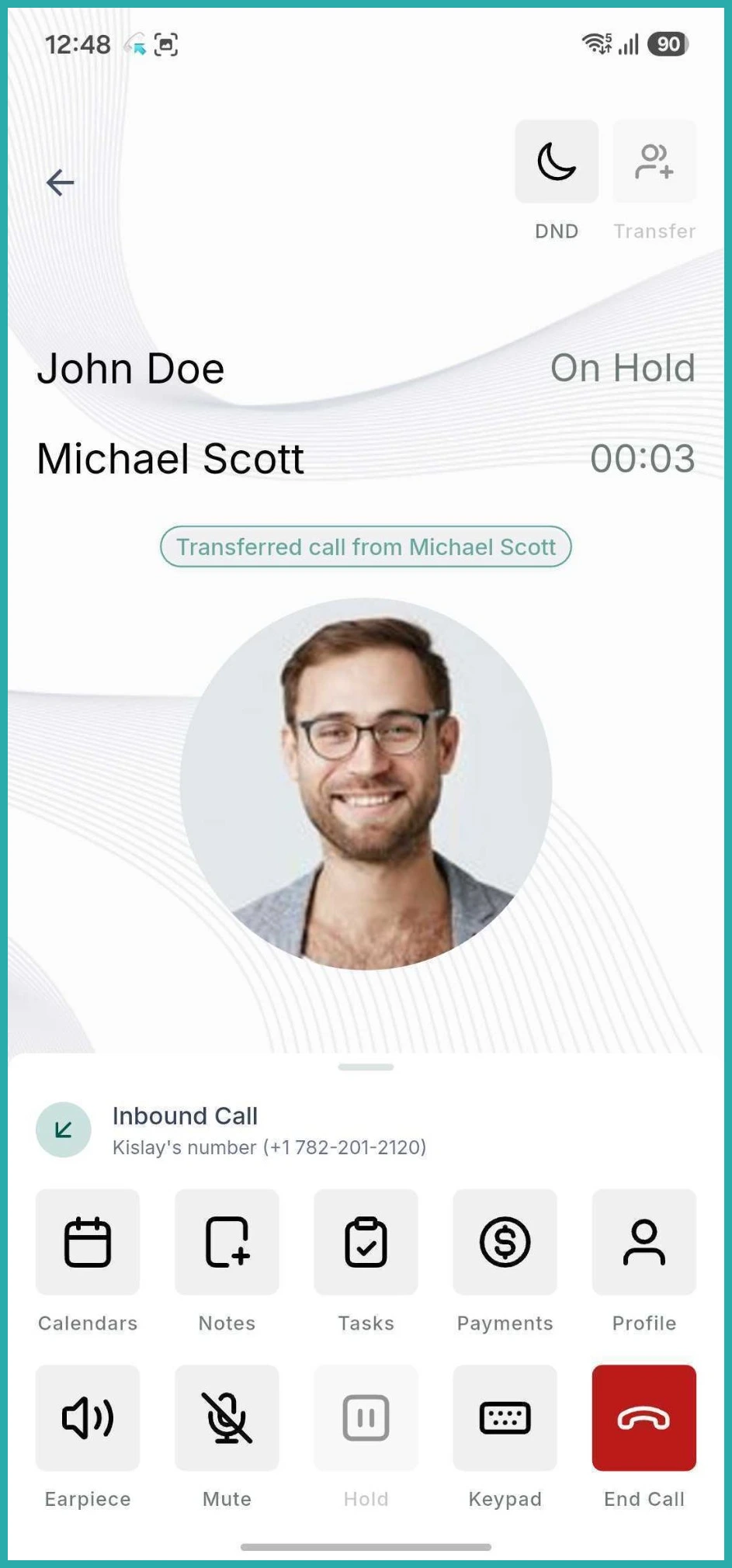
While the call is active, tap the transfer call icon in the top right corner of the screen.
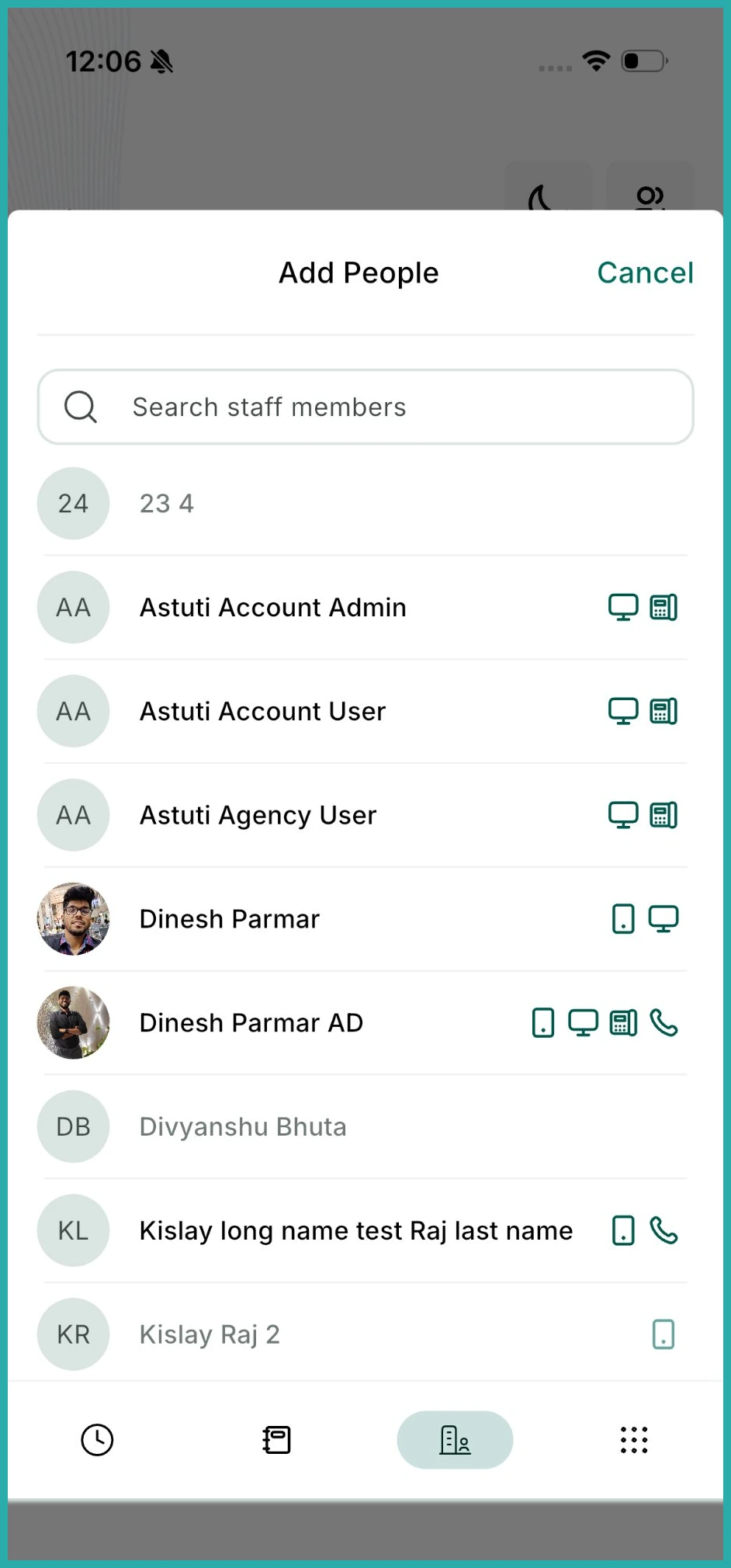
Open the Staff Members tab and pick the person you want to send the call to. Next to each name you'll see the device types they can take the call on, so you know it'll reach them.
Anyone with no device set up appears greyed out, so you're never left guessing whether a transfer will land.
Now choose how to hand it over:
- Call and Hold for a warm transfer, so you can speak to your colleague first before passing the caller across.
- Transfer and End for a blind transfer, which sends the call straight over and drops you off.
What your team member sees
The person receiving the call knows it's a transfer, and who sent it.
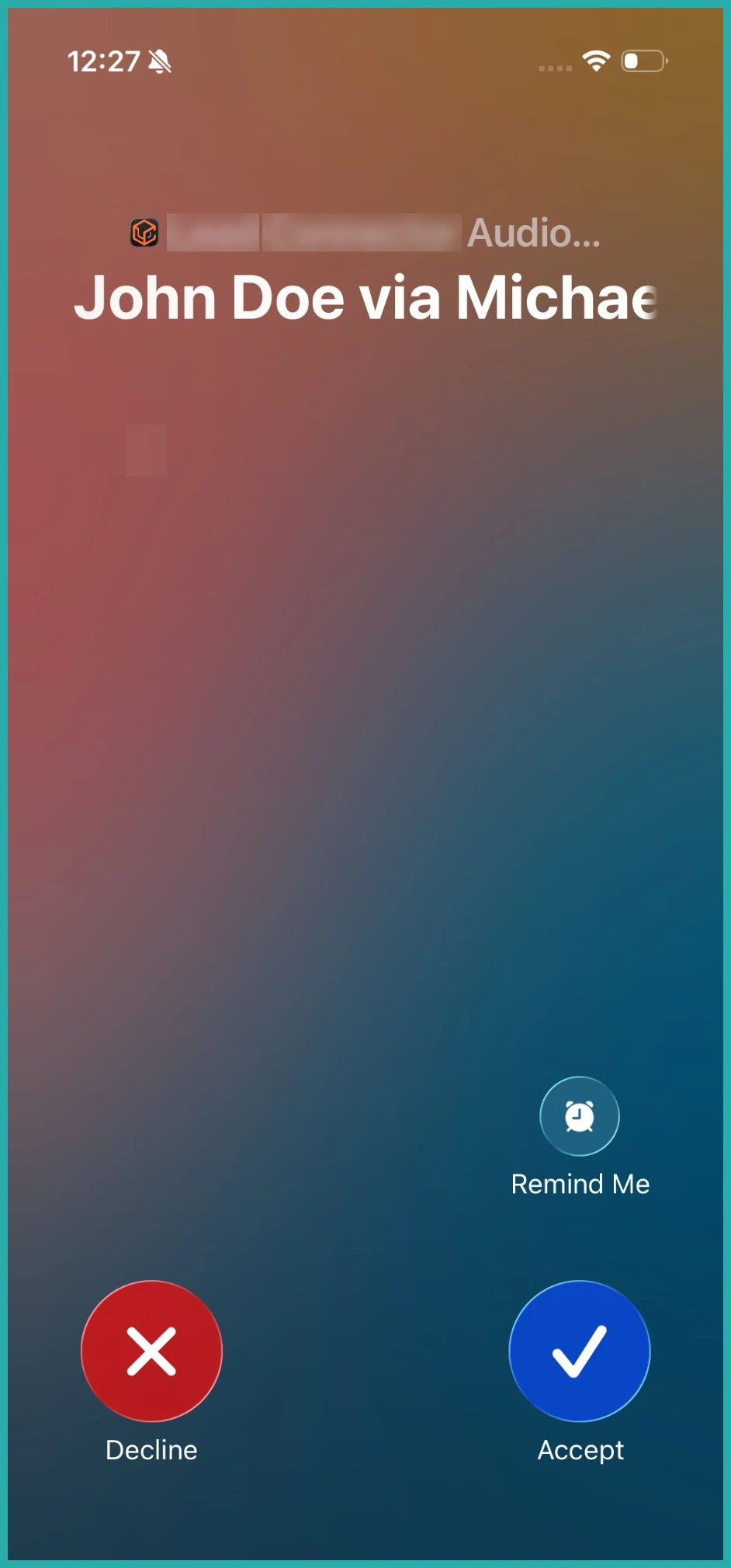
On iOS, the incoming call banner shows the contact name, then "via", then your name - for example, John Doe via Michael Scott.
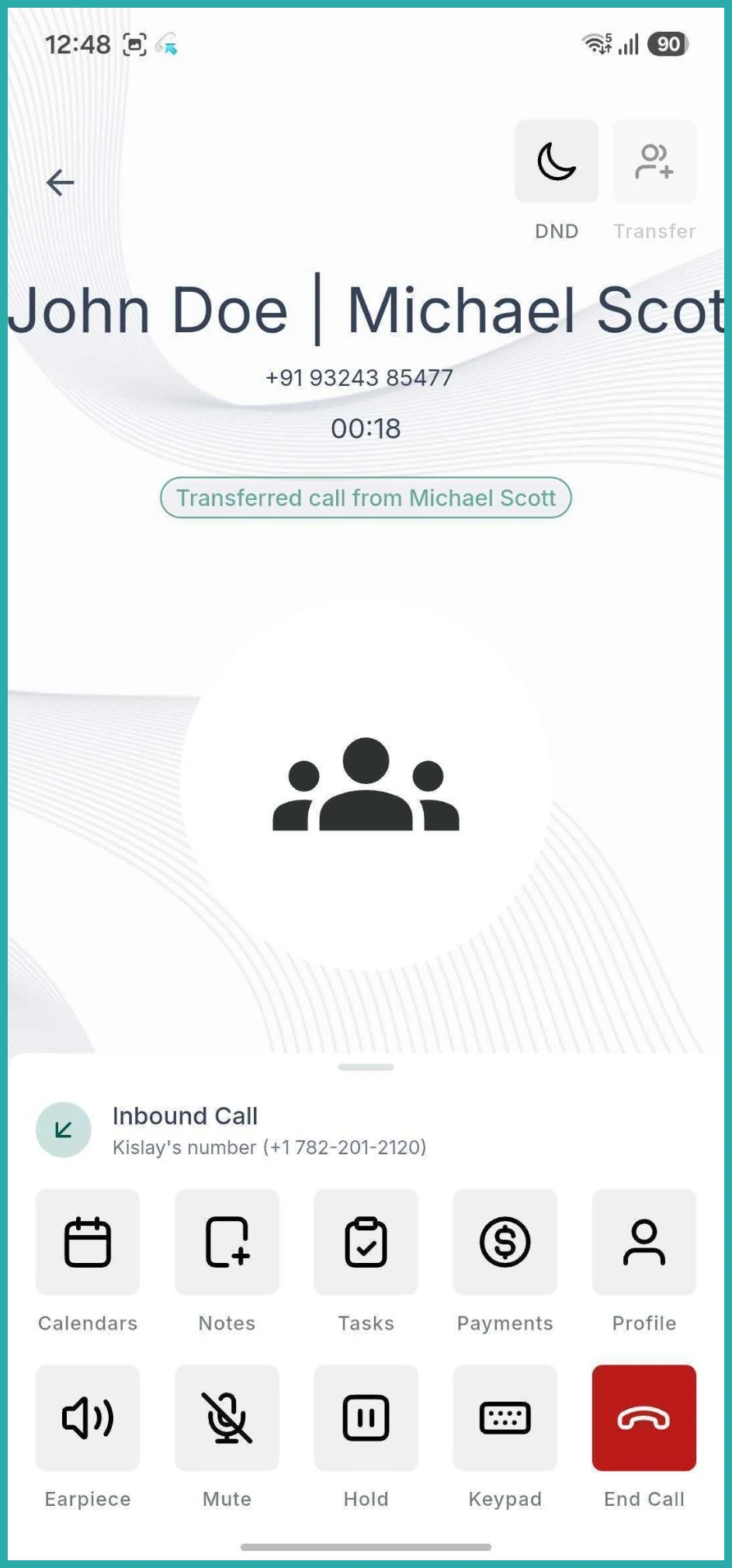
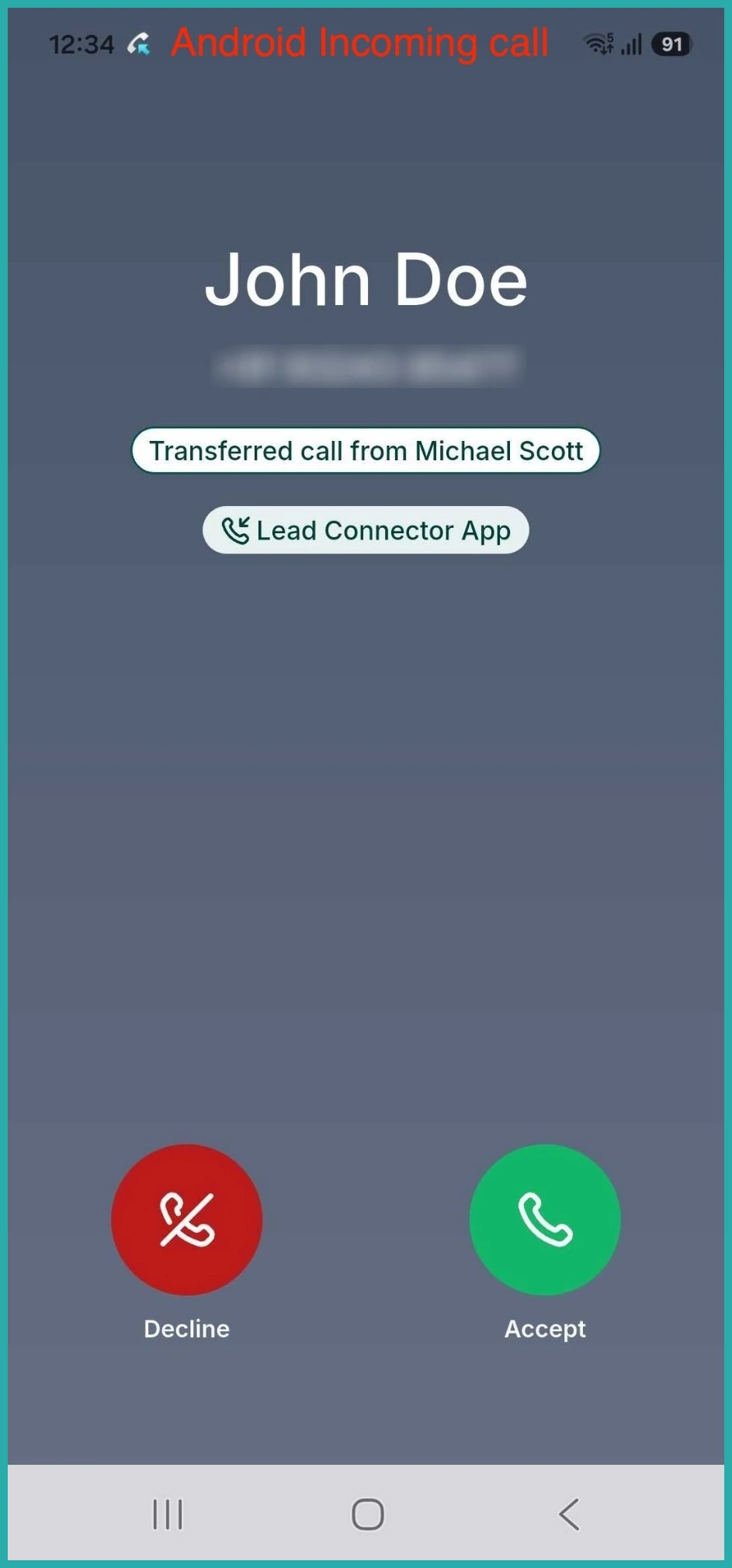
On Android, the incoming screen reads Transferred call from Michael Scott.
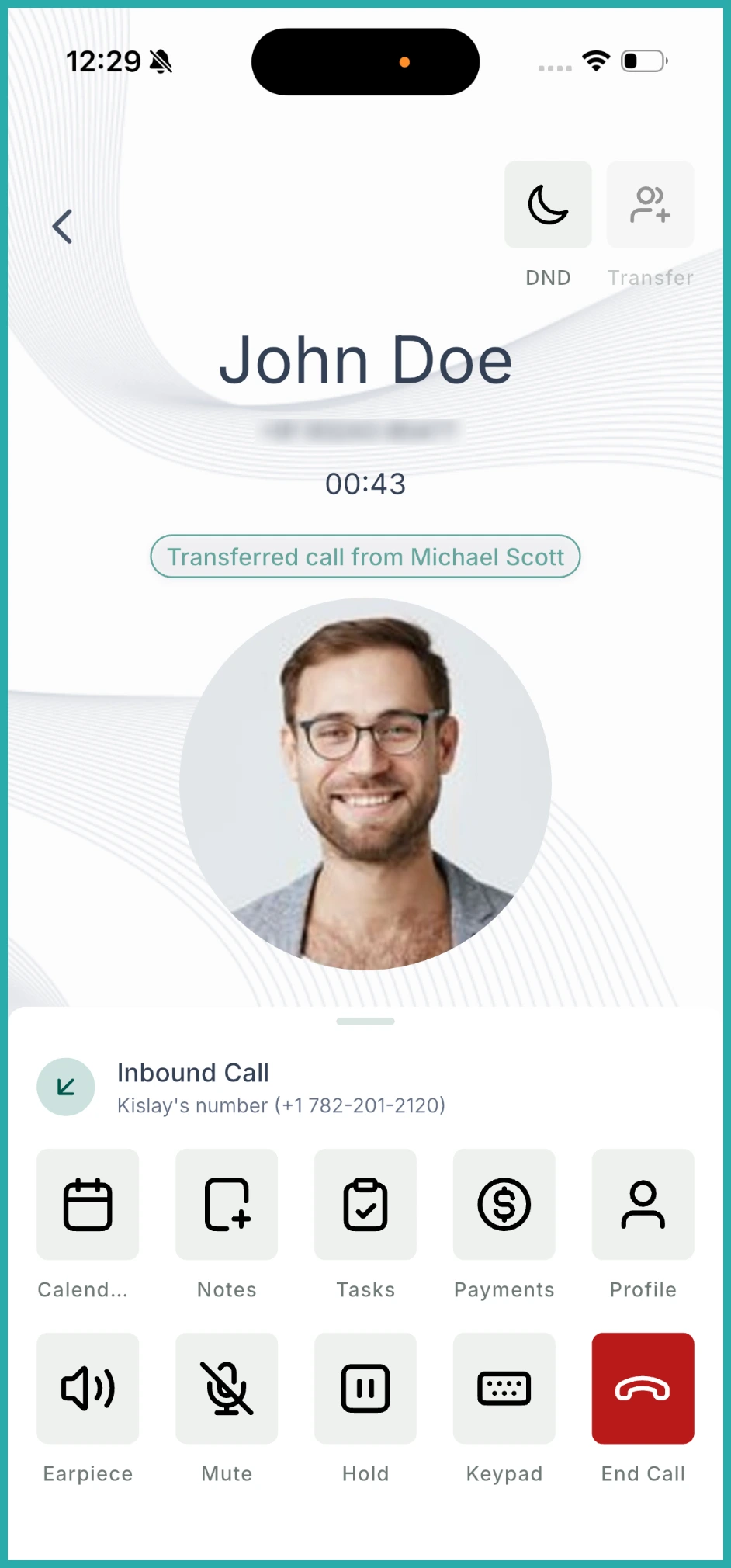
They tap Answer, and if it's a warm transfer you carry on the introduction just as you normally would.
One handy detail: the transfer rings every device that team member has listed under "Forward calls to" at the same time - web app, mobile app, phone, and SIP desk phone - so it reaches them wherever they happen to be.
One thing to know
Re-transferring isn't supported yet, so a call that's already been passed to you can't be passed on again for now. Everything else is ready to use.
Next time a call needs a different pair of hands, you can send it there in a couple of taps - no personal numbers, no messages, no fuss.
