
Test Your Workflow Without Leaving the AI Builder Chat
A quick heads-up: this one's in Labs
It's an early feature you turn on yourself in Settings > Labs inside your account. It works, but it's still in development - the documentation and support is limited and not everything will behave perfectly yet.
If you like getting your hands on new things early, switch it on and have a play. If you'd rather wait for the finished, fully-supported version, leave it off and we'll let you know when it lands.
You describe a workflow, AI Builder builds it, and then comes the old awkward bit: does it actually work? Until now you had to leave the chat, hunt down the test, and dig through logs to find out.
Now AI Builder tests what it builds, right there in the same conversation.
Build it, then test it in the same chat
Open a workflow, bring up AI Builder, and describe what you want - a brand new workflow, or a change to the one you've got. When it finishes, its reply ends with a Test workflow button.
Click it and the test opens inside the chat. You choose how to run it: Enroll a contact and pick someone, or Test using events. Before you start, you can check the contact data so you know exactly what's going in.
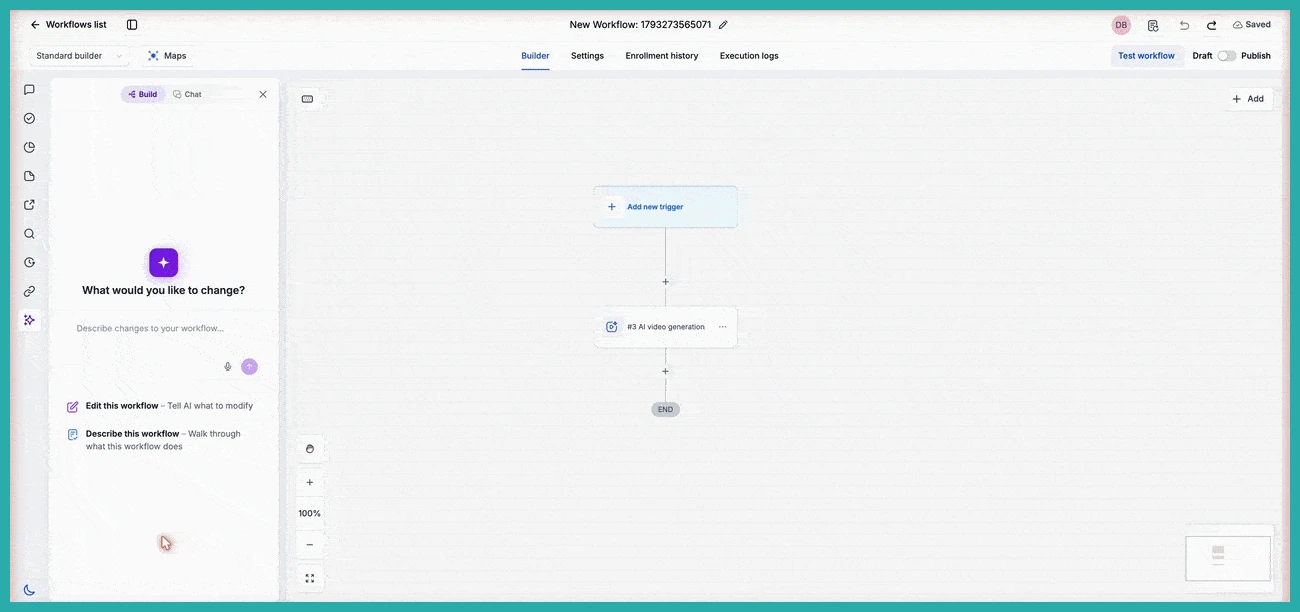
Watch the run happen live
Click Start test run and the canvas comes to life. Each step shows as Running, then flips to Success, Action skipped, or End. Alongside it, the chat lists the run step by step, with a check next to every step that ran.
No guessing which branch it took. You can see it move through the whole thing in front of you.
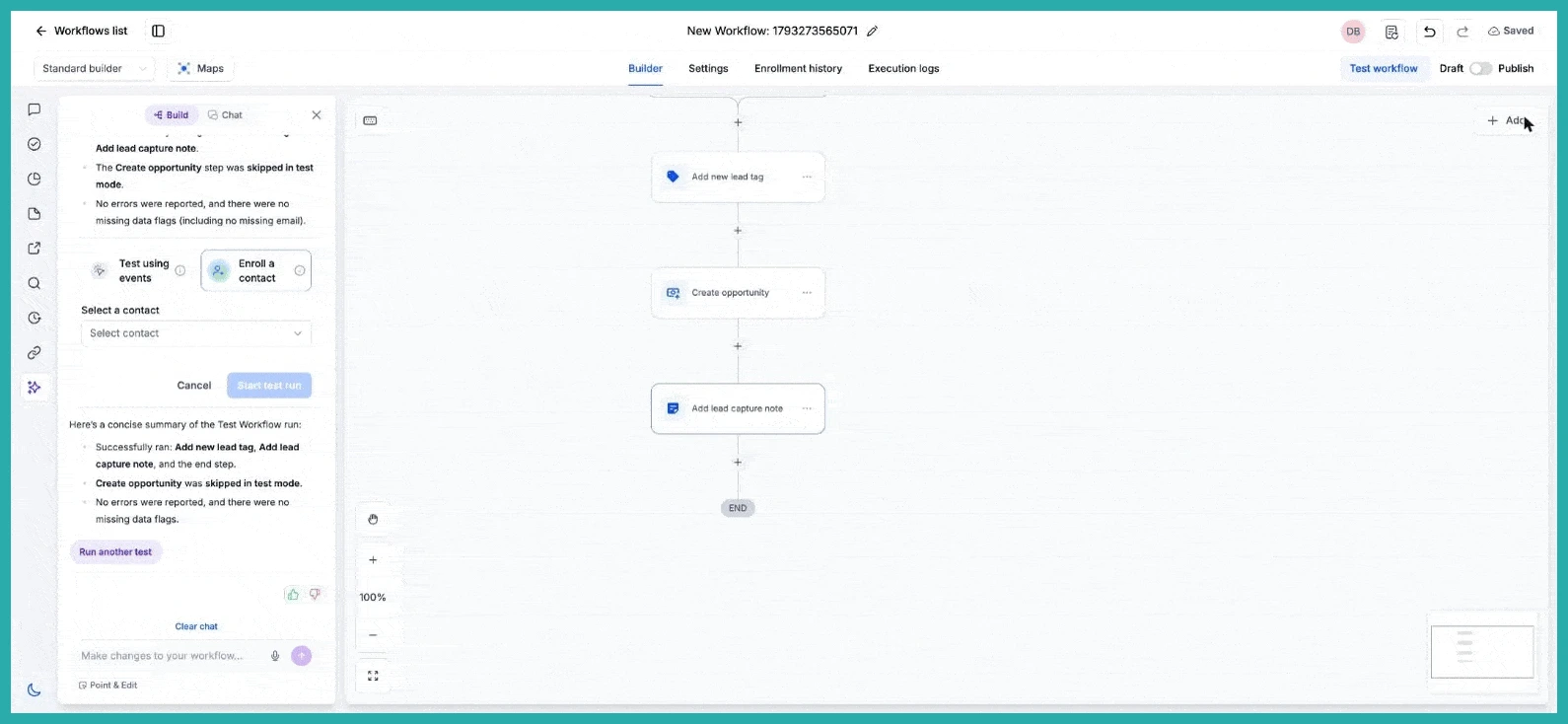
Read a summary you can actually understand
When the run ends, AI Builder writes a short plain-words summary: which steps ran, which were skipped, and whether there were any errors or missing data.
Want more detail? Click any step on the canvas to see its Input and Output from that run. And if you tweak something, just hit Run another test to check it again in one click.
One important thing to know
A test runs the real steps. Tags get added, notes get written, and messages get sent for real. So when you don't want to reach an actual customer, test with your own contact.
A couple of other notes: some actions are skipped in a test run, and the summary and canvas will both tell you which ones. And testing is entirely optional - you can save and publish without running one if you'd rather.
The quick version
- Go to Automation > Workflows and open a workflow.
- Open AI Builder and describe the workflow or the change you want.
- When it finishes, click Test workflow in its reply.
- Choose Enroll a contact and pick one, or choose Test using events.
- Click Start test run.
- Read the summary, and click any step on the canvas to see its Input and Output.
- Save and publish your workflow.
Build it, test it, and know it works - all without leaving the chat. Go give one of your workflows a run and see what it tells you.
