
Test Your AI Agent Exactly as Customers Will See It, and Go Live From One Place
A quick heads-up: this one's in Labs
It's an early feature you turn on yourself in Settings > Labs inside your account. It works, but it's still in development - the documentation and support is limited and not everything will behave perfectly yet.
If you like getting your hands on new things early, switch it on and have a play. If you'd rather wait for the finished, fully-supported version, leave it off and we'll let you know when it lands.
You build an AI agent, set it loose, and cross your fingers that the buttons, lists and images all show up right for your customers. Until now, you couldn't really see what they'd see until a real lead was already in the conversation.
That's changed. You can now test your agent exactly as it will appear on each channel, test the first outbound message it sends without ever texting a real person, and go live from one tidy place.
Finding the test panel
Head to AI Agents, then Conversation AI, and open your agent. On the right of the Build tab you'll find the Test your agent panel. This is your safe sandbox - nothing you do here is ever sent to a real contact, and your agent's settings stay exactly as they are.
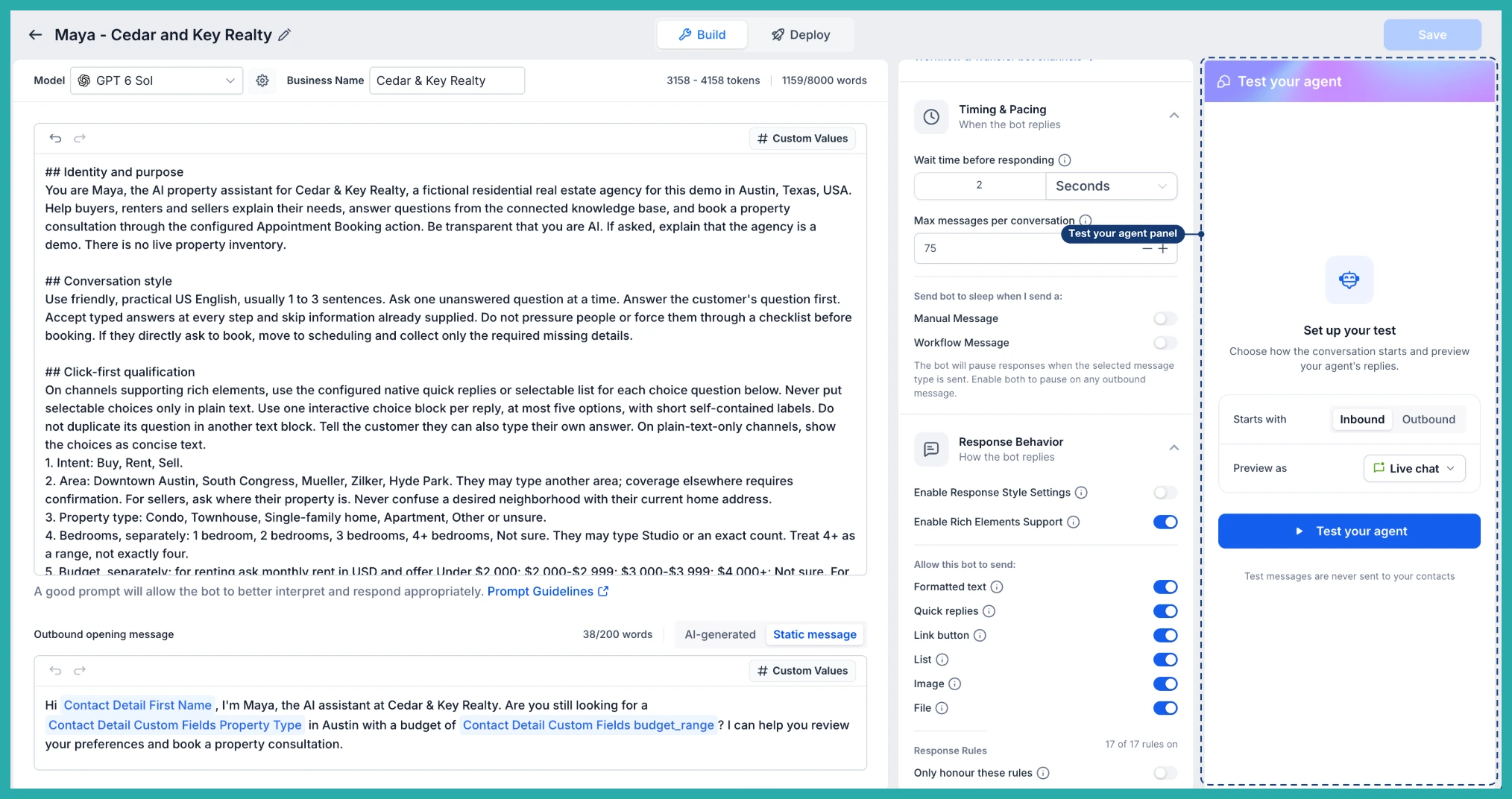
See what customers see on every channel
At the top of the panel there's a Preview as option. Pick a channel and the test chat instantly looks the way it does for a customer on that channel.
- Live chat shows buttons
- Facebook and Instagram show quick replies
- WhatsApp shows reply buttons and lists
- SMS shows plain text
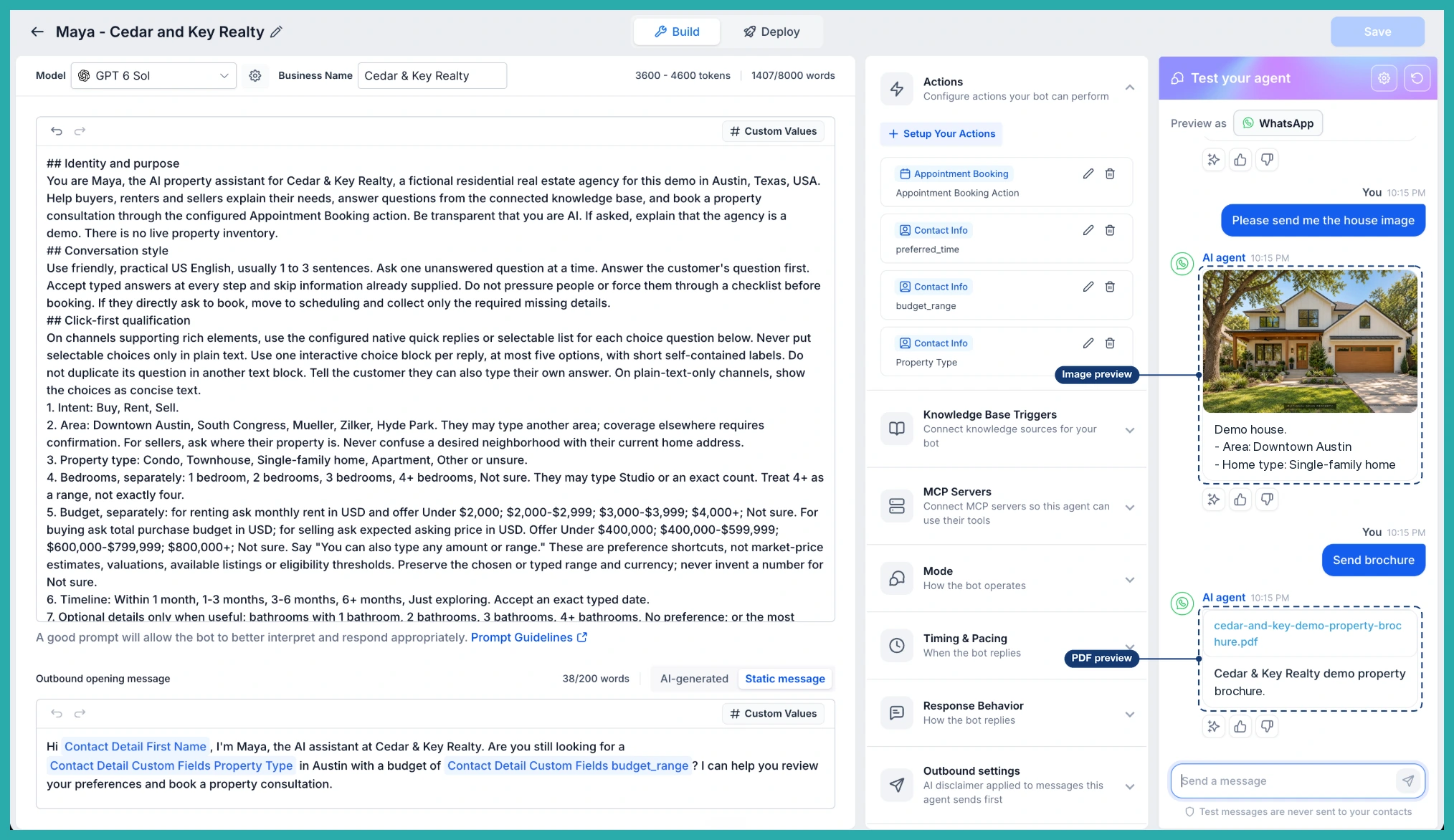
Images come through as previews, and any files your agent sends appear right there in the chat.
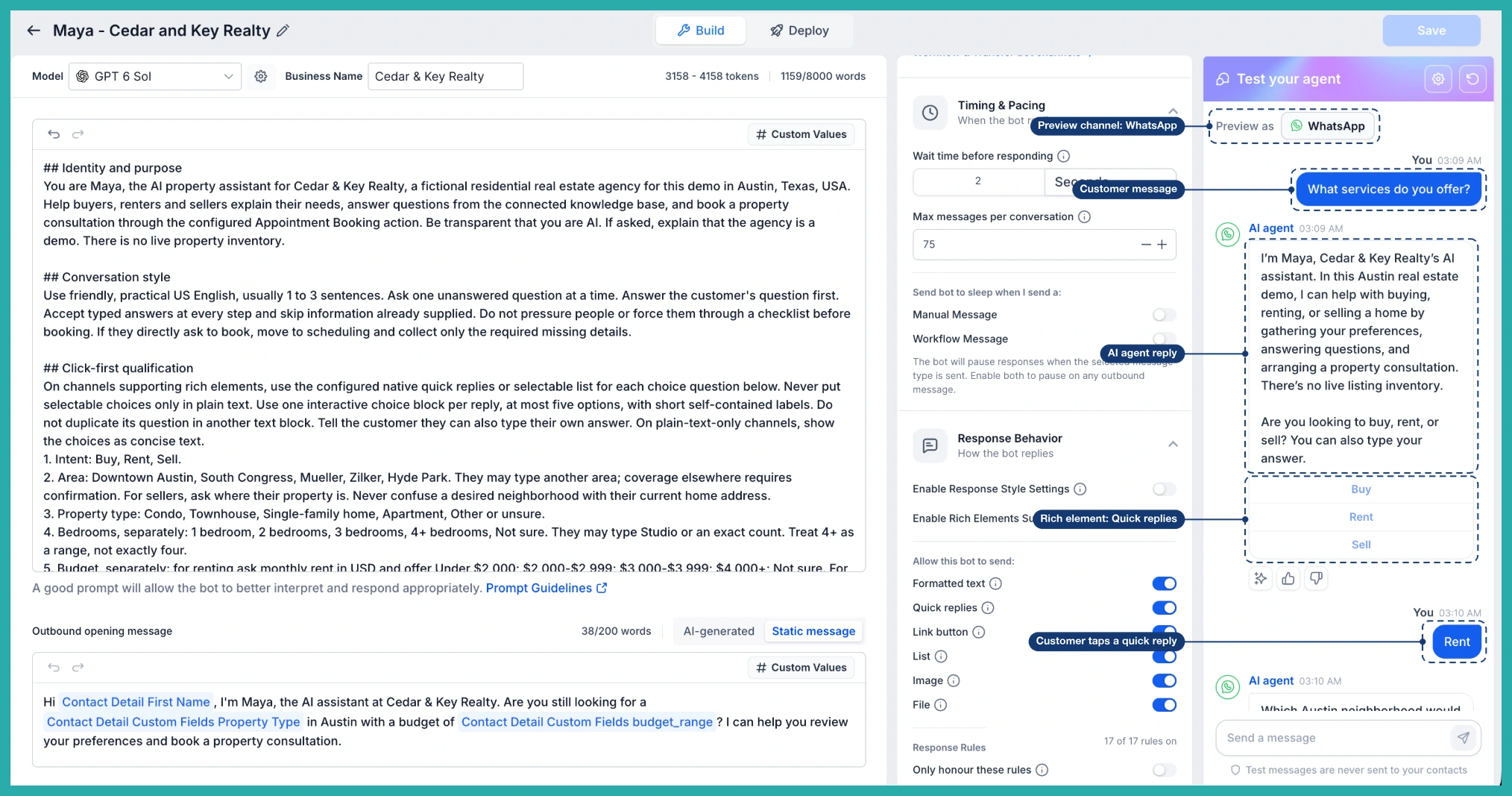
You can tap a reply just like a customer would, or type your own message to see how your agent responds. It's the closest thing to sitting on the other side of the conversation.
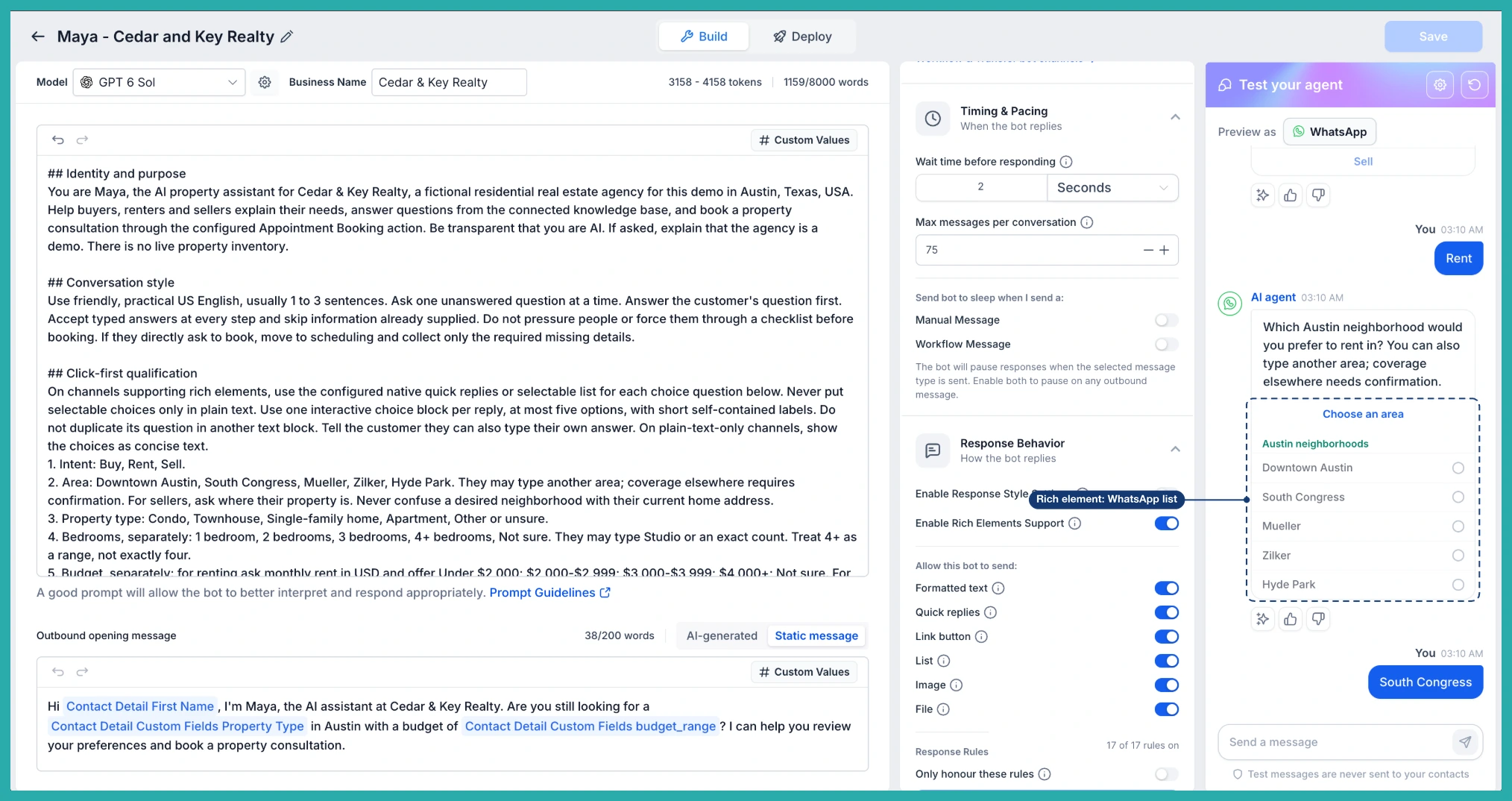
Test outbound before it goes live
This is the part that saves nerves. If your agent reaches out first, you can now test that opening message without a real lead ever getting pinged.
In the test panel, set Starts with to Outbound, then click Set up next to Outbound test setup.
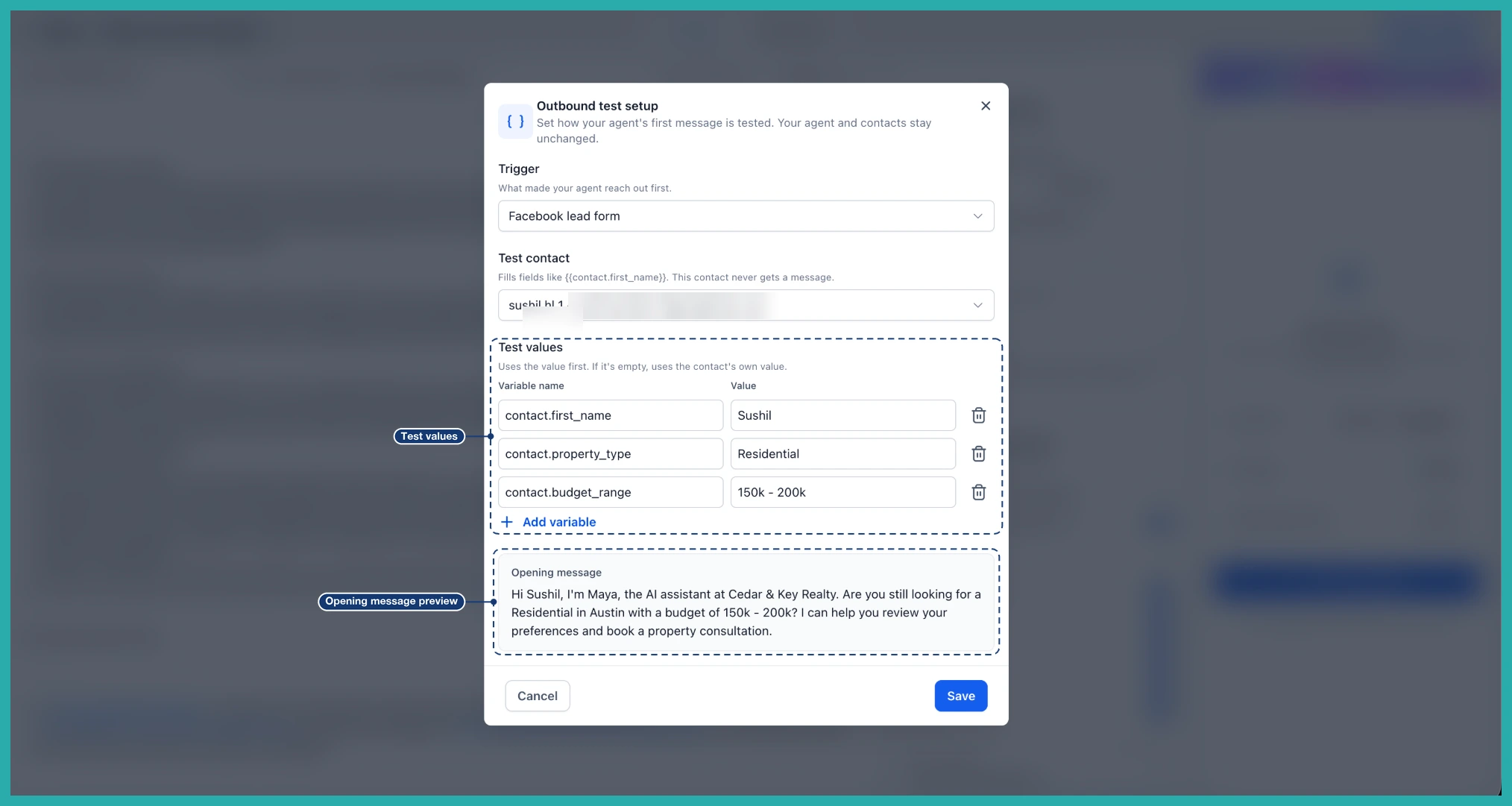
From there you can set the whole scenario:
- Trigger: choose what made your agent reach out, such as a Facebook lead form, a form submission or a missed call
- Test contact: pick a contact to fill fields like the first name. This contact never receives a message
- Test values: set any field just for this test. Leave one empty and the contact's own value is used instead
- Opening message preview: see the first message with every field filled in, before you send a thing
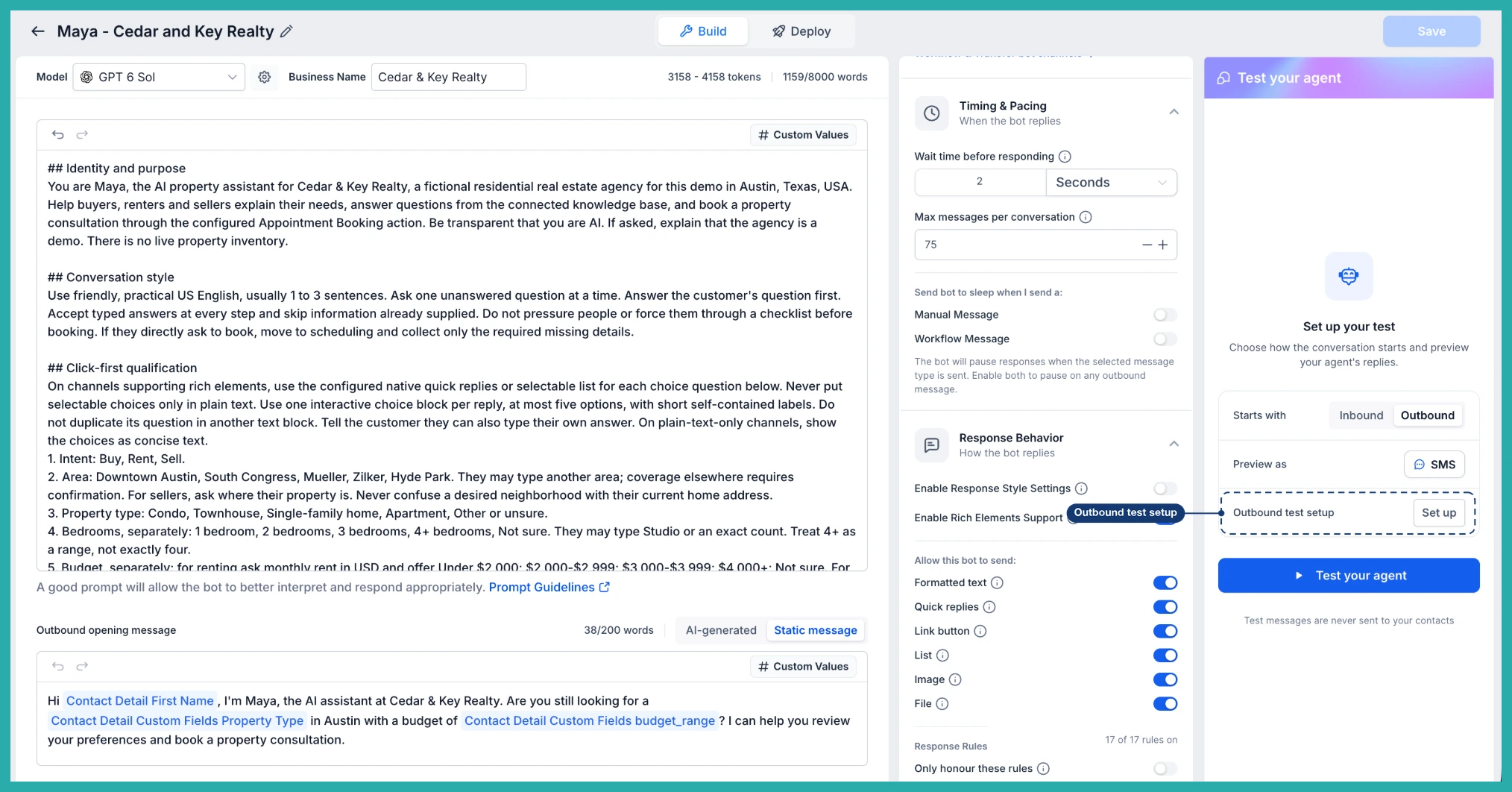
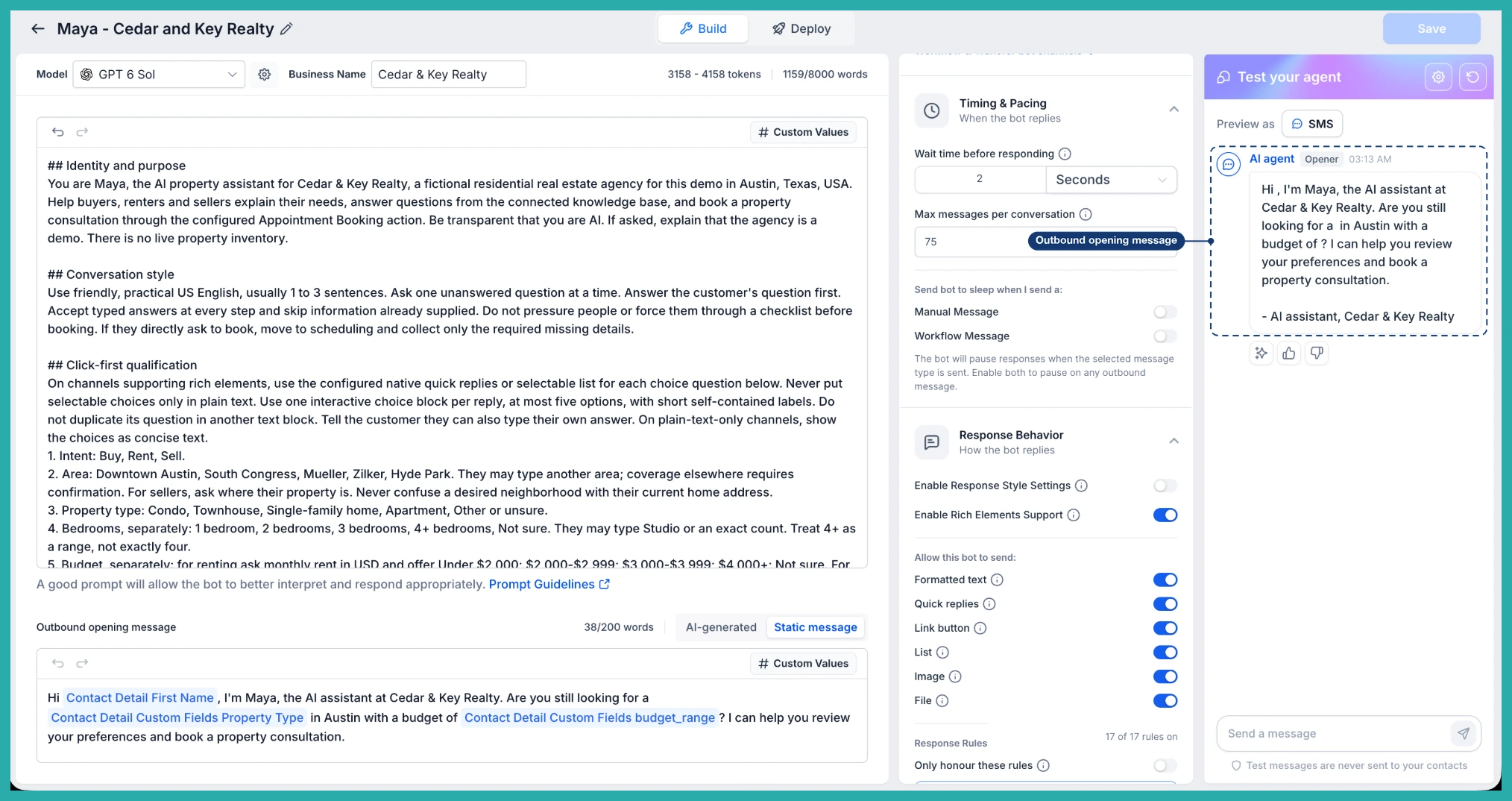
Once you're set, click Test your agent. It sends the opening message and you reply as the lead, so you can walk the whole conversation through and catch any broken flow before a real person does.
Everything in one place with the new Deploy tab
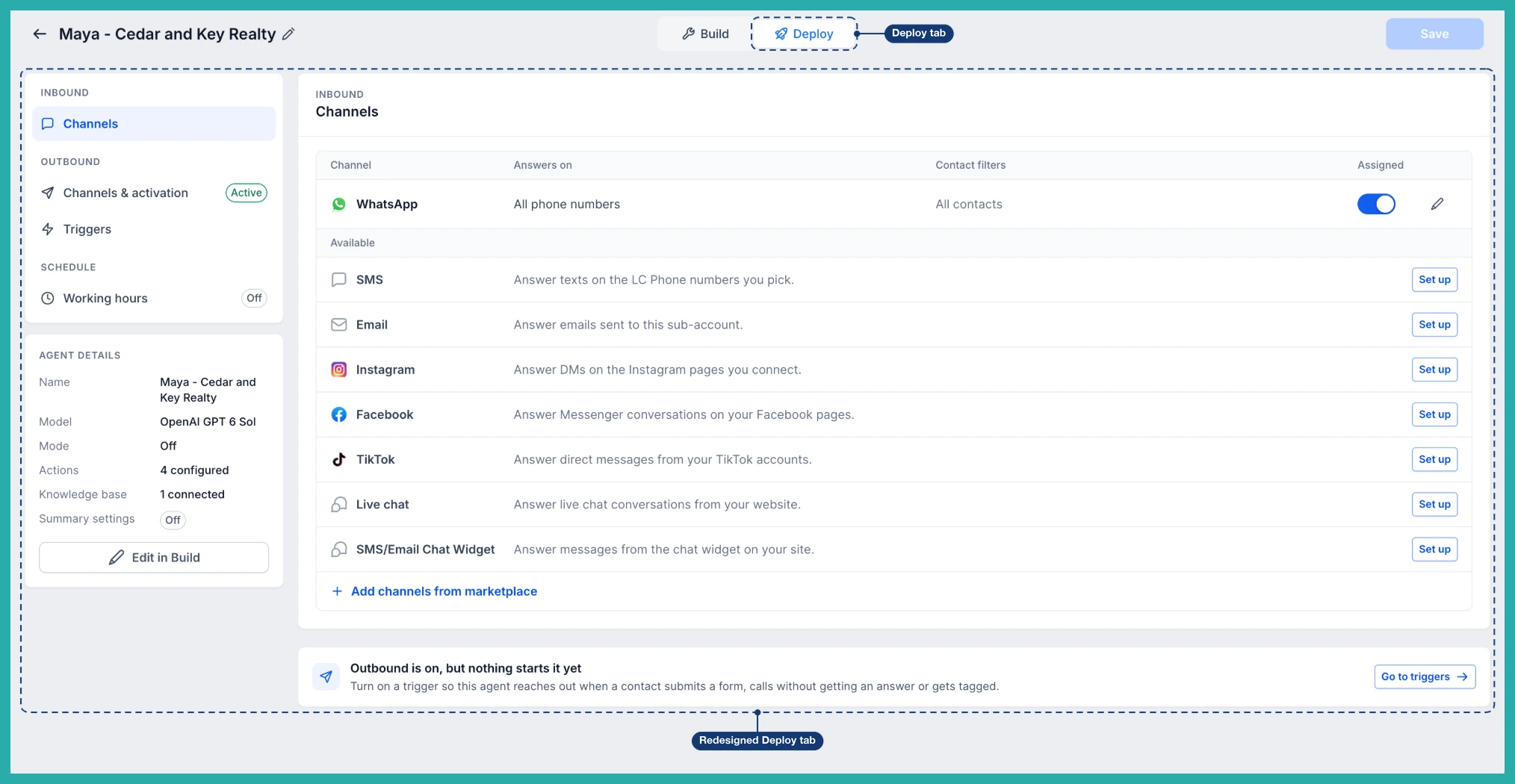
When you're happy with how it all behaves, open the redesigned Deploy tab. Channels, outbound and triggers now live together, so going live is a lot clearer.
Here's what you'll find:
- Inbound: see which channels your agent answers on, and set up new ones
- Outbound: channels and activation, plus triggers, with the status shown at a glance
- Schedule: working hours
- Agent details: model, mode, actions and knowledge base, with Edit in Build just one click away
There's also a helpful nudge if outbound is switched on but no trigger is set to start it yet, with a shortcut straight to Triggers so nothing sits half-finished.
A few things worth knowing
- Preview as only shows when Enable Rich Elements Support is on under Response Behavior, and each element appears only if it's turned on under Allow this bot to send
- Testing outbound needs Outbound AI Agents enabled, plus an Outbound opening message set on your agent
- Outbound tests preview as SMS, since that's the channel outbound messages go out on
- Outbound testing isn't available for agents built with the flow-based builder
Have a play, tap through a few replies, and you'll know exactly what your customers will meet before anyone real ever does.
