
Edit Big Workflows in One Instruction with AI Builder's Targeted Edits
You build a long workflow, and later you need to change one thing across a dozen emails. The old way meant opening each action, one at a time, and hoping you didn't miss one.
AI Builder just got a lot better at this. Now you can name exactly what you want changed, and it changes only that - leaving everything else alone.
What you get
Two things, really. Sharper targeting, so when you say "these actions" it edits those and nothing more. And bulk edits, so one instruction can update many actions at once.
That covers a lot of everyday jobs:
- Update email, SMS, or any-channel copy across several actions in a single pass.
- Swap pipeline stages across all or specific actions and triggers at once.
- Set the From Name and From Email across all or selected email actions in one go.
- Hand it exact copy for 20 of your 50 emails and it edits only those 20, leaving the rest untouched.
The point is that editing effort no longer grows with the size of your workflow. Your biggest, most complex automations are the ones that gain the most.
How to use it
Open the AI assistant from the sidebar inside the workflow builder. In the screenshot below, you'll see where it sits alongside your workflow.
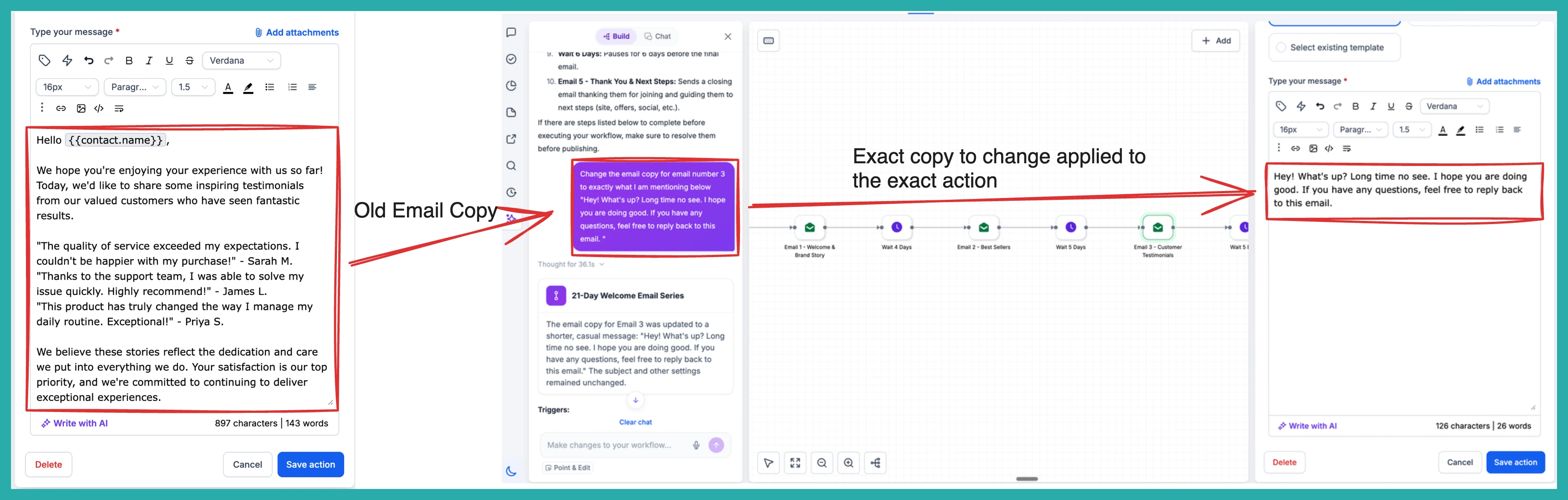
Type your change and be clear about the scope. You might say "Set the From Name to Aviv in all email actions," or "Update the SMS copy in only the first two actions." The more specific you are about which actions, the more precise the result.
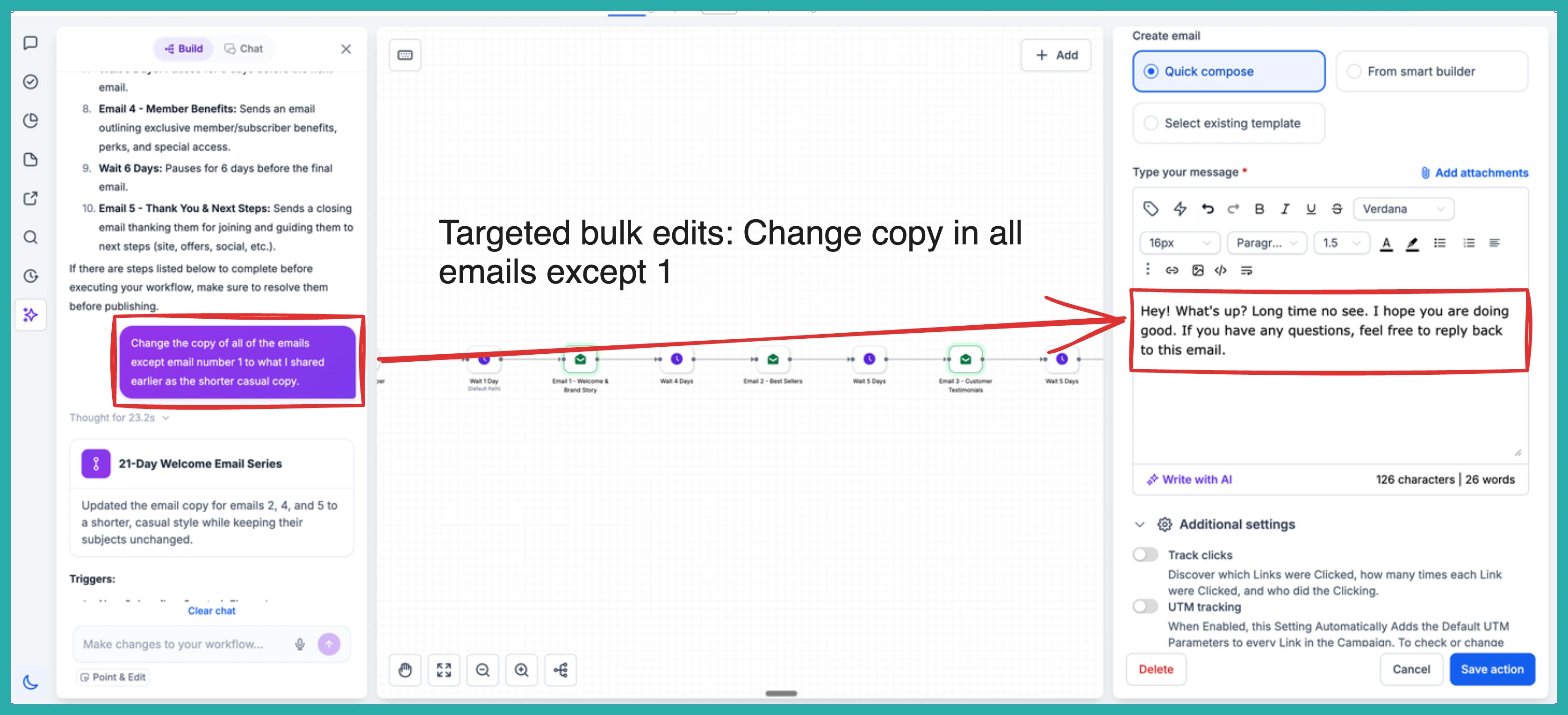
AI Builder reads that scope and applies the change to exactly the set you named. If you asked for two actions, it touches two - not the third, not the tenth.
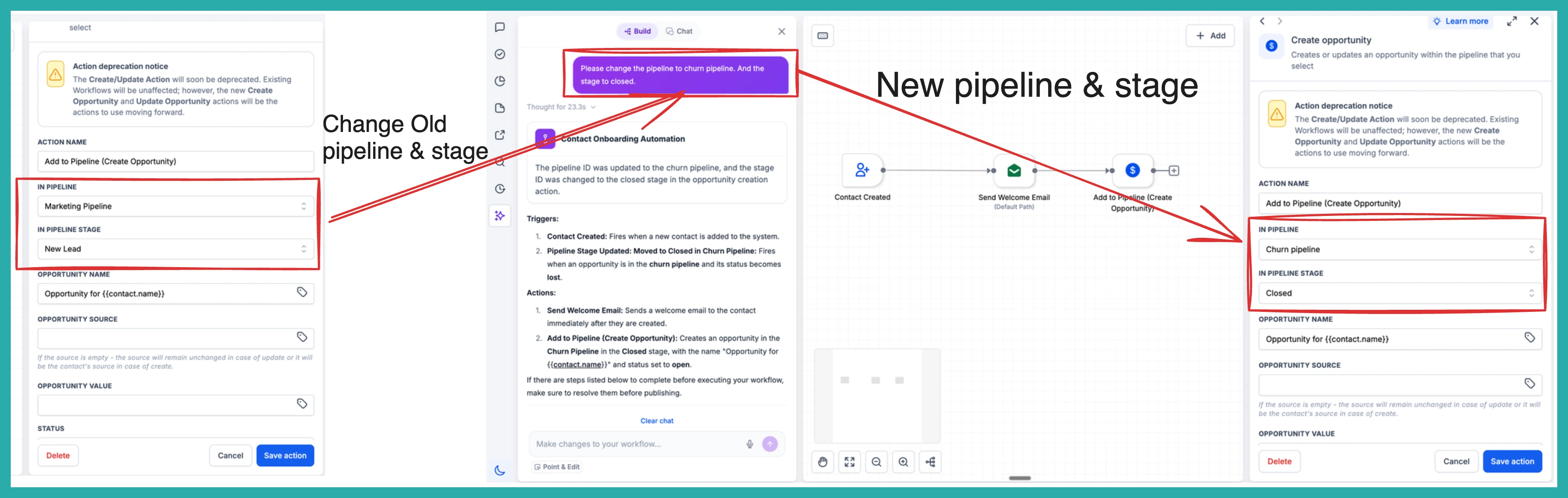
Before anything saves, you get a preview. Look it over, confirm it changed what you meant, and save.
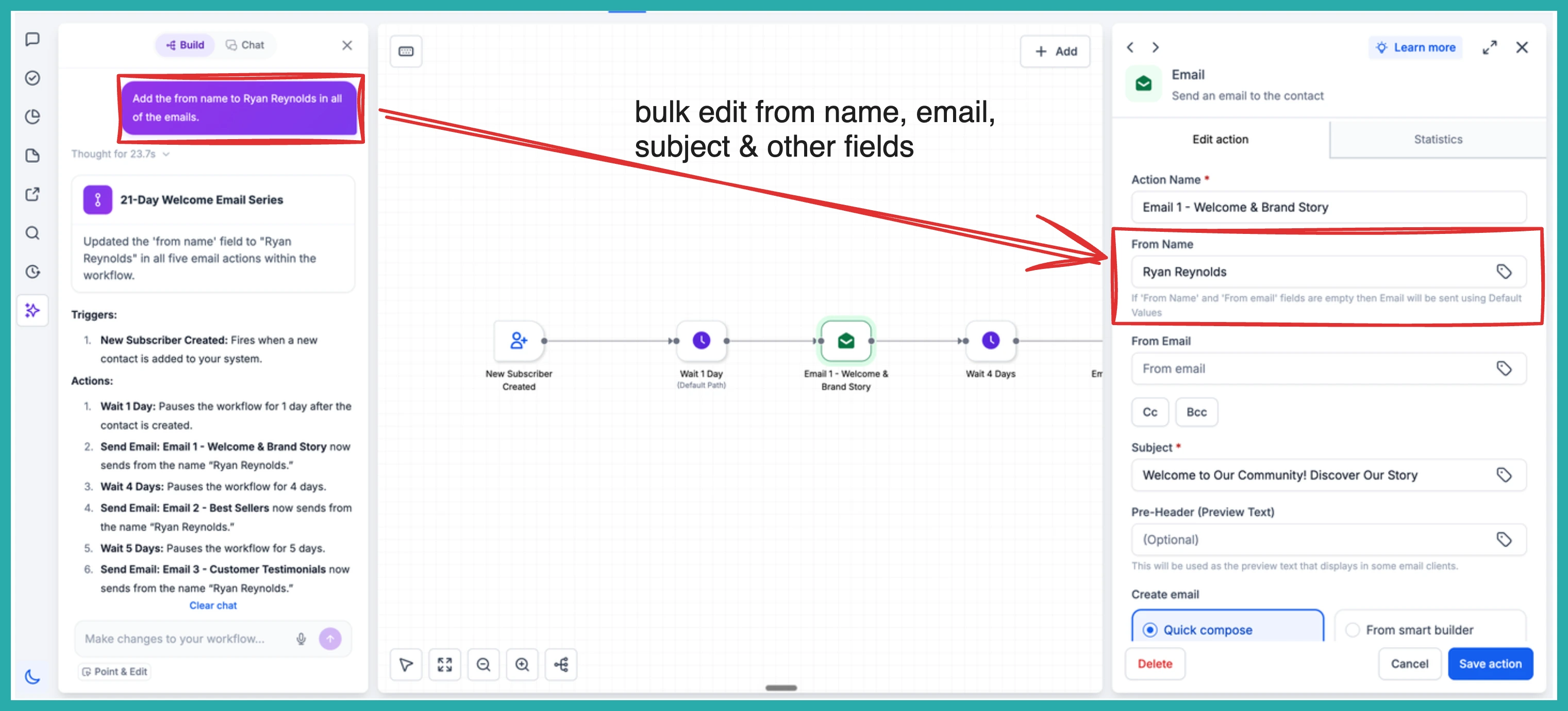
That reliable scoping is what makes this safe to lean on. Changes land only where you point them, with no spillover into actions you never mentioned.
If you've got a sprawling workflow you've been avoiding editing, this is the one to try it on. Name what you want, review, save, and you're done.
