
Start a Workflow the Moment a Client Uploads a File
A client uploads a waiver, an ID, a signed form, whatever you asked for. And then it just sits there until someone happens to notice.
You end up checking the portal yourself, or waiting for an email, or worse, missing it entirely until the customer asks why nothing's happened.
There's now a cleaner way to handle this.
What landed
There's a new workflow trigger called Client Portal File Uploaded. The moment a contact uploads a file through the Shared Documents area of your Client Portal, it can kick off a workflow automatically.
So instead of watching for uploads, you set up the response once and let it run. A file comes in, the trigger fires, and your workflow does whatever you've told it to - send you a notification, tag the contact, move them along their onboarding, start a review task, and so on.
Setting up the trigger
This lives where your other automations do.
- Go to Automation, then Workflows.
- Create a new workflow, or open one you already use.
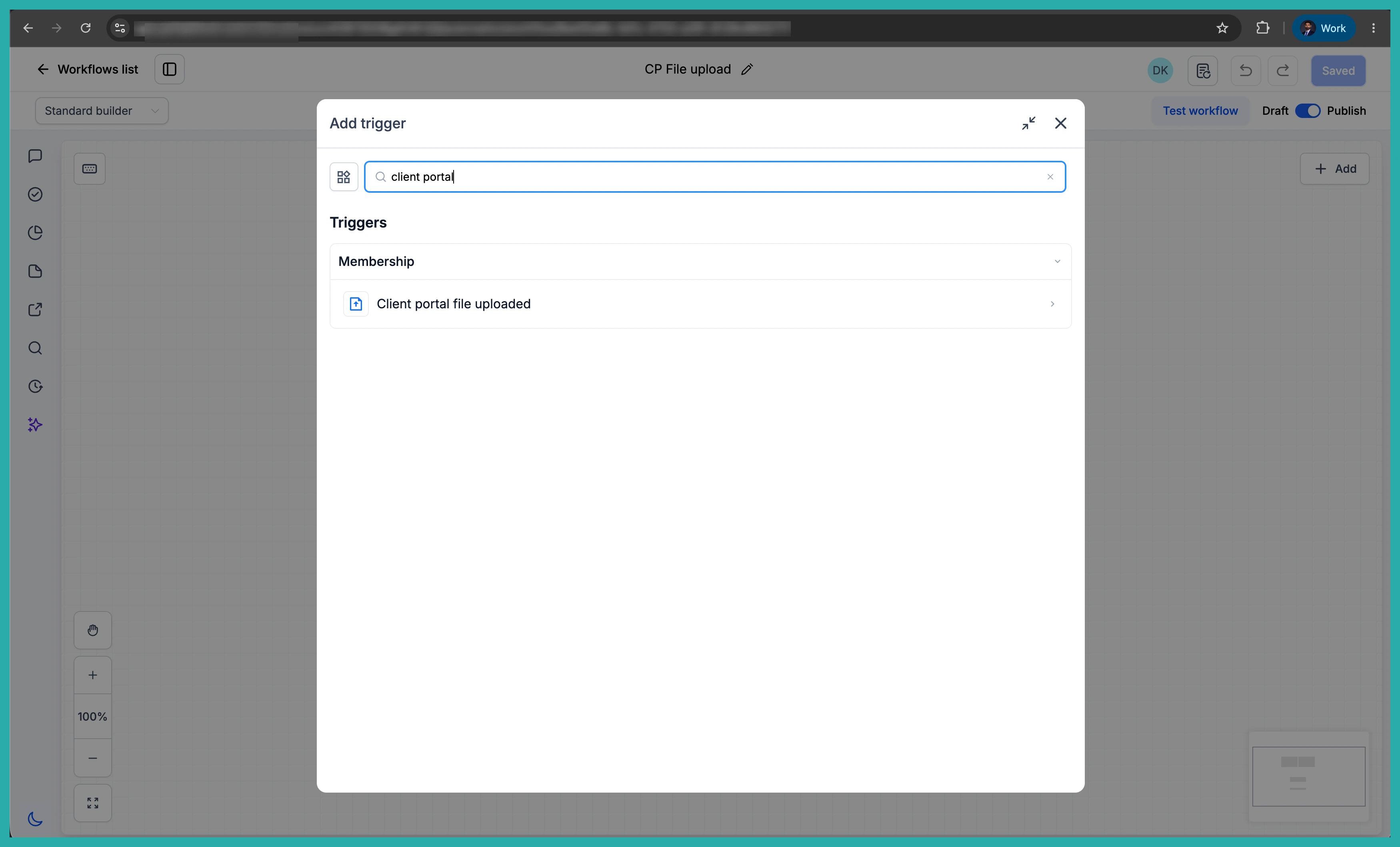
- Add the trigger Client Portal File Uploaded.
- Build out your actions from there - notifications, tags, tasks, the next step in a sequence.
- Publish the workflow.
In the screenshot below, you'll see the trigger added to a workflow, ready for you to add whatever actions suit how you work.
Getting files flowing through the portal
For the trigger to fire, your client needs a way to upload. Here's both sides of that.
To share a file with a client first:
- Open the contact.
- Click the Files icon in the right-side panel.
- Upload your file and tick Upload to Client Portal.
- Save. The file then shows up in their portal.
And when your client wants to send something back, they:
- Log in to the Client Portal.
- Go to Shared Documents.
- Click Share File.
- Upload one file or several at once - up to ten at a time.
- Submit.
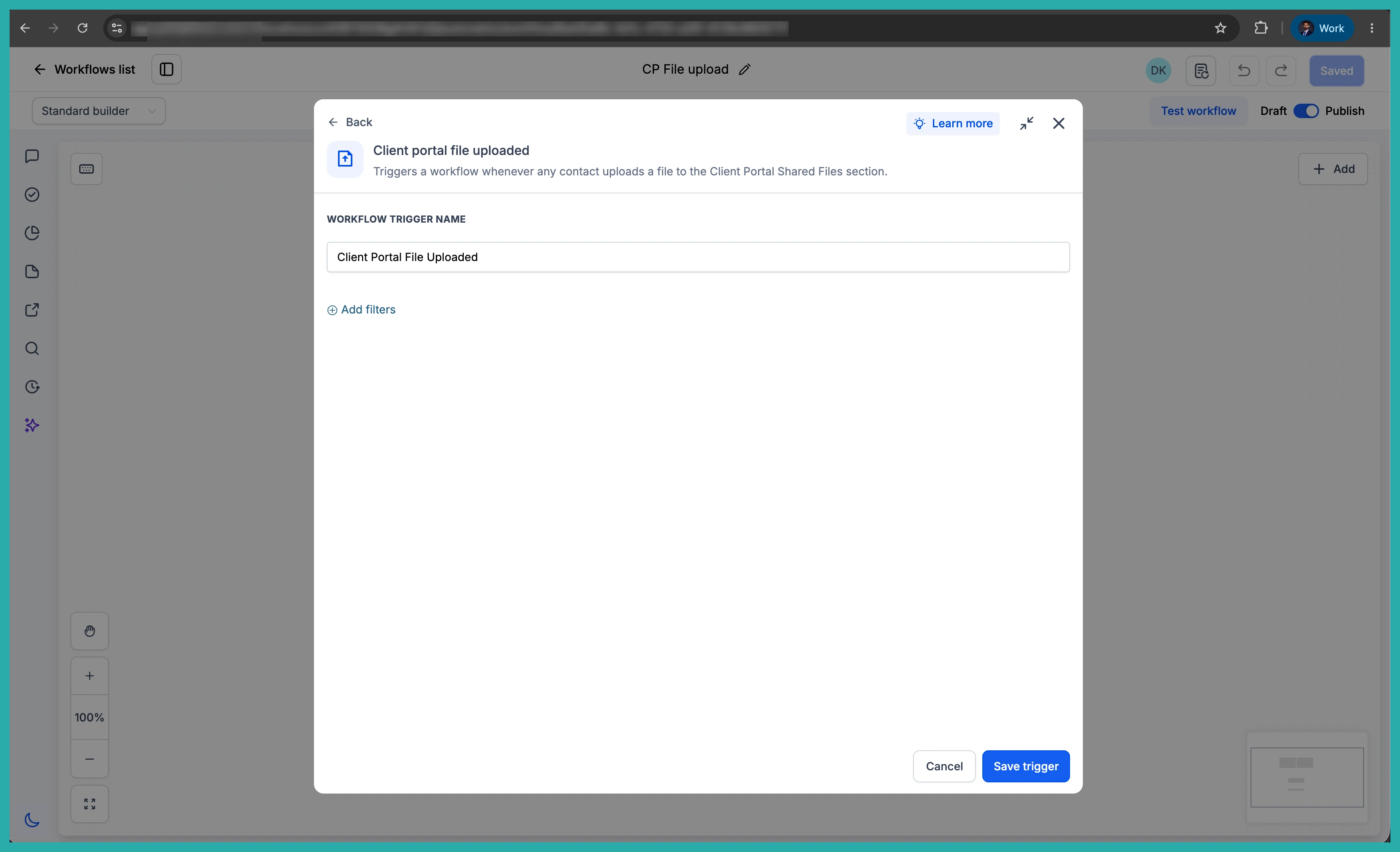
In the screenshot below, you'll see the Shared Documents view a client uses to send files across. As soon as they submit, your trigger fires.
Lots of file types are supported, so whatever your customers need to send through should be fine.
If you collect documents from people - liability forms, ID checks, anything that needs reviewing - set this up once and you'll never have to go hunting for uploads again. Give it a try with one simple workflow and build from there.
