
Set Working Hours for Your AI Agent So It Only Replies When You Want
Your AI agent has been happy to reply at 2am. Handy in some ways, but not always what you want your business to sound like.
Now you can give each agent its own working hours. It responds when you're open, acknowledges anyone who messages after hours, and picks the conversation back up when you reopen.
What landed
You can set the days and times your AI agent actively replies, choose which channels follow those hours, and decide exactly what happens for anyone who reaches out when you're closed. It's optional - leave it off and your agent keeps responding around the clock, just like today.
Set your days and times
Open your agent settings and turn on Working Hours. Choose the days you're open and set the times for each one. You can add more than one slot per day, so lunch breaks or split shifts are easy to build in.
In the screenshot below, you'll see the day-by-day schedule where you set those hours.
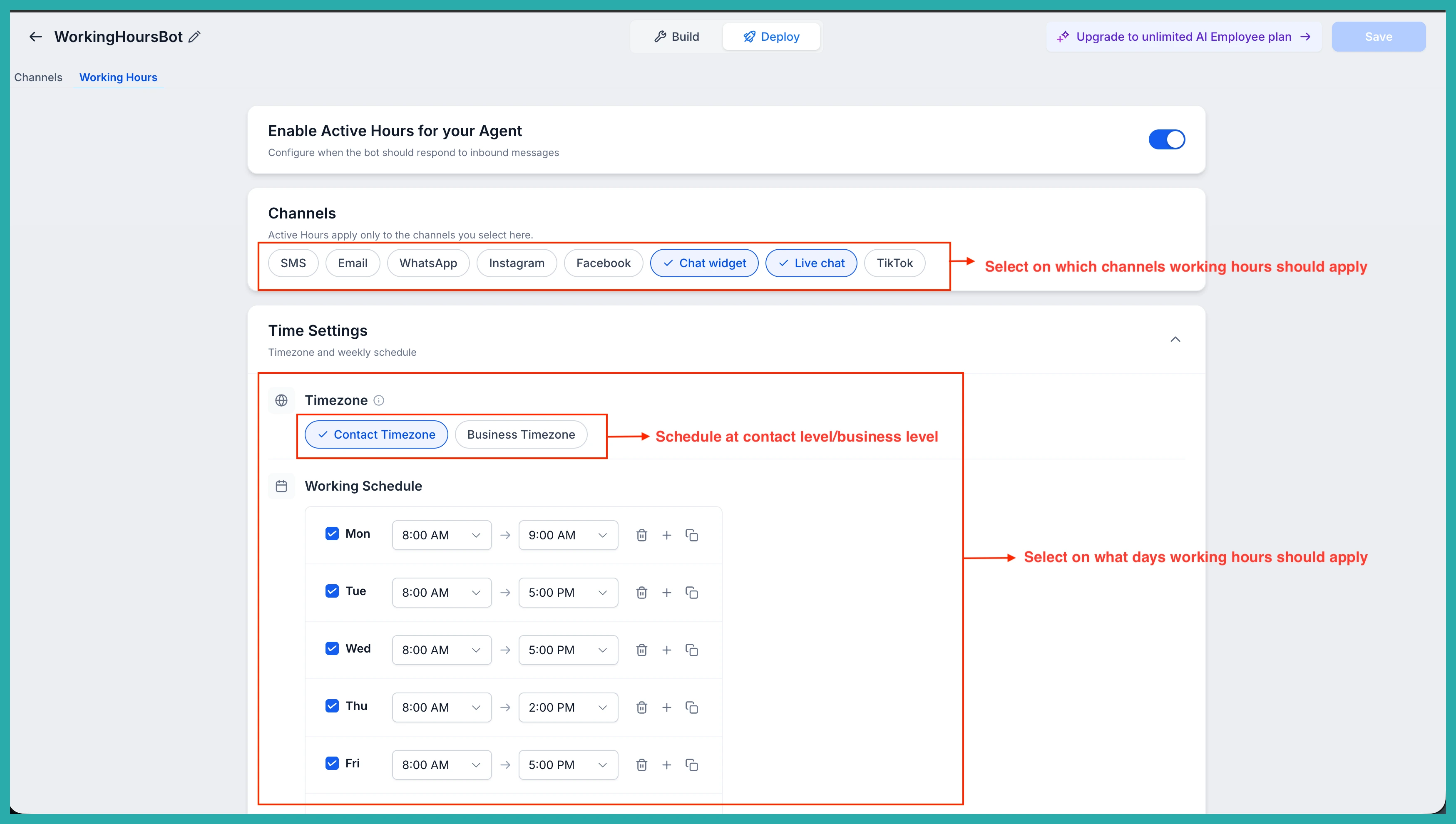
You can also run the schedule on either your business timezone or each contact's local timezone, so someone messaging from the other side of the country still gets treated fairly.
Pick which channels follow the hours
You don't have to apply this everywhere. Choose the channels that should respect your working hours - SMS, Email, WhatsApp, Instagram, Facebook, the Chat Widget, Live Chat, TikTok. Anything you leave unselected keeps replying 24/7.
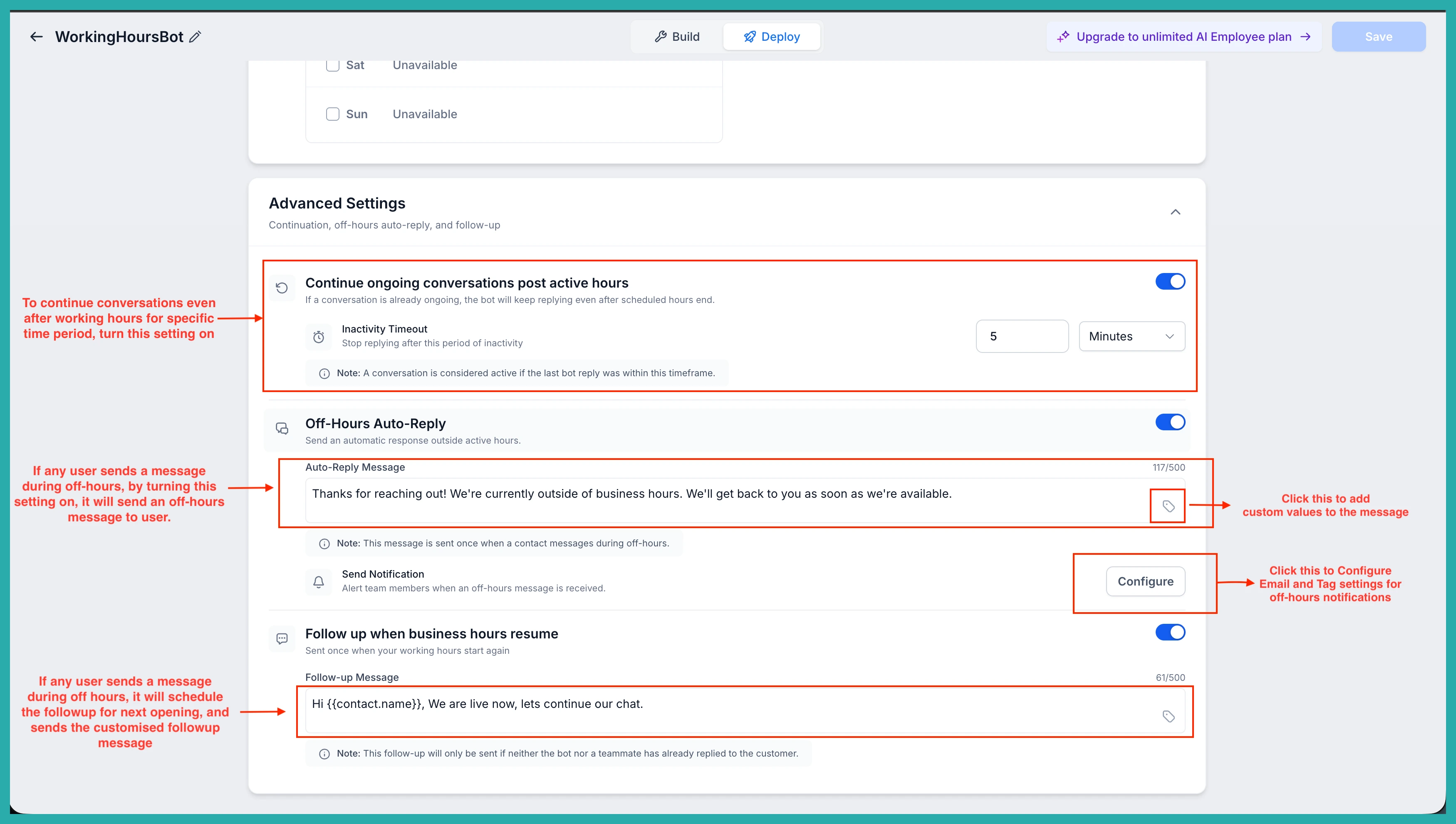
One nice touch: if a conversation kicks off during working hours, your agent can keep replying after closing time until that chat winds down. No one gets cut off mid-sentence.
Decide what happens after hours
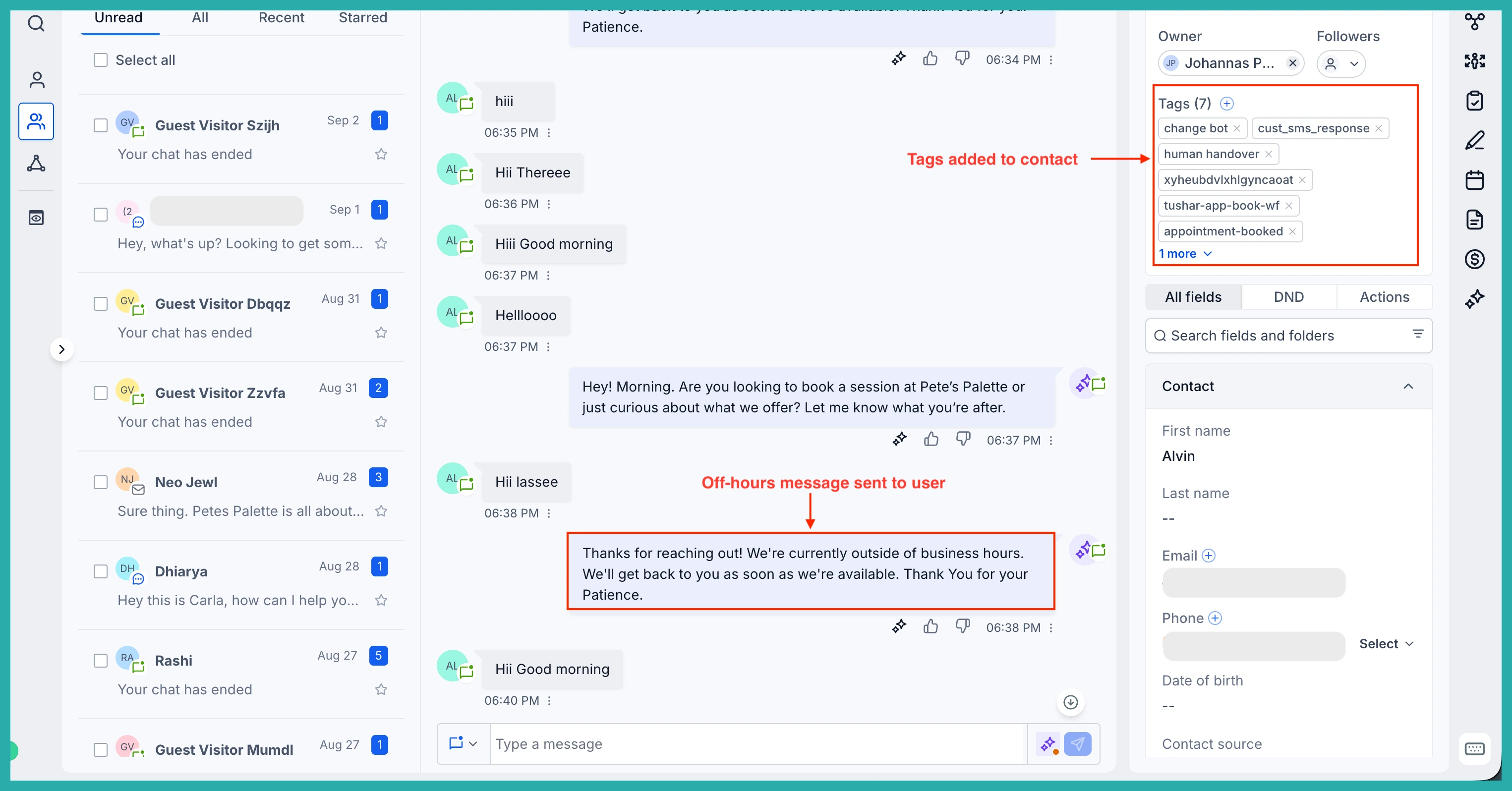
This is where it gets genuinely useful. For anyone who messages when you're closed, you can set up an off-hours auto-reply to acknowledge them straight away. Write your own message and personalise it with custom values.
In the screenshot below, you'll see where you write that off-hours message.
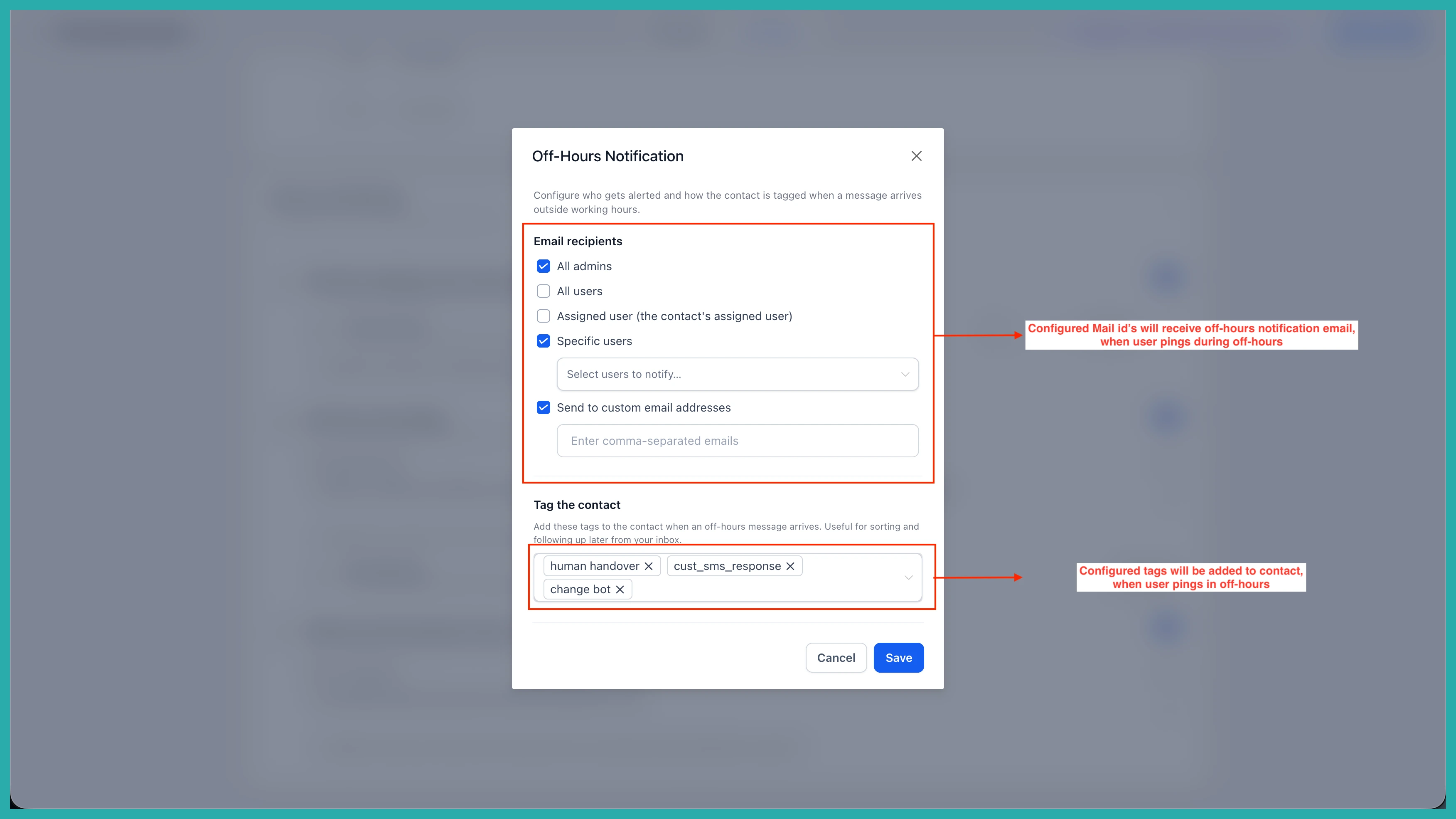
You can also:
- Notify your team by email - admins, assigned users, specific team members, or any custom address
- Automatically tag after-hours contacts so they're easy to filter and follow up
- Send an automatic follow-up when you reopen, but only if that person hasn't already had a reply
All of these fire once per closed period, so nobody gets pestered with the same auto-reply for every message they send overnight.
A few things worth knowing
Working Hours is set per agent, so different agents can run completely different schedules. If you're using Suggestive Mode, suggestions still come through for your team after hours. And you can always switch an agent on manually from the conversation panel when you need it outside its usual hours.
If your business keeps proper hours, this is a small setup that makes your AI feel a lot more like you. Give it ten minutes and your after-hours customers will always be looked after.
