
Richer, Branded Text Conversations With RCS - And You Can Register Without Leaving Your Account
A quick heads-up: this one's in Labs
It's an early feature you turn on yourself in Settings > Labs inside your account. It works, but it's still in development - the documentation and support is limited and not everything will behave perfectly yet.
If you like getting your hands on new things early, switch it on and have a play. If you'd rather wait for the finished, fully-supported version, leave it off and we'll let you know when it lands.
Plain text messages do the job, but they're not much to look at. RCS messaging changes that. It lets you send branded, interactive messages - your business name and logo, image cards, tap-to-act buttons, suggested replies - right inside the conversations you already run.
And the part that used to be a headache, registering to send in the first place, now happens entirely inside your account. No bouncing out to a separate provider platform.
What RCS actually gives you
Once your sender is approved, your messages can do a lot more than a wall of text:
- Branded messaging - your business name and logo show up, so customers recognise it's you.
- Rich cards and carousels - show off products, services and offers with images and interactive content.
- Interactive buttons - let customers take action straight from the message.
- Suggested replies - give them a one-tap way to respond.
And it slots into the tools you already use - one-to-one conversations, bulk messaging, workflows, and reusable RCS templates.
Register your sender, start to finish, in your account
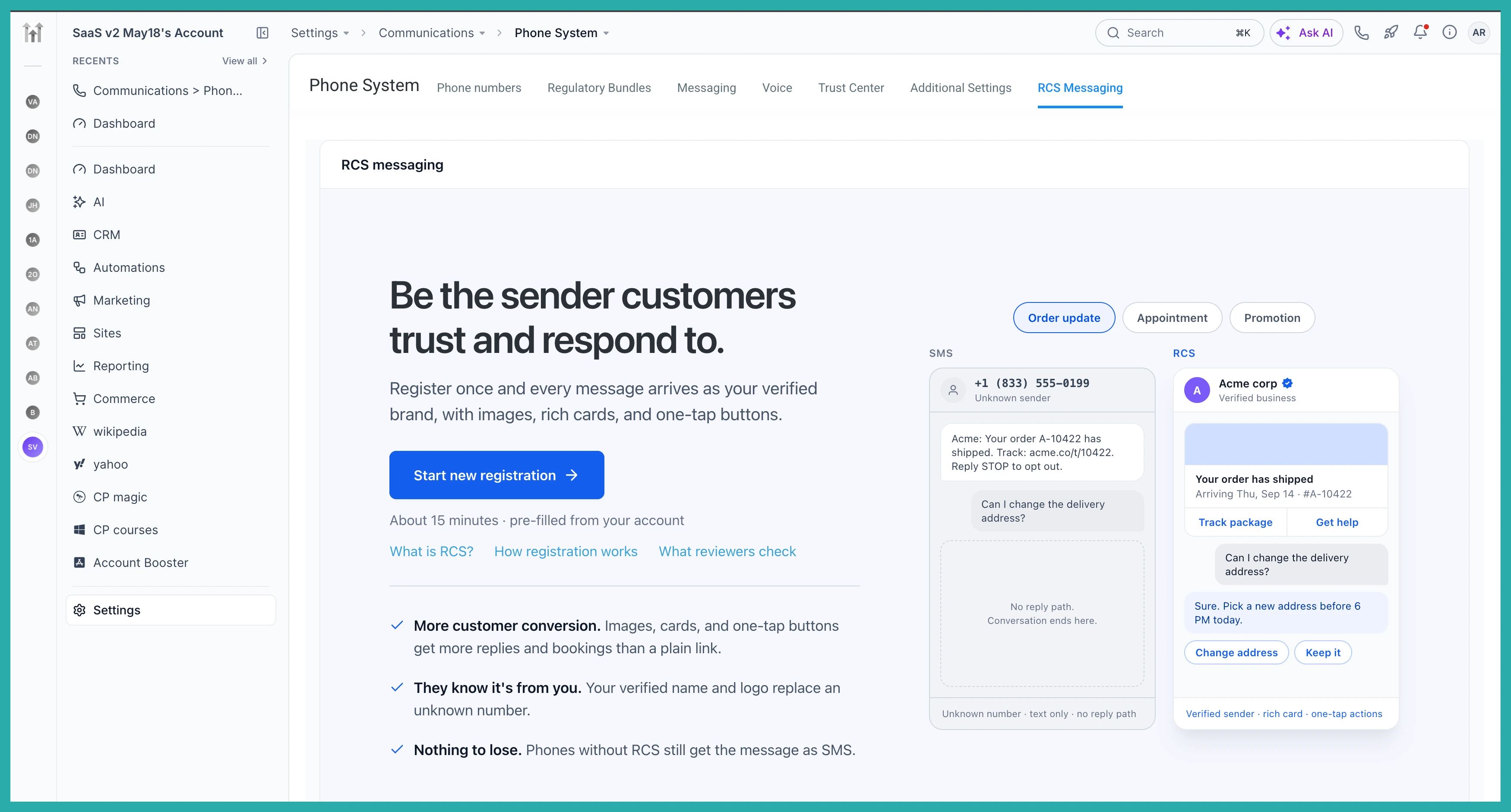
Open the account you want to set up, then go to Settings, Phone System, RCS Messaging, and start the guided registration. It walks you through everything step by step.
In the screenshot below you'll see the start of that process, where you set up your brand identity - business name, logo, description, contact details and website - with a live preview of how your brand will appear to customers.

From there you work through:
- Countries - choose where you plan to use RCS.
- Sender details - tell the system how you'll use RCS, what you'll send, and how customers consent to receive messages.
- US verification - a few extra business and messaging details if you're registering for the United States.
- Review and submit - check everything over and send it off for approval.
Your progress saves automatically, so you can stop partway and come back without losing anything.
Track your approval
Once you've submitted, you don't have to go hunting for an update. You can follow your sender's approval status right inside your account, as shown below. When it flips to Live, you're ready to start sending rich messages.
A few honest notes
- RCS senders need carrier and provider approval before you can go live, so there's a wait built in.
- Availability depends on supported countries, carriers, and the recipient's device.
- You can add test devices to try RCS out before your sender goes live.
- You can set this up for as many accounts as you like, and introduce richer messaging to different clients at your own pace.
Set up one sender, see how the conversations feel, and grow from there. It's a nicer way to talk to the people you're already talking to.
