
Automations Can Now Save Smart, Calculated Dates to Your Contacts
Up to now, when a workflow saved a date to one of your contact fields, you had to type in a fixed date and time. Fine for a one-off, but useless when you want a date that changes with each contact.
That just changed. You can now populate Date-Time contact custom fields with dynamic values, so the date works itself out when the action actually runs.
What you get
Inside Update Contact Field and Create Contact, each Date-Time field now gives you a choice:
- Standard - keep a fixed date and time, exactly as before.
- Dynamic - use a value that resolves when the workflow runs.
That dynamic value can be a timestamp, an output from Format Date and Time, a date tag, or another Date or Date-Time field you've already got. So you can calculate a follow-up date and have it saved straight onto the contact for later.
How to use it
- Open a workflow and add or edit Update Contact Field or Create Contact.
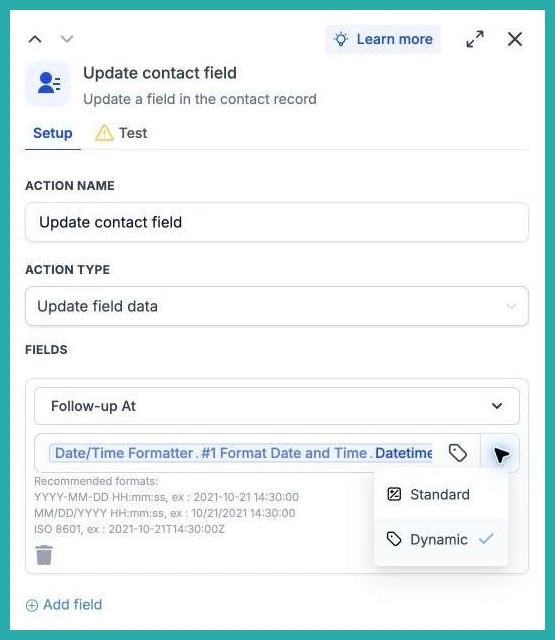
- Select your Date-Time contact custom field, open its three-dot menu, and choose Dynamic.
- Pick the source value from the picker. If you want to use a Format Date and Time output, add that formatter step earlier in your workflow first.
- Use a supported format, such as YYYY-MM-DD HH:mm:ss, then save the action and the workflow.
In the screenshot below, you'll see the Date-Time field switched to Dynamic with the source value selected from the picker.
A simple example
Say you want to set a Follow-up At date for each new lead. Add a Format Date and Time step to work out the timestamp you want, then in your contact action select that output as the dynamic value for the Follow-up At field. When the action runs, the contact's field stores the resolved date and time, ready for whatever comes next.
Good to know
- Date-only values are stored at 12:00 AM in your location's timezone.
- If a value is invalid or empty at runtime, only that one field is skipped. The rest still update, and the execution log tells you why.
- Switching modes between Standard and Dynamic clears whatever value you'd entered, so re-check it after you swap.
- Existing workflows keep working. Static Date-Time values behave exactly as before, and separate Date and Time fields are unchanged.
If you've been hand-typing dates or dodging this kind of automation altogether, go open one of your workflows and give Dynamic a try. It's a small switch that saves you a lot of fiddling.
