
Six New Custom Field Types to Capture the Exact Details Your Business Needs
Custom fields are how you make your account hold the exact information you care about. Up to now the choices were a bit limited, so people ended up bending a plain text field to do a job it wasn't built for.
That's changed. There are six new field types, and each one gives you cleaner data with less mess to tidy up later.
Let me walk you through them.
Where to find them
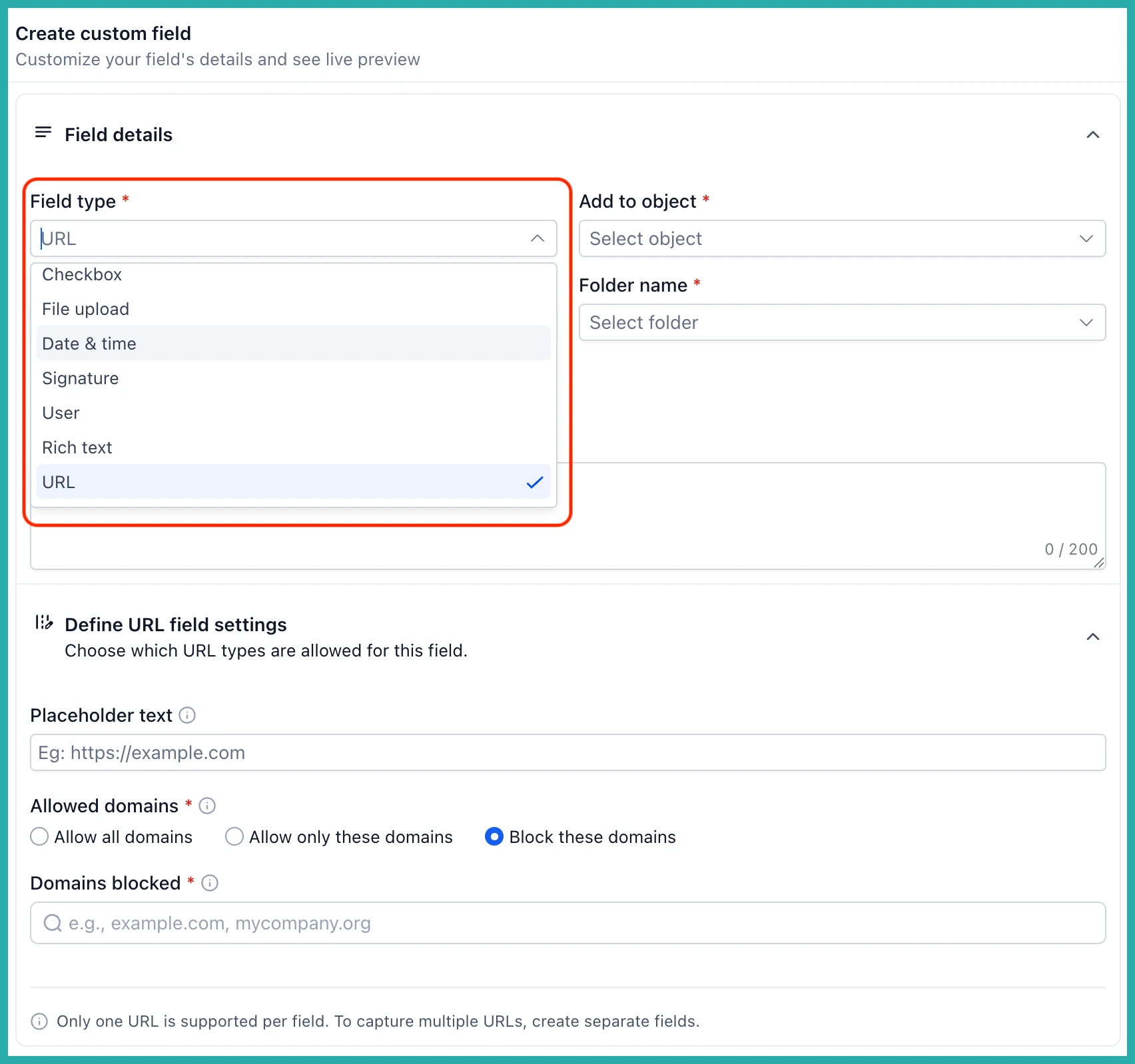
Head to Settings, then Custom Fields, and add a new field. When you pick the field type, you'll see the new options waiting for you.
1. URL fields with domain controls
If you collect website links, profile URLs, or resource links, there's now a proper URL field for it. No more links dumped into a text box.
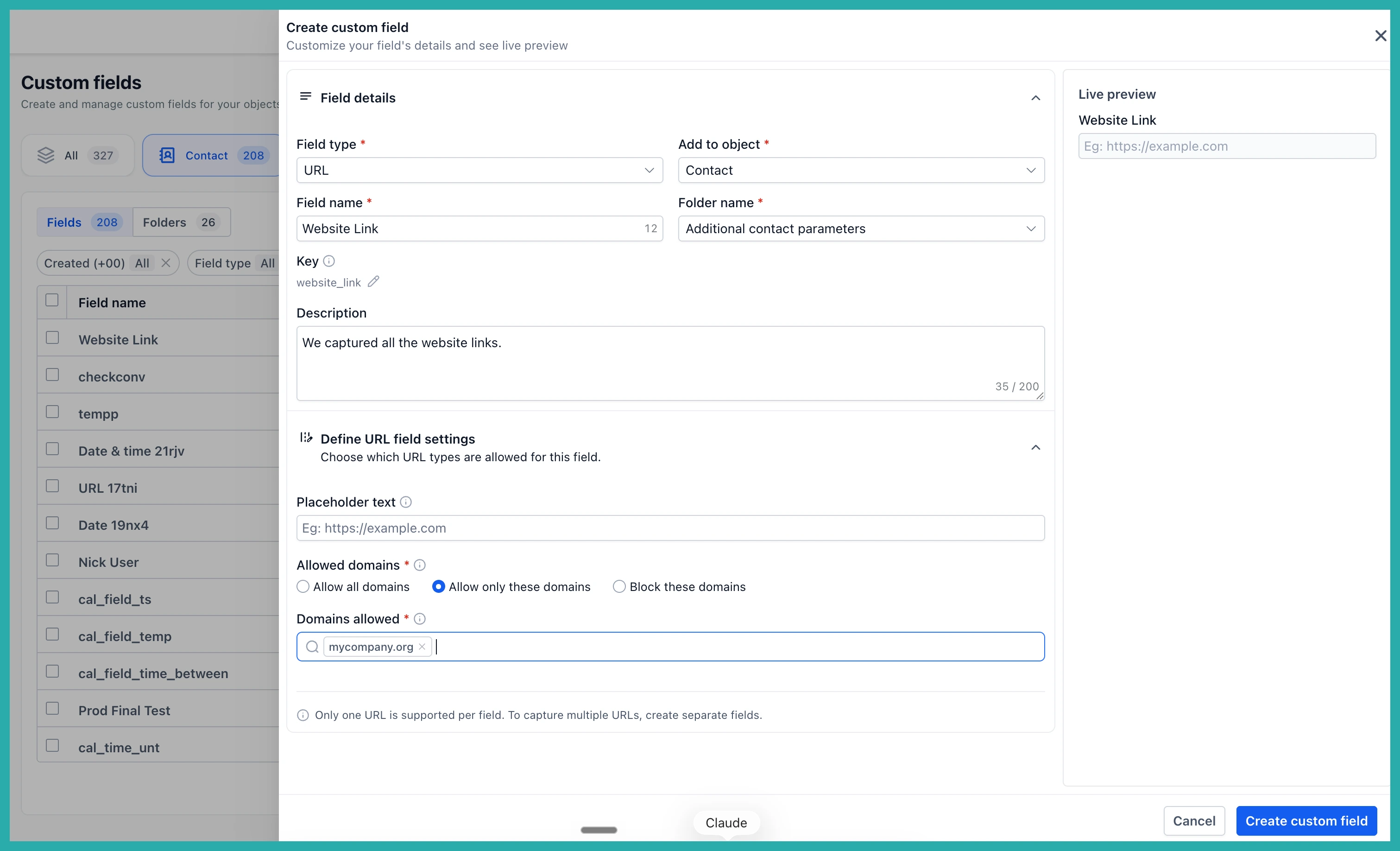
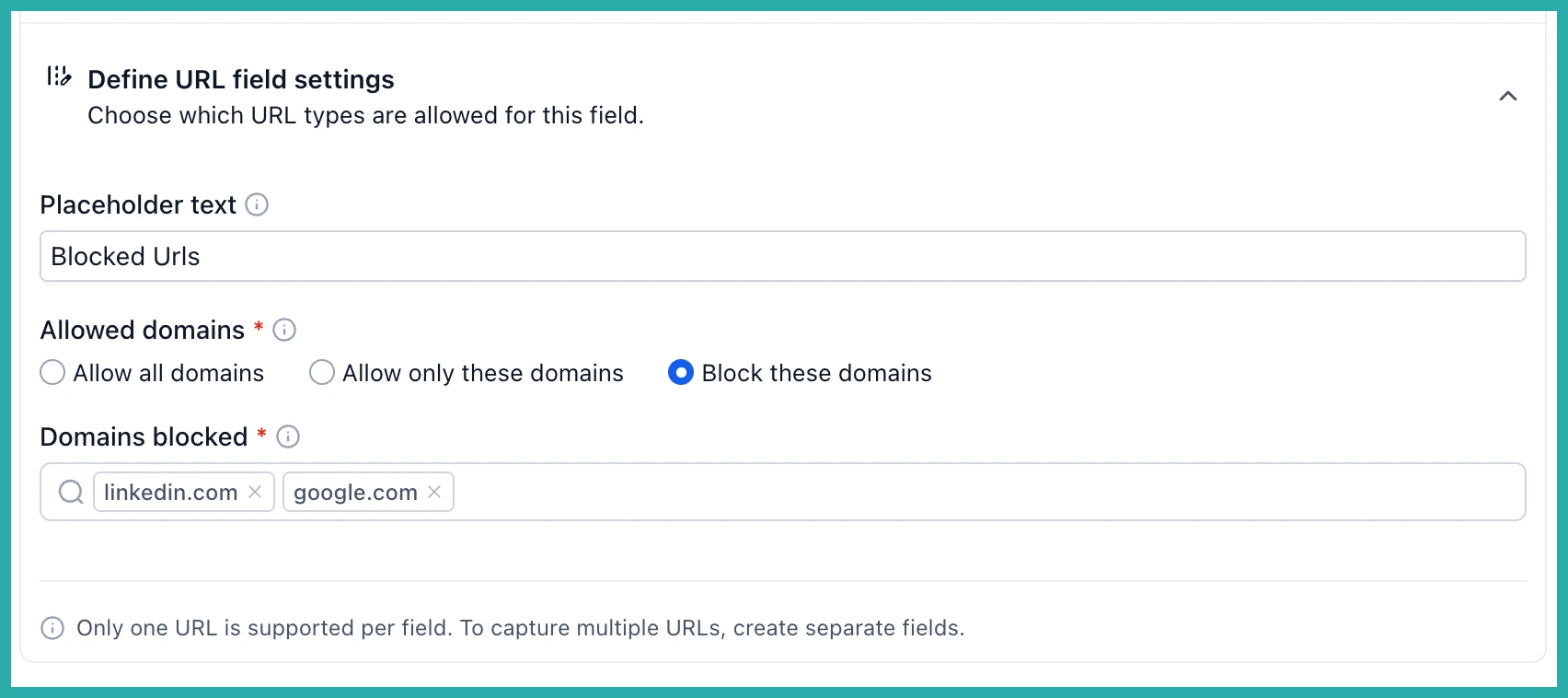
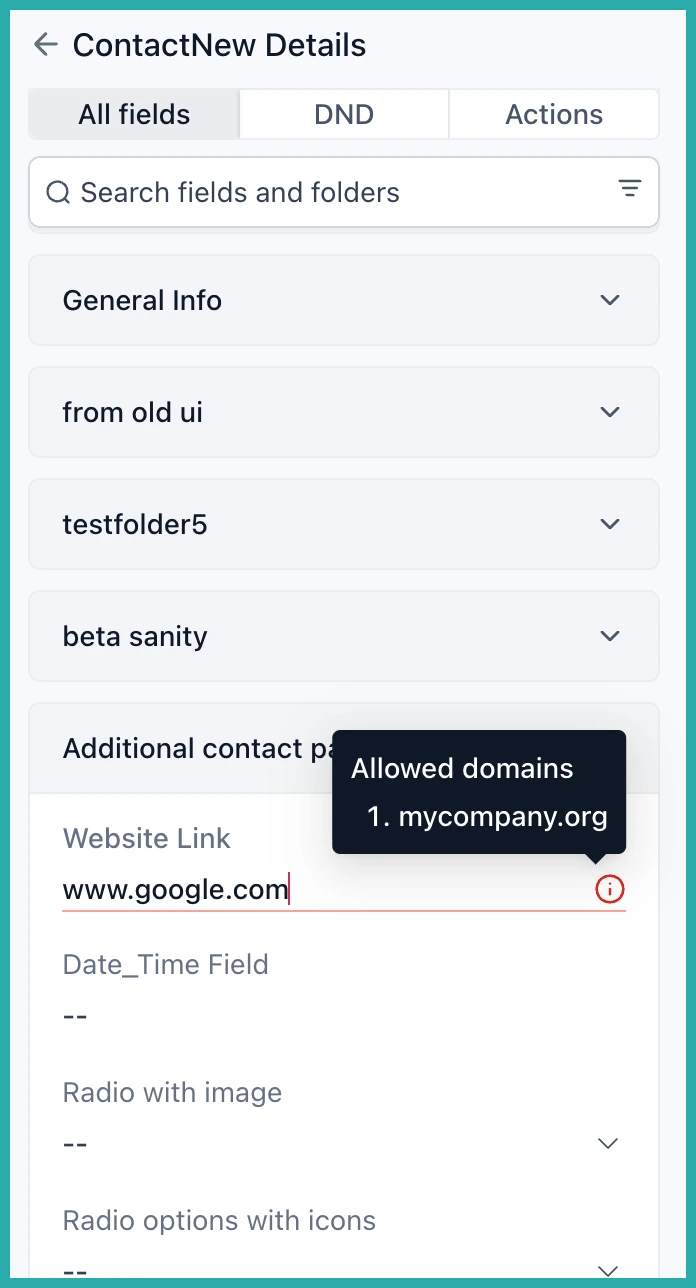
The clever part is the domain control. You can allow all domains, allow only specific ones, or block certain domains. So if you only ever want links from a particular site, you can make sure that's all that gets entered.
2. Flexible date and time fields
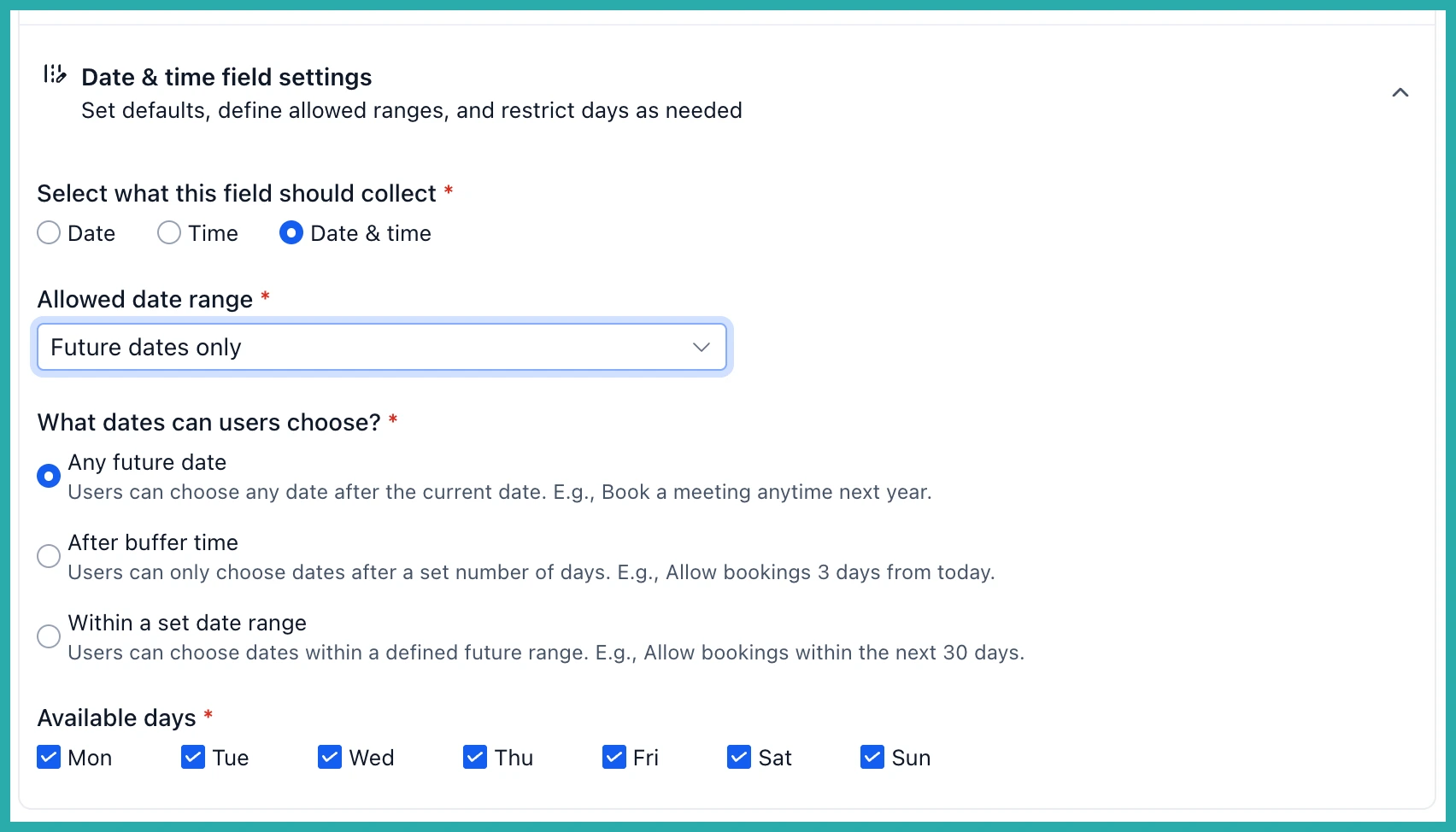
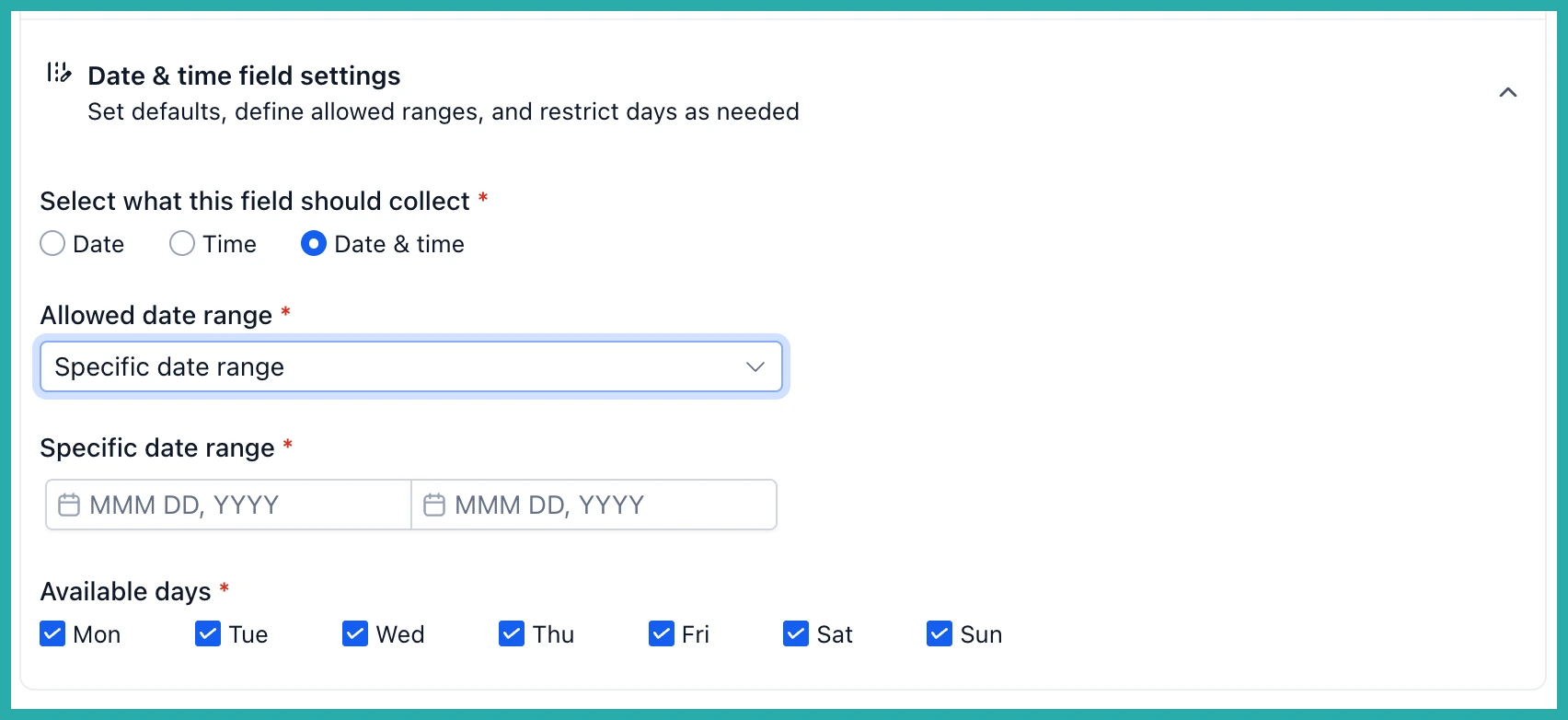
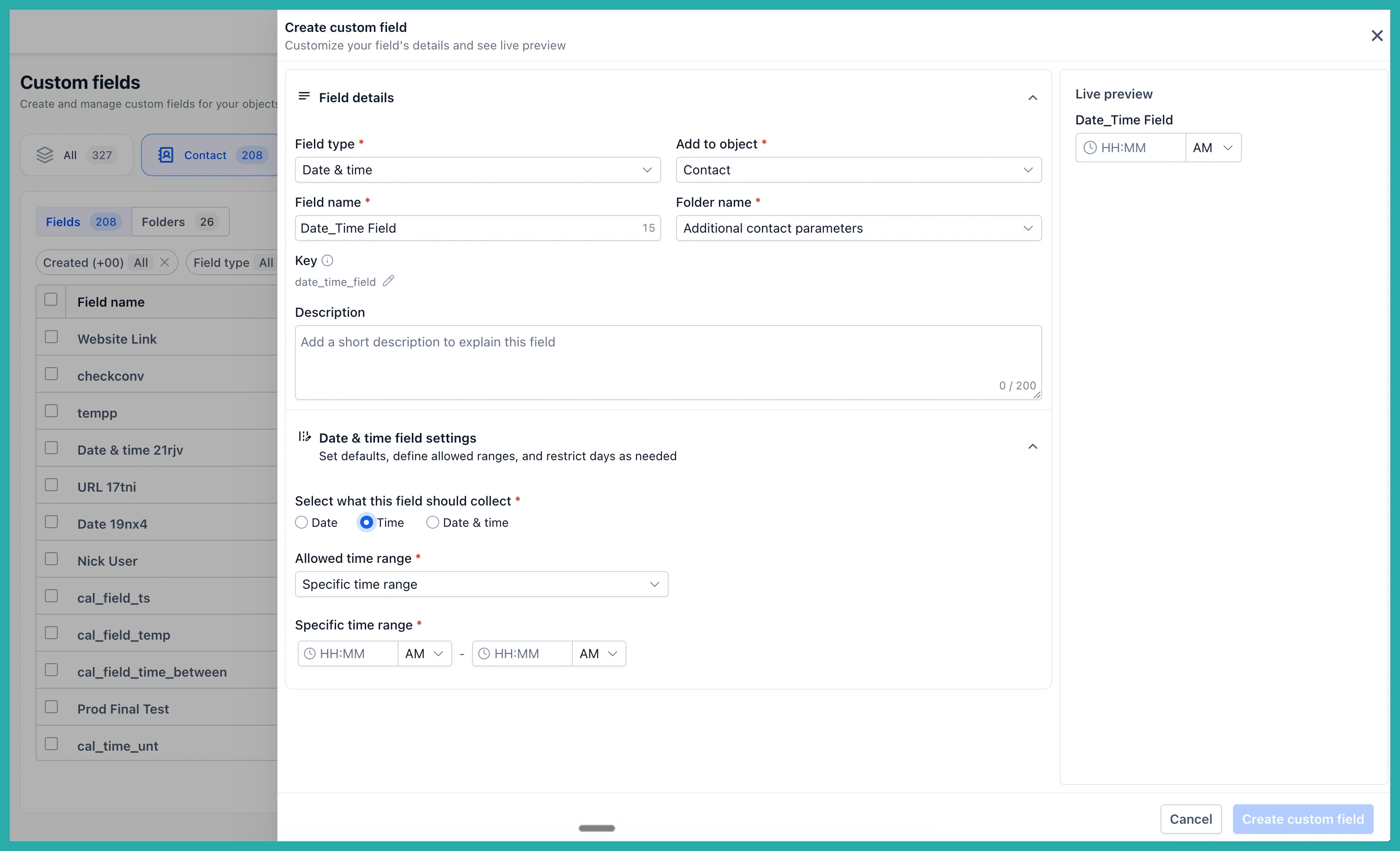
You now choose the format that fits the job: date and time together, date only, or time only. Handy for renewal dates, preferred contact times, or scheduled events.
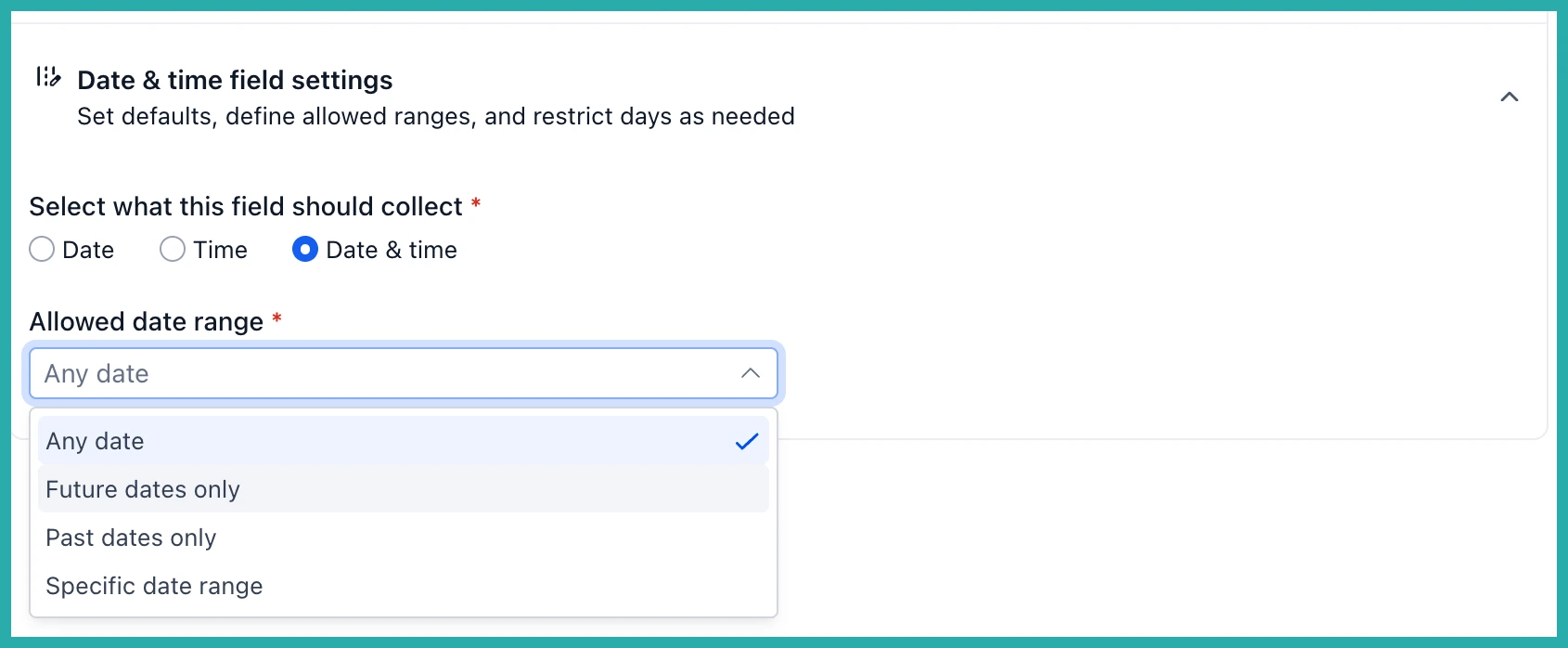
You can also limit which dates people can pick - future dates only, past dates only, or a set range. In the screenshot below, you'll see how those restrictions look when you set them.
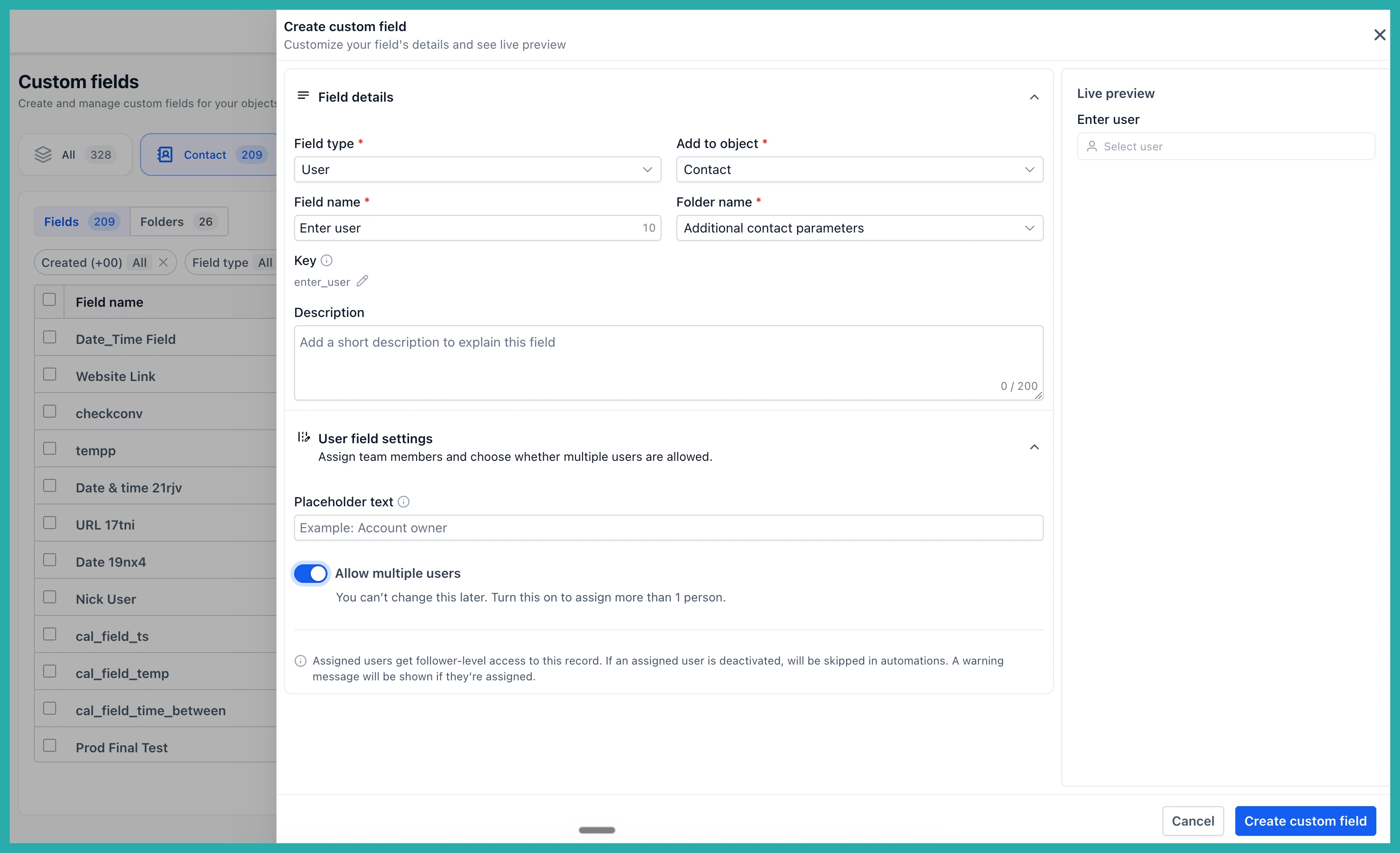
3. Users fields
When more than one team member looks after a record, this field lets you attach the right people to it. Select one user or several.
Anyone you assign this way also gets follower-level access, so the people who need to stay across that record actually do.
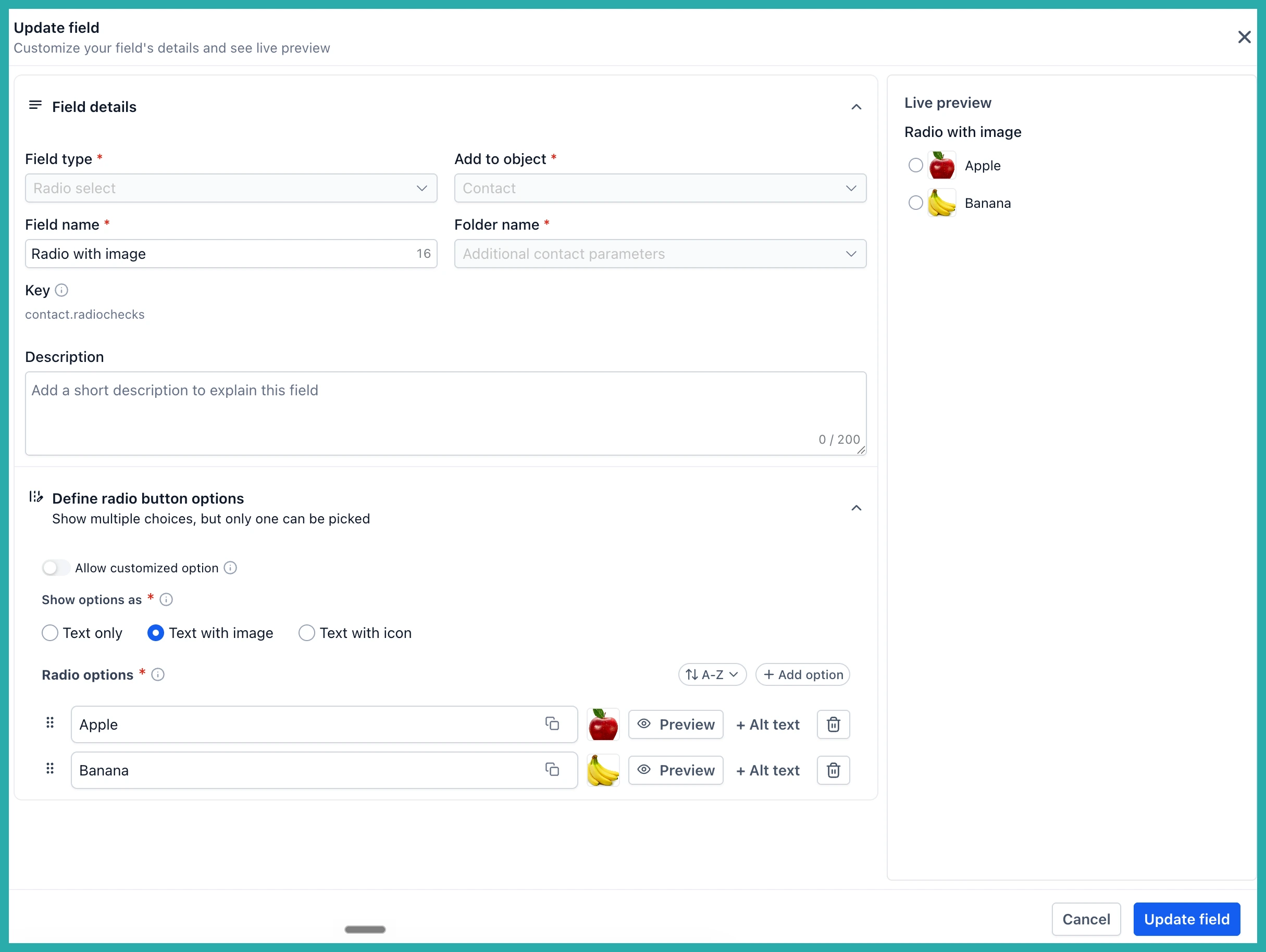
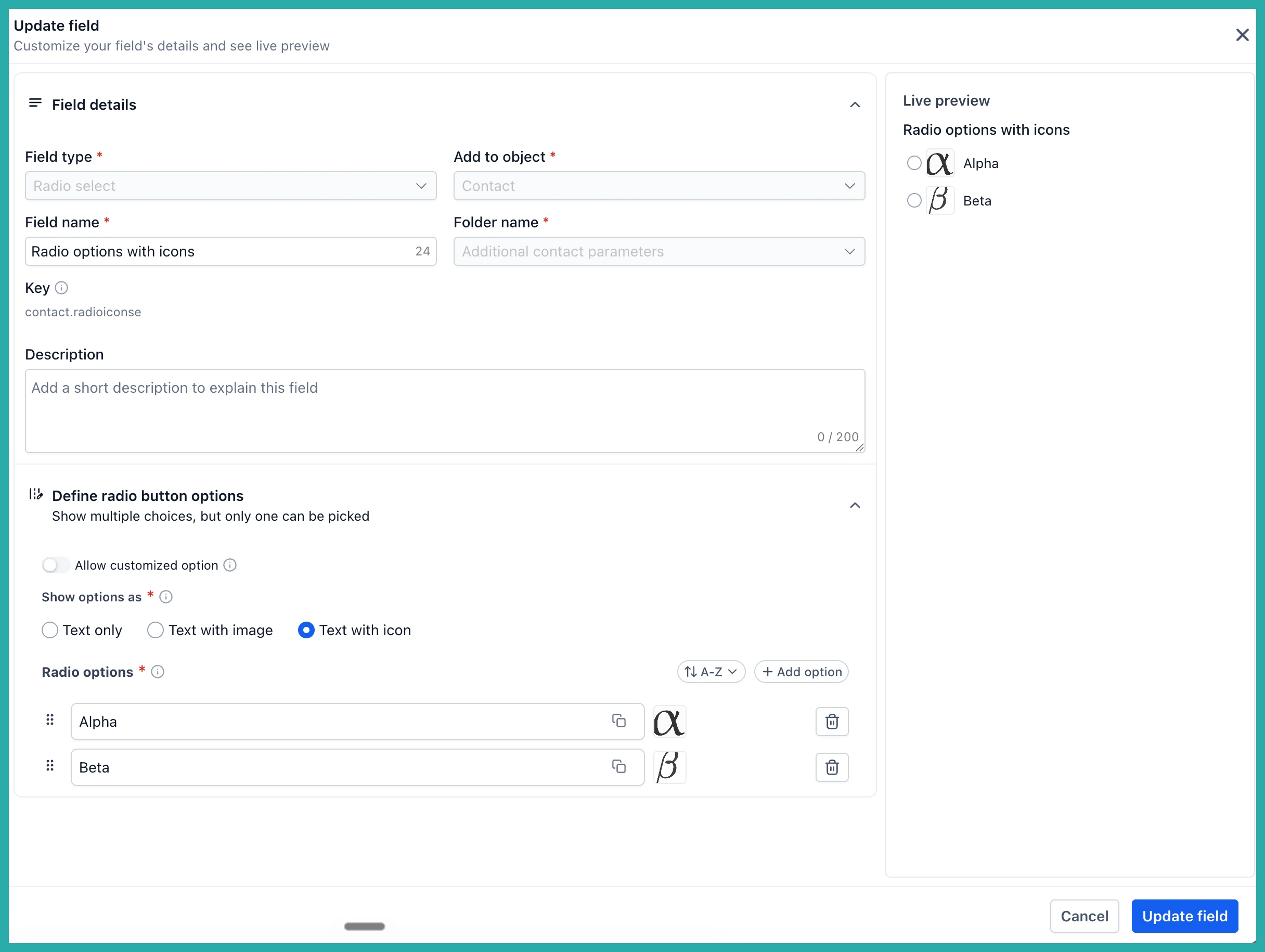
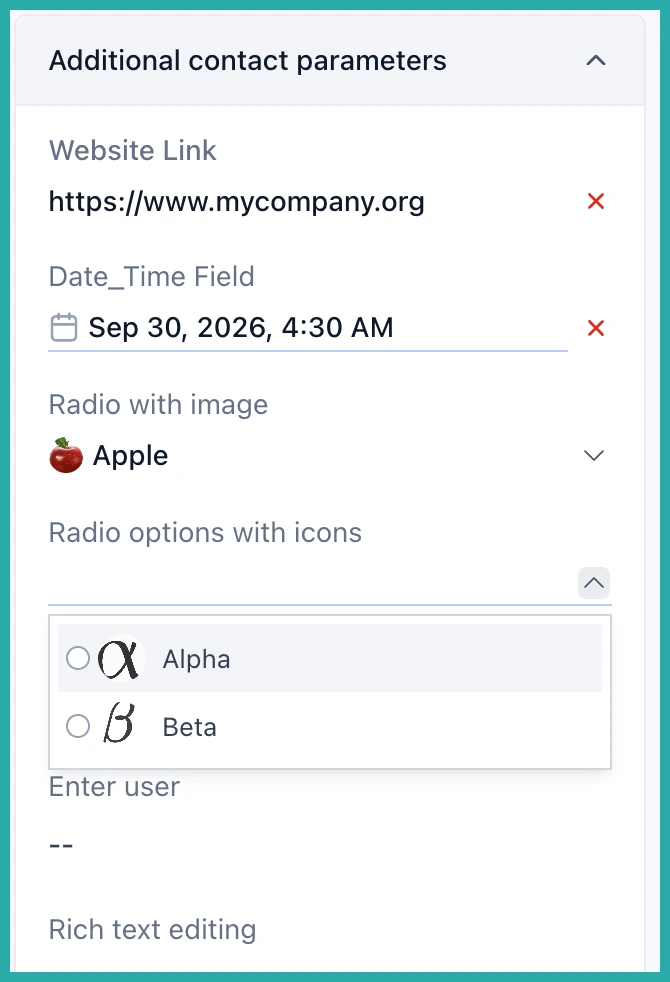
4. Images and icons for radio button options
Radio buttons are for picking one option, and now each option can carry an image or icon alongside the text.
It makes the choices far easier to tell apart at a glance, especially when a picture says more than words would.
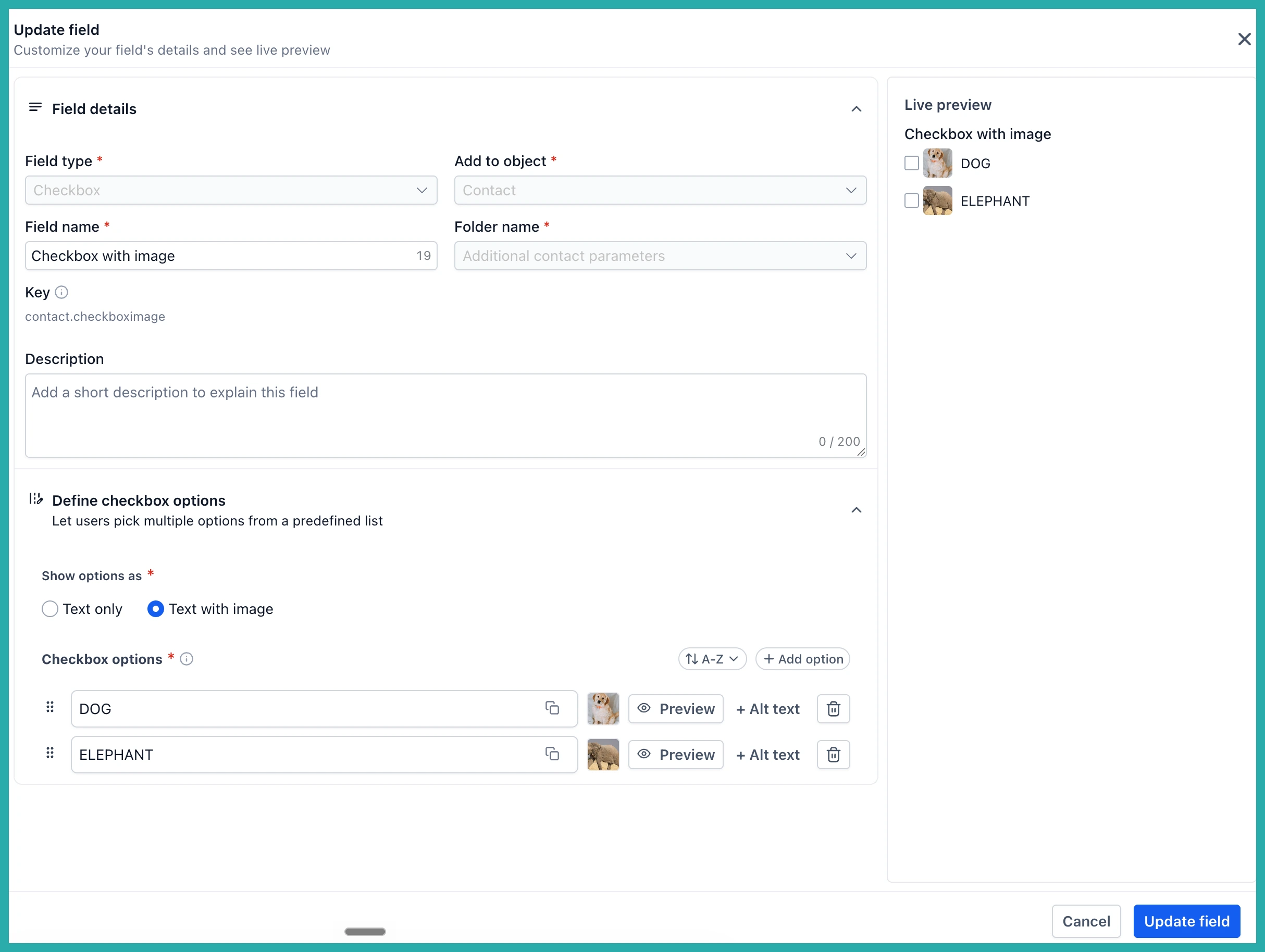
5. Images for checkbox options
Checkboxes get the same treatment. Add an image to each choice so people can see what they're selecting, not just read it.
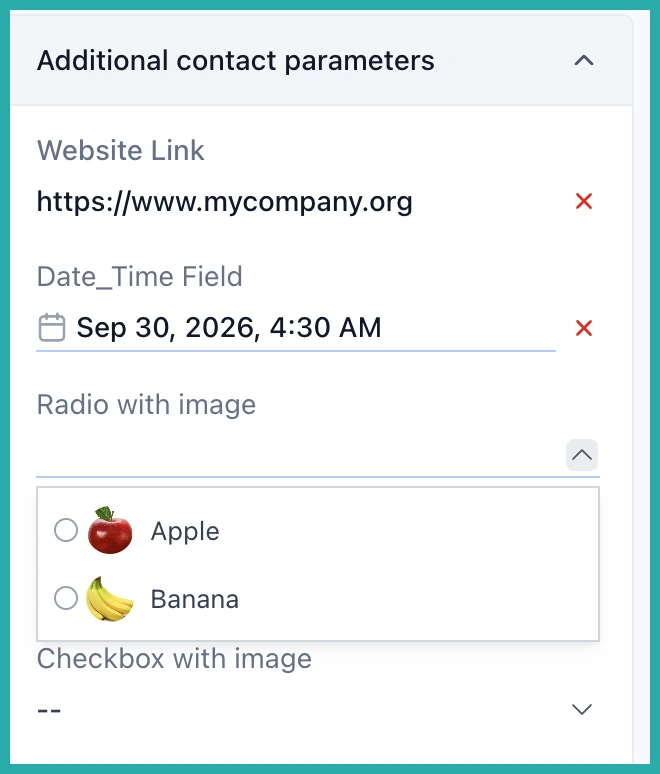
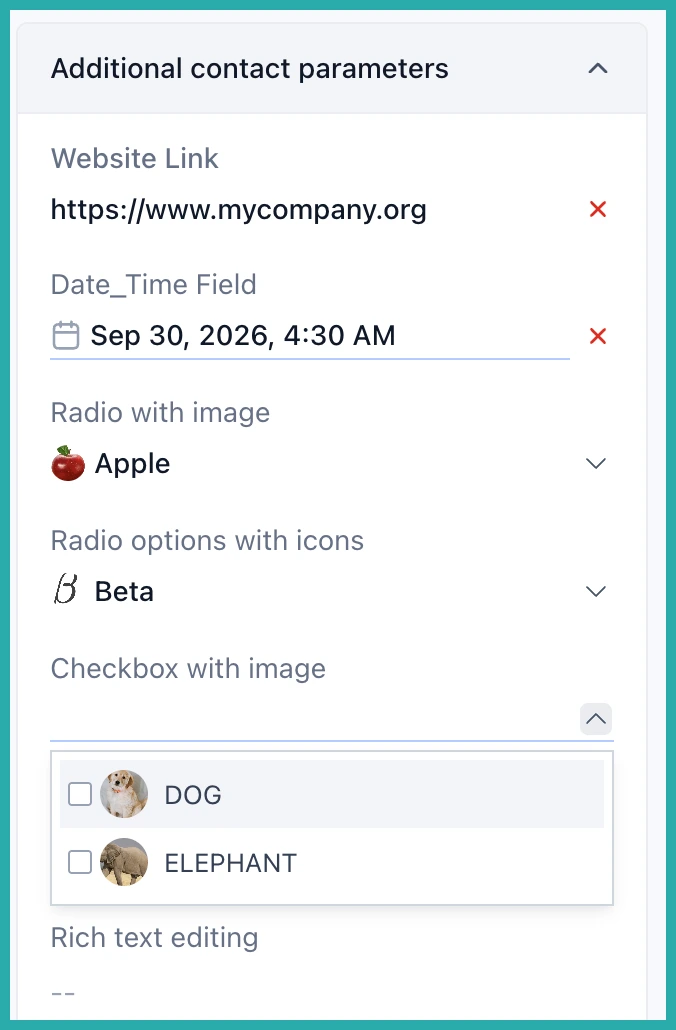
This is a real help for anything visual - products, designs, categories. In the screenshot below you'll see how the options display with images attached.
6. Rich text fields
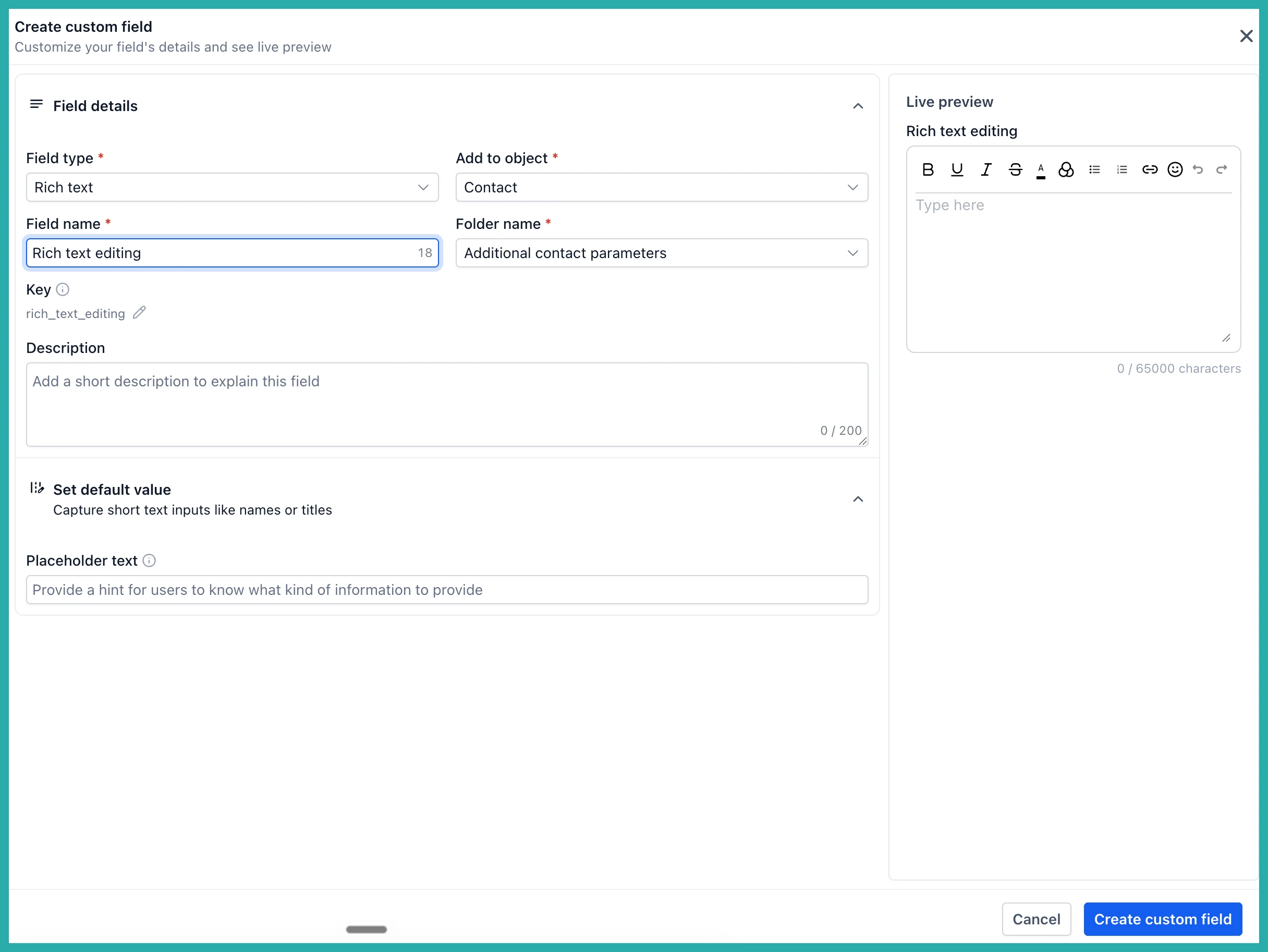
Sometimes plain text just isn't enough. Rich text fields let you use bold, italics, headings, and lists, so longer notes stay organised and easy to read.
Perfect for detailed instructions or structured notes where the formatting genuinely helps someone understand what's there.
Putting it together
Once your fields are set up, they show up wherever you use them, capturing exactly the kind of information you designed them for.
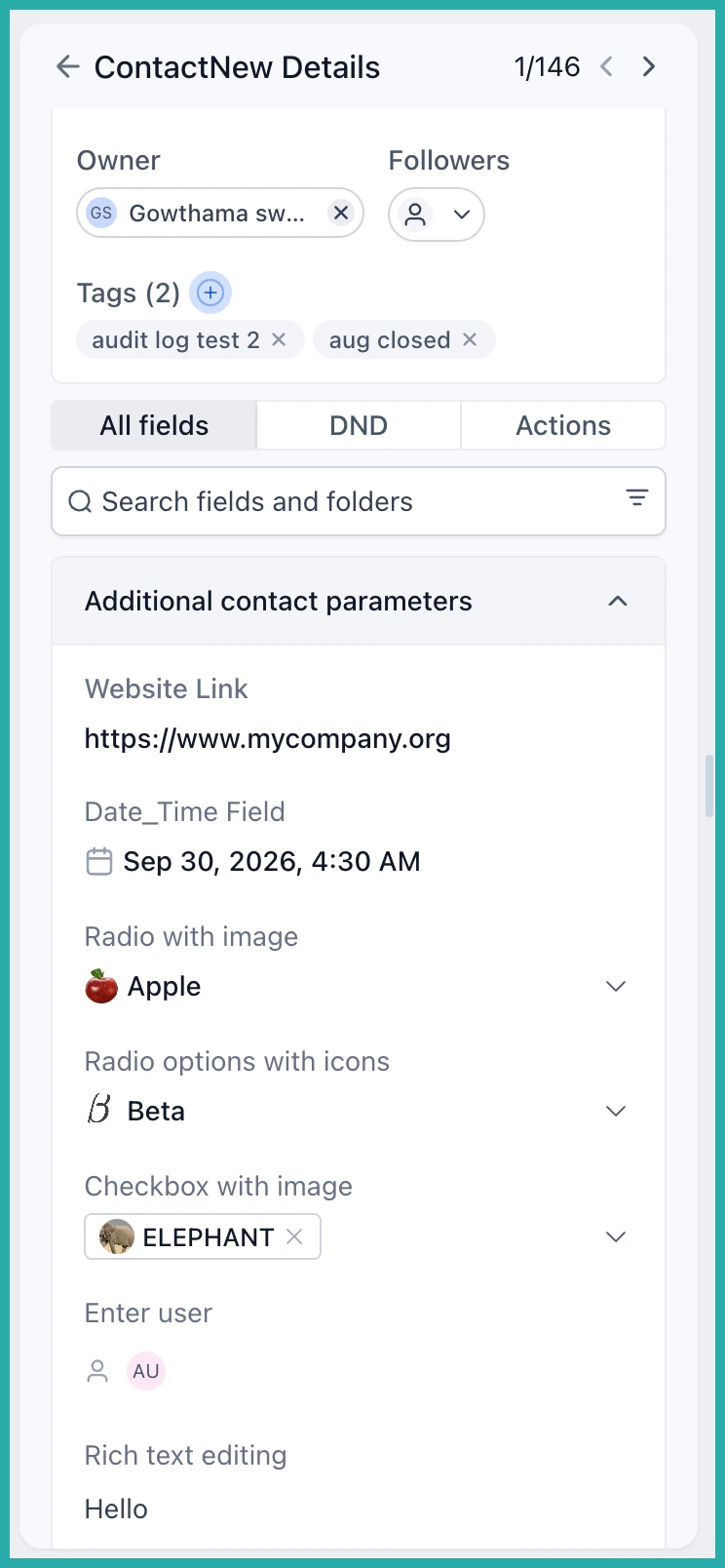
Have a look at the fields you're already using and see which ones would work better as one of these new types. A few small changes now can save you a lot of tidying up down the track.
