
Send Agreements That Need More Than One Signature, Automatically
If you send agreements that need more than one signature - a buyer and a seller, a client and a co-signer, a tenant and a guarantor - you know the drill. You add one person's details, send it, then wrestle with duplicate templates or manual re-entry for everyone else.
That's done now.
Your Documents and Contracts templates can carry multiple signer roles, and when the document goes out through a workflow, every role fills in and routes for signature on its own.
What you get
You can define up to six signer roles on a single template - buyer, seller, witness, or any custom role you name. Each role gets its own fields, like a signature or a date. Send that template through a workflow and the roles you set up populate automatically. No re-typing the same details every time.
And if a deal is a little different, you can override any role's name, email, or phone right at the workflow level, without touching the template itself. One template, many deals.
Step one: build your template with roles
Open your document or contract template and define your signer roles - name, email, and phone for each one. In the screenshot below, you'll see where you add each role.
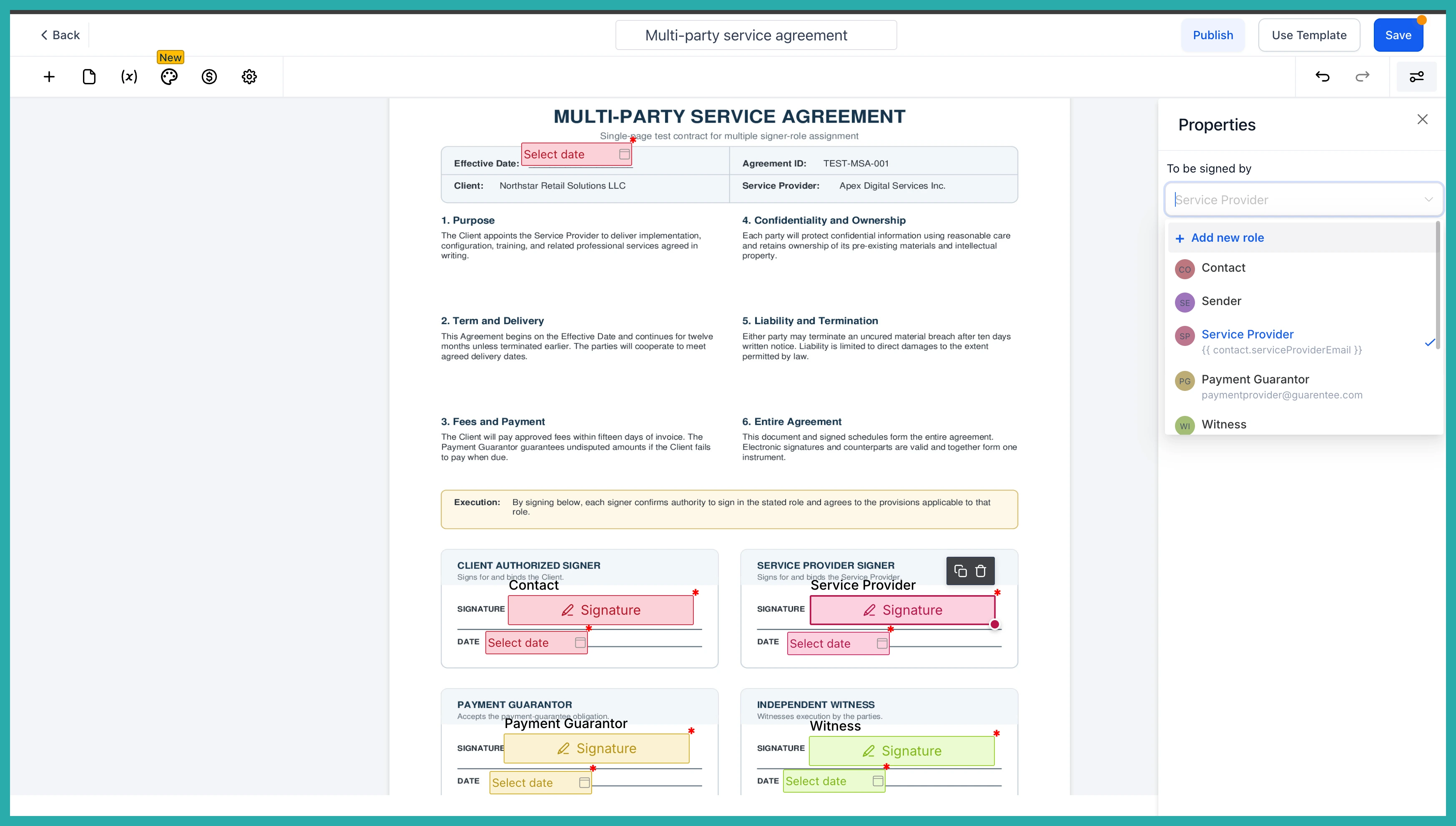
Give each role at least one fillable element, like a signature or date field, so the system knows where each person signs.
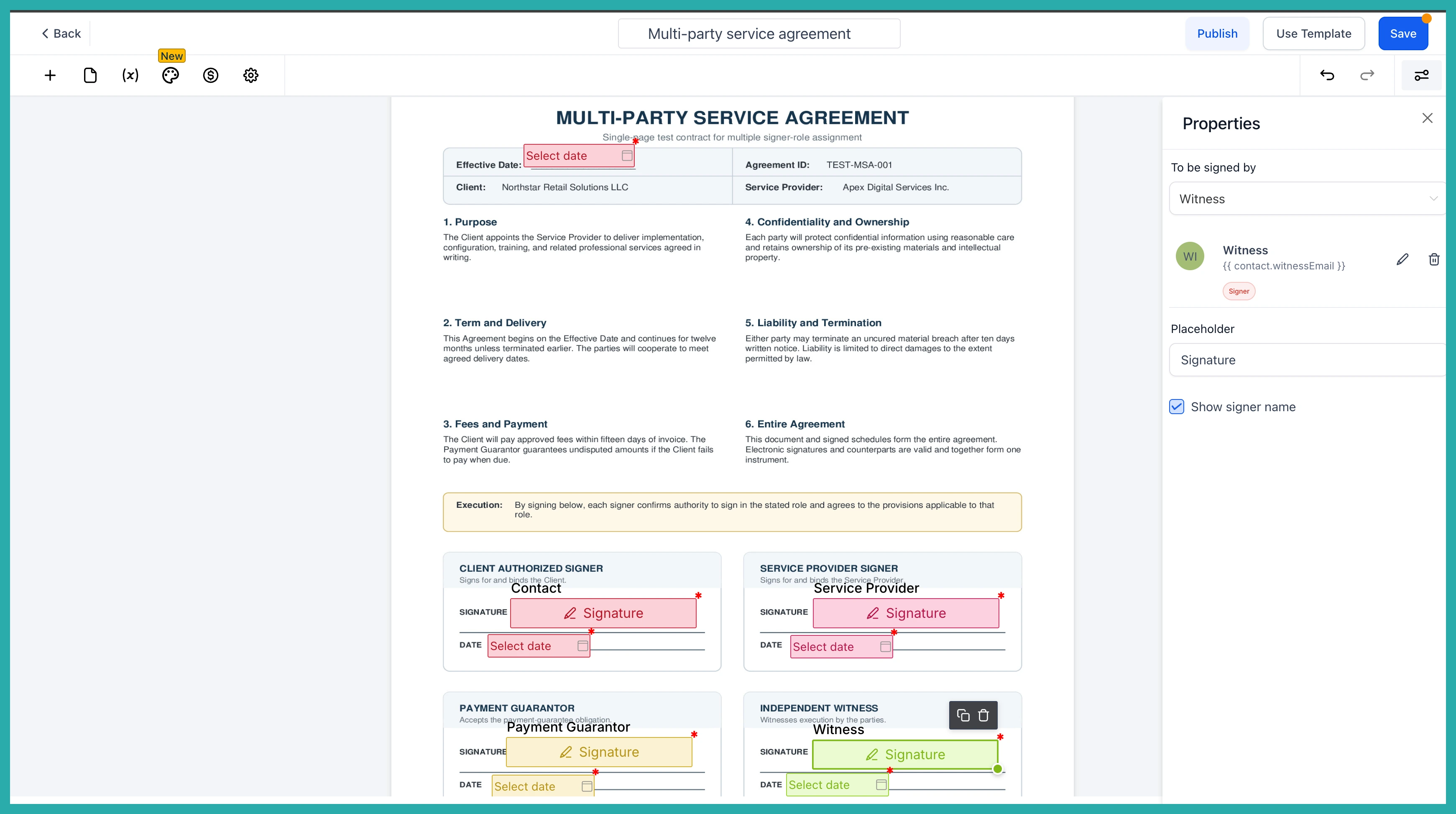
Roles can carry static values or custom ones that resolve when the document is sent. Pick whichever suits how you work.
Step two: assign a Contact field
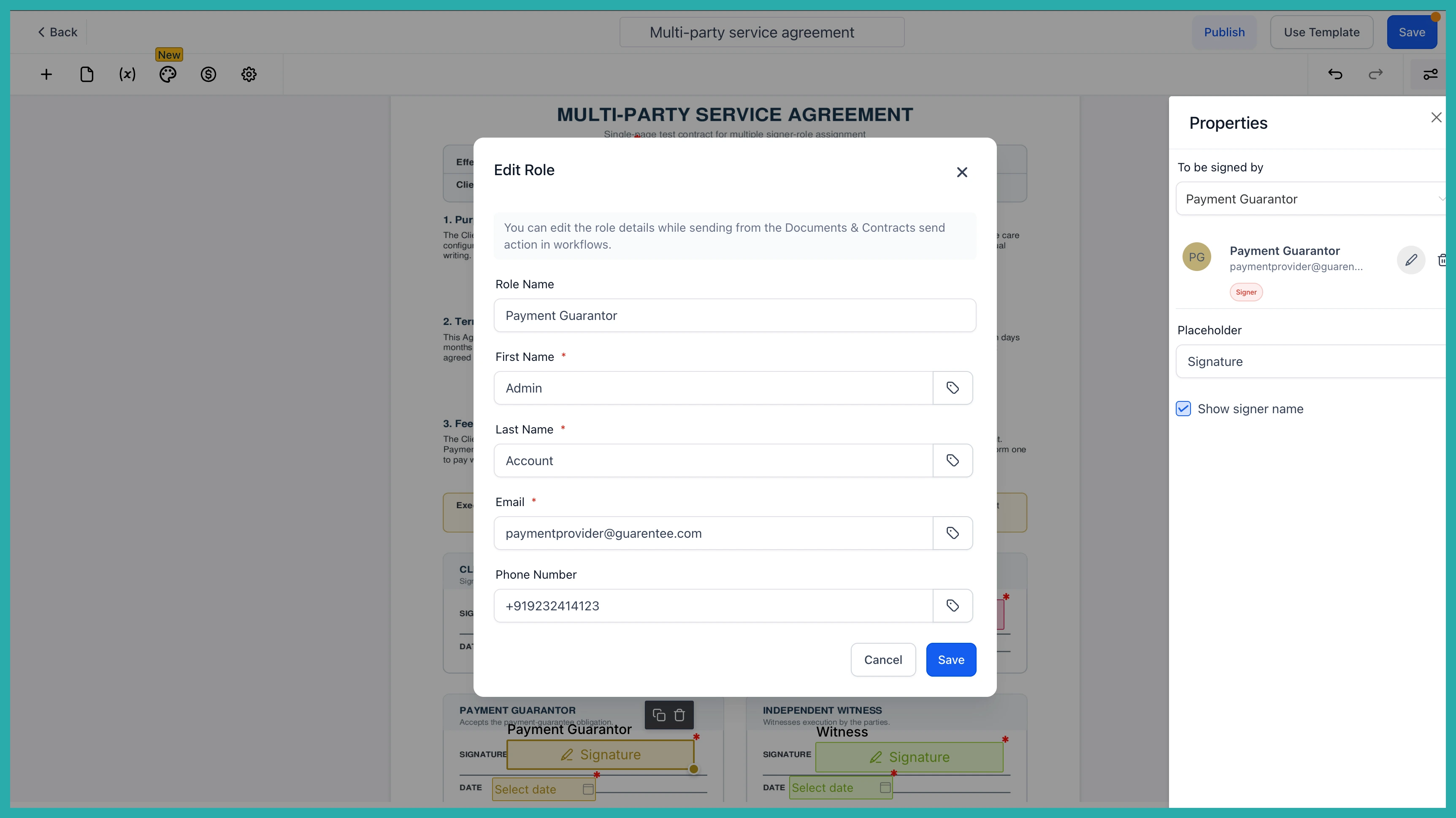
This one is easy to miss, so don't skip it. At least one fillable element has to be assigned to "Contact" for the workflow send to work at all.
Step three: choose your template in a workflow
Head into your workflow, add the "Send Document" action, and select your multi-role template. Your roles pull in automatically.
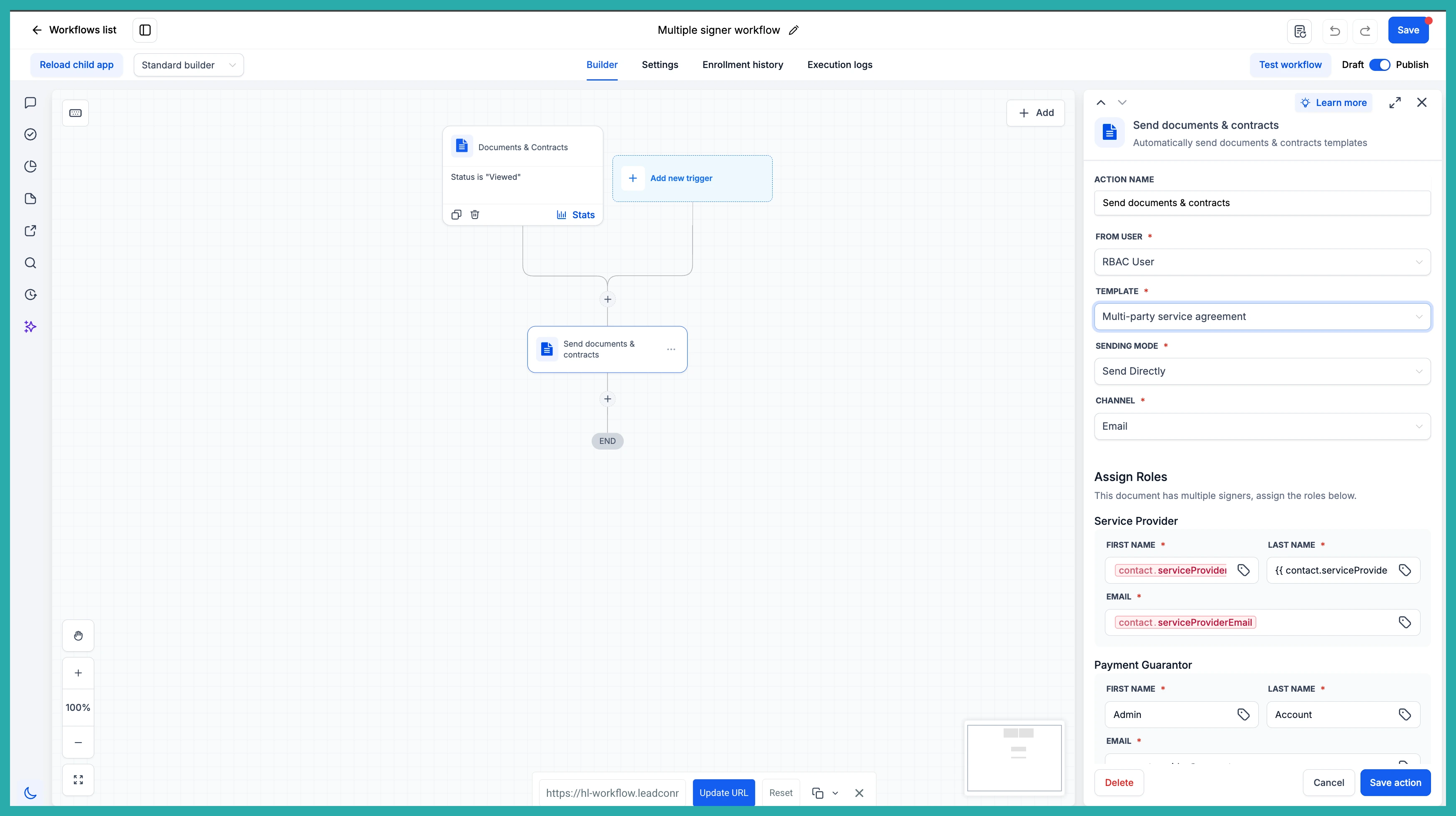
Step four: override anything you need to
Need to adjust a signer's name, email, or phone for this particular deal? Do it right here at the workflow level. Whatever you set here takes precedence over the template defaults.
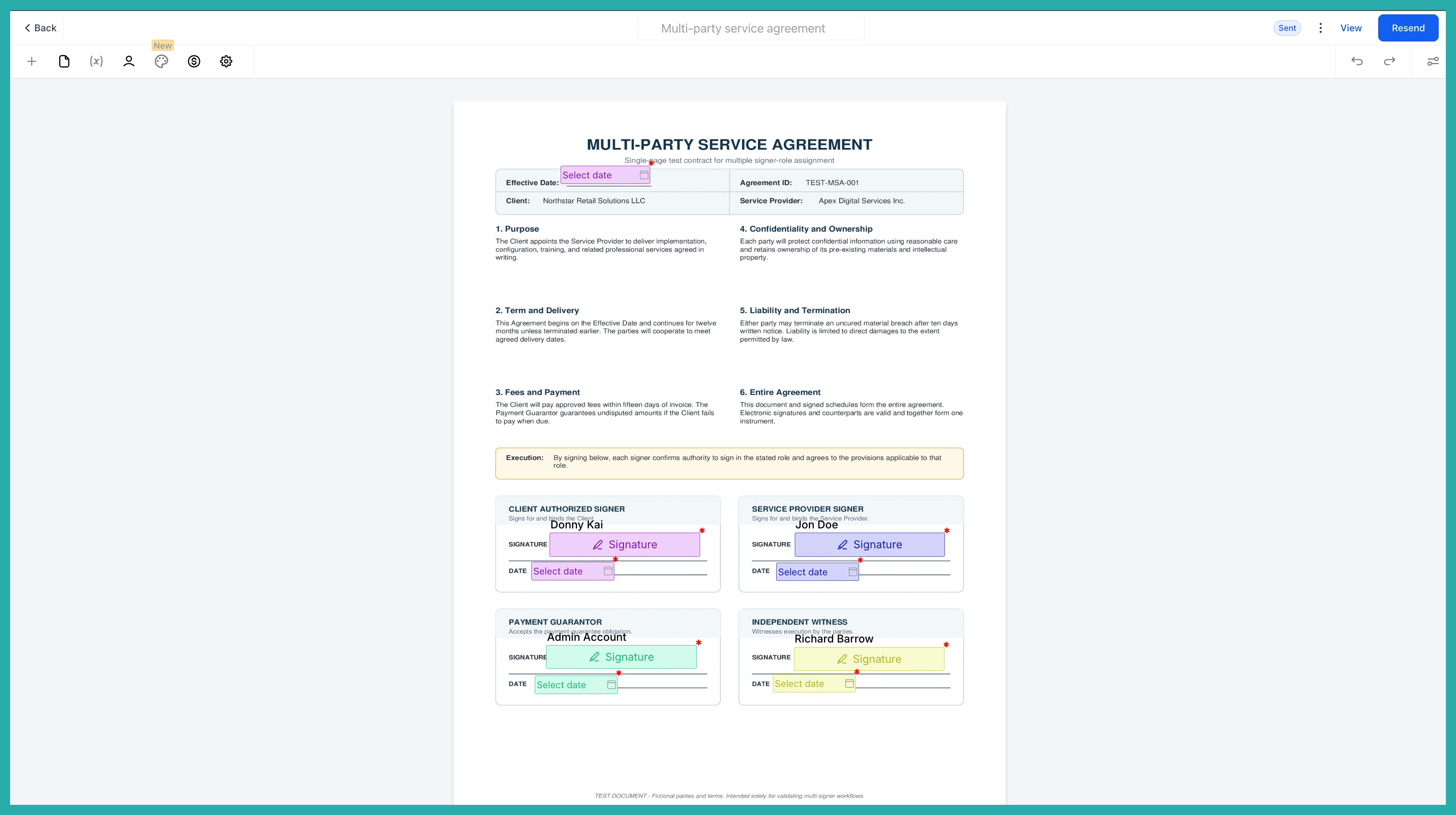
Then launch the workflow. Each signer receives their document in the role you defined.
A few things worth knowing
- Up to six roles per template, and roles stay local to that template.
- Roles only auto-populate when the document is sent through a workflow, not a manual send.
- If a required role email is missing, you'll be prompted to fill it in before sending. Duplicate emails across roles will flag an alert too.
- This one is on Web for now.
If you've been juggling duplicate templates for your multi-party agreements, this is the moment to build one clean template and let your workflow do the routing. Set it up once and every send after that takes care of itself.
