
Repeat a Set of Workflow Actions for Every Item in a List
Sometimes one trigger carries a whole pile of records at once. A service request form sends one submission with three services inside it. An order comes in with five products. Until now, handling each one meant code or a long, fiddly workaround.
The new Loop action fixes that. You build your steps once, and the Loop runs them for every item in a list, or once for each number in a range. One trigger, many records, no code.
What the Loop action does
You drop a Loop into your workflow and tell it what to loop over. Then you add actions inside the loop, and those actions repeat for each item. Anything below the loop box runs once, after the loop finishes.
Here are the pieces you'll work with:
- Loop Over: choose "A list of items" or "A range of numbers". There's an "i" tooltip on every field if you want a plain explanation.
- Items: for a list, click the tag icon and pick a list from an earlier step, such as an array from an Inbound Webhook.
- Loop Item: inside the loop, open Custom values, then Loop Item, to drop the current item's fields into any action.
- Range of numbers: set a Start Number and an End Number, and the panel tells you how many times the actions will run.
- Execution Mode: Sequential by default, one iteration after another. Turn on Parallel to run several at the same time.
Setting it up
Here's the walkthrough, start to finish.
- Go to Automation, then Workflows, and open your workflow.
- Click the + icon where you want the loop to start, then select Loop.
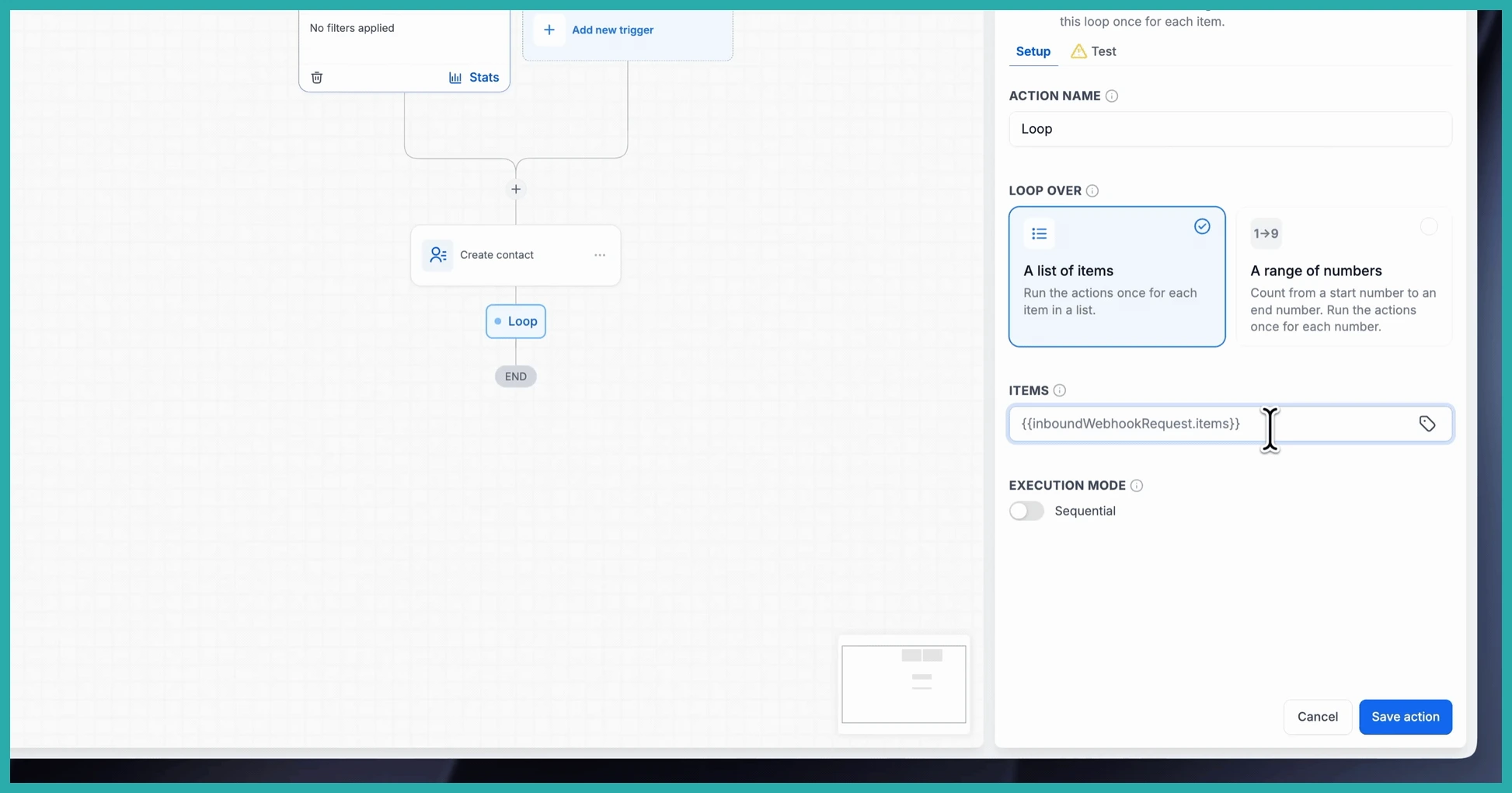
- Under Loop Over, choose A list of items or A range of numbers.
- For a list, click the tag icon in Items and pick the list from a previous step. For a range, enter a Start Number and an End Number.
- Set Execution Mode. Leave it off for Sequential, or turn it on for Parallel. This step is optional.
- Click Save action.
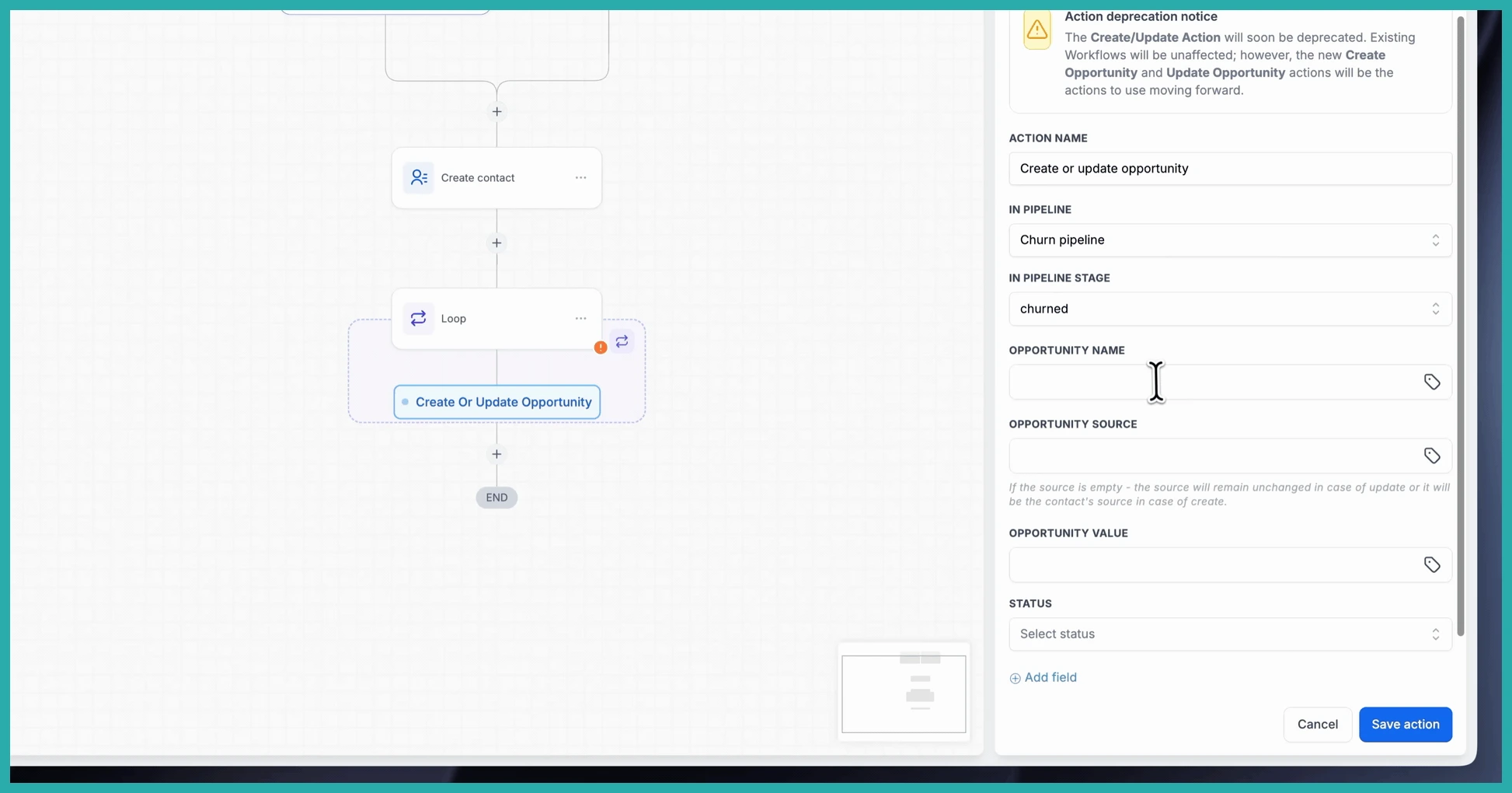
- Click the + icon inside the dashed loop box and add the actions you want to repeat. Use Custom values, then Loop Item, to fill their fields.
- Save and publish your workflow.
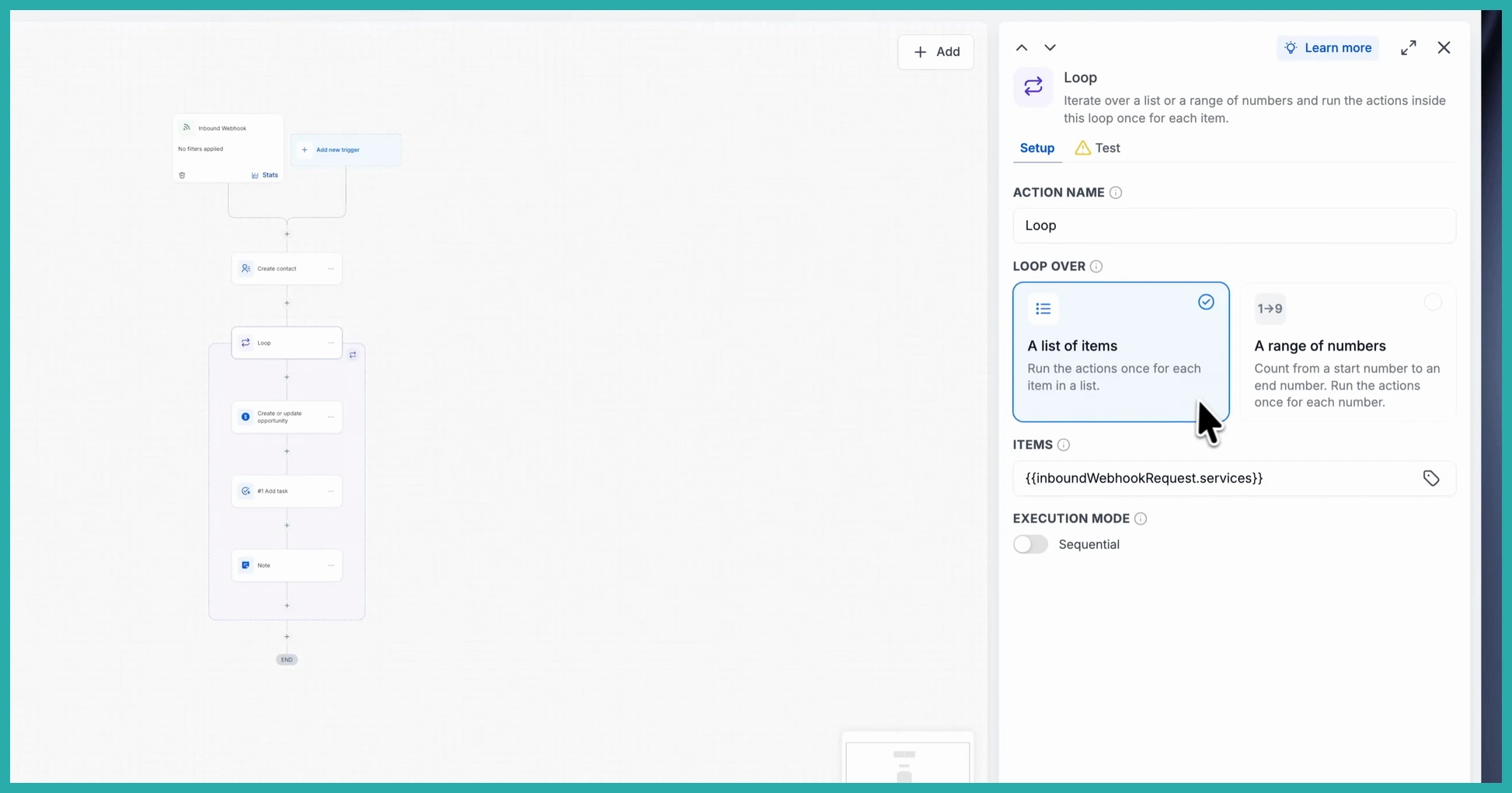
A worked example: one webhook, three opportunities
Say a service request form sends one webhook per customer, with a list of services inside it. You want one opportunity, one task and one note for every service.
Your trigger is an Inbound Webhook, and the services list holds three items: Roof repair, Gutter cleaning and Exterior painting.
In the Loop, set Loop Over to A list of items, and set Items to the services list from the webhook. Then add three actions inside the loop:
- Create or update opportunity - Opportunity Name = Loop Item, Name, and Opportunity Value = Loop Item, Estimated Value.
- Add task - Due date = Loop Item, Preferred Date.
- Add notes - Note = Loop Item, Urgency.
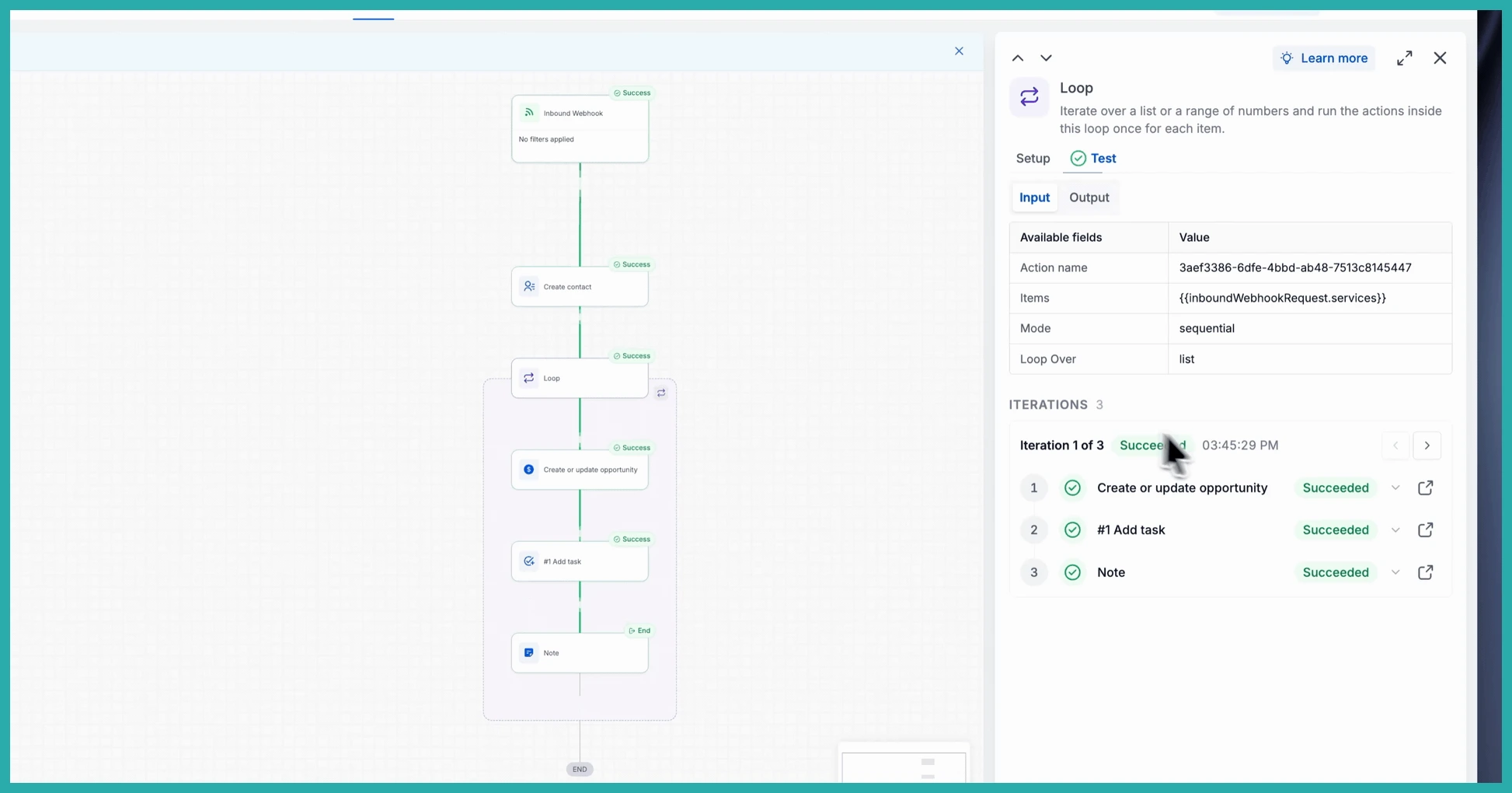
Run one test. The loop runs three times and creates three opportunities, three tasks and three notes. The Test tab on the Loop step shows every iteration, every action inside it, and its status - in this case, 3 items, 3 succeeded, 0 failed.
A couple of things worth knowing
Range mode covers the other case: run a set of actions a fixed number of times, say 5 or 10, with no list at all. A range loop has no list items, so the Loop Item fields are empty. Use the loop counter under Loop Item to get the current number instead.
Parallel mode is handy when your actions call external systems, keeping the loop fast rather than waiting for each one in turn.
And remember: only the actions inside the dashed loop box repeat. Anything below the box runs once, after the loop is done.
Build it once, and let the Loop handle the rest for every item. Go give it a try on your next multi-record workflow.
