
Turn List Data Into Clean, Formatted Text in Your Workflows
Ever had a workflow carrying a list of things - order line items, a batch of values from a webhook - and no clean way to drop them into an email or a note? Until now, that kind of list data just wouldn't render properly in a text field.
That's fixed. You can now pull a list into your text content and choose exactly how it looks.
What landed
The custom value picker now recognises list-type values. Instead of dumping the raw list into your field, it opens a small inline form so you can pick which field to pull out and how the list should appear.
You get to choose comma-separated, bulleted, numbered, or joined with your own custom separator. The picker saves those rules with the value and renders the latest list every time the workflow runs.
Single values - text, numbers, dates - still work exactly as before. They insert instantly. The formatting form only shows up when the system spots a list.
How to use it
You'll use this anywhere you're writing content inside a workflow - an email body, an internal note, and so on.
- Open the custom value picker in your text field and select a list-type value.
- Choose the field you want to pull out, then pick your list format.
- Set an optional fallback for when the list comes back empty.
- Check the preview, then click Insert to drop it in at your cursor.
In the screenshot below, you'll see the inline form where you choose your field and format.
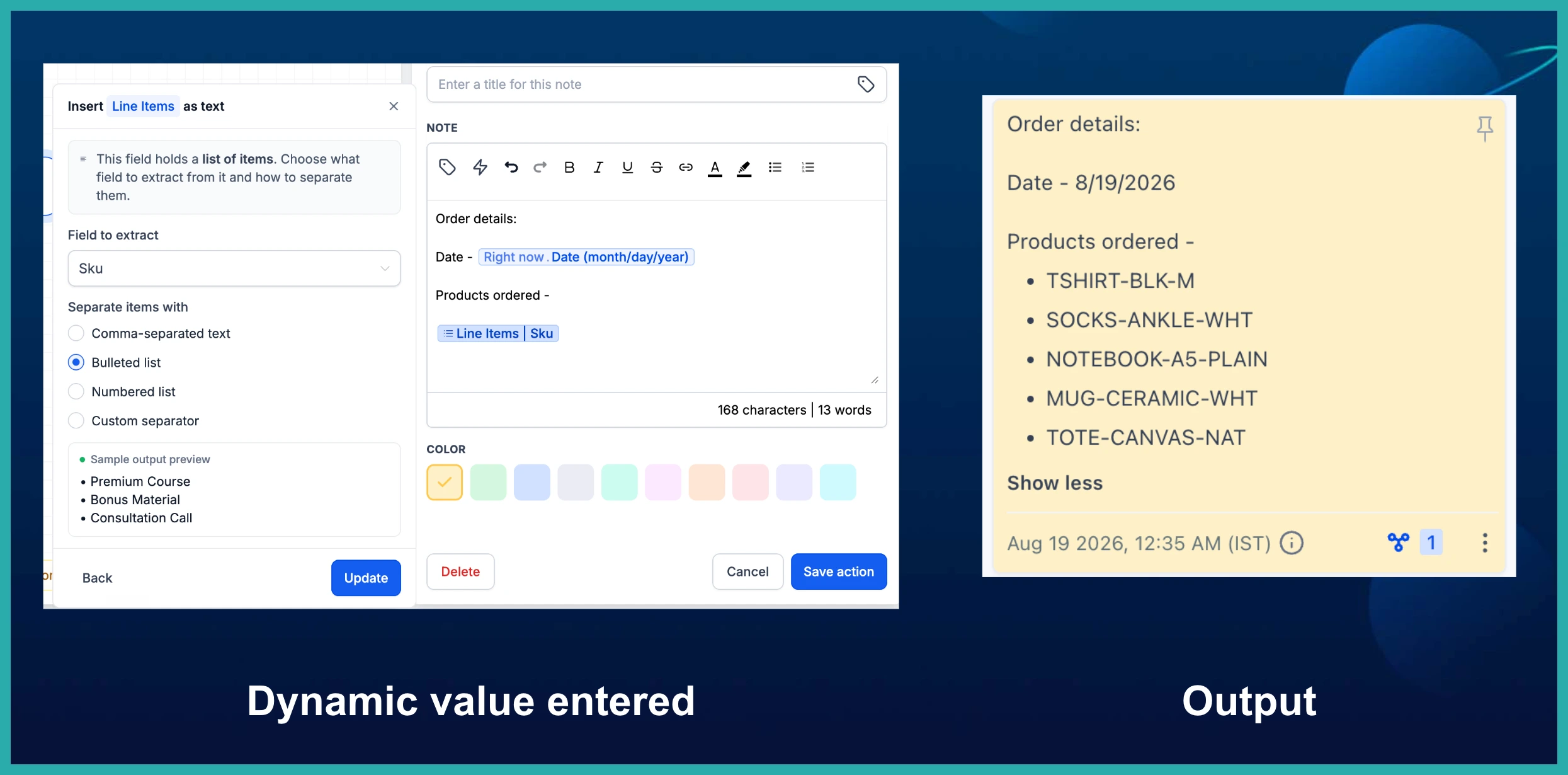
The preview shows you exactly how your chosen field and format will look before you commit to it, so there's no guessing.
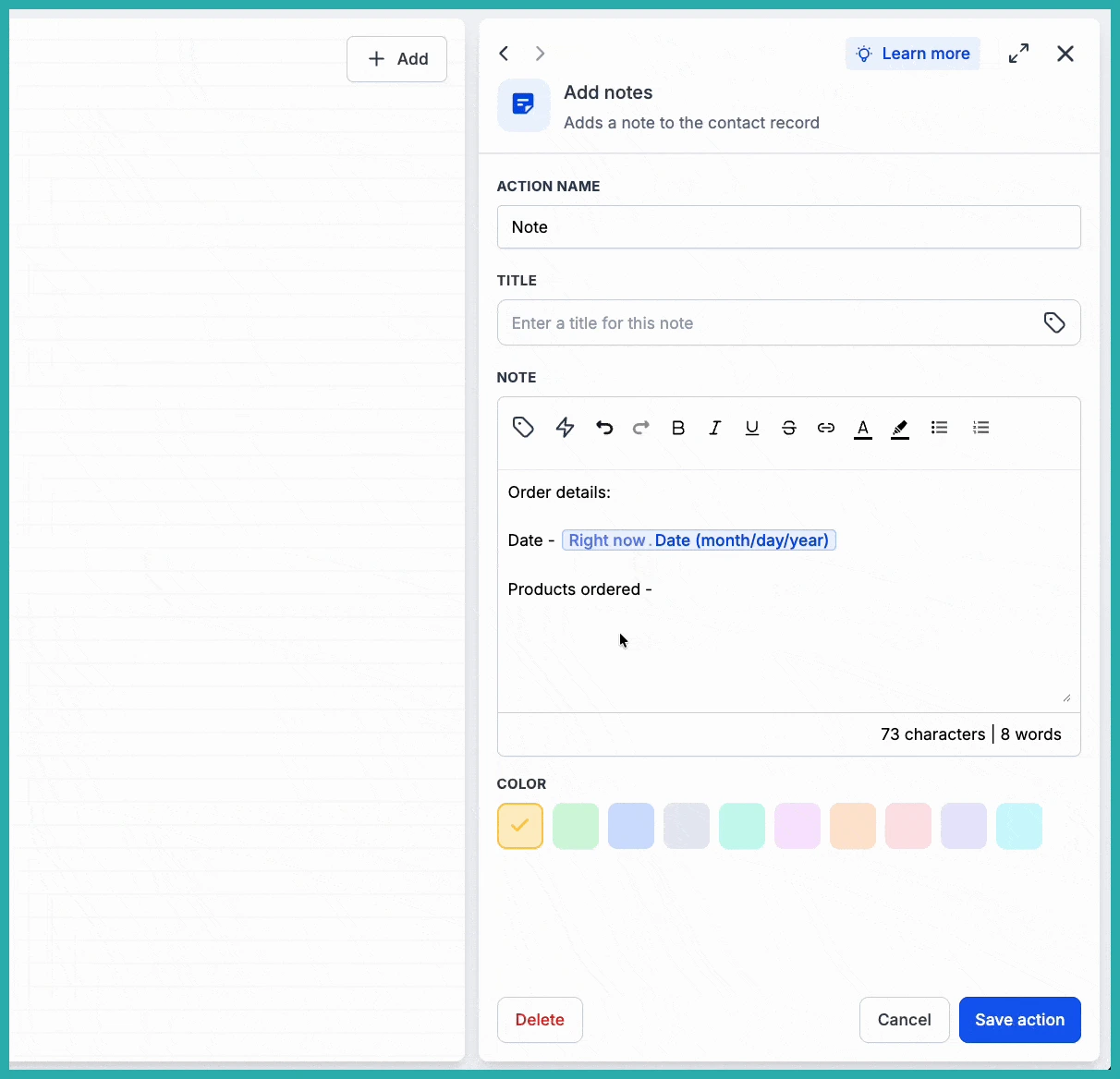
A quick real example
Say an inbound webhook sends you a line_items list, and each item has a sku. You select line_items, extract sku, and choose Numbered list. Each product SKU then lands on its own numbered line in your text. Tidy and readable.
If you've been working around list data with clunky fixes, this is worth a look. Open one of your workflows and try inserting a list into your next email - it takes a minute and reads far better.
