
Follow One Contact's Whole Journey Across Your Workflows
Coming Soon: Workflow Maps isn't in your ESC Hub account yet. We'll let you know as soon as it arrives.
Someone emails asking why they got a particular message. Or a lead goes silent and you have no idea where they got stuck. Normally you'd open workflow after workflow, trying to piece together what happened.
Soon you'll be able to see a single contact's whole journey in one place.
What's coming
Workflow Maps will be able to follow an individual contact across every workflow they entered. You'll pick the person, see the workflows they went through, and drill right down into the exact runs and steps behind their experience.
So instead of guessing, you'll be able to answer things like "Why did this contact receive that message?" or "Where are they waiting right now?" with the actual history in front of you.
How to use it
Once it arrives, go to Automation, then Workflows, then open Workflow Maps. In the left rail, click Contacts.
Search by name, email, or phone number to find the person you're looking into, then select them to focus on their journey.
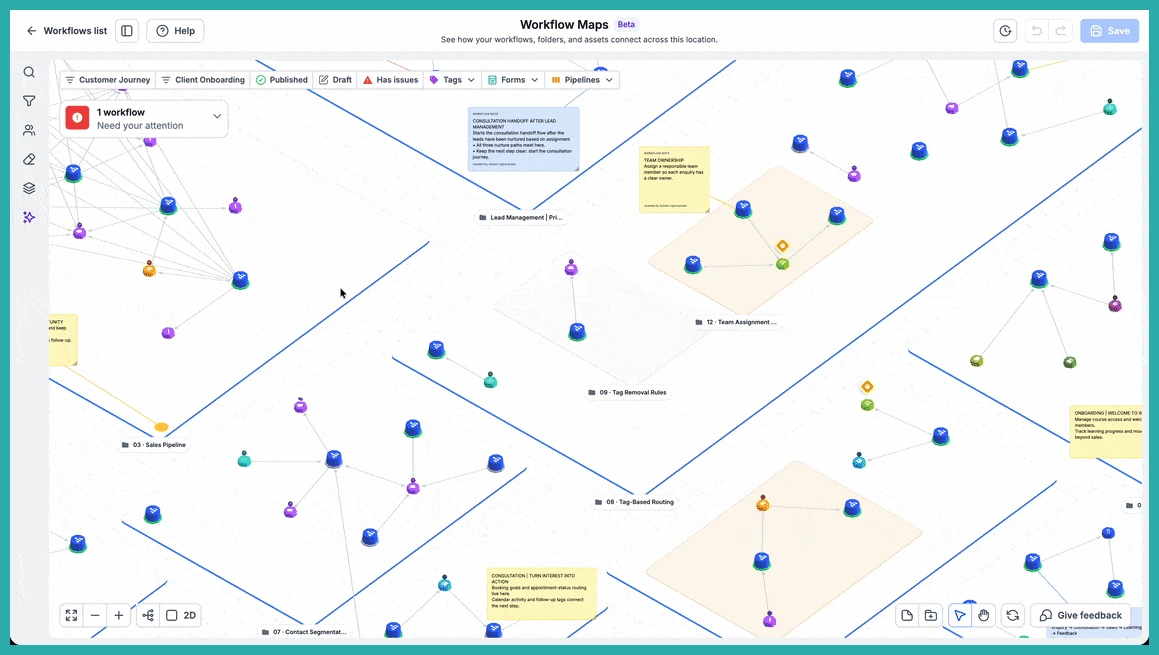
From there you'll have two useful views:
- Workflows tab - inspect their enrollment history and see every workflow they entered.
- Timeline - review the runs, timestamps, and execution statuses in order, so you can see what happened and when.
The timeline will flag each run clearly as finished, still waiting, or encountered an error, so a stuck or failed step is easy to spot.
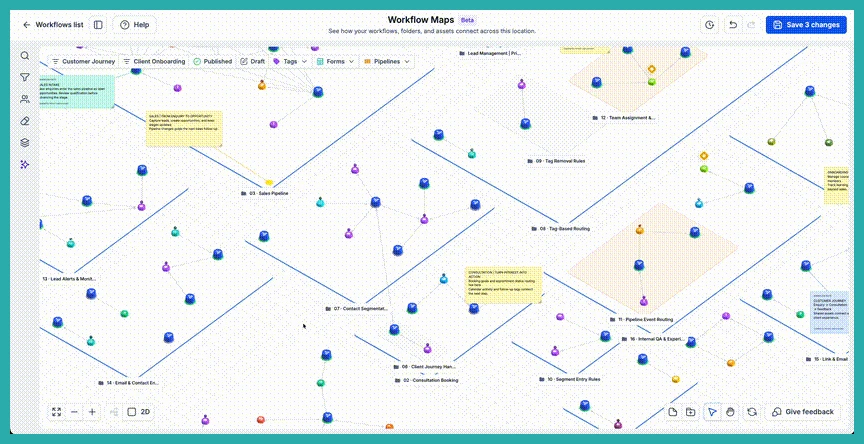
Want more detail? Select a specific run to see its steps, then open the step you're curious about to inspect exactly what that execution did.
When this comes in handy
- Investigating an unexpected email or SMS a contact received.
- Finding where someone is waiting in an automation.
- Understanding how a lead moved through qualification, booking, and follow-up.
One honest note: contact history will cover the last 60 days.
Next time a contact asks why they got a message, you'll have the answer in a minute rather than ten.
