
Custom Objects Just Got Easier: Rename Fields, Copy Internal Names, and Open Documents in One Click
If you've set up Custom Objects to track the bits of your business that don't fit neatly into contacts, you'll know the small annoyances. A field named wrong at setup. Having to open a record just to see a file. Retyping internal names for an integration and hoping you got them right.
A batch of small fixes just landed, most of them asked for by people like you. Here's what's new and how to use each one.
Rename the primary field
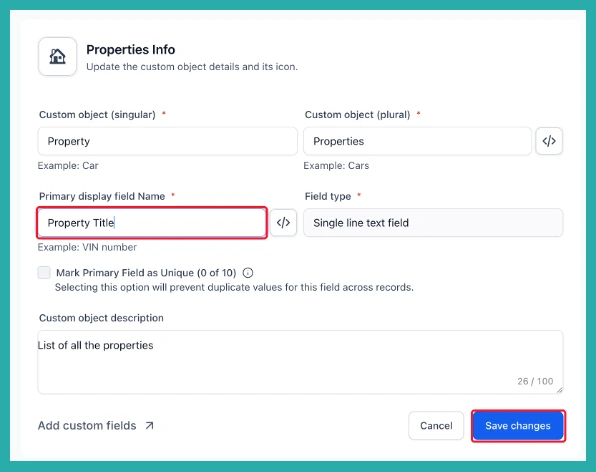
You can now edit the primary display field name right from a Custom Object's settings. Handy when the name you picked at setup no longer fits how you actually work.
Go to Settings, then Objects, and open your Custom Object. Change the Primary display field name and click Save changes. The field type and its internal name stay exactly as they were, so nothing behind the scenes breaks.
Copy internal names with one click
If you ever connect a Custom Object to another tool, you need its exact internal name - no typos allowed. Now there's a copy button for that.
Click the code icon next to an object or its primary field to see the internal name, then click copy. It drops onto your clipboard exactly as the system stores it, ready to paste wherever you need it.
Open documents straight from the list
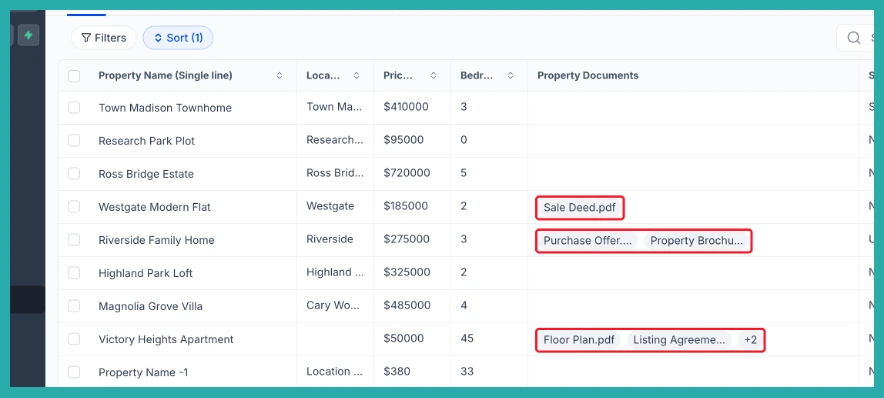
File upload fields now show clickable chips in the list view, like Listing Agreement.pdf. Click one and the document opens in a new tab, so you don't have to open each record one at a time just to check a file.
If a file name is shortened, hover over it to see the full name. And where you see a +N, hover over that to see the rest of the files attached.
Your Company name shows up properly
One more tidy touch. The Custom Fields object dropdown now shows the name you gave the Company object, instead of a generic label. Small thing, but it makes finding the right fields much quicker.
The quick summary
- Rename the primary field from Settings without changing its internal name.
- Copy internal names in one click for clean integrations.
- Open uploaded documents straight from the list view.
- See your Company name in the Custom Fields dropdown.
None of these are huge on their own, but together they take a lot of friction out of working with your data. Next time you're in Settings, give your Custom Objects a quick tidy up - it'll only take a few minutes.
