
Date Reminders on Opportunities Just Got Simpler - Pull Deal Details Straight In
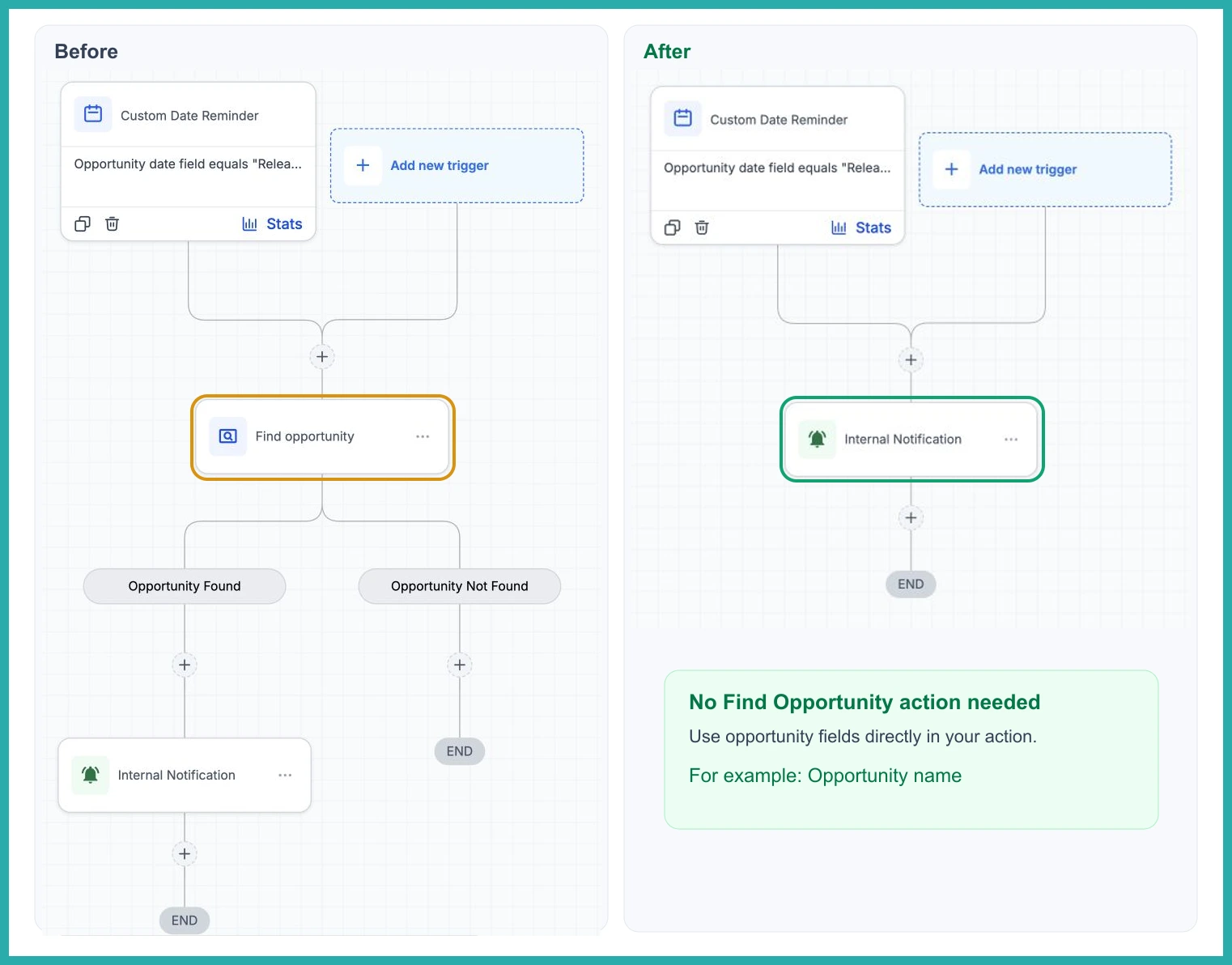
If you build date-based reminders off your opportunities - a contract review date, a renewal, a follow-up deadline - you know the little hoop you used to jump through. To actually use the deal's name or details in that reminder, you had to drop in a Find Opportunity action first, just to go fetch the thing that triggered the workflow in the first place.
That extra step is gone.
What changed
When your workflow is triggered by a Custom Date Reminder on an opportunity date field, the opportunity details are now available to you right away. No lookup action needed.
You can drop values like {{opportunity.name}} straight into your messages and notifications, and the system already knows which deal set off the reminder.
A few things this unlocks:
- Opportunity values are right there. Open the custom value picker and you'll find an Opportunity menu with the fields you need, including your custom fields.
- You can notify the right person automatically. In an Internal Notification, choose Owner of the opportunity, or send to the Opportunity followers.
- Fewer moving parts to maintain. One less action in every date-reminder workflow means less to set up and less to fix later.
Where to find it
Inside your workflow, when you're writing a message or notification, open the custom value picker and look for the Opportunity menu. In the screenshot below, you'll see the opportunity fields ready to select, so you can insert them with a click.
As an example, say you've built a reminder for an opportunity's contract review date. In your internal notification you could write: Review {{opportunity.name}} and confirm the next steps. If the deal is named "Acme Annual Contract," your team gets "Review Acme Annual Contract and confirm the next steps." Clear, specific, and no manual typing.
A couple of notes
This applies when your Custom Date Reminder uses an opportunity date field. Reminders built on contact date fields work exactly as they always have, so nothing there changes.
And it's fully backward compatible. Your existing workflows will keep running just as they do now - you don't need to rebuild anything. Next time you set up a date reminder on an opportunity, just skip the Find Opportunity step and pull the details in directly.
