
Turn Google Sign-In On or Off for Your Client Portal
If you run a client portal for your escape room or experience business, you now get to decide whether the "Sign in with Google" button shows up on your sign-up and login pages.
Until now it was always on, with no way to switch it off. That was a headache for anyone dealing with privacy rules like GDPR. Now the control sits with you, right in your account.
What you get
A simple toggle that shows or hides the Google button on your portal. Turn it off and your members sign up and log in with email and password, or with a secure login code instead. No third-party sign-in in the mix.
It's all managed from your Client Portal settings, so there's no support ticket and no waiting around. Flip it when you need to, save, and you're done.
How to turn it on or off
Here's the quick version:
- Go to Sites, then open your Client Portal settings.
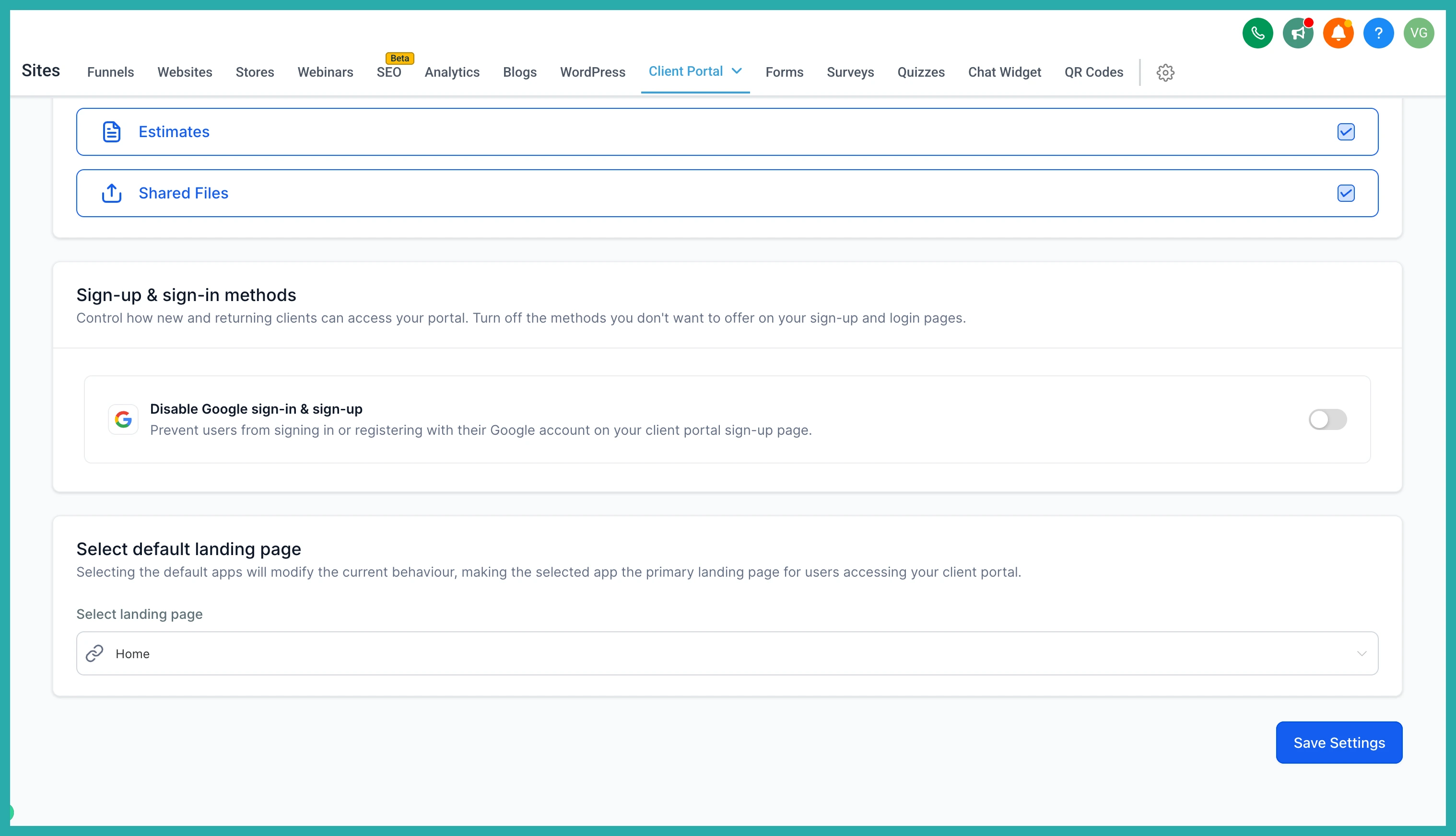
- Open App Permissions and scroll to Sign-up & sign-in methods.
- Find Disable Google sign-in & sign-up and toggle it on to hide the button, or off to show it.
- Click Save Settings.
In the screenshot below, you'll see where that toggle lives in App Permissions.
That's the whole job. Set it once to match how you want people signing in, and your portal follows your rules from there.
