
Connect Todoist to Your Workflows: Turn Tasks Into Automations Both Ways
If you and your team live in Todoist to keep track of jobs, you now have a proper two-way link between it and your account.
New Todoist tasks, completed tasks, and new projects can kick off automations in ESC Hub. And your workflows can create tasks, add comments, spin up projects, and more inside Todoist without you touching the app.
Here's how to set it up and put it to work.
What you get
The integration comes in two halves.
- Triggers (Todoist into your workflows): three triggers - New incomplete task, New completed task, and New project. They check for new activity every five minutes.
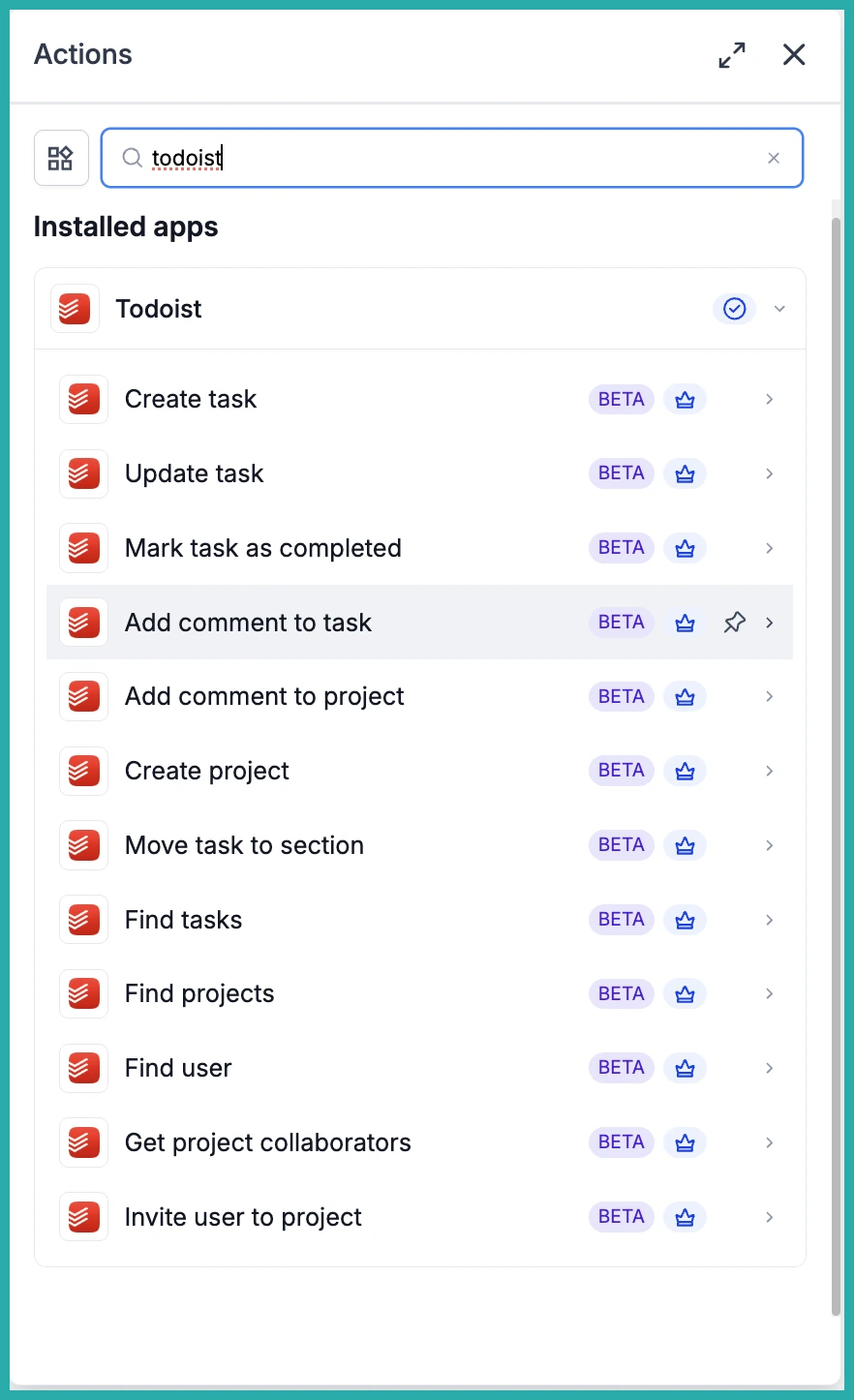
- Actions (your workflows into Todoist): twelve actions covering the task lifecycle - create, update, mark complete - plus comments, project creation, section moves, finding tasks or projects, and managing collaborators.
One note on billing: these are premium workflow components, so standard automation credits apply. Anything you use inside Todoist itself (projects, tasks, seats) is billed by Todoist on your own Todoist account.
Connect Todoist first
Before any trigger or action can run, you need to connect Todoist once using its secure login.
The easiest way is right inside the builder:
- Open Automation, then Workflows, and pick or create a workflow.
- Add a Todoist trigger or action - search for Todoist in the Apps tab.
- Select any Todoist trigger or action.
- On the panel, click Connect your account.
- You'll be sent to Todoist's authorization screen. Approve the access it asks for.
- You'll land back in the builder and the panel will show Connected.
Prefer to do it in one go beforehand? Go to Settings, then Integrations, find Todoist, click Connect, and complete the login. Same result.
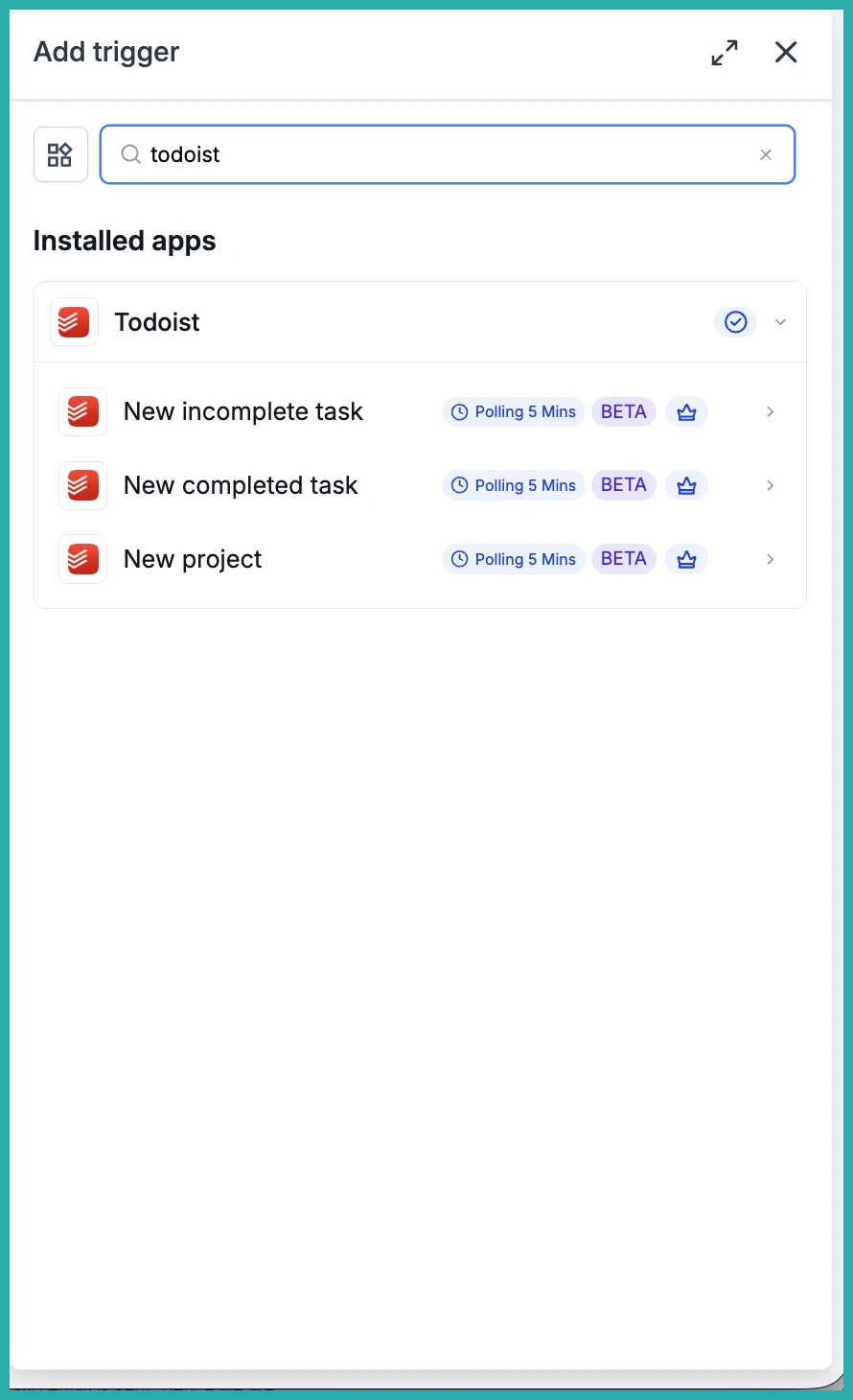
Setting up a trigger: New incomplete task
Let's wire up a workflow that fires every time a new task is created in a specific Todoist project. The same shape works for completed tasks and new projects too - you just pick a different trigger.
Add the trigger. Open your workflow and click Add trigger. Switch to the Apps tab, search for Todoist, and select New incomplete task.
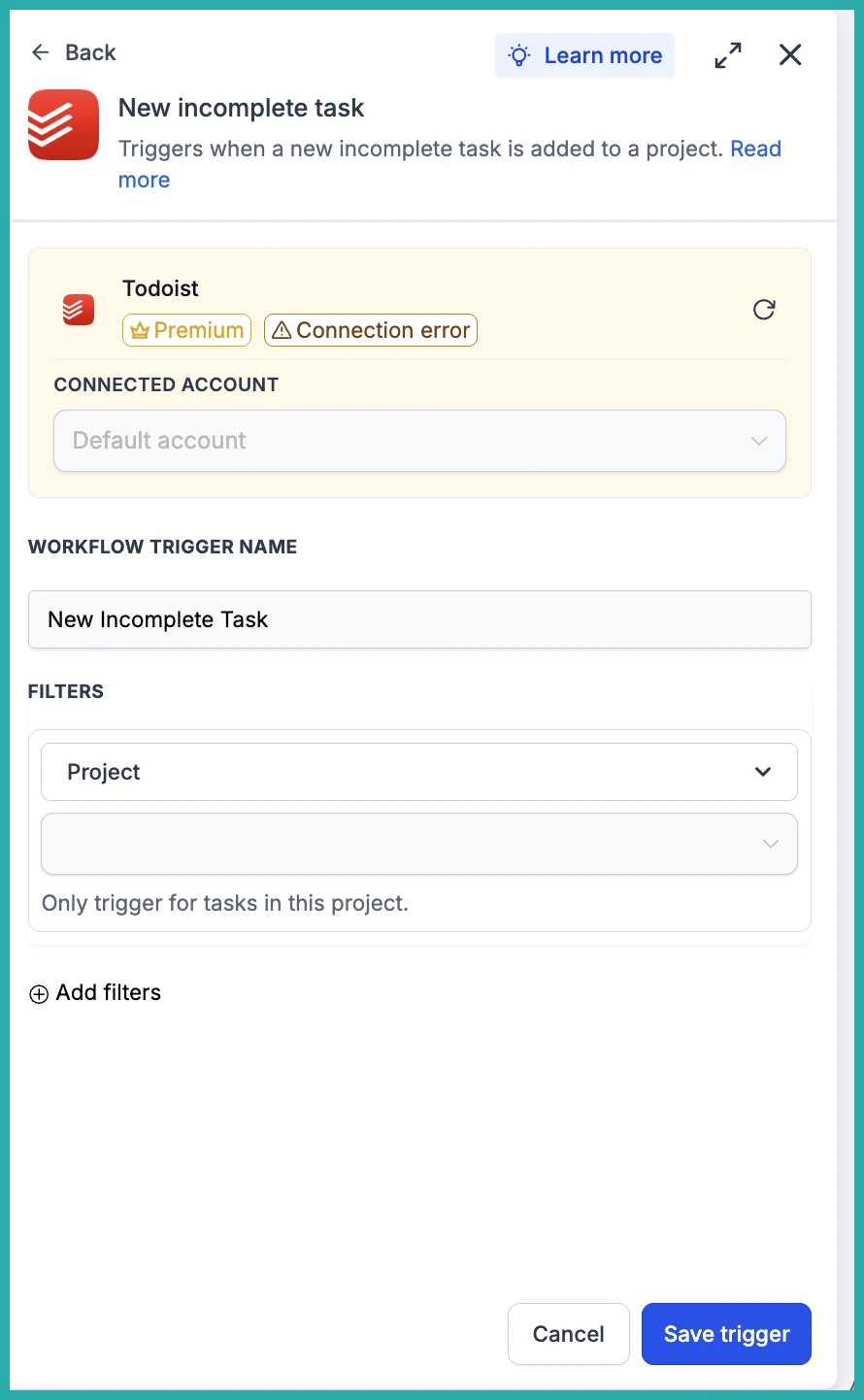
Configure it. A few fields to fill in:
- Connected Account - pick the Todoist account this trigger should watch.
- Workflow Trigger Name - give it a label you'll recognise, like 'New Support Task'.
- Filters, Project - pick a project to scope to, so it only fires for tasks in that one. Leave it empty and it fires on any project.
- Add filters - optional extra conditions like label, priority, or a due-date range.
Test it. In the Test your trigger panel, click Find new records. If nothing shows up, add a task to that project in Todoist, wait one five-minute cycle, then fetch again. Select the record that comes back as your mapping reference, then click Save trigger.
Setting up an action: Create task
This is the most common outbound pattern - a workflow event creates a task in Todoist for someone to pick up.
Add the action. Inside your workflow, click Add to insert a step. Open the Apps tab, select Todoist, and choose Create task.
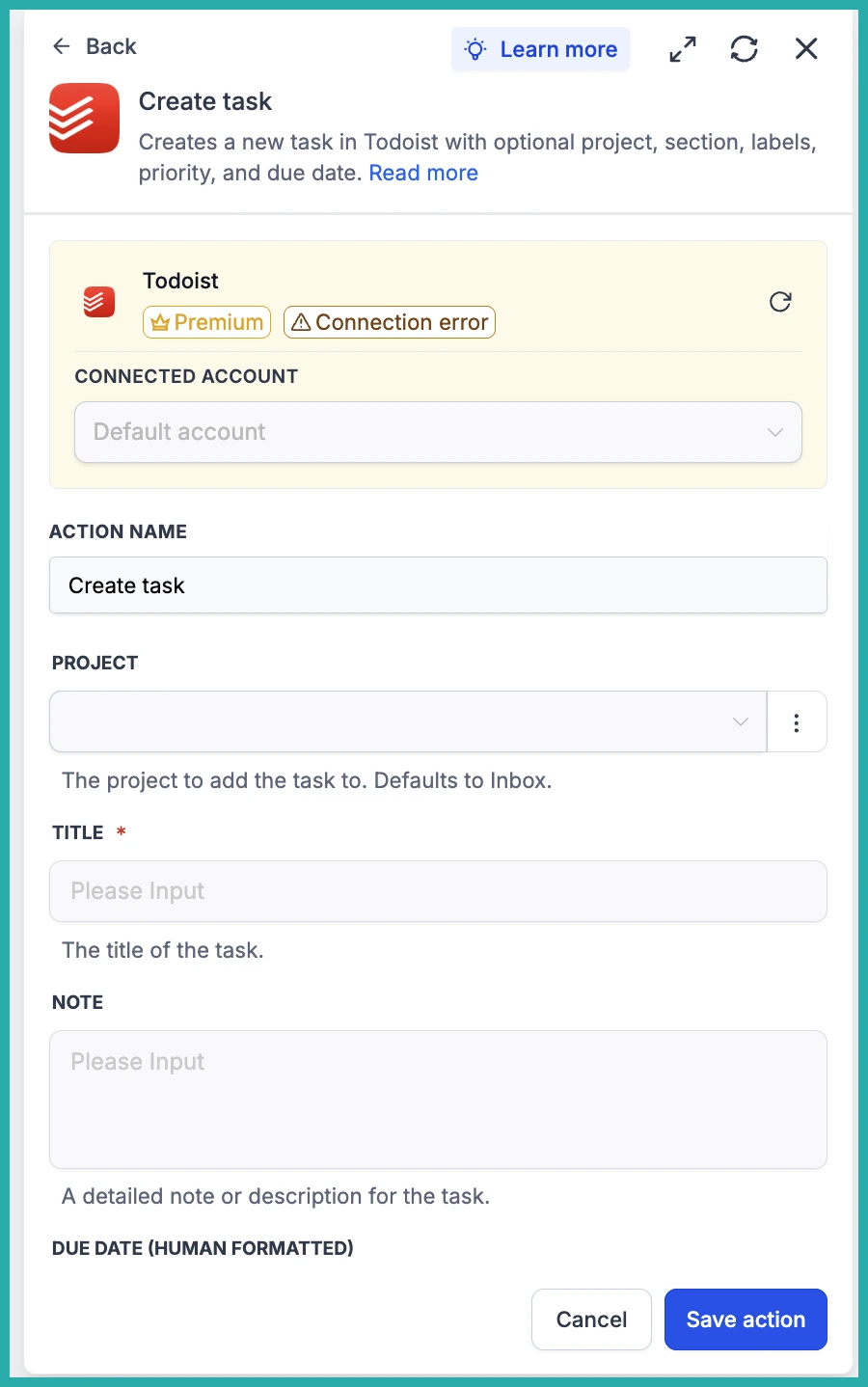
Configure it. The key fields:
- Connected Account - where the task should be created.
- Action Name - something clear like 'Create Task from Form Submission'.
- Project - pick from the dropdown. It defaults to your Inbox if you leave it. If you don't know the project at build time, use a Find projects action earlier to look it up by name.
- Title - required. Keep it short so it reads cleanly in your task lists.
- Note - a fuller description if the title alone doesn't carry enough.
- Due Date - use the human-formatted or the raw-formatted field, one or the other, not both.
- Deadline Date - optional hard deadline in YYYY-MM-DD. Todoist deadlines don't take a time.
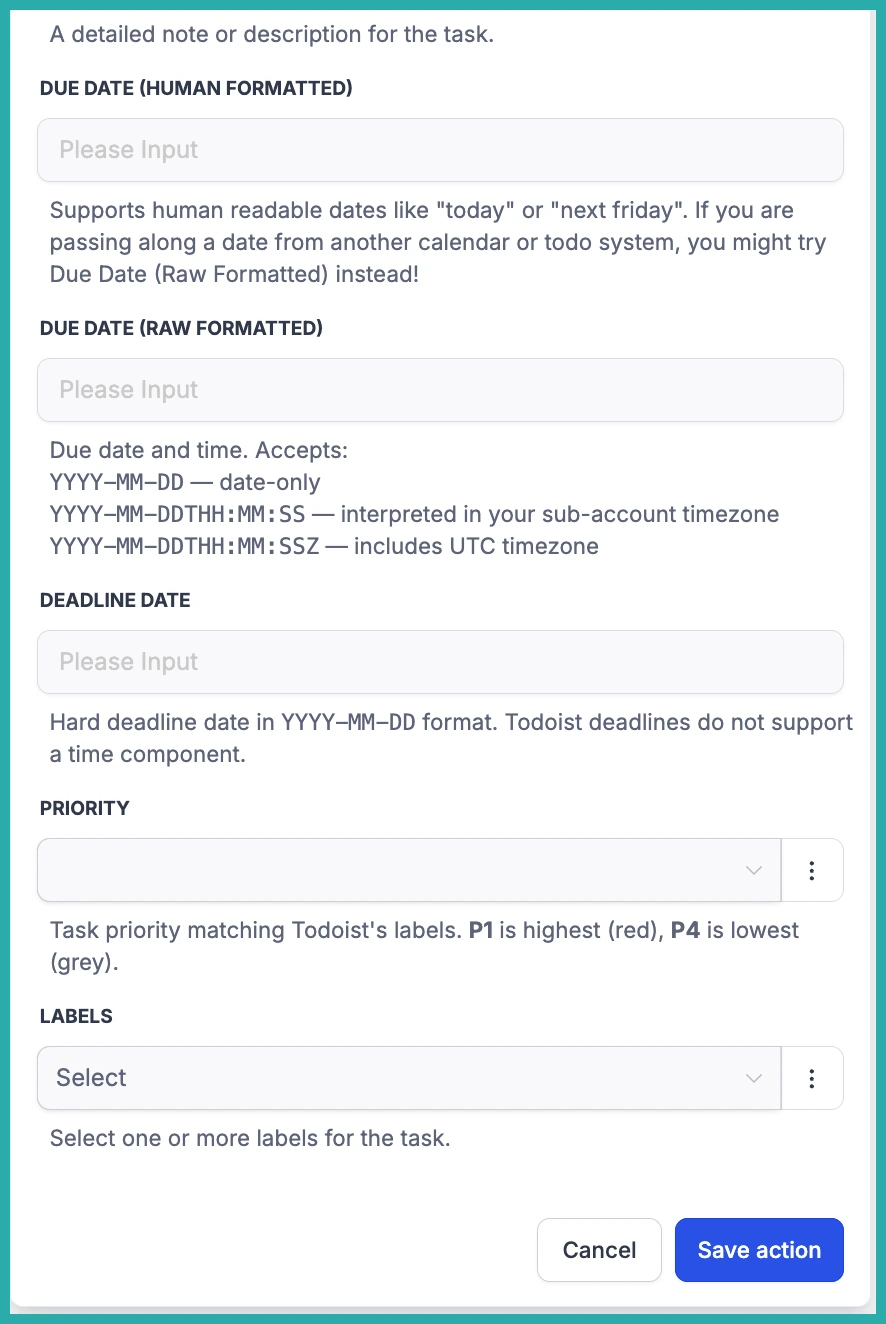
Test it. Click Test action. This creates a real task in Todoist, so if you're testing against a live project, name it something obvious like 'TEST - DELETE'. Save the action, then run a full Test workflow before you publish.
A few ways to use it
Once it's connected, the combinations get useful fast:
- Form to the right project: a customer submits a request, the workflow finds the right project by name, then creates a task with the full submission as a note, a priority based on urgency, and a label for routing.
- Task completed closes the loop: when a task is marked done in Todoist, the workflow matches it back to the contact and updates a field or advances a stage in your account. Your team stays in their task list, your records stay current.
- Shared team task with context: an operational event creates a task on a shared project with a priority and a 'needs-review' label, then adds a comment with links and instructions so whoever picks it up has everything they need.
Always test before you publish - it locks in the data and gives your later steps a real record to work from. Once you've done one, the rest fall into place fast.
