
Get Notified the Moment a Client Uploads a File to Your Portal
A client uploads the contract, the ID, the onboarding paperwork you've been waiting on. And it just sits there in the portal until you remember to go looking for it.
Not anymore. Your Client Portal can now send you an in-app notification the moment a client uploads a file.
What you get
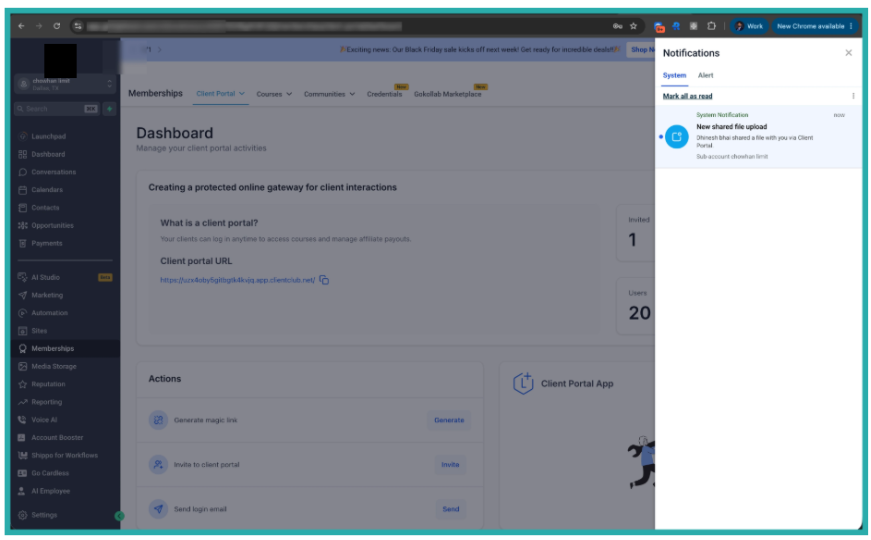
When a contact uploads one or more files through the Shared Documents section of the Client Portal, the right Account Admins and Users get an automatic in-app notification. Clients can send up to 10 files at a time, and you'll know as soon as they do.
That means no more checking the portal every day just in case. The alert comes to you, and you can jump straight in to review, approve, or keep the onboarding moving.
Choose who gets notified
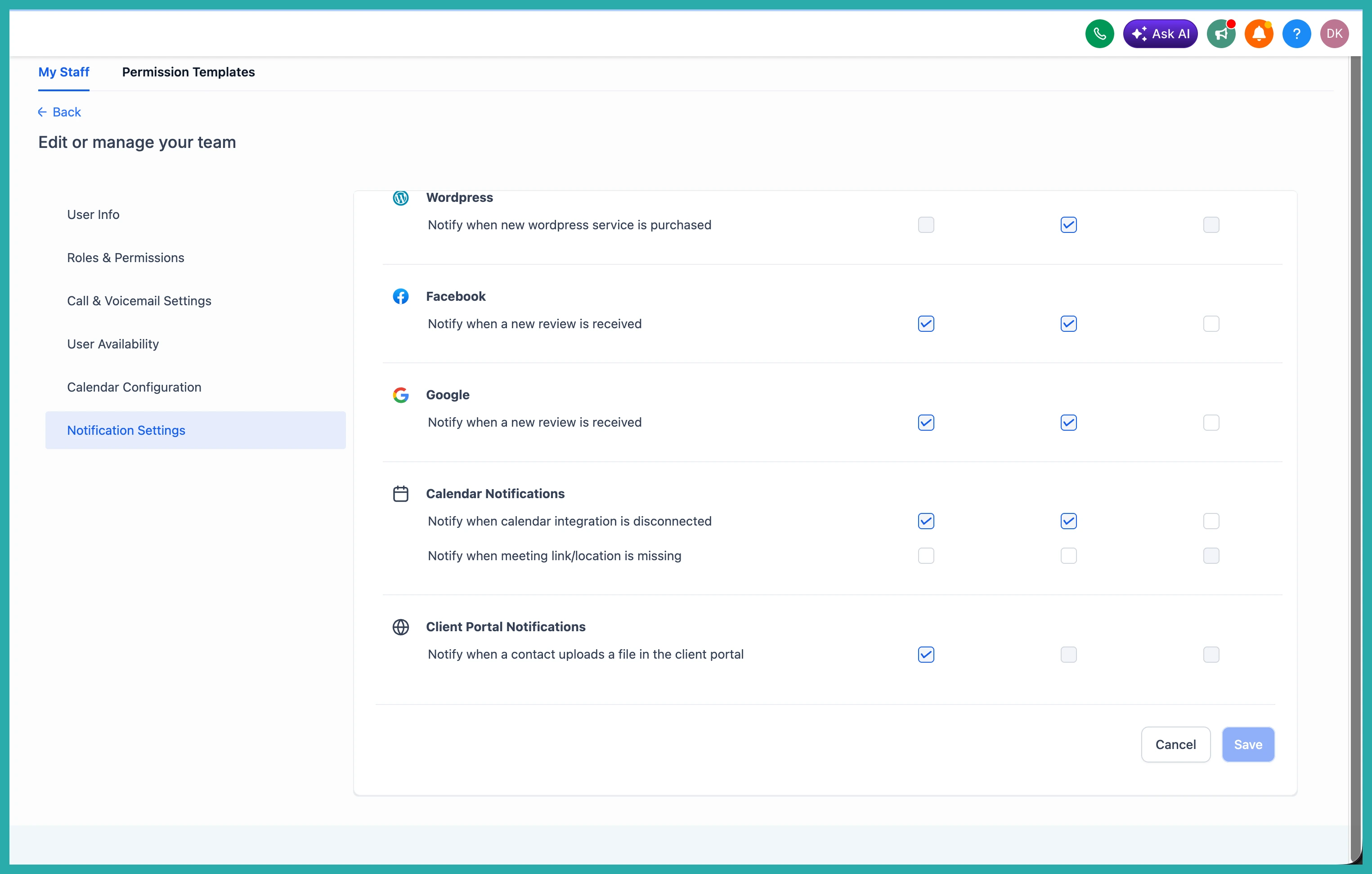
You decide which staff members receive these alerts, one person at a time. Here's how to set it up.
- Go to Settings, then My Staff.
- Select the staff member you want to set up.
- Open Notification Settings.
- Under Client Portal Notifications, turn on Notify when a contact uploads a file in the Client Portal.
- Save your changes.
In the screenshot below, you'll see the toggle you're looking for.
Repeat that for anyone else on your team who needs to know about new uploads. Each person is set individually, so you can keep it to just the people who'll actually action the documents.
What the client sees
On their side it's simple. The client logs in to the Client Portal, goes to Shared Documents, clicks Share File, and uploads one or several files. Once the upload finishes, your notification lands.
One note to keep in mind: the alert only fires for files uploaded through the Shared Documents area of the portal, and in-app notification is the channel for now.
If you handle contracts, ID checks, or onboarding paperwork, go switch this on for yourself today. It's a small setting that saves you a lot of checking.
