
Your Billing Invoice List Just Got Easier to Read at a Glance
You open your billing history to check what you paid for, and you're staring at a wall of invoice codes that mean nothing. So you click, download a PDF you didn't want, and squint at it to figure out what the charge actually was.
That's been cleaned up. Your invoice list now tells you what you were charged for in plain language, before you open anything.
See what you paid for, instantly
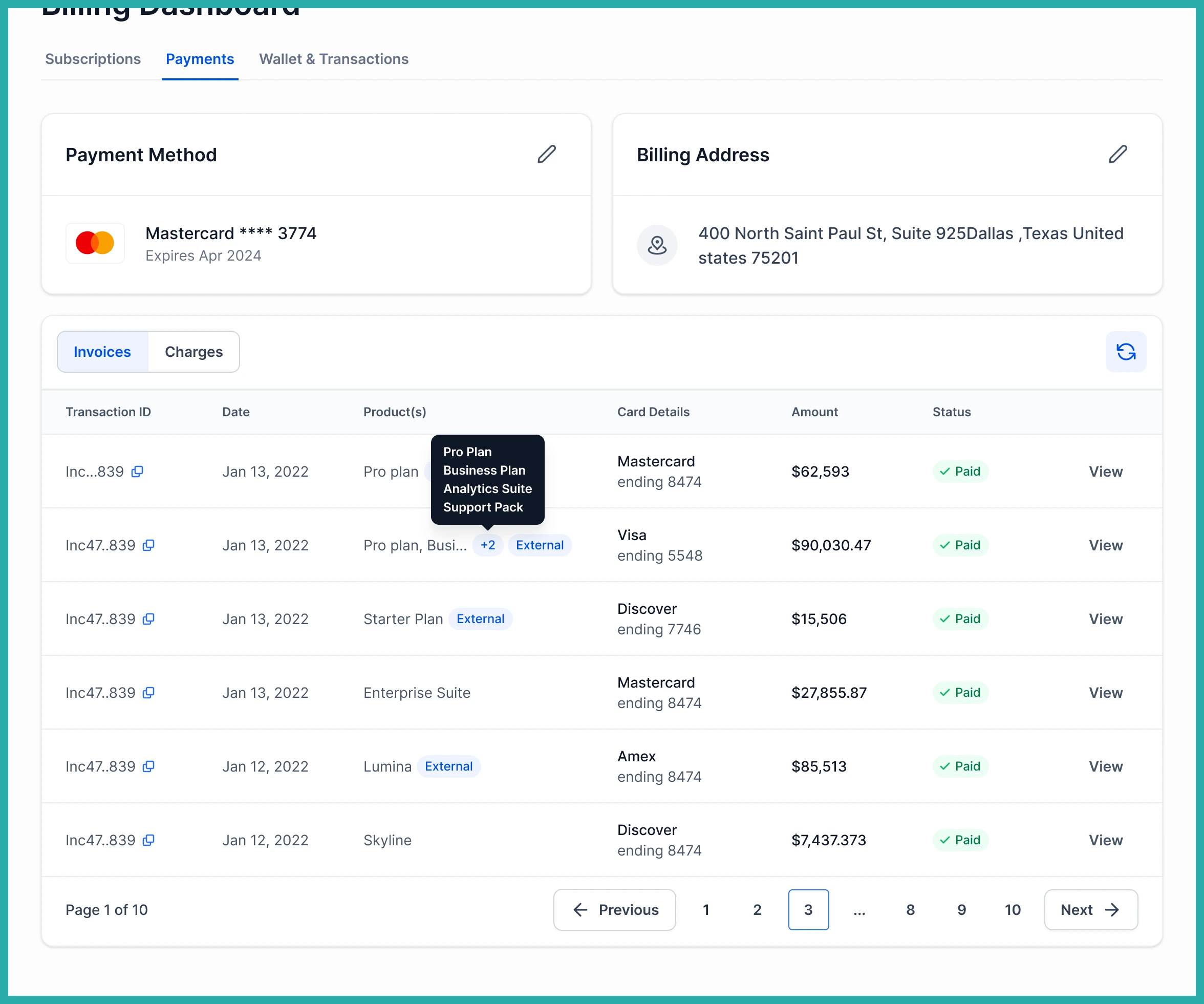
The Products column now shows real product names instead of raw codes. If an invoice has more than one item, you'll see the first product name and a count of the rest. Hover over it and the full list appears, so you don't have to open the invoice to know what's in it.
In the screenshot below, you'll see the tidied-up table. The old Invoice ID column is gone, replaced by a Transaction ID that's been shortened so it's actually readable. Need the full ID? There's a one-click copy icon right next to it.
Review an invoice without it downloading on you
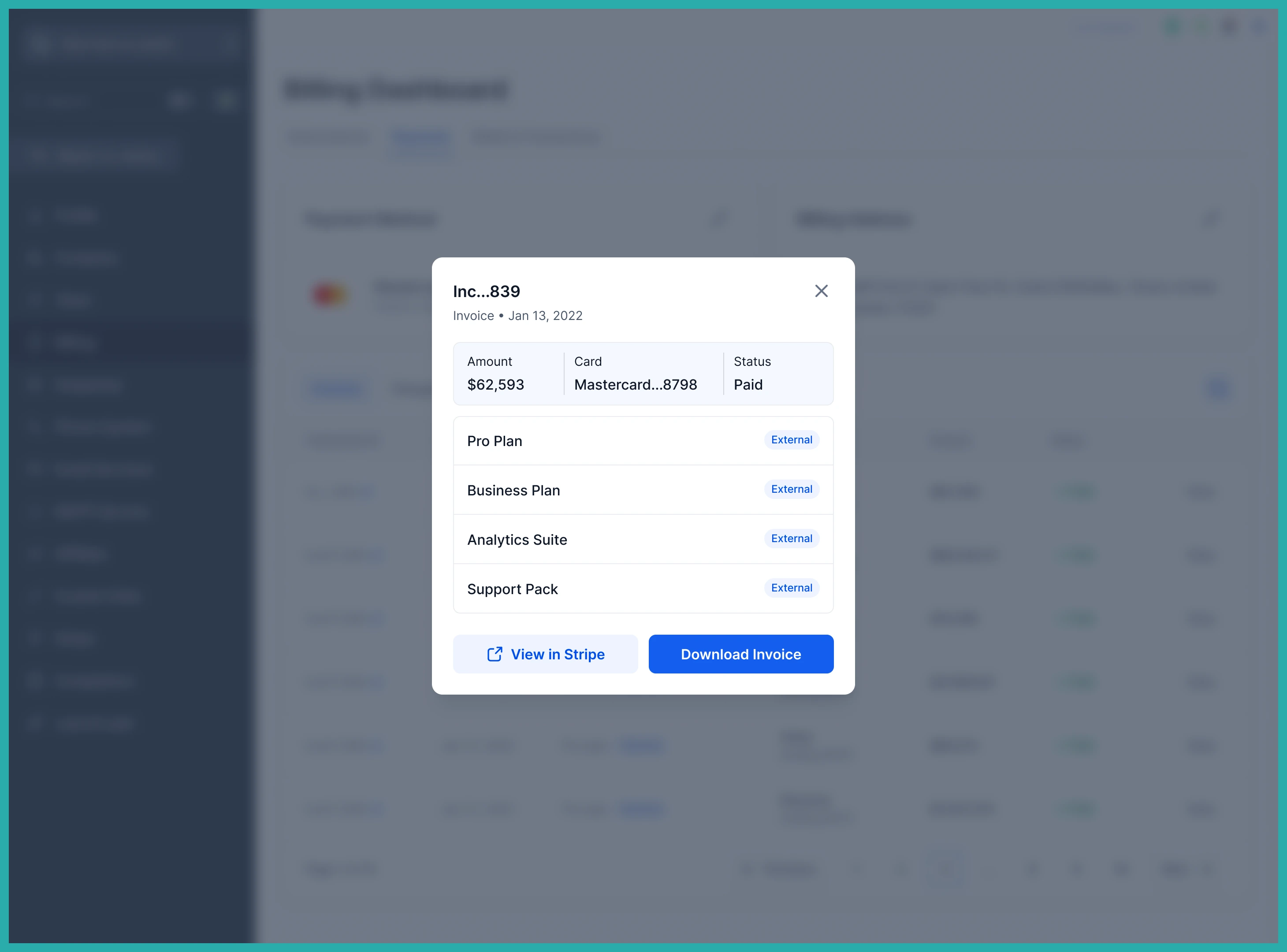
Clicking View used to fire off a PDF download whether you wanted one or not. Now it opens a detail panel instead.
From there you can look over the amount, payment method, status, and line items at your own pace. When you're ready, you choose what happens next - View in Stripe or Download Invoice. Nothing lands in your downloads folder unless you ask for it.
Platform charges vs. outside charges, made obvious
Any invoice or product that comes from outside ESC Hub is now labeled "External". So you can tell at a glance which charges are your platform subscription and which are third-party items, without guessing.
How to take a look
Head to your billing area and open the invoice list. You'll see the product names, the shortened transaction IDs, and the External tags straight away. Click View on any invoice to open the new review panel.
Next time you're reconciling your billing, this should save you a few clicks and a lot of squinting. Go have a look at your last invoice and see how much clearer it reads now.
