
Choose Exactly Which Devices Ring and Handle Audio in the Web Dialer
A quick heads-up: this one's in Labs
It's an early feature you turn on yourself in Settings > Labs inside your account. It works, but it's still in development - the documentation and support is limited and not everything will behave perfectly yet.
If you like getting your hands on new things early, switch it on and have a play. If you'd rather wait for the finished, fully-supported version, leave it off and we'll let you know when it lands.
If you take calls through the web dialer, you can now decide exactly which devices ring and handle your audio. Which speaker plays the call, which microphone picks you up, and even a second device to ring at the same time so an inbound call never slips past you.
Where to find it
Open the dialer and look for the gear icon in the header. Click it to open your audio settings.
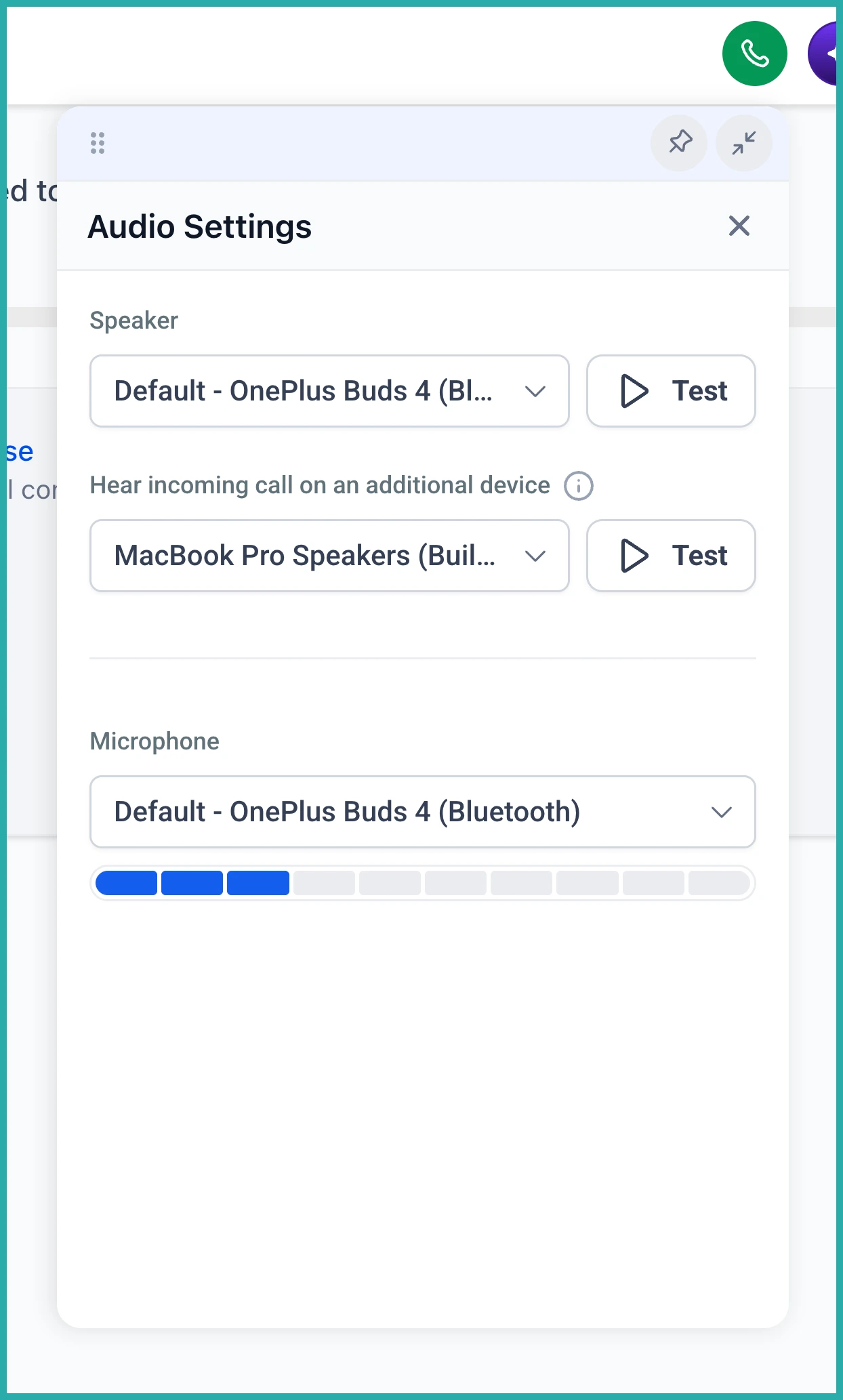
That opens the panel where all your device choices live. Everything below happens right here.
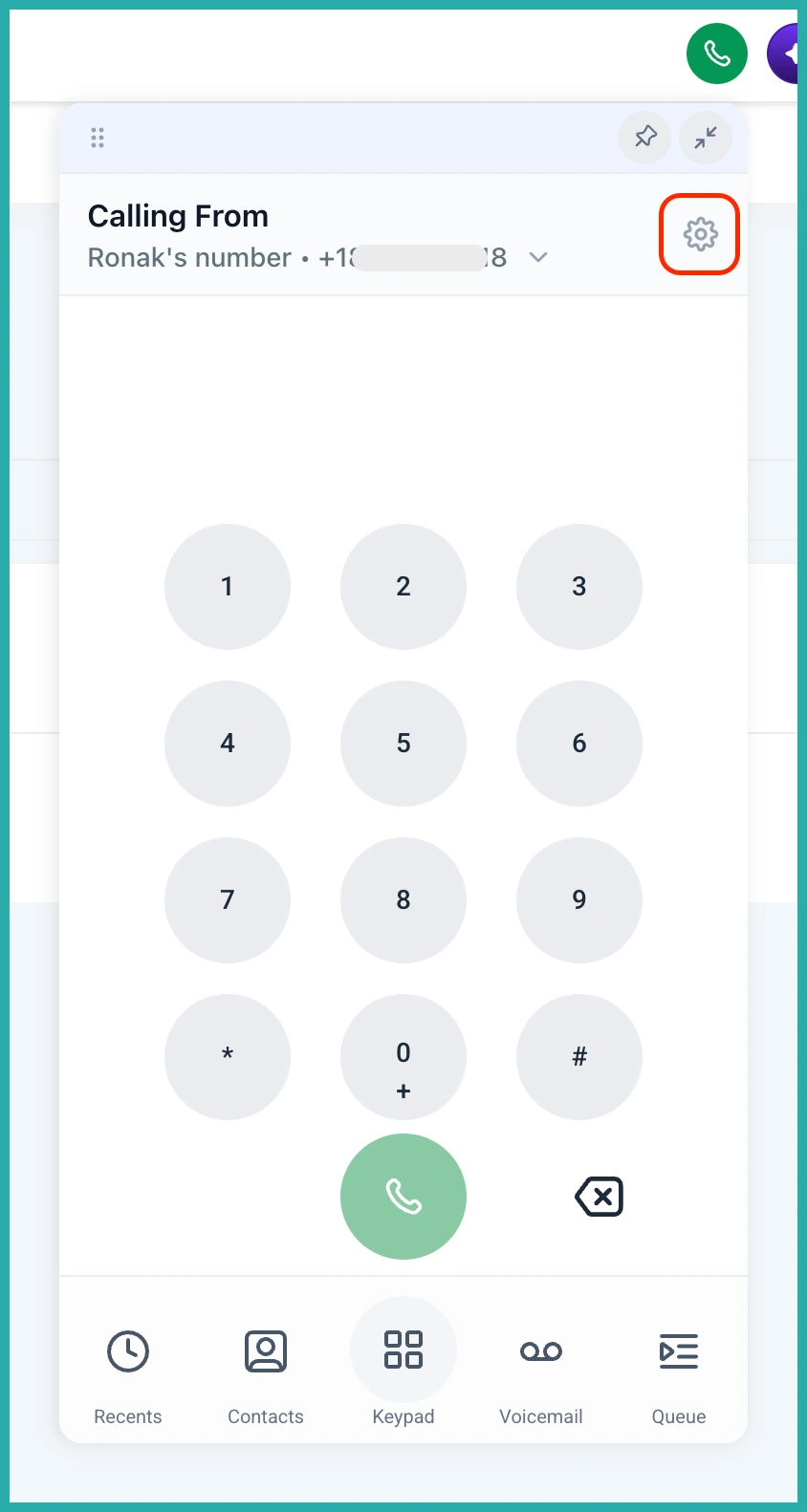
Pick your speaker for call audio
Start by choosing the main speaker you want to hear calls through - your headset, your laptop, whatever you actually use. There's a Test button next to it, so you can play a quick sound and check it's the right one before you save.
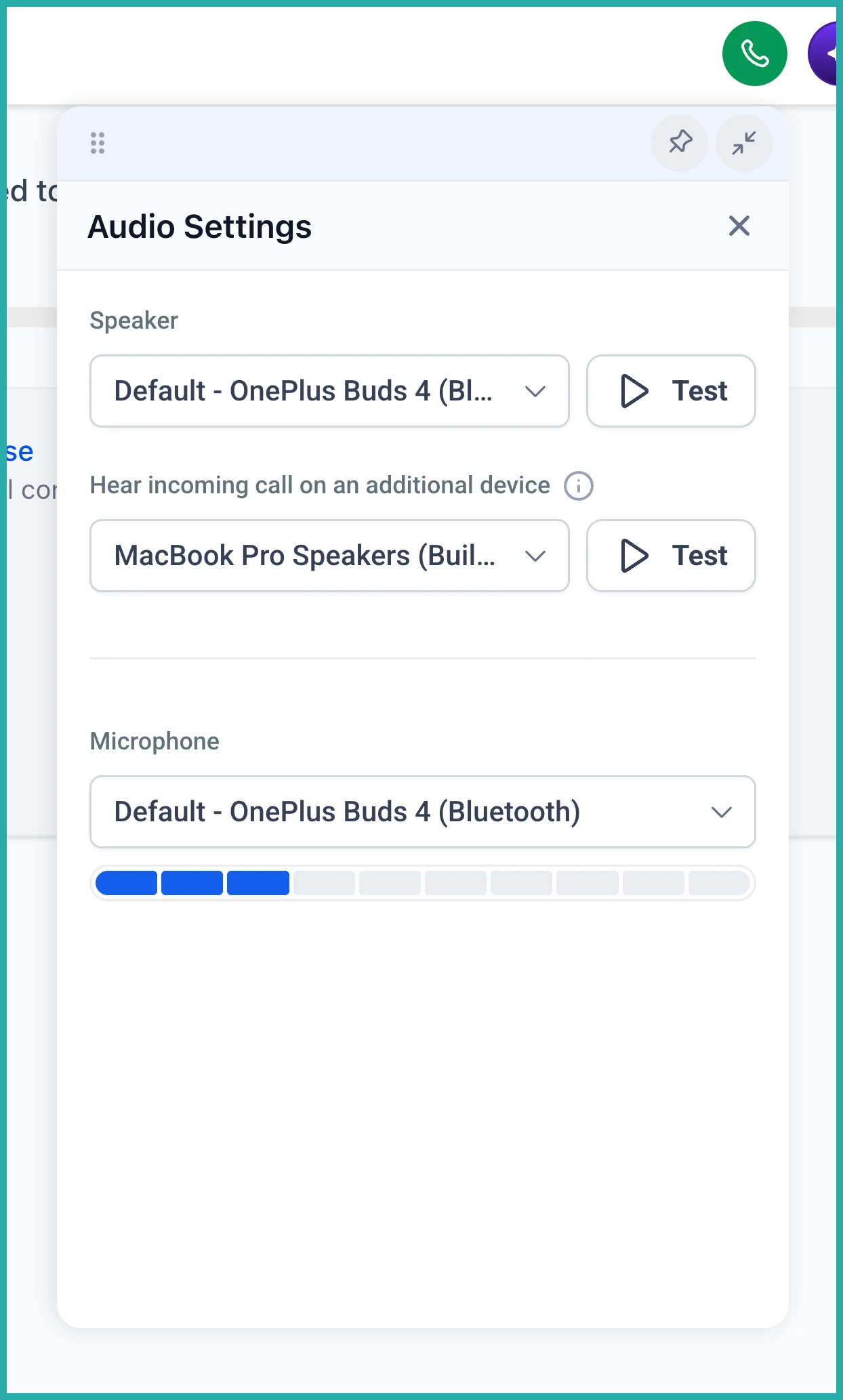
Ring a second device so you never miss a call
This is the handy bit. You can optionally have one more device ring at the same time. Think headset on your ears plus your desk speaker across the room - if you step away for a coffee, the call still rings out loud where you'll hear it.
It has its own Test button too, so you can confirm both devices are doing their job.
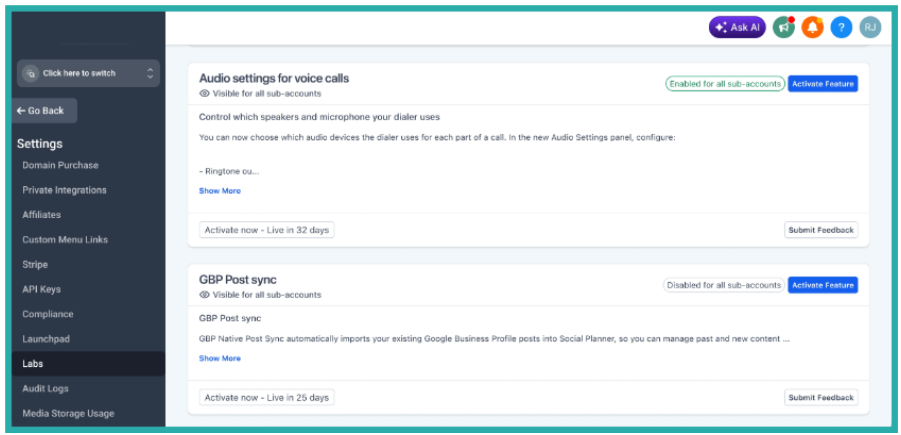
Choose your microphone
Last, pick the microphone you want callers to hear. The picker shows a live volume meter, so you can talk and watch it move. If the bar reacts to your voice, you know it's picking you up properly.
Once everything looks and sounds right, save your settings and you're set.
One honest note: Safari only supports a single audio output device at the moment, so if you want full control over which devices ring, use Chrome or Edge.
Take two minutes to set your devices the way you actually work, and your calls will just sound right from here on.
