
Build and Debug Your Workflows by Chatting to Your AI Assistant
If you've ever stared at a workflow wondering what went wrong, and for which contacts, this one's for you. You can now work with your workflows straight from an AI assistant like Claude, ChatGPT or Cursor.
Instead of reading through execution logs by hand, you just ask. Your assistant can find workflows, explain what failed and for whom, count enrollments, and even build and publish workflows from a plain description.
This is in private beta for now, so you'll need your account switched on for it first. More on that below.
What your assistant can do
Once connected, your AI assistant can work with your workflows in a few handy ways:
- Find workflows - search by name, status, folder or date.
- Read workflows - see a workflow's full setup: triggers, steps, branches and settings.
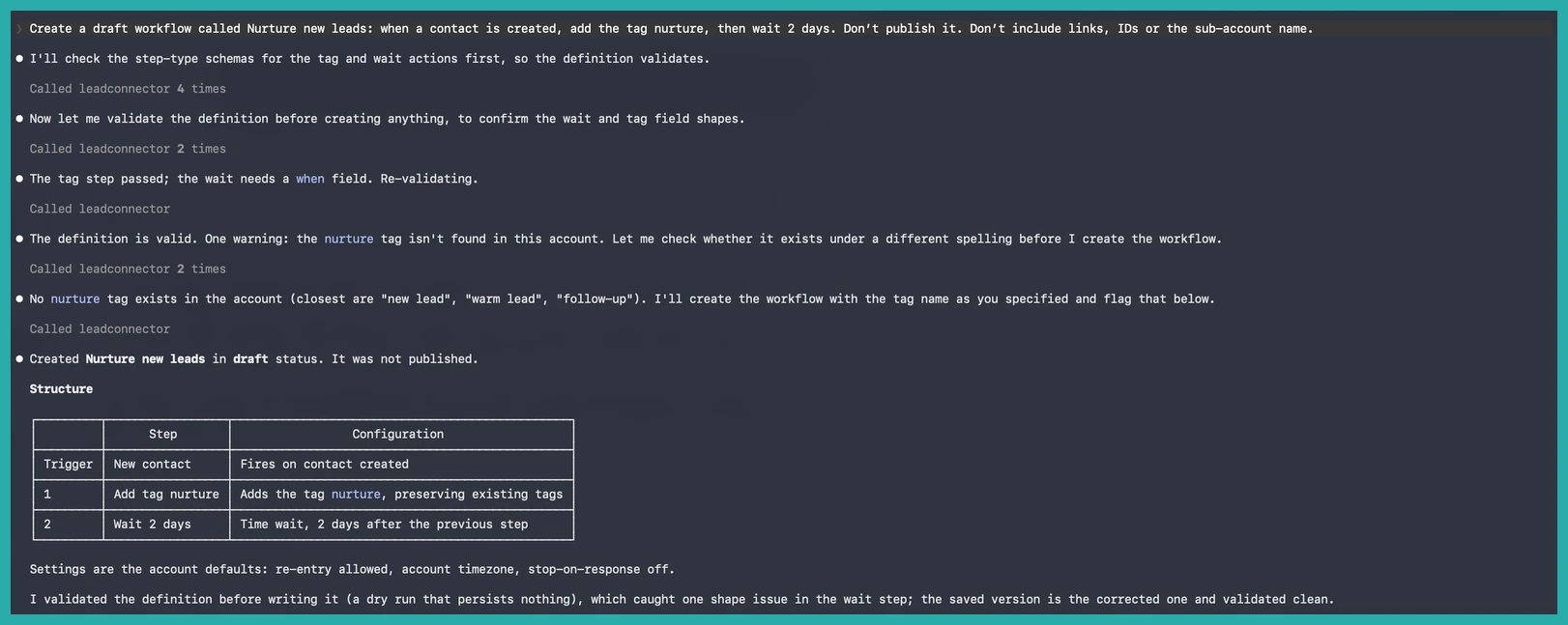
- Build workflows - create one from a description. It checks for errors and saves it as a draft.
- Update and publish - change a workflow, publish it, or set it back to draft.
- Delete workflows - with an extra confirmation first, so nothing goes by accident.
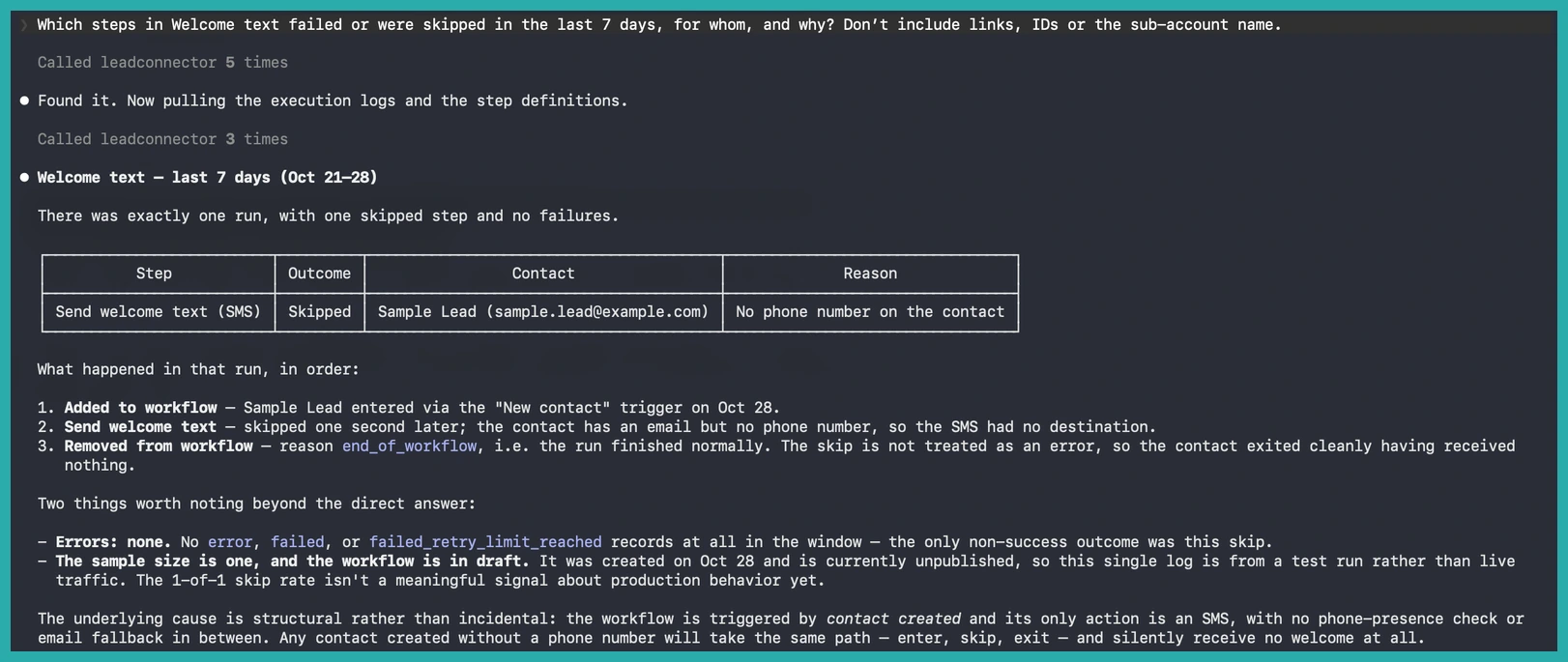
- Read execution logs - see who entered a workflow, what happened at each step, and which steps failed, with the error.
- Pull statistics - count enrollments, completions and failures per step, by hour, day or week.
What that looks like in real life
Here are a few ways you might actually use it.
Failure triage. Ask which steps in your New Lead Nurture failed this week. The assistant reads the logs and lists each failed step, the contact it affected, and the error. One question instead of scrolling.
Weekly numbers. Ask how many contacts entered your Webinar Follow-up each week this month. You get one clean number per week.
A draft from a description. Describe a workflow that tags new contacts as webinar-lead and sends a welcome SMS. The assistant checks it for errors and saves a draft for you to review and finish in the builder.
How to get started
You connect the ESC Hub AI connector inside your AI tool, then sign in and pick your account.
- In your AI tool, add a custom connector. In Claude, go to Settings, then Connectors, then Add custom connector, and enter https://services.leadconnectorhq.com/mcp/anthropic/v2. In ChatGPT, turn on Developer mode, open Plugins, and add https://services.leadconnectorhq.com/mcp/openai/v2/. In Cursor, use https://services.leadconnectorhq.com/mcp/cursor/v2.
- Sign in with your account, choose the account you want to work in, and approve the workflow permissions.
- Start a new chat and ask about your workflows. The setup docs cover every tool step by step.
A few things to know
- This is a private beta. Your account needs to be enabled for it first, so contact support to join.
- New workflows are created as drafts. Publishing is a separate step you ask for.
- To change a published workflow, it's set to draft first. While it's a draft, its triggers are off and contacts in it are paused.
- Each request works in one account at a time. Connections that cover several accounts are rolling out.
- Deleting a workflow is permanent and stops everyone currently in it, so that extra confirmation is there for good reason.
- Logs cover up to 30 days per request and go back 60 days. They show live runs only, not test runs from the builder.
If you already live in an AI tool for the rest of your day, this brings your workflows into the same place. Get your account enabled, connect it once, and try asking it what broke this week.
