
Your Workflows Can Now Read What's Inside an Image
Up to now, a workflow could carry an image from step to step, but it couldn't tell you what was actually in it. That's changed.
There's a new action called AI Analyze Image. You give it an image and a question, and it reads the image and hands you back an answer as plain text you can use anywhere else in the workflow.
What it does
Point it at an image and it can:
- Pull out text - read receipts, invoices, screenshots and documents.
- Describe what's there - get a written summary of what the image contains.
- Answer your exact question - the prompt is yours to write, so you tell it what to look for and how to reply.
Whatever it finds comes back as text. From there you can save it to a custom field, drop it into an email or SMS, send it to a webhook, or pass it along to another AI action.
One thing to know upfront: this is a premium action, so each time it runs there's a small extra charge on top of your usual usage.
Setting it up
Head to Automation, then Workflows, and open the workflow you want to add this to. Add a new action and look under AI Actions for AI Analyze Image.
First, choose your model. You've got two options - GPT-5.6 Luna or GPT-5.6 Tera. Either works, so pick one and move on.
Next, add the image URL. You can use the output of an earlier step, or drop in a custom value.
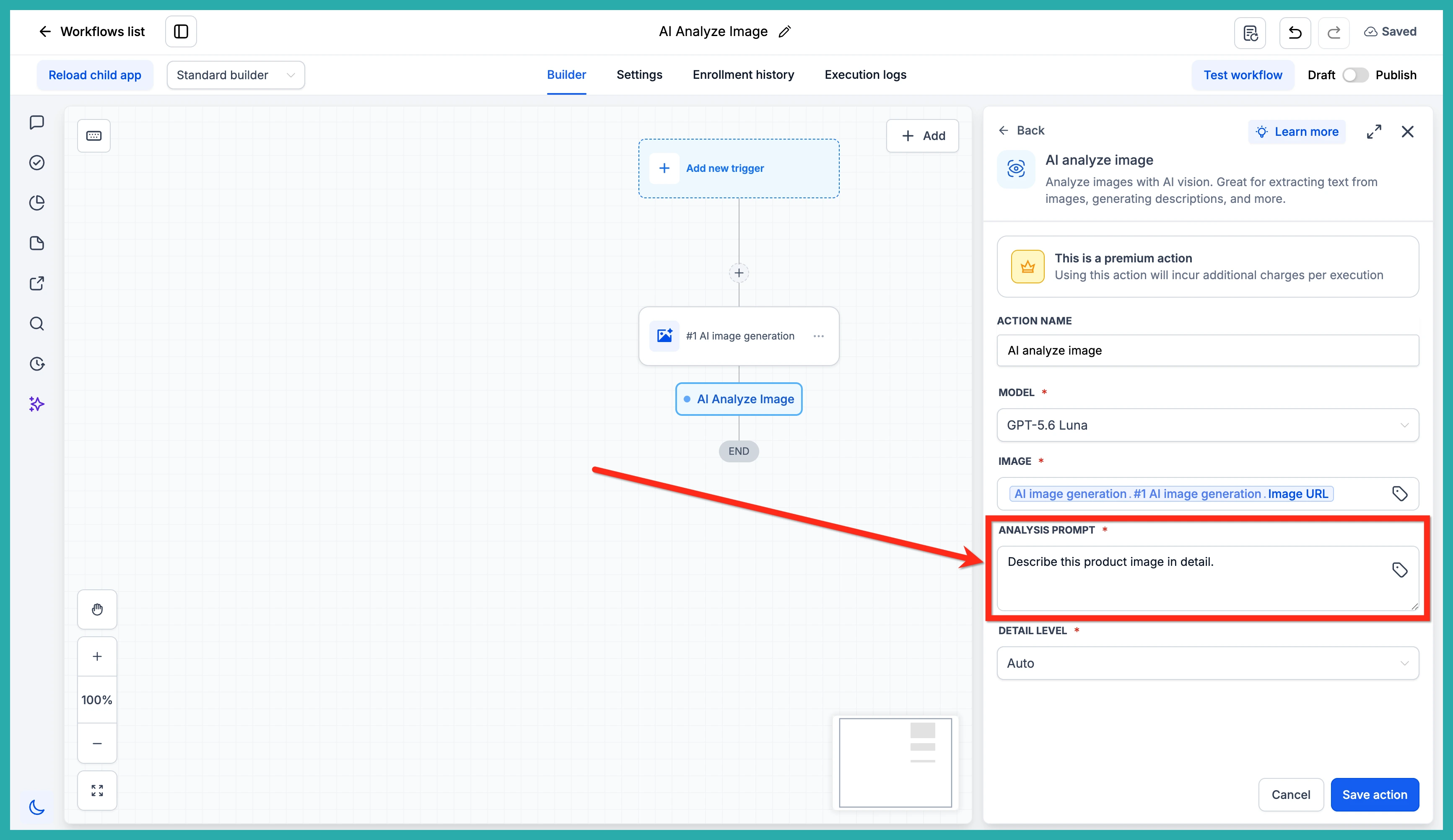
Now write your prompt. This is where you tell the model exactly what you want. "Read the total on this receipt," or "Describe what's in this photo," or anything specific to your task. The clearer you are, the better the answer.
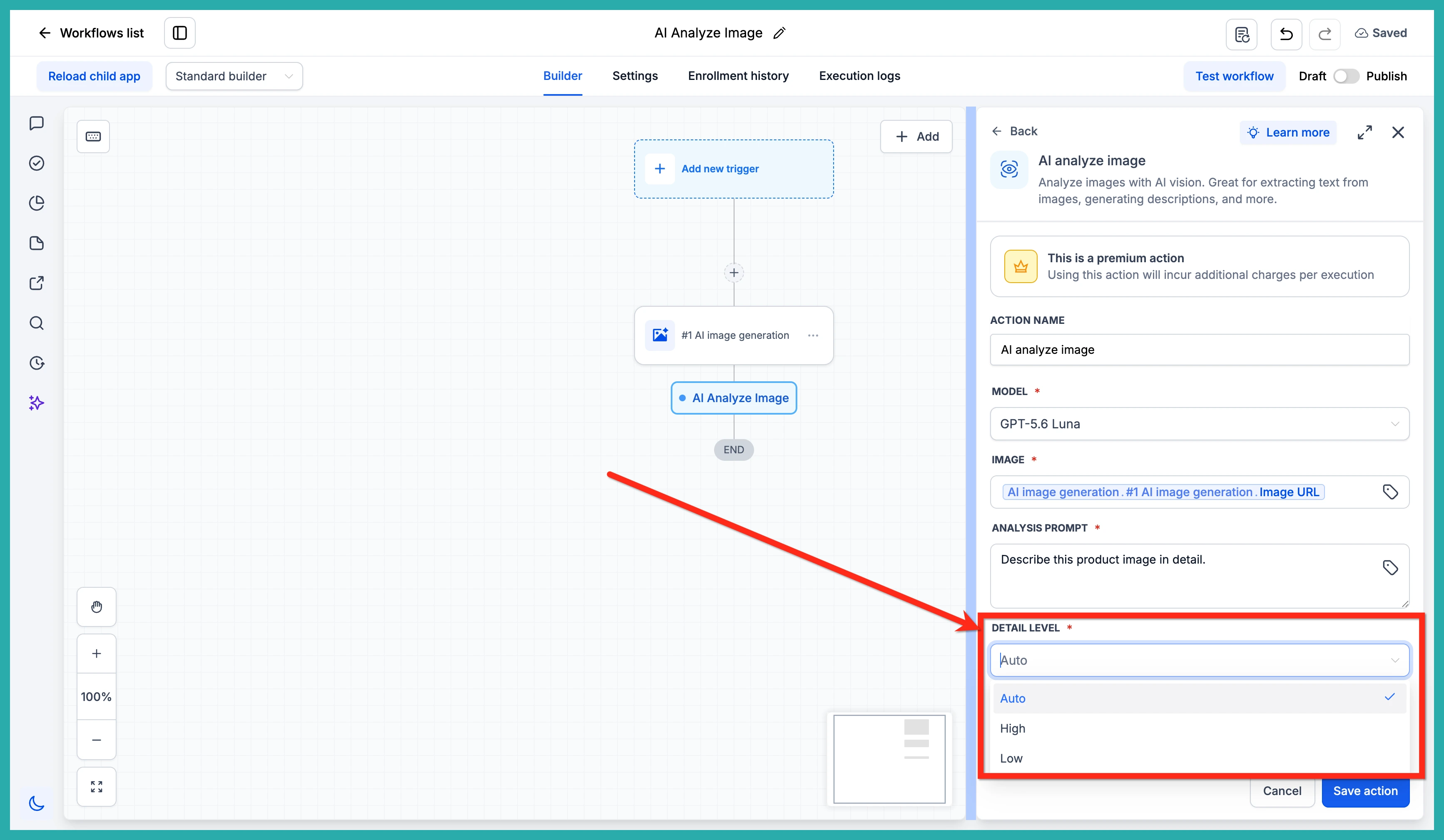
Then set the detail level. The default is Auto, which is fine for most things. Choose High when you're reading small text and want the best accuracy, or Low when you'd rather it run faster.
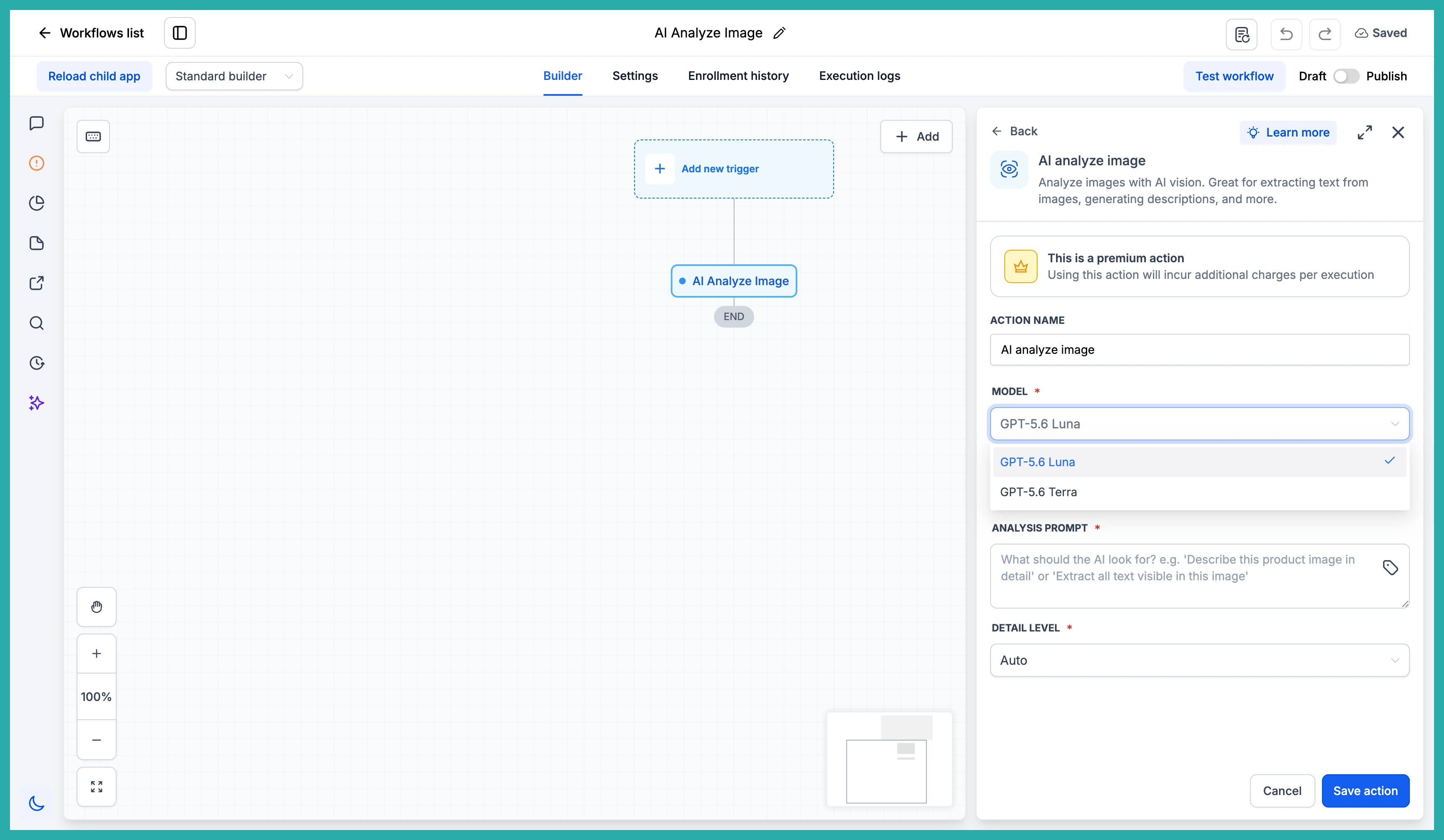
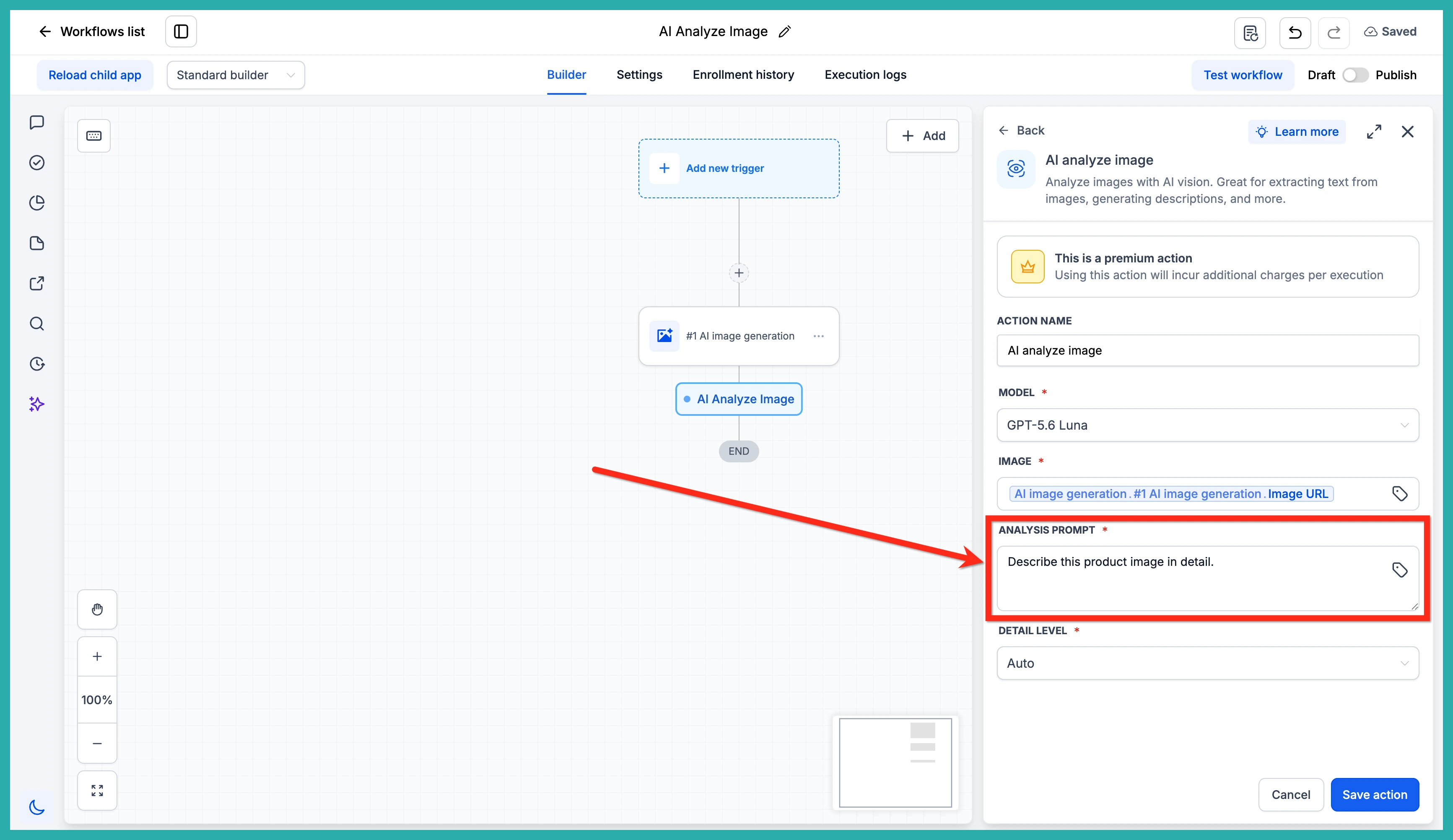
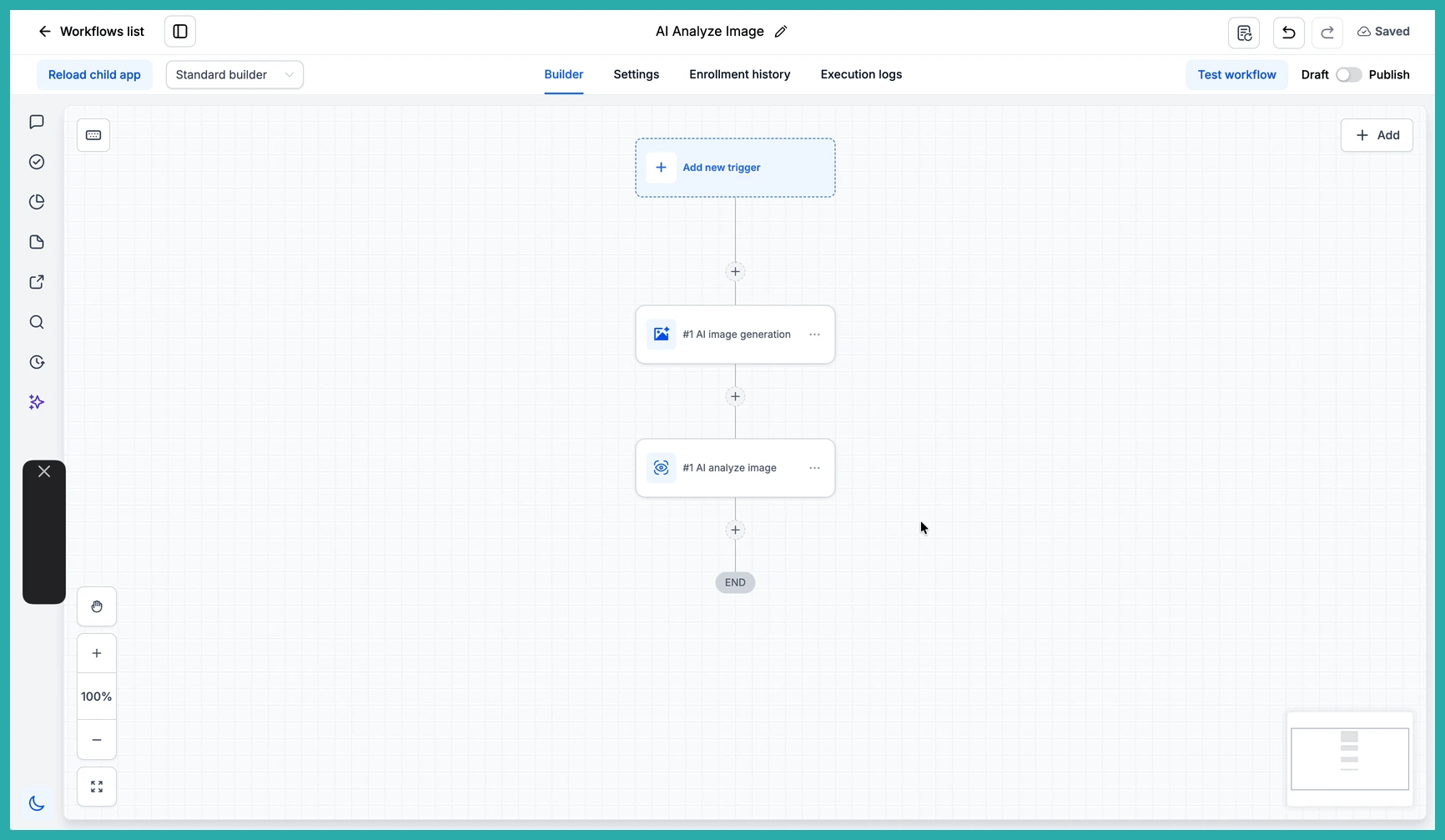
Save the action, and you're done. In the screenshot below you can see the finished action sitting in the workflow, ready to run.
One important note about the image link
The image URL has to be public. That means anyone should be able to open it without logging in. A couple of quick pointers:
- Use the direct link to the image file itself, not a link to a page that happens to show the image.
- Files stored in your Media Storage are already public, so those work straight away.
If the action can't open the link, that's almost always the reason.
Have a workflow that handles receipts, sign-up photos, or screenshots? This is worth a try. Set it up once and let it read for you.
