
AI Builder Now Builds AND Sets Up Your Workflows, Using Your Own Account Data
You describe the workflow you want, AI Builder lays out the right triggers and actions, and then... you still had to click into every single step to pick the form, the pipeline, the stage, the snippet. The structure was done, but the setup was all on you.
That second half is now gone.
What landed
AI Builder no longer stops at the shape of your workflow. Name the form, the pipeline, the snippet, the tag or the person in your prompt, and it goes looking for each one in your account and fills it in as it builds.
One prompt. One workflow. Actually configured, not just outlined.
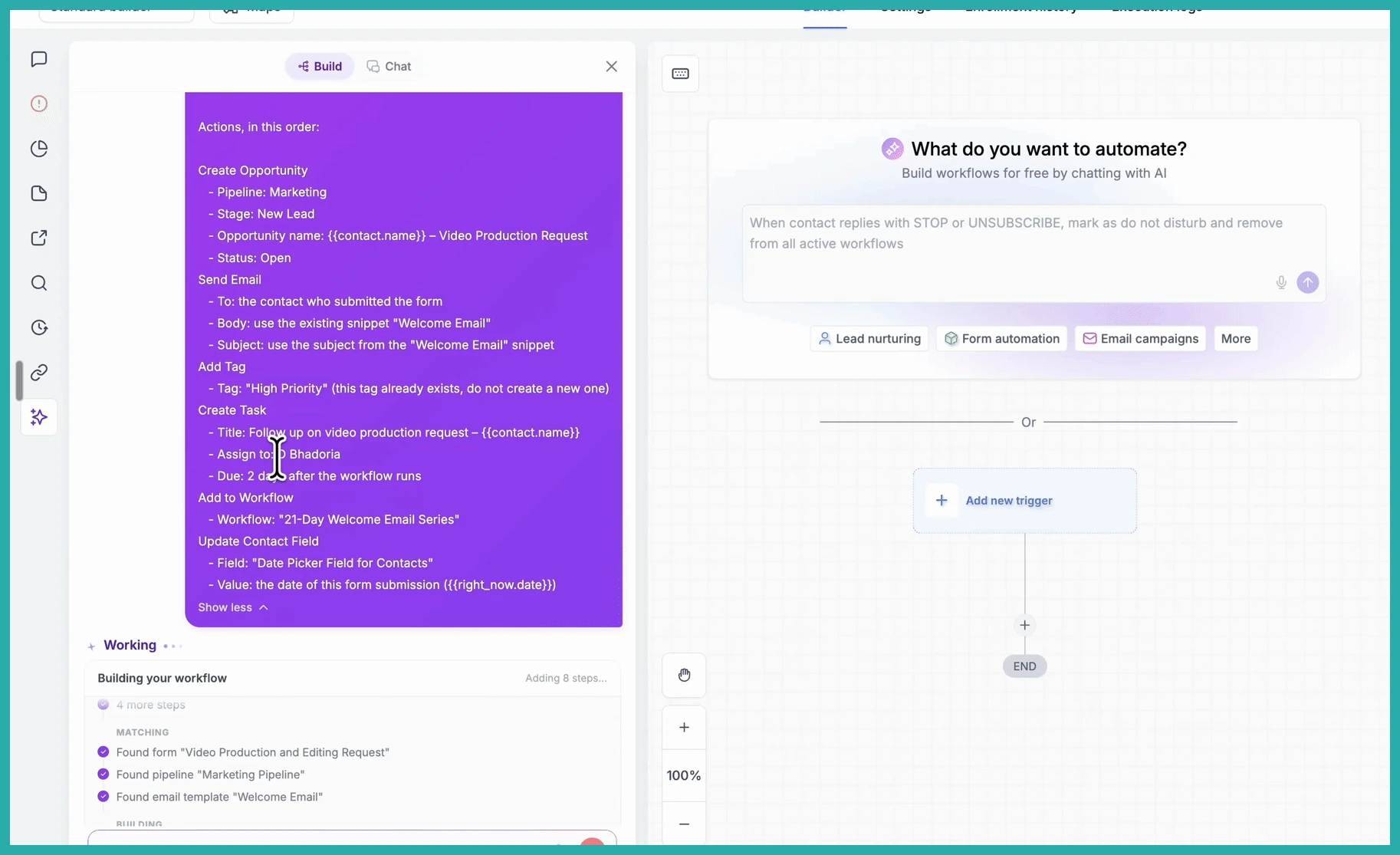
You can watch it find your data
The clever part is that you can see it working. As AI Builder builds, the progress view shows each record it locates - things like "Found form", "Found pipeline" and "Found email template". So you're not guessing whether it understood you. You can see it pulling in your real records, one by one.
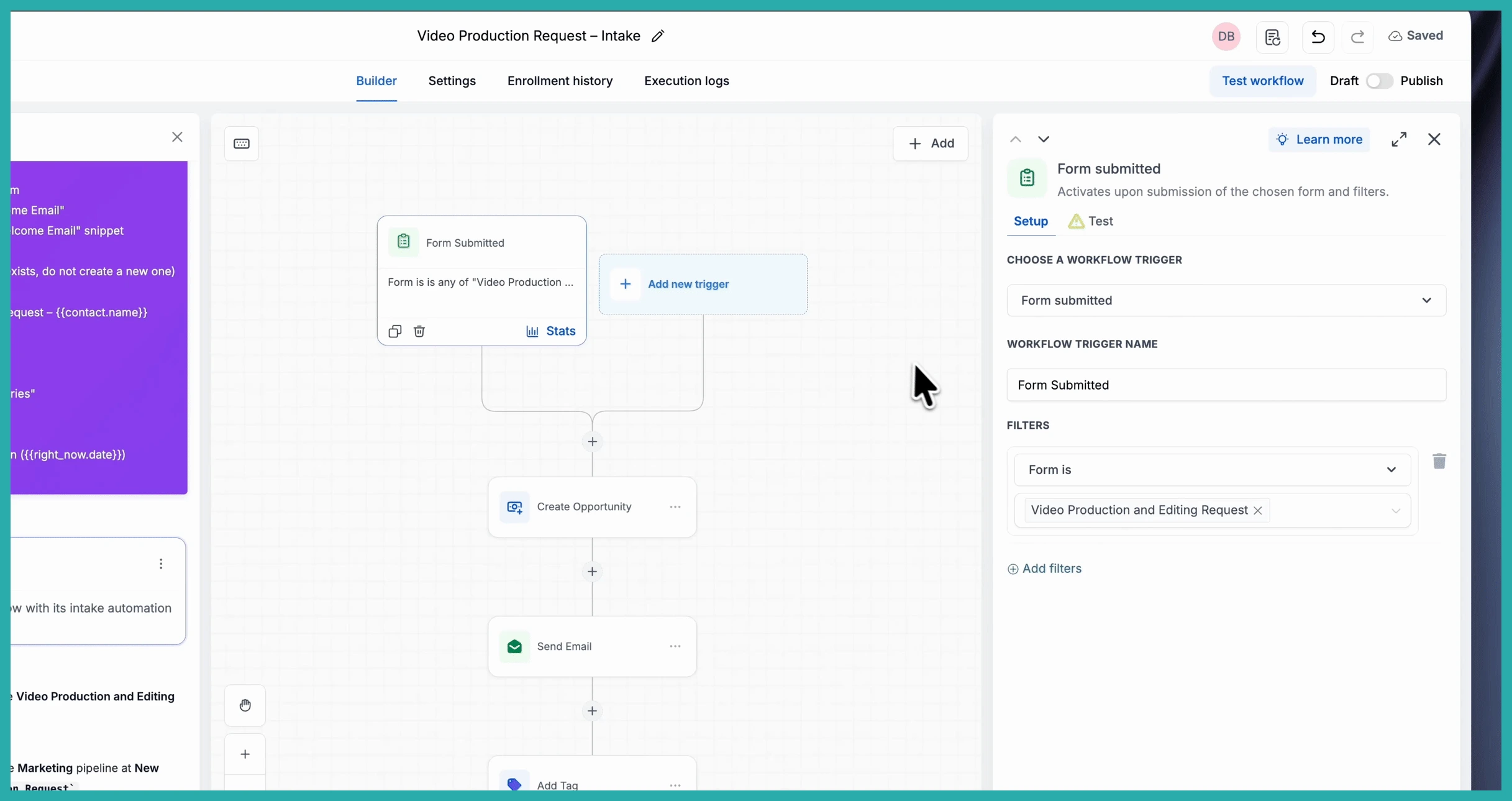
Every step uses records you already have
This is the bit that saves you the clicking. AI Builder sets the real values as it goes:
- Form Submitted: the filter is set to the exact form you named.
- Create Opportunity: the pipeline and stage come straight from your account.
- Send Email: the subject and body come from your existing snippet, linked to the action.
- Add Tag: it uses a tag you already have, instead of creating a new duplicate.
- Create Task: assigned to the user you named.
- Add to Workflow: points to the workflow you named.
- Update Contact Field: updates the custom field you named.
It works across most of what you already use day to day - pipelines and stages, tags and users, forms, surveys and funnels, calendars and services, email and SMS templates, custom values and custom fields, products, memberships and more.
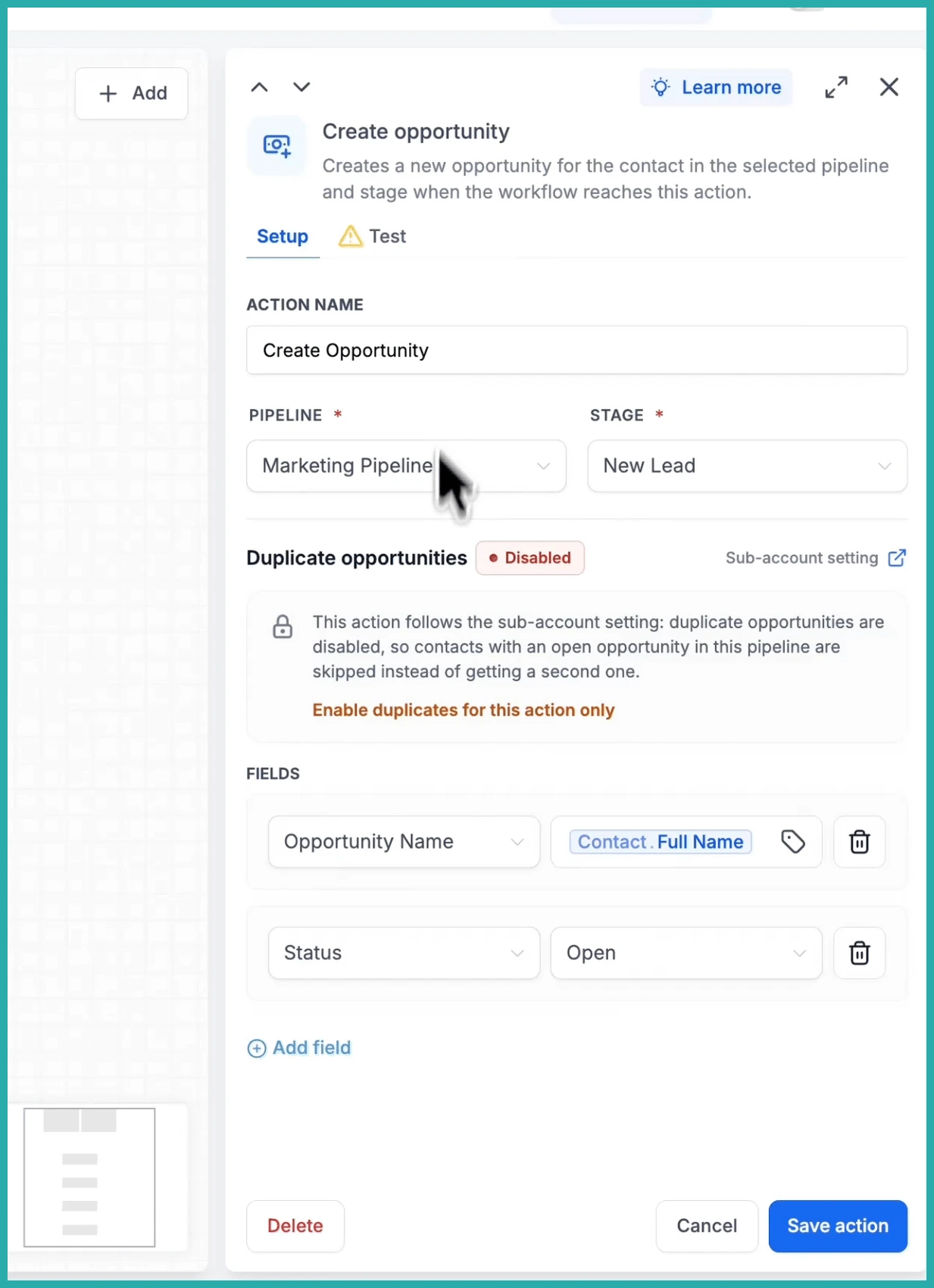
How to use it
- Go to Automation, then Workflows.
- Create a new workflow, or open an existing one, and open AI Builder.
- Write your prompt. Name each record exactly as it appears in your account - for example "Pipeline: Marketing, Stage: New Lead" or "use the existing snippet Welcome Email".
- Send the prompt and watch the progress view as it finds each record.
- Open each step and check the values it set.
- Test the workflow, then publish.
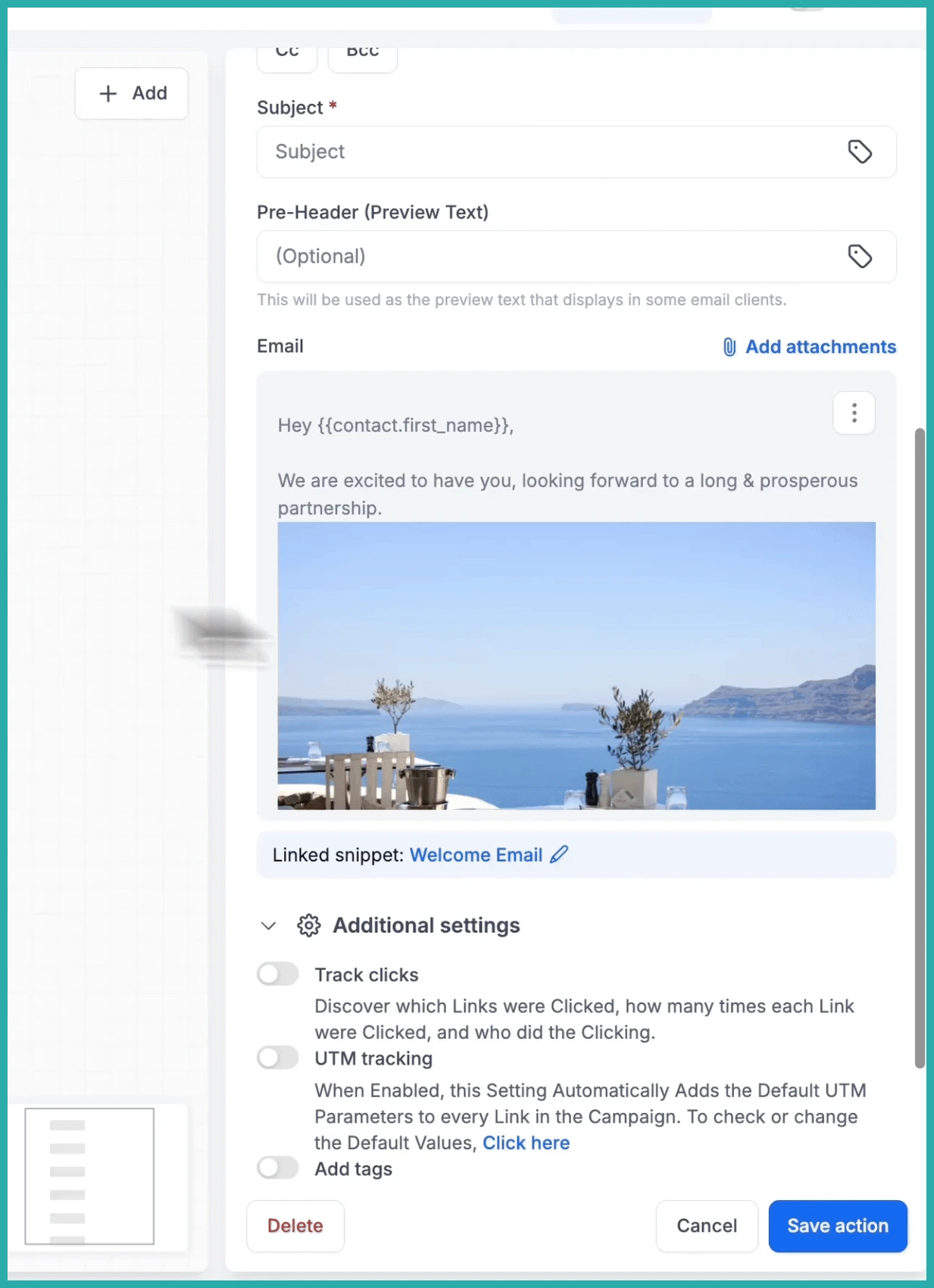
A couple of honest notes
Always have a quick look at each step before you publish. If AI Builder picked the wrong record, just ask it to change it, or open the action and select the right one yourself.
It can only use records that already exist in your account, so spelling matters - use the exact name. And a few things still need your call, like credentials. Those show up in the Post-Generation To-Do List so nothing slips through.
The short version: name it in your prompt, and it is already set. Give it a go on your next workflow and see how much less clicking you're left with.
