
Your Workflows Can Now Watch a Video and Tell You What's In It
Until now, a video sitting in your workflow was a dead end. You could pass a link along, but nothing in your account could actually look at it. You still had to open it, watch it, and take notes yourself.
That changes with a new action called AI Analyze Video. Hand it a video link and a prompt, and it watches the video, listens to the audio, and gives you back a text answer you can use in every step that follows.
What it does
The action runs on Google Gemini. It understands both what is shown on screen and what is said out loud, so you can ask it almost anything about a clip.
You might ask for a plain summary, a full transcript, a list of points with timestamps, or a simple yes or no check. Whatever comes back becomes a Response value you can save to a custom field, drop into an email or SMS, send to a webhook, or feed to another AI action.
It works with public YouTube links - standard watch links, youtu.be short links, and Shorts all work - as well as direct video files like MP4, MOV, WebM and a few others. You can also pull the URL dynamically from a form, a webhook, or your AI Video Generation step.
One honest note up front: this is a premium action, so each run carries a small charge on top of your usual costs. More on that below.
How to set it up
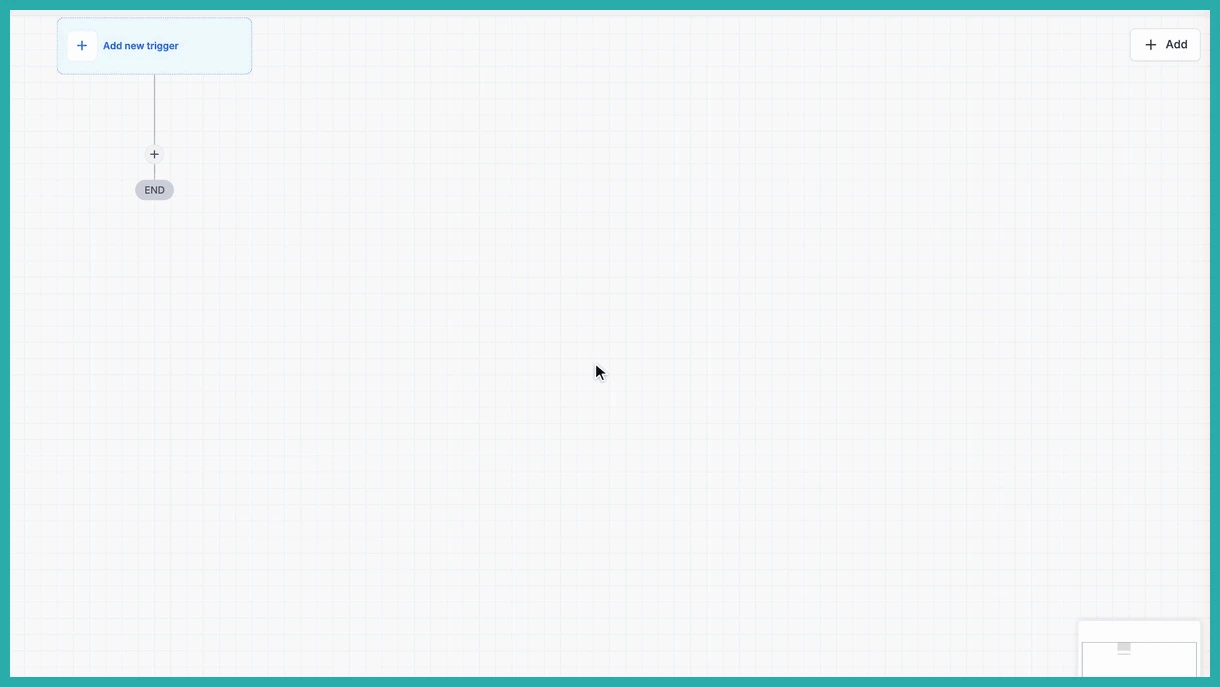
Head to Automation, then Workflows, and open the workflow you want to add this to. Add a new action and choose AI Analyze Video from the AI Actions group.
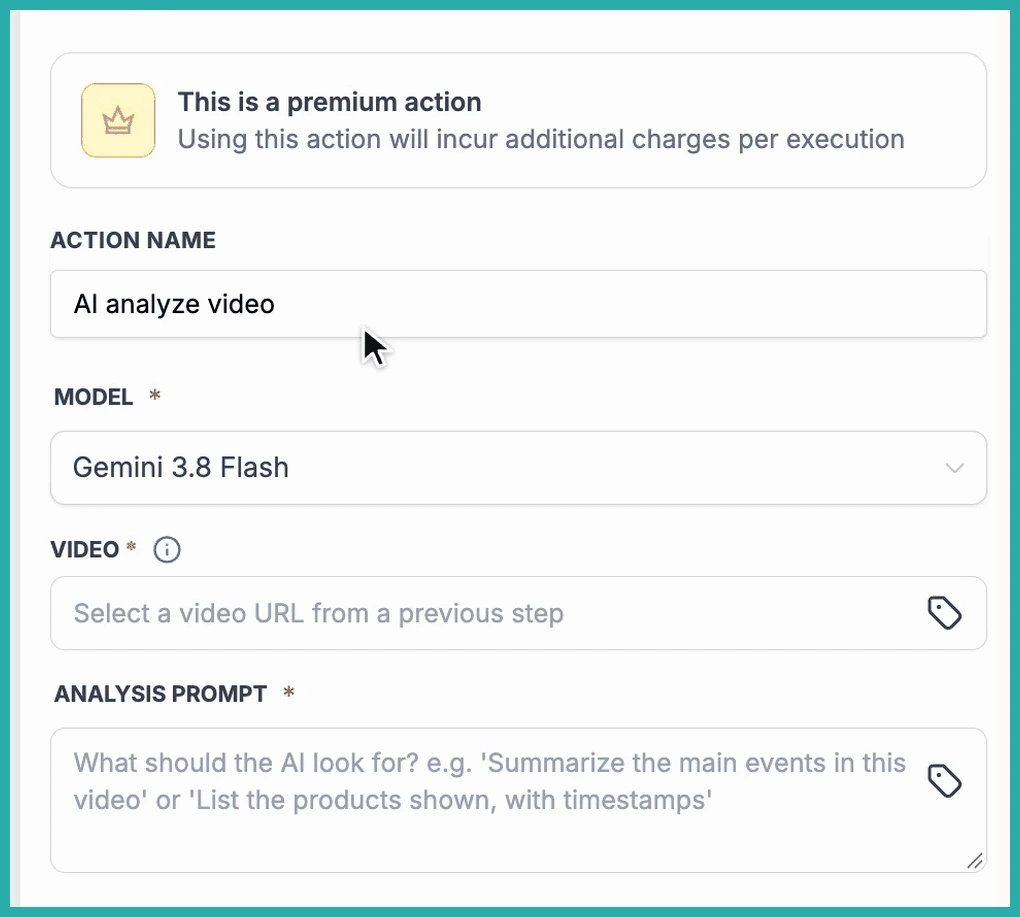
First, pick your model. The default is Gemini 3.8 Flash, which suits most jobs. There is also Gemini 3.5 Flash Lite if you want a lighter option.
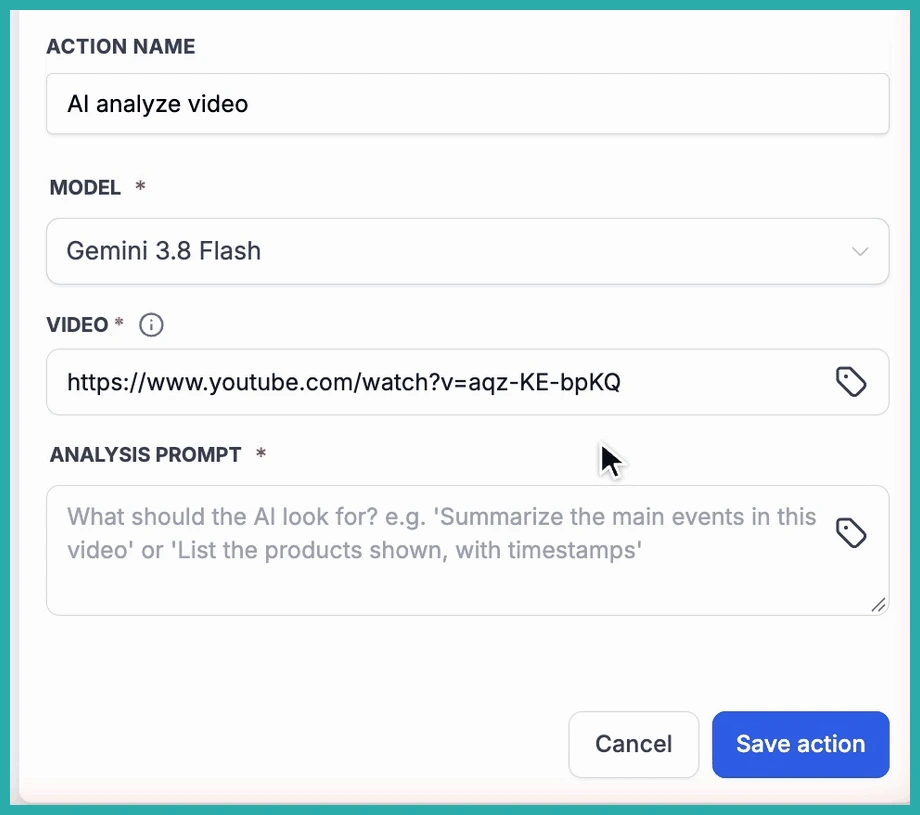
Next, add your video URL. You can type a link straight in, or insert a value from an earlier step or a custom value so the video can change every time the workflow runs.
Then write your prompt. Be clear about what you want the AI to look for and how you want the answer formatted. If you need plain text rather than headings and bullets, just ask for plain text here.

Test it before you publish
This is the part I'd not skip. Open the Test tab and click Test Action to run it against real data from your trigger. You'll see the Response come back right there in the builder, so you can check the answer is useful before anything goes live.
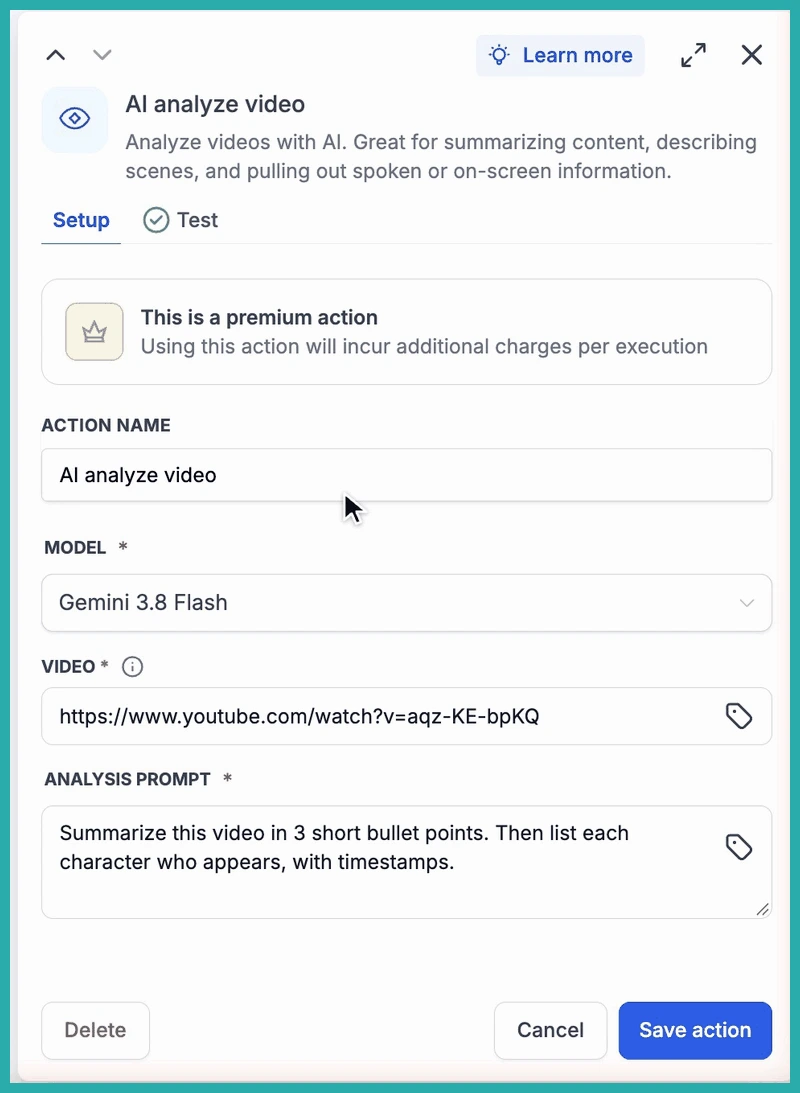
In the example above, it's summarising the short film Big Buck Bunny. Once you're happy, save the action and use the Response value in the steps that follow.
A couple of things to know
The video link has to be public. Page links from Vimeo, TikTok and similar sites are blocked by those sites, so stick to a YouTube link or a direct video file link.
Each action handles one video at a time. Longer videos take a little longer to process, though in our tests a 10 minute YouTube video came back in about 30 seconds.
On cost, you're billed per run based on the tokens used. The main things that move the price are the model you pick, how long the video is, and how long an answer you ask for. Shorter videos and shorter responses keep it lean.
If you've ever paired this with AI Video Generation, it's a neat combination - you can have the system check a generated video before it ever reaches a customer. Give it a try on something small first and see what it hands back.
