
Teach Your AI Agent Reusable Skills You Write Once and Use Everywhere
You write your AI Agent one clear set of instructions, and then real life shows up. Most leads want a normal reply, but a few need something different, and suddenly your instructions are bloated with rules that only apply some of the time.
There's a cleaner way now. Your AI Agent can learn skills - reusable procedures it loads only when a run actually needs them.
What a skill actually is
A skill is a small, named procedure you write once and keep in your library. It has a name, a line telling the agent when to use it, and the instructions for how to do it.
You attach a skill to any AI Agent Action. On every run, the agent reads only the name and the "when to use" line of each attached skill. The full instructions load only when the run matches. So your main instructions stay short, and the situational rules stay out of the way until the situation shows up.
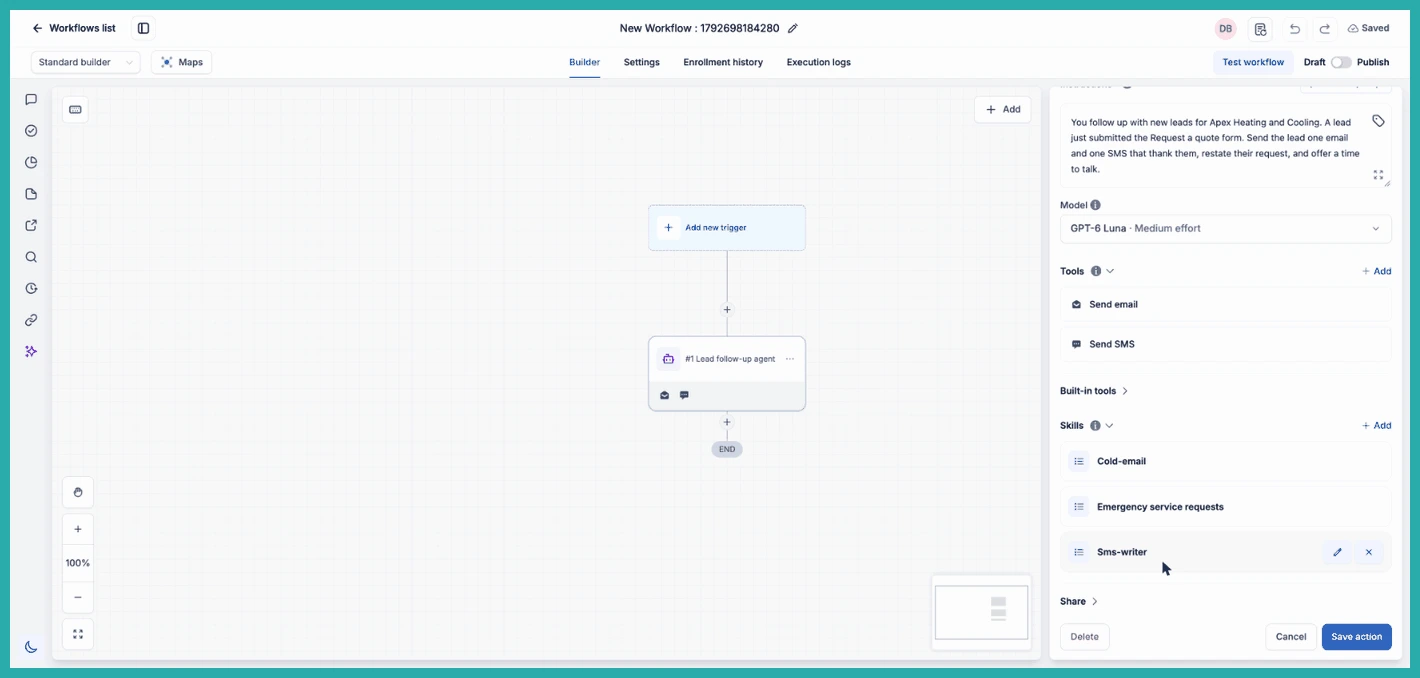
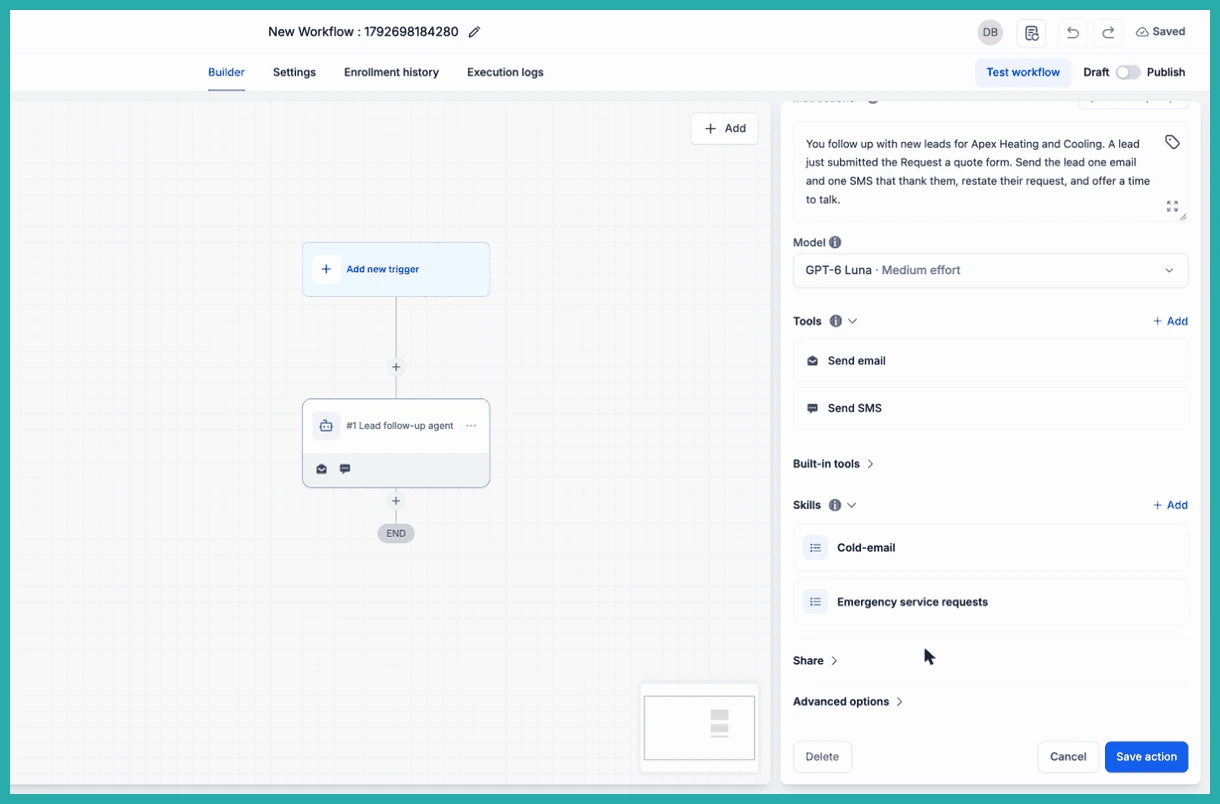
In the screenshot below, you'll see the new Skills section sitting right below Tools in the AI Agent Action. It stays collapsed until you open it, and each attached skill shows as its own row.
Four skills ready on day one
Every account already includes four built-in skills you can attach, edit, or delete like any other:
- Humanizer - strips the telltale signs of AI writing out of any message.
- Write-well - keeps any message clear, simple, and direct.
- Cold-email - writes first-touch and follow-up emails to leads who haven't replied.
- Sms-writer - writes short, human text messages.
And because a run can match more than one skill, they load together when they overlap. An outreach email can use Cold-email and Humanizer in the same run.
Three ways to add a skill
When you click + Add skill, you get three choices:
- Create with AI - the assistant asks what the skill should do, when it should fire, and what it must never do, then drafts the whole thing for you to review. Nothing saves until you choose Create.
- Write skill instructions - fill in three fields yourself: Name, When should the agent use this, and Instructions. Use Enhance Prompt to tidy the wording in one click.
- Add existing skill - search your library, click any skill to read it in full, then attach it.
In the screenshot below, you can see the options for building a new skill.
How to attach one
- Go to Automation, then Workflows.
- Open a workflow, then add or open an AI Agent Action.
- Scroll down to Skills and expand it.
- Click + Add skill and choose Create with AI, Write skill instructions, or Add existing skill.
- Review the skill, then click Create & attach or Attach.
- Save the action.
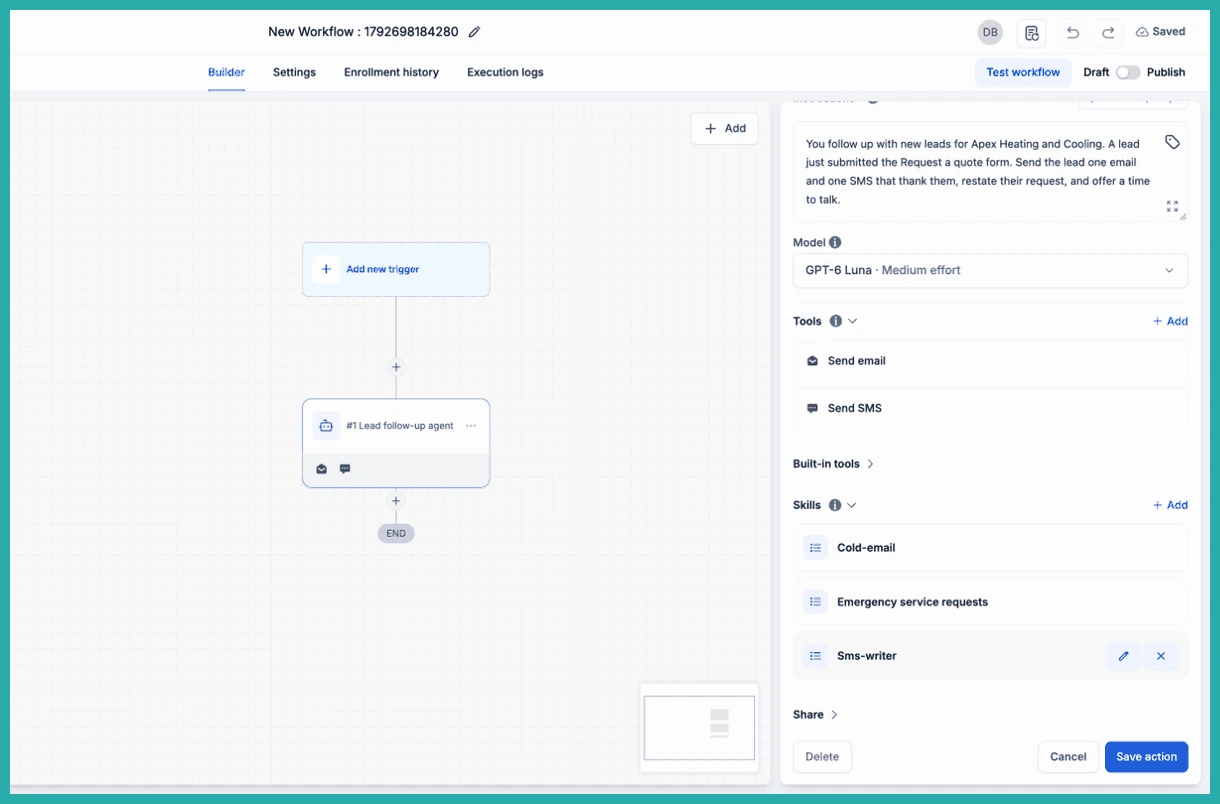
In the screenshot below, you'll see an attached skill as a row - hover over it to edit or detach it.
A real example
Say a heating and cooling business follows up on every quote request with an email and a text. Most leads just want a friendly reply. But a few report emergencies, and those need a completely different answer.
The agent's main instructions stay simple: send one email and one SMS that thank the lead, restate their request, and offer a time to talk. The tools are Send email and Send SMS. The skills attached are Cold-email, Sms-writer, and a custom one called Emergency service requests.
That custom skill only fires on a line like "use when a lead reports no heat, no cooling, a gas smell, or a water leak, or says it's urgent." Its instructions offer the next same-day slot, never quote a price, and for a gas smell, send safety steps first and never book a visit.
So a routine quote gets a warm email and a short text. A lead who writes "no heat since last night" gets a same-day slot. A gas smell gets safety steps first. Same agent, same instructions, the right behaviour every time.
A couple of things worth knowing
- Skills are shared. Edit one and every action that uses it gets the change.
- Detach removes a skill from one action. Delete removes it from your library and from every action using it.
- A skill tells the agent how to do something. It still needs the right tool, like Send SMS, to actually act.
- A skill can lean on a knowledge base - just name it in the instructions and add the Knowledge base search tool to the action.
Go attach one of the built-in skills to an agent you already run and watch how much shorter your instructions can get. It takes about a minute.
