
Give Your AI Agent Its Own Chat Page Your Customers Can Visit
Until now, your AI agent did its work inside your workflows, behind the scenes. Useful, but your customers never got to talk to it directly.
That changes with this update. Your AI Agent Action can now have its own hosted chat page. You turn it on, share the link, and your customers chat with the agent straight away. No website, no widget, no code.
What you get
Think of it as a self-service page for whatever your agent does - support tickets, bookings, lead questions, you name it. Here's what's inside:
- A hosted chat page with its own shareable link, created from the Share section of the AI Agent Action.
- Verified visitors only. People sign in with their email and a one-time code, and that email has to belong to an existing contact in your account.
- Your look. Set a display name, avatar initials, and a welcome message visitors see first.
- Suggested prompts so visitors can start a chat with one click.
- An offline message for when the page isn't live.
- A full chat experience. Visitors can type or dictate, start a fresh chat, and go back to past chats in the sidebar.
- Agent chats in one place, so you can review every session, each message, the tools the agent used, and the tokens spent.
How to set it up
Go to Automation, then Workflows, and open your AI Agent Action.
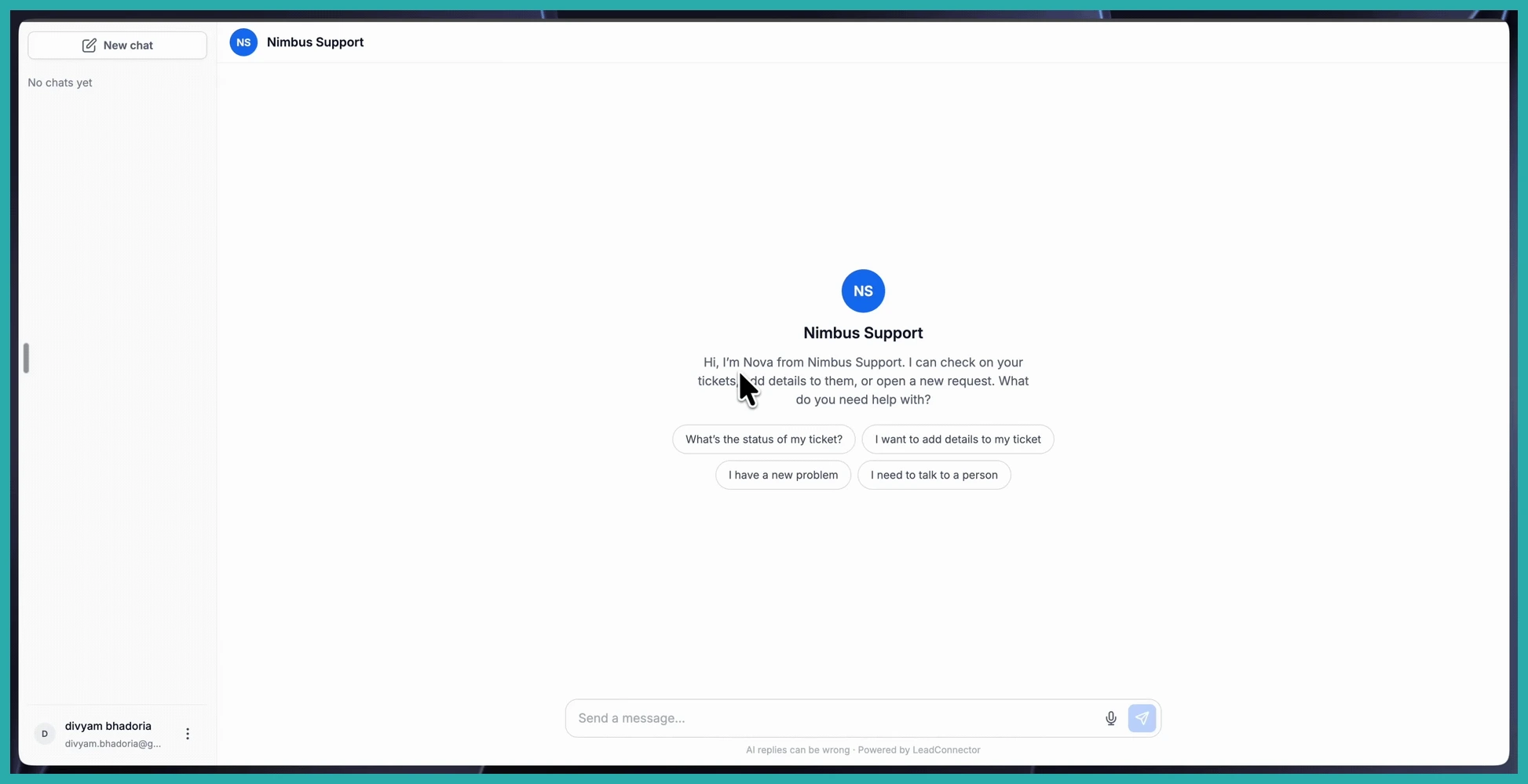
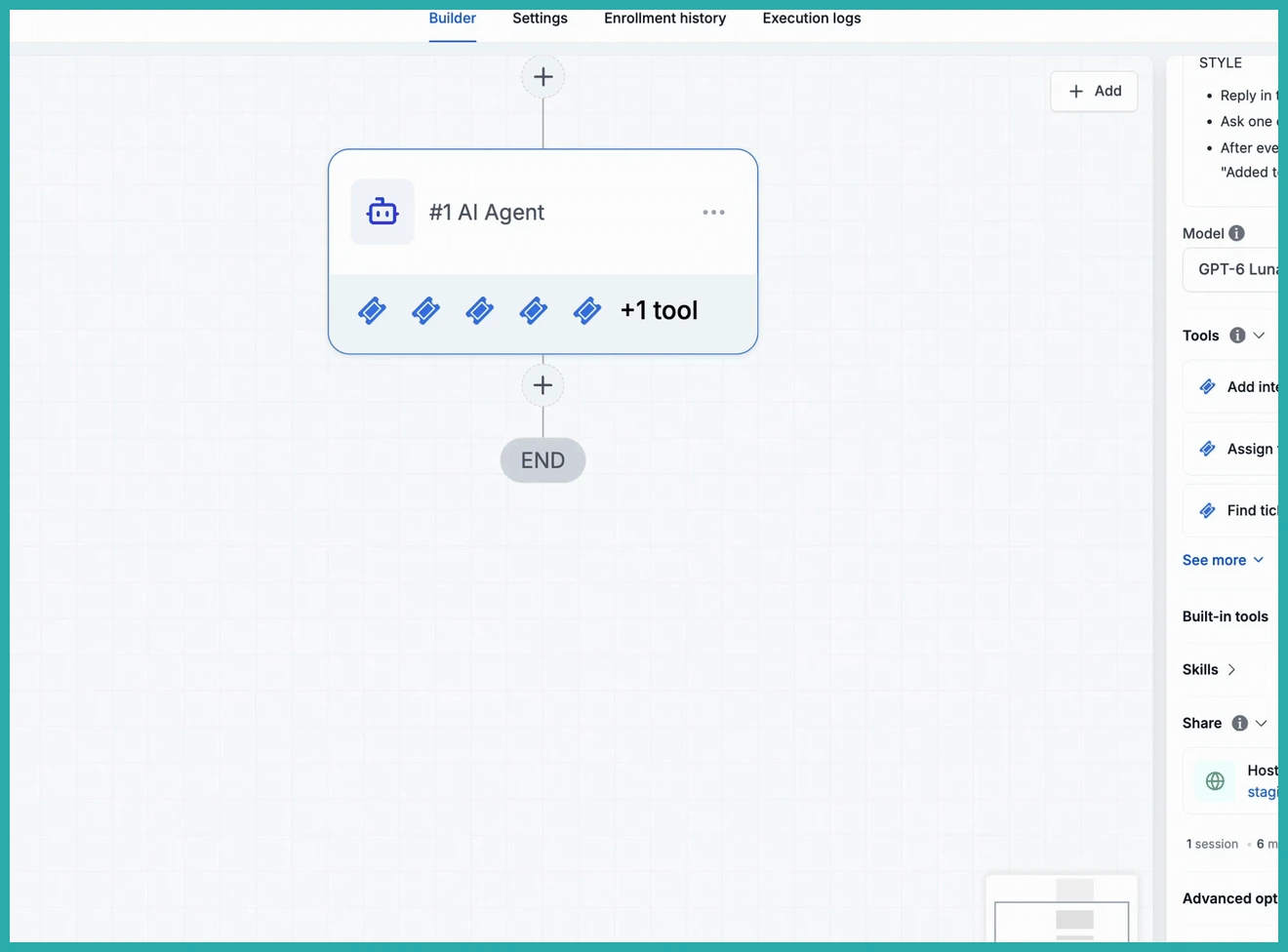
Scroll down to the Share section and click Set up shareable link.
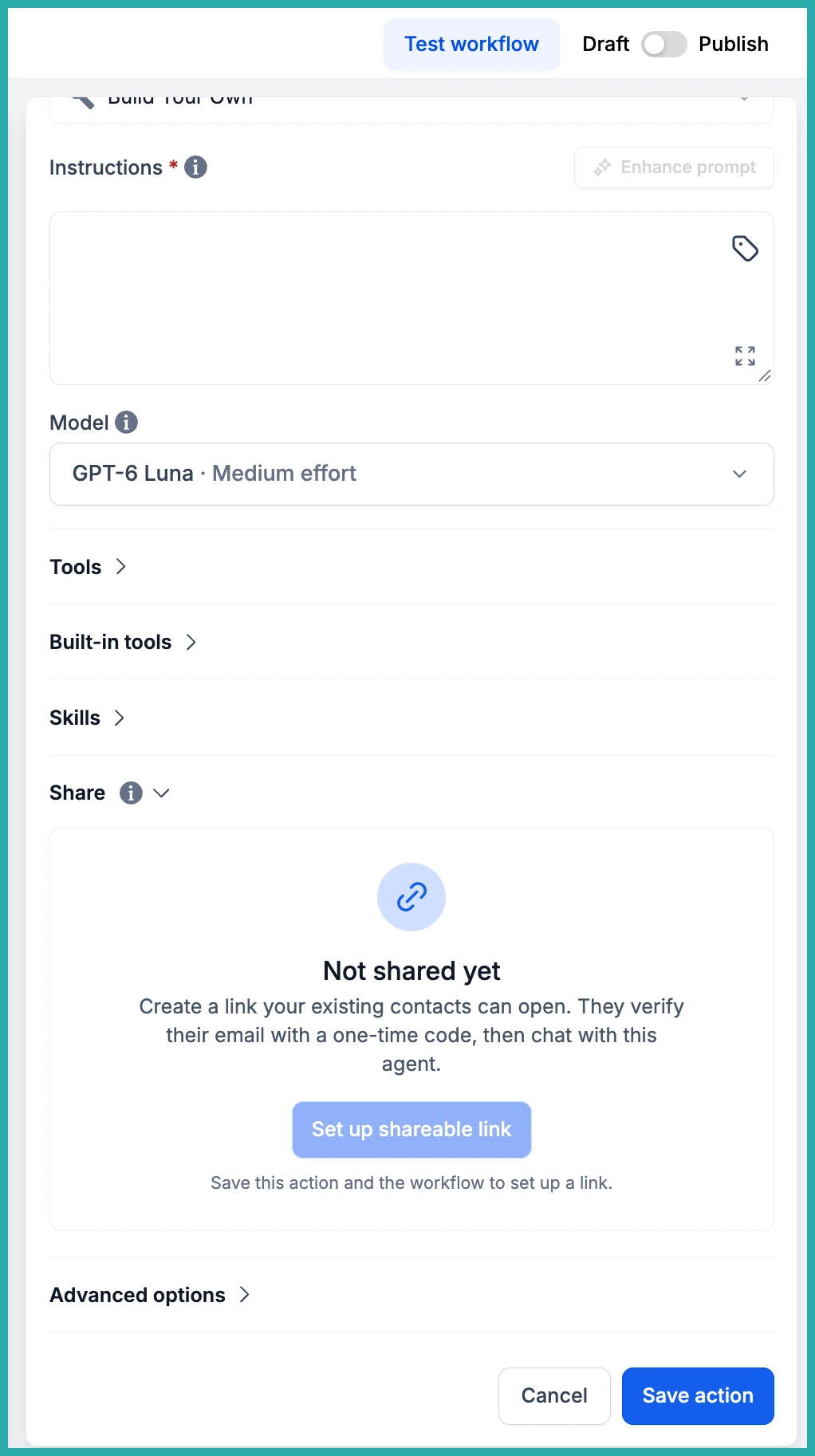
Now fill in how the page looks and behaves - the display name, avatar initials, welcome message, your suggested prompts, and the message visitors see when the page is offline. Then click Create link.
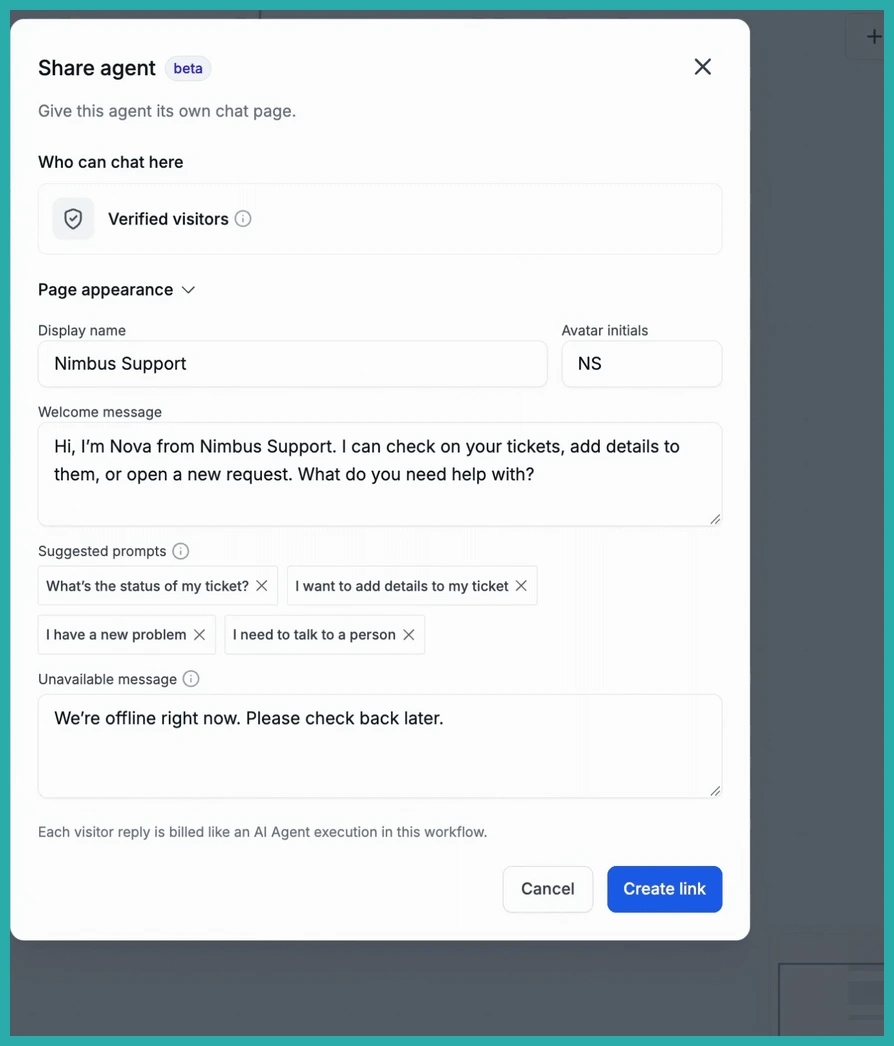
Publish your workflow. This part matters, because the link stays offline until the workflow is published.
Once it's published, switch the hosted chat page from Offline to Live.
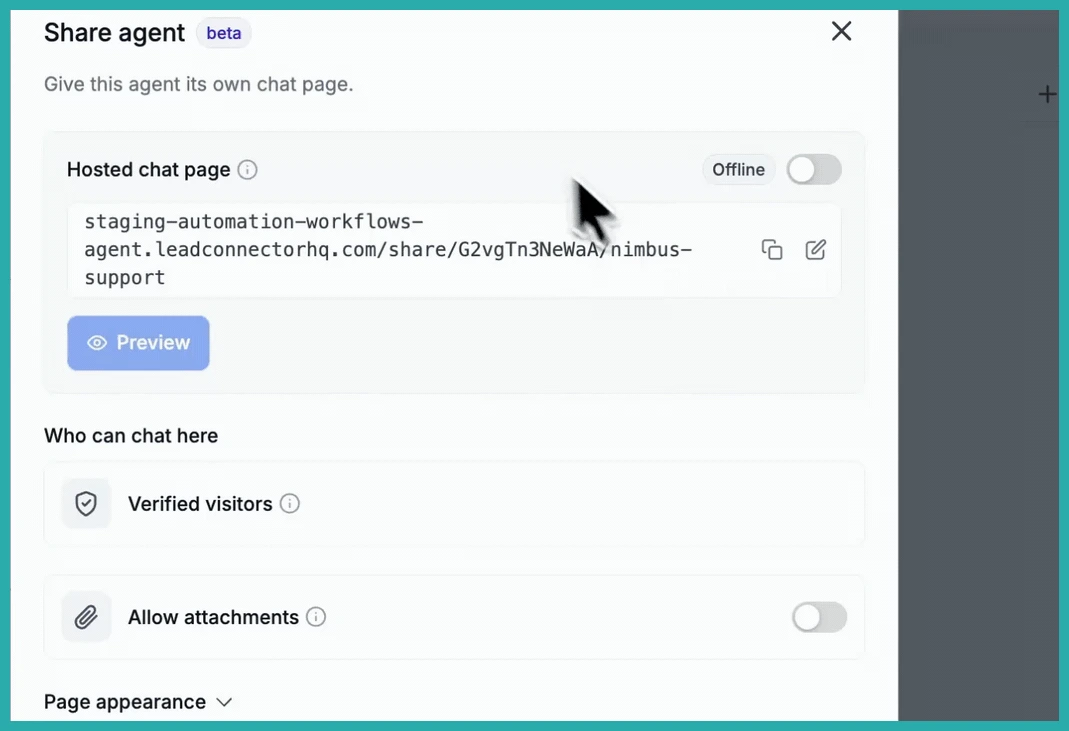
Click Preview to open the page exactly as your customers will see it. Have a quick look, make sure it reads the way you want, then share the link.
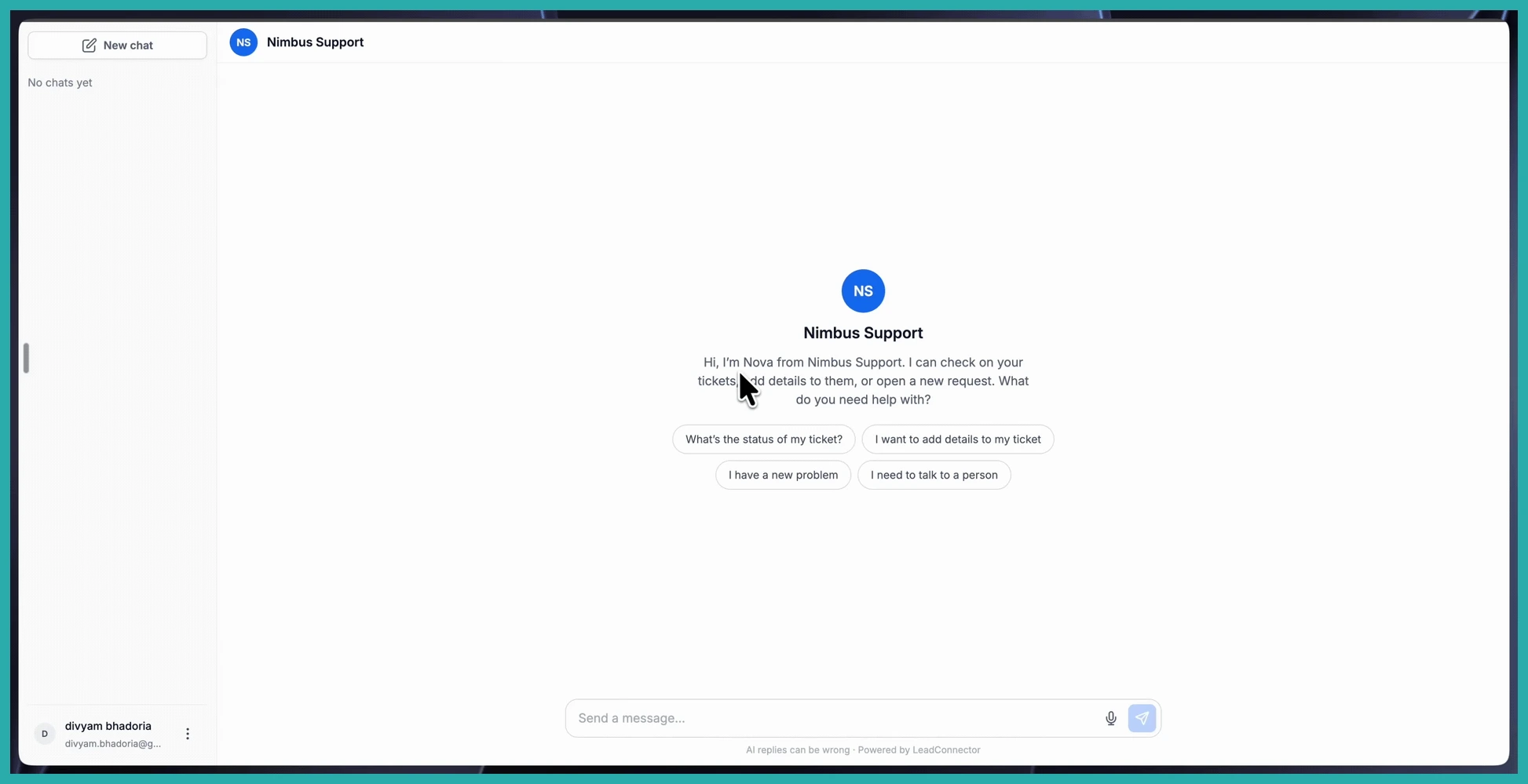
A real example: a support desk that never closes
Say you want a page where customers handle their own tickets. You give the AI Agent Action one instruction, something like "you are an assistant for a software company," and hand it the ticketing actions as tools: find a ticket, add a note, create a ticket, and so on.
On the shared page, a customer signs in and asks "What's the status of my ticket?" The agent finds it and replies with the status, owner, and last update. The customer then dictates two new bugs, and the agent adds them to the ticket as a note. Ask for a separate ticket, and the agent creates one.
All of that happens without you lifting a finger, at any hour.
Keeping an eye on it
Open the agent chats from the Share section to review each session. You'll see every message, every tool the agent called, and the tokens used, so you always know how it's performing.
A couple of honest notes
Each visitor reply is billed like an AI Agent execution in your workflow, so it's worth keeping that in mind as traffic grows. Only verified visitors (existing contacts) can chat, and the page shows visitors a note that AI replies can sometimes be wrong.
If you've built an agent you're happy with, this is a lovely way to put it in front of your customers. Set up the page, preview it, and give it a try.
