
Add Up to Five Reference Images to Your AI Image Generation Step
You write a prompt for an AI image, describe your product or your brand in careful detail, and the result is close but never quite right. The face isn't your model, the logo is a near-miss, the room looks nothing like the one you had in mind.
Now you can stop describing and start showing. The AI Image Generation action in your workflows accepts reference images, so you can attach the actual setting, subject and branding you want the image built around.
What you get
Inside a single AI Image Generation step you can now:
- Attach up to five reference images, each passed to the model as visual context alongside your prompt.
- Add them three ways - upload from your system, pick from your Media Library, or point at a URL.
- Use dynamic URLs, so a reference image can come from a webhook, a contact field, or a previous action. One workflow can then produce a different image for every contact.
- Rely on the order you add them, so your prompt can refer to each image by position.
How to use it
Open the AI Image Generation action in your workflow and write your prompt as you normally would.
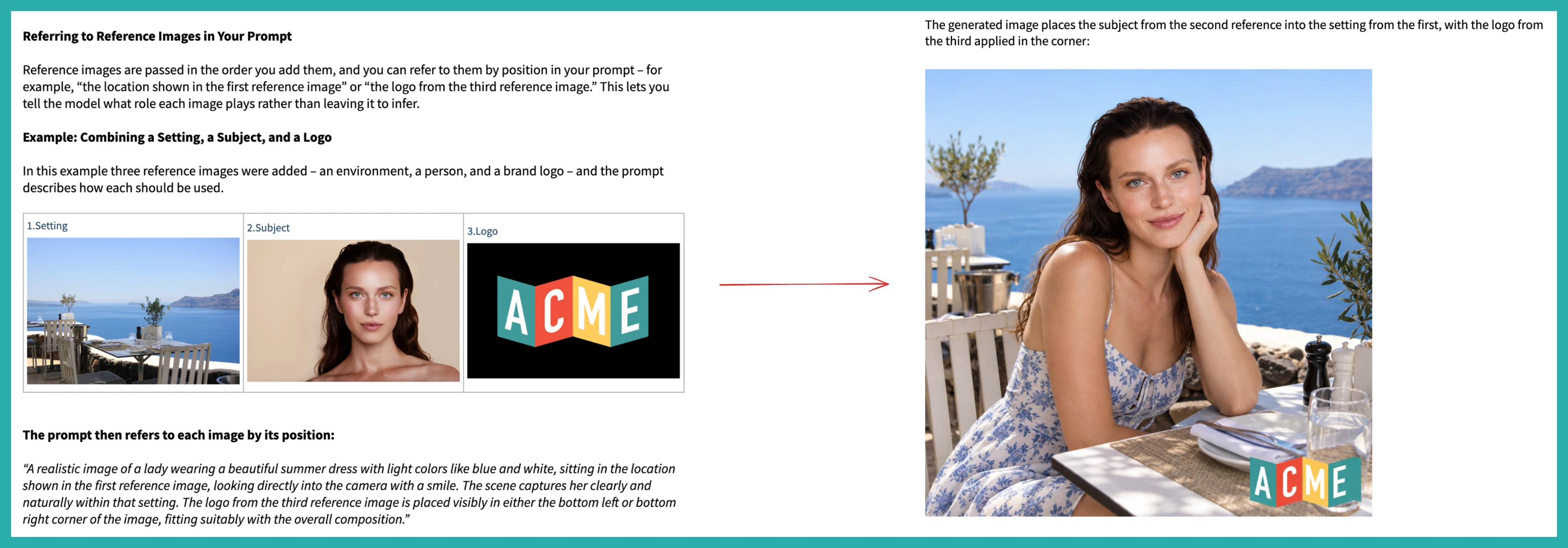
Scroll to the Reference images section below the templates, then choose a source: System upload, Media library, or URL.
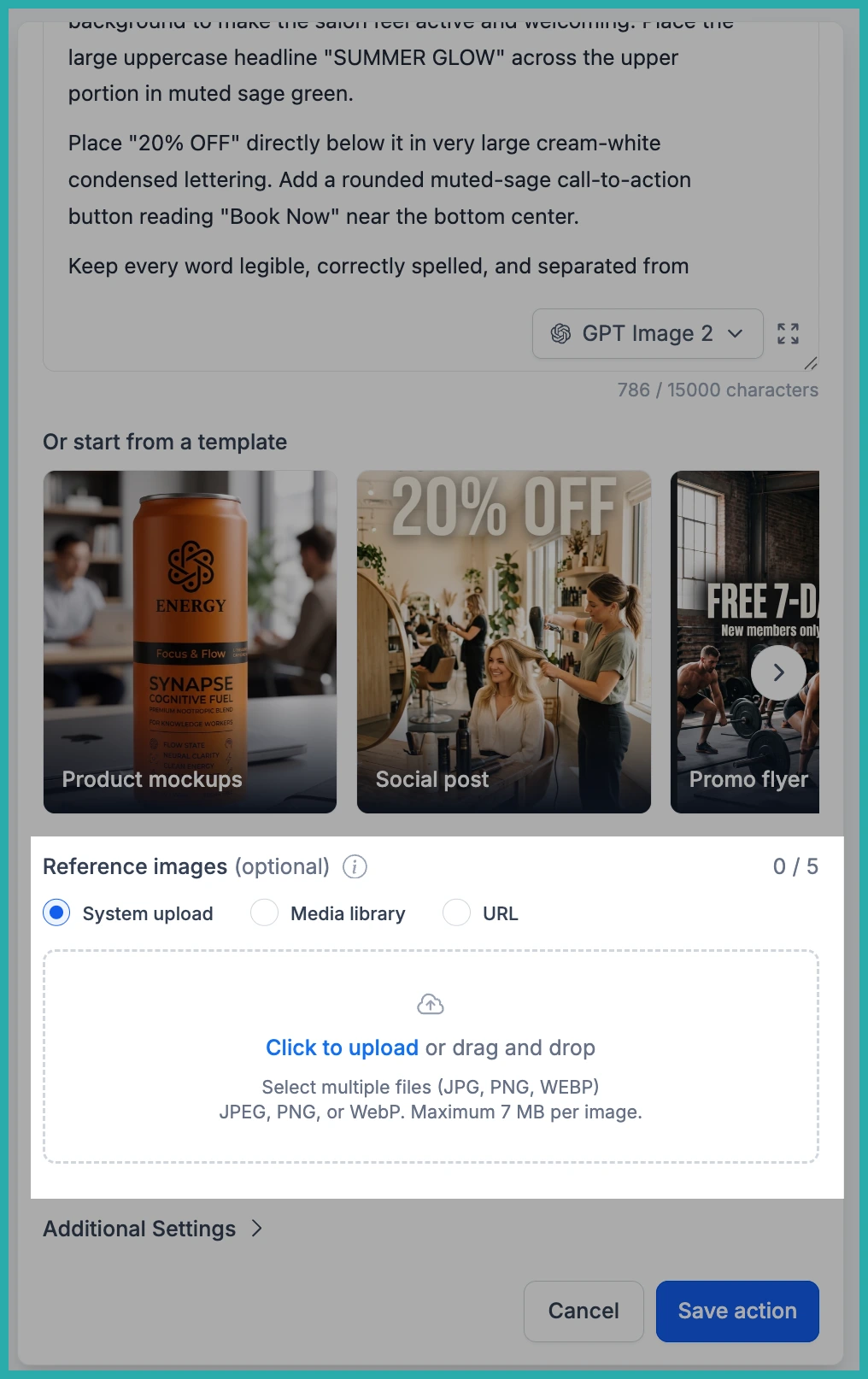
Add your images. The counter on the right shows how many you've added out of five. As you add each one, keep track of the order, because that's how you'll point to them in your prompt.
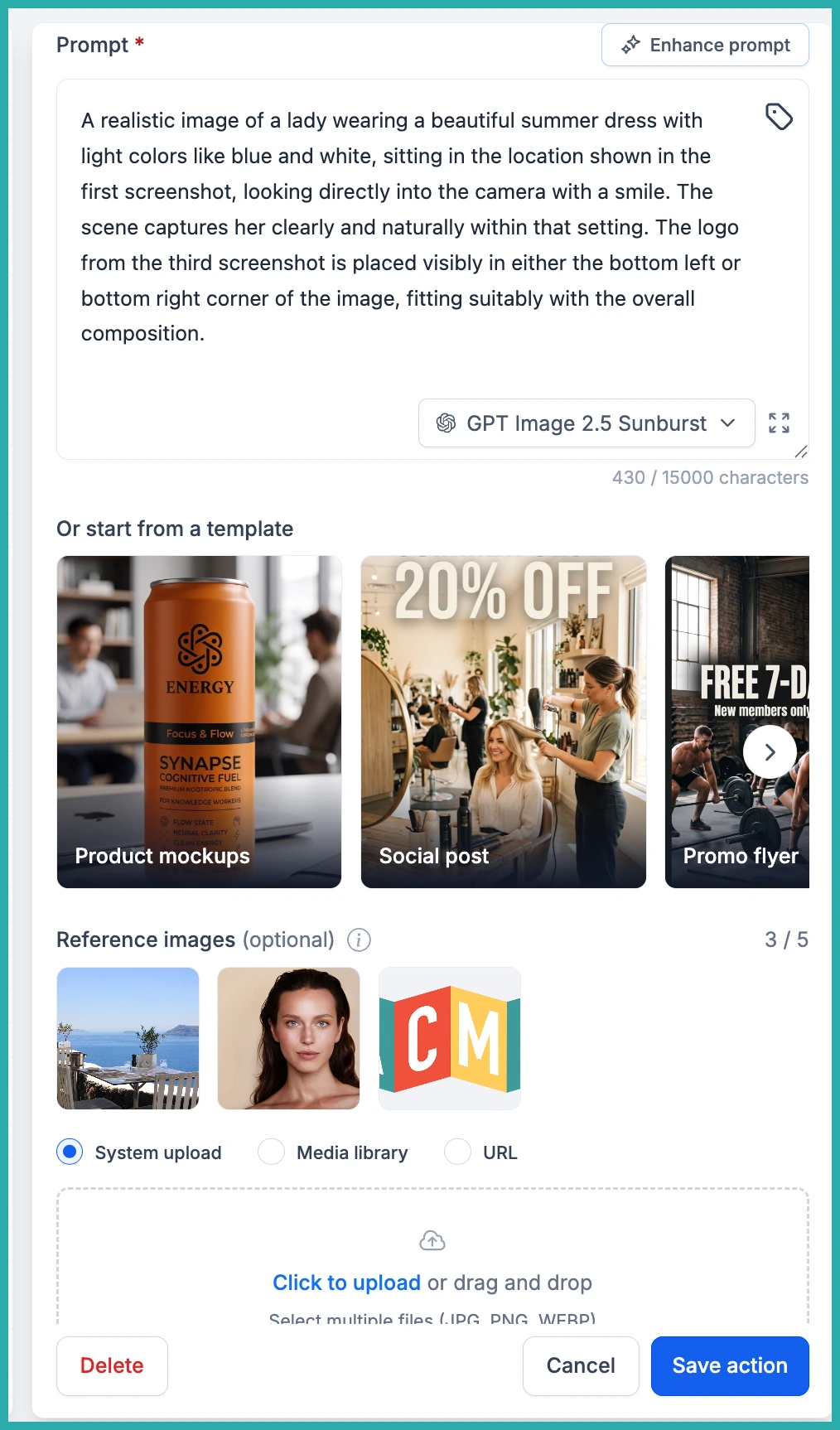
Now refer to each image by its position inside the prompt - first reference image, second reference image, and so on. Then save the action.
A worked example
Say you want a lifestyle shot of a model at a seaside restaurant, with your logo in the corner. No photographer, no studio, no designer.
Upload three references in this exact order:
- Setting: a photo of a seaside restaurant terrace.
- Subject: a portrait of your model.
- Logo: your brand logo.
Then write the prompt so each image has a job: place the lady from the second reference image in the location shown in the first reference image, wearing a light summer dress, smiling into the camera, with the logo from the third reference image set neatly in the bottom right corner.
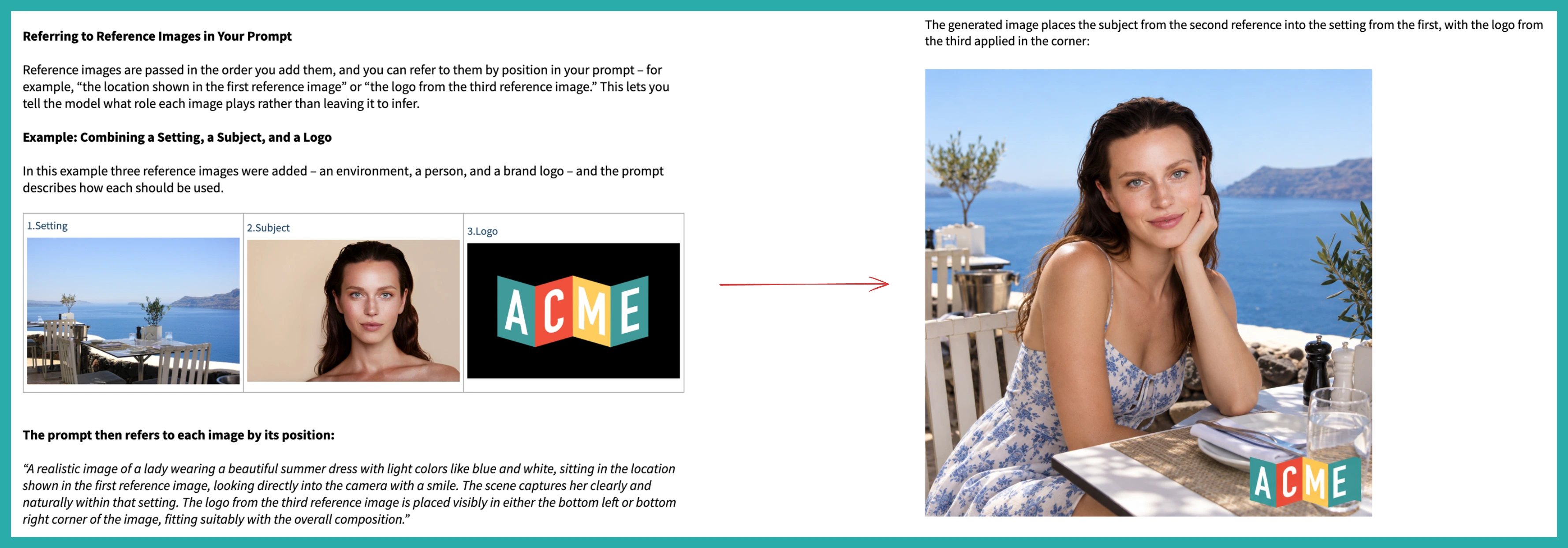
The result puts your subject inside your setting, with your real logo rendered cleanly in place. Not an approximation - the asset you actually wanted.
Where this really pays off
A face, a room, or an exact logo never survives a text description. Reference images move you from describing to showing, so your generated visuals carry real logos and real product shots instead of near-misses.
And because a reference URL can be dynamic, one action can create a personalised image for every contact who passes through it, using whatever your workflow already knows about them.
Have a workflow that generates images? Open the action and add a couple of references - you'll see the difference on the very next run.
