
Swap Email Templates Without Starting Over
You start building an email, get a little way in, and realise the template just isn't right. The layout's fighting you, or you picked the wrong one to begin with.
Until now, that meant backing out of the builder, choosing a different template, and rebuilding from scratch. Enough people were re-creating whole emails just to change the layout that it needed fixing.
Now you can switch templates right inside the builder, without touching your work until you decide to.
What you get
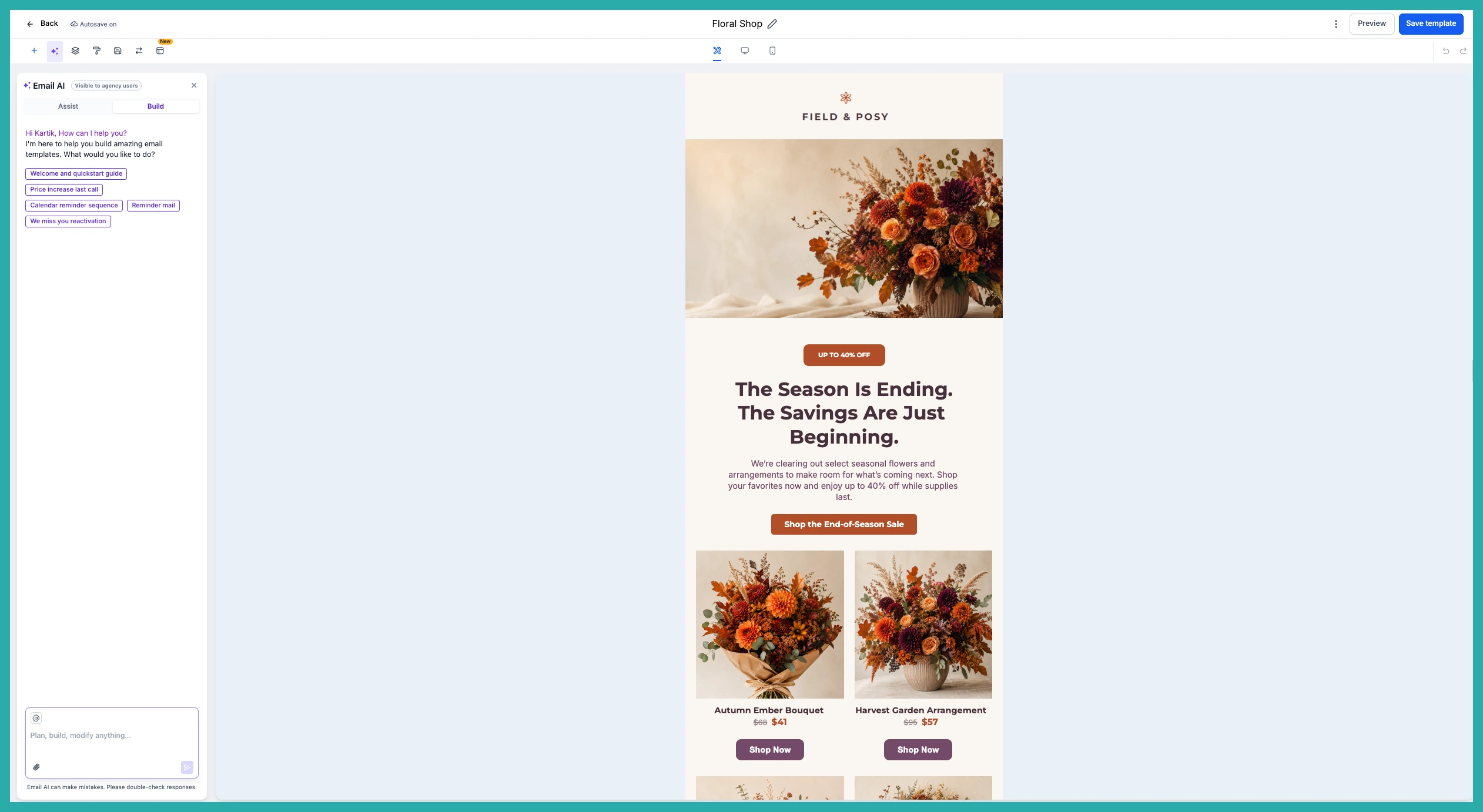
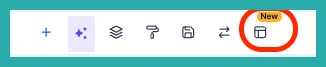
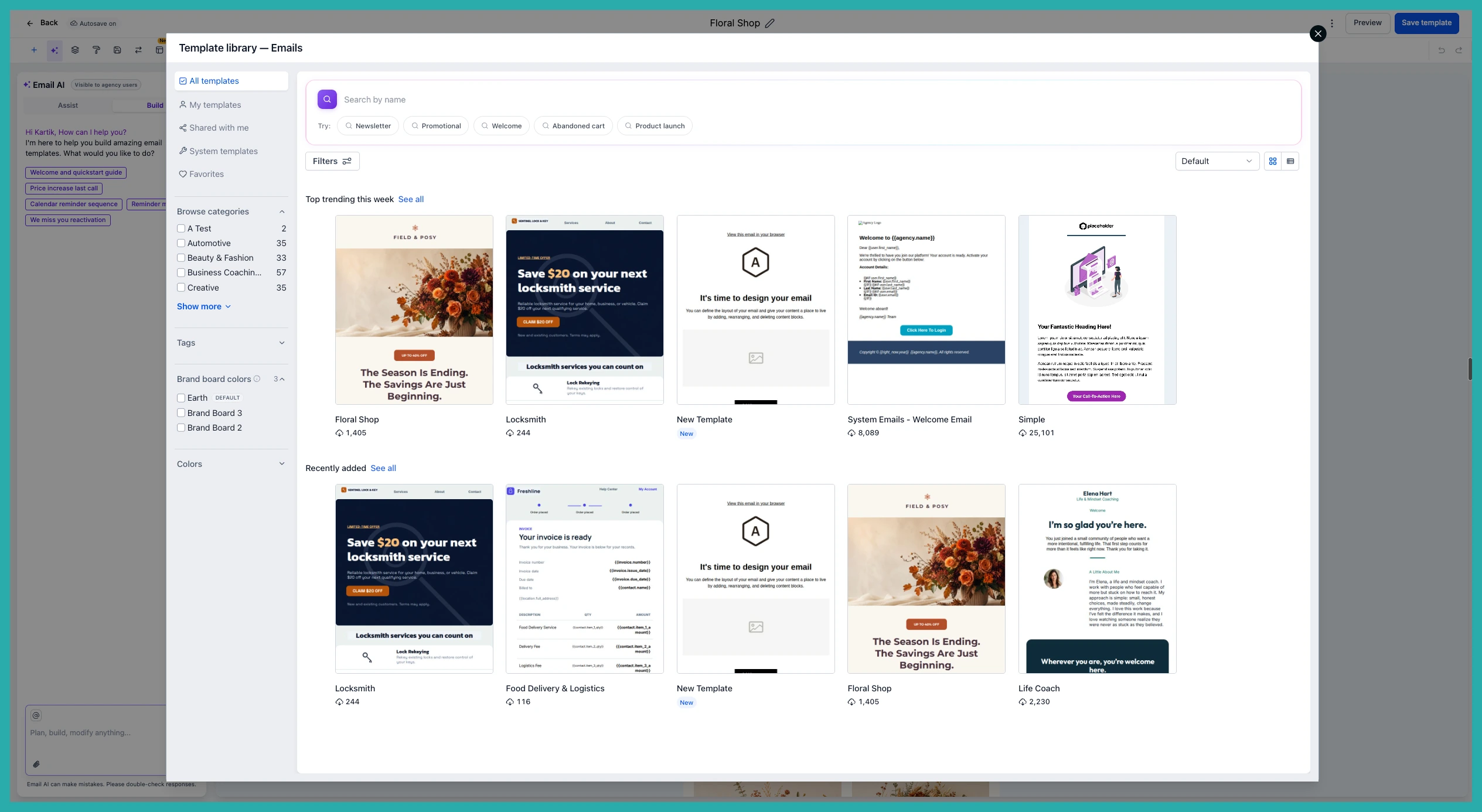
There's a new icon in the Email Builder's top tray. Click it and the Template Library opens in a window, where you can browse, search, and apply a different template to the email you're already working on.
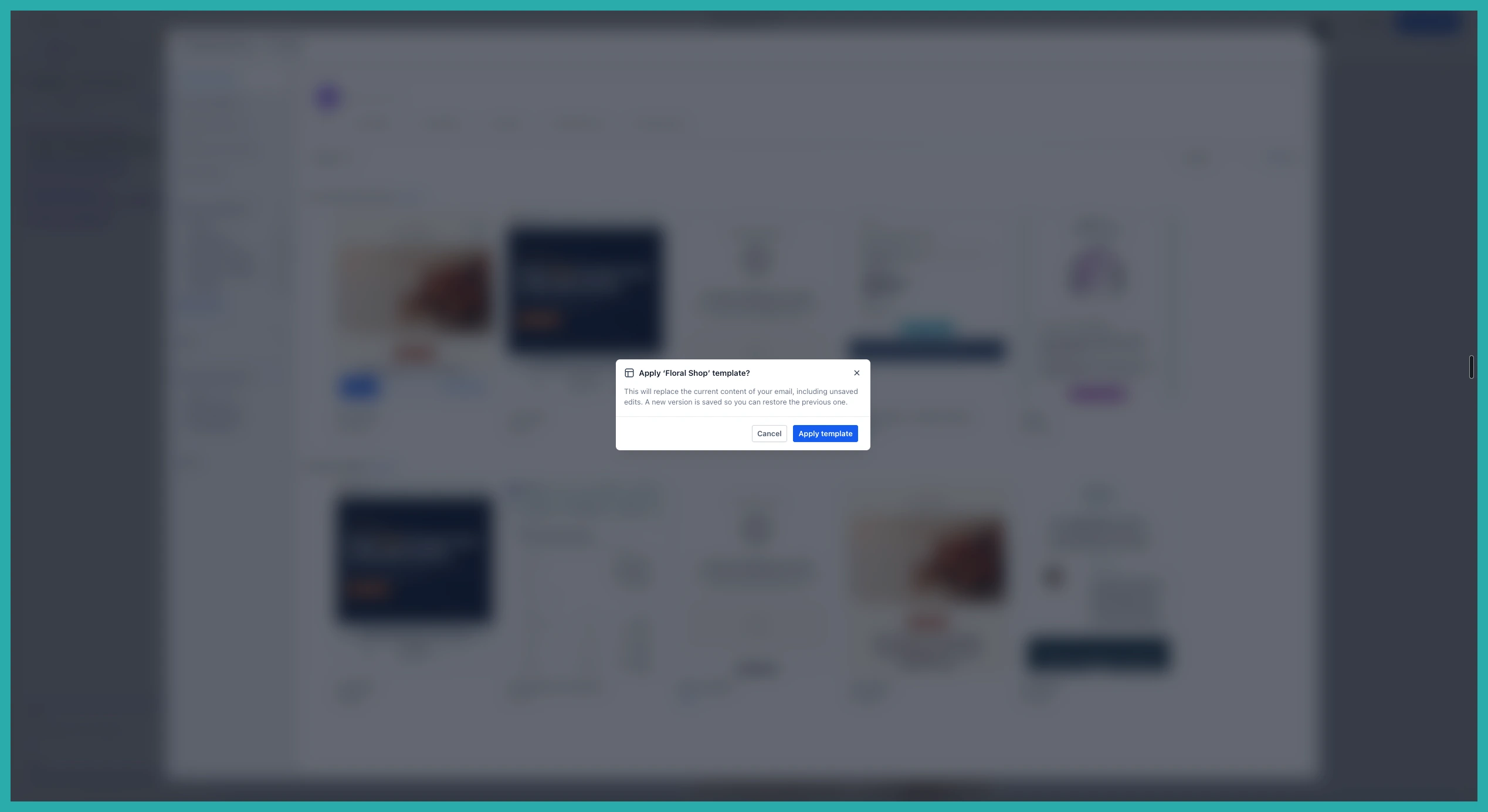
If your email already has content, the system asks you to confirm before it replaces anything. So nothing changes by accident. Your current work stays put until you say go.
How to use it
Open an email in the Design editor Email Builder. Up in the top tray, you'll see the template switch icon.
Click it, and the Template Library opens.
Browse through the templates or use the search to find the one you want. When you spot it, select it.
Because applying a new template replaces what's on the canvas, you'll get a quick confirmation first. Confirm, and the new template drops in.
That's the whole thing. No exiting, no rebuilding, no losing your place.
One note for now
This lives in the Design editor for the Email Builder at the moment. More builders and use cases are on the way in future updates.
Next time a template isn't working for you, don't start over. Just swap it and keep going.
