
Add Retail Products to an Appointment and Take One Payment for the Lot
If you run a service business, chances are you sell the odd product in the same visit. The treatment, then the cream to use at home. The session, then the kit. Until now that meant juggling a separate order for the product on top of the booking.
Not anymore. You can now add retail products directly to a service appointment, so the service, the product, the payment and your stock levels all sit together with one total.
What you can now do
From inside the appointment itself, you can pick a product from your catalog and drop it onto the booking. It works whether you're creating a brand new appointment or editing one that already exists. No cancelling, no recreating, no separate product order on the side.
A few things worth knowing before you start:
- You can add several units of the same product, and override the unit price just for that appointment if you need to. Your catalog price stays exactly as it was.
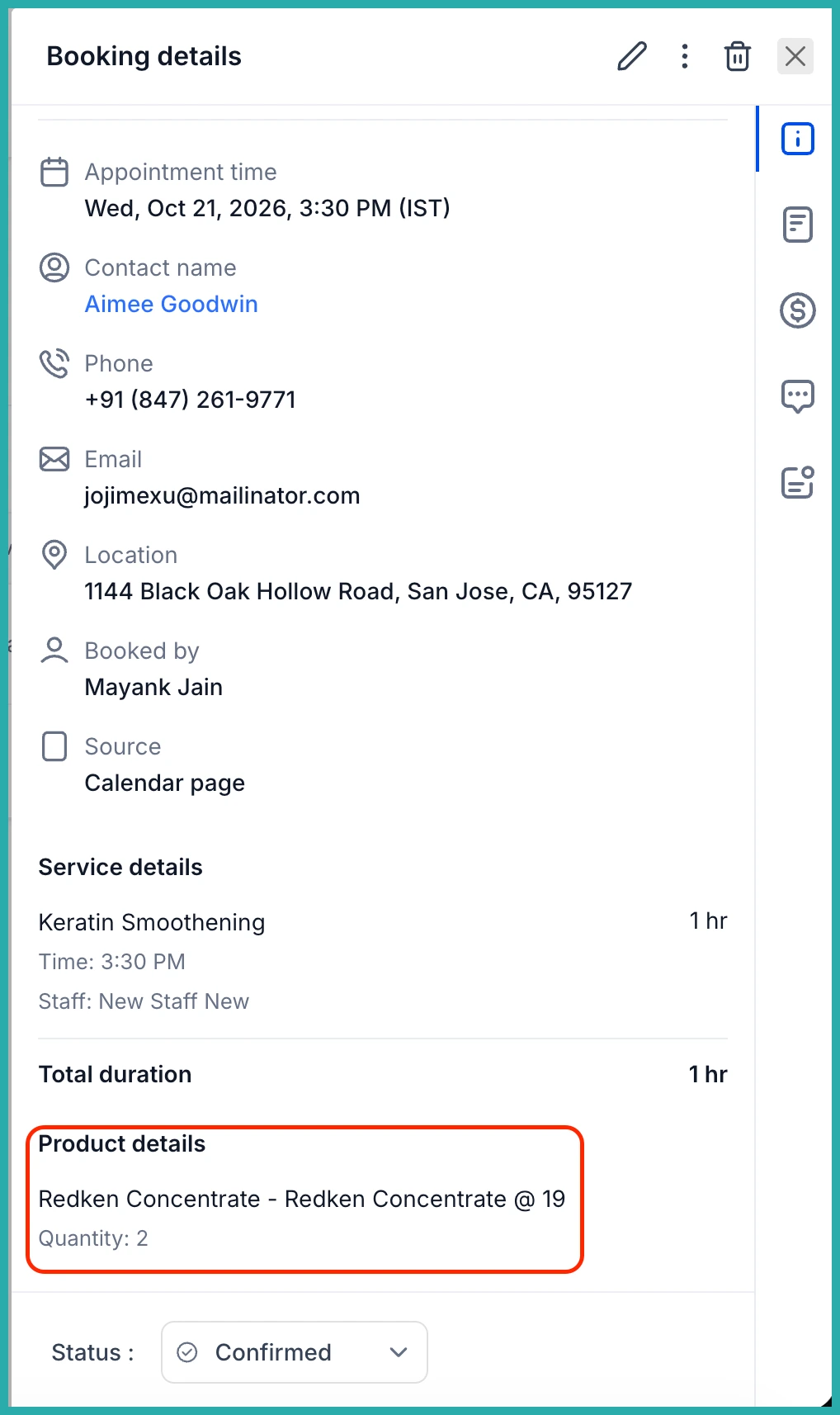
- Products show up alongside services in the appointment details and in the Payments tab, all rolled into one total.
- For products you track stock on, inventory drops when you add one and comes back if you remove it or lower the quantity. If there isn't enough in stock, you'll get a clear message. Products set to keep selling when out of stock are respected, and untracked products carry on as normal.
How to use it
Open the appointment modal, either for a new booking or an existing one, and click + Add product.
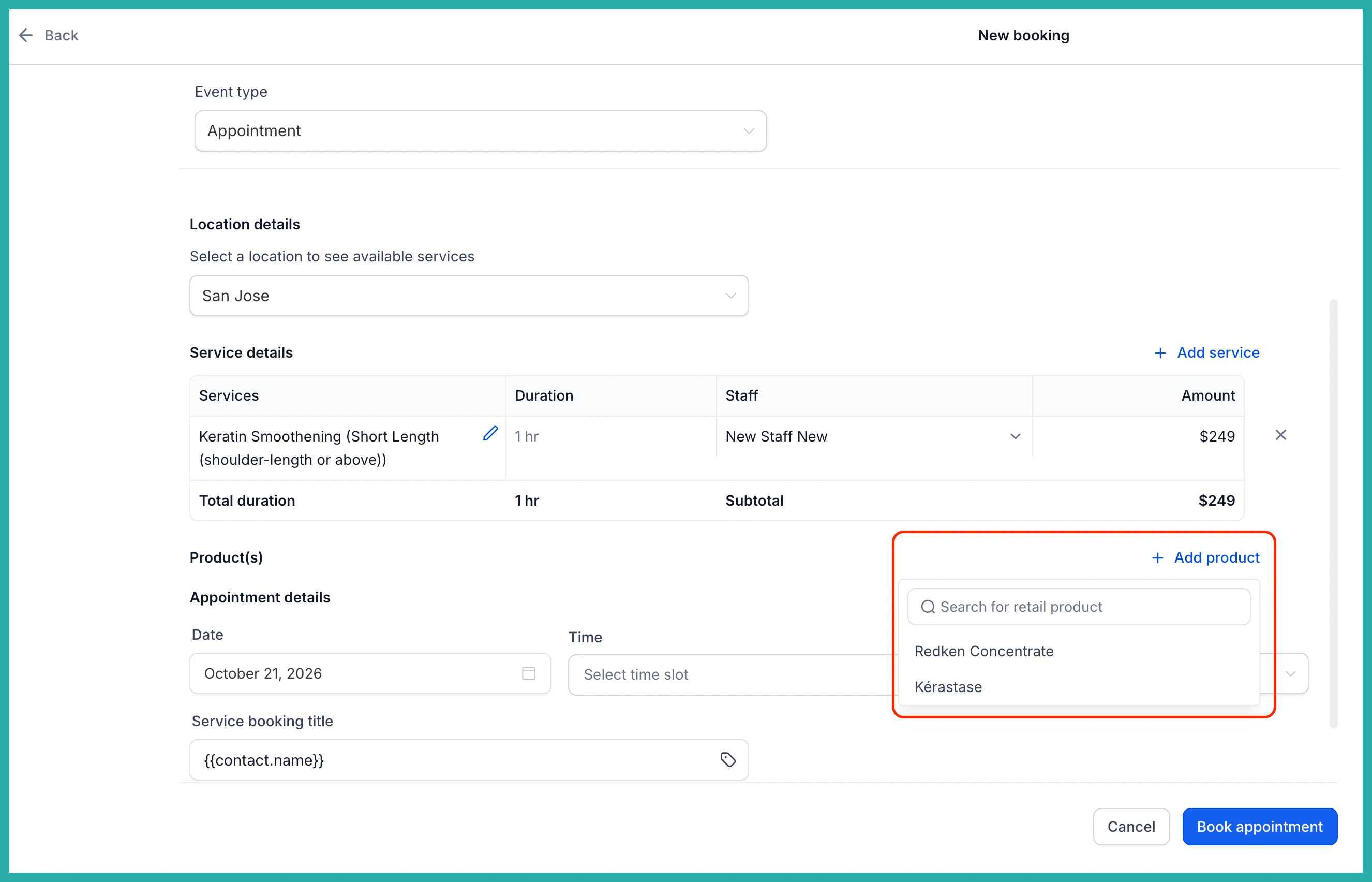
Choose the product or variant you want from your catalog. In the screenshot below you'll see the list you pick from.
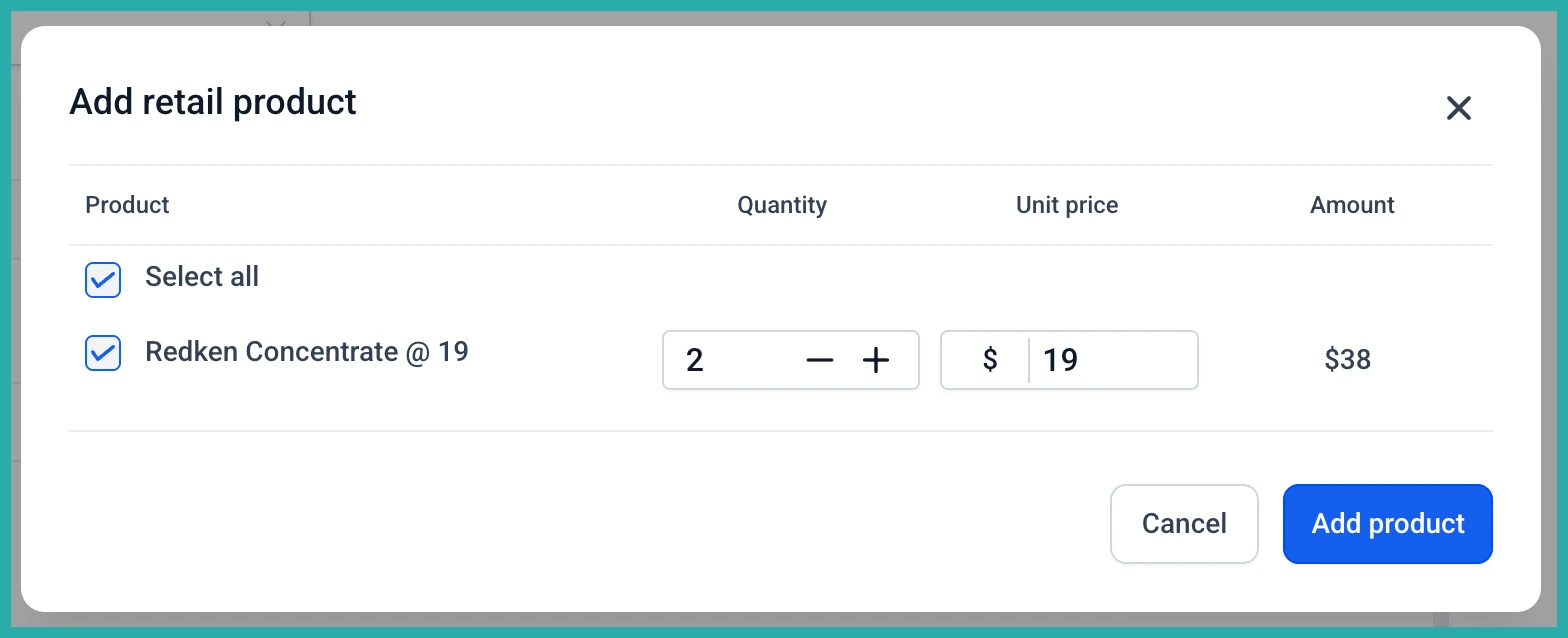
Set the quantity, and adjust the price for this appointment if you need to. The total updates as you go, so you can always see what the customer owes for everything together.
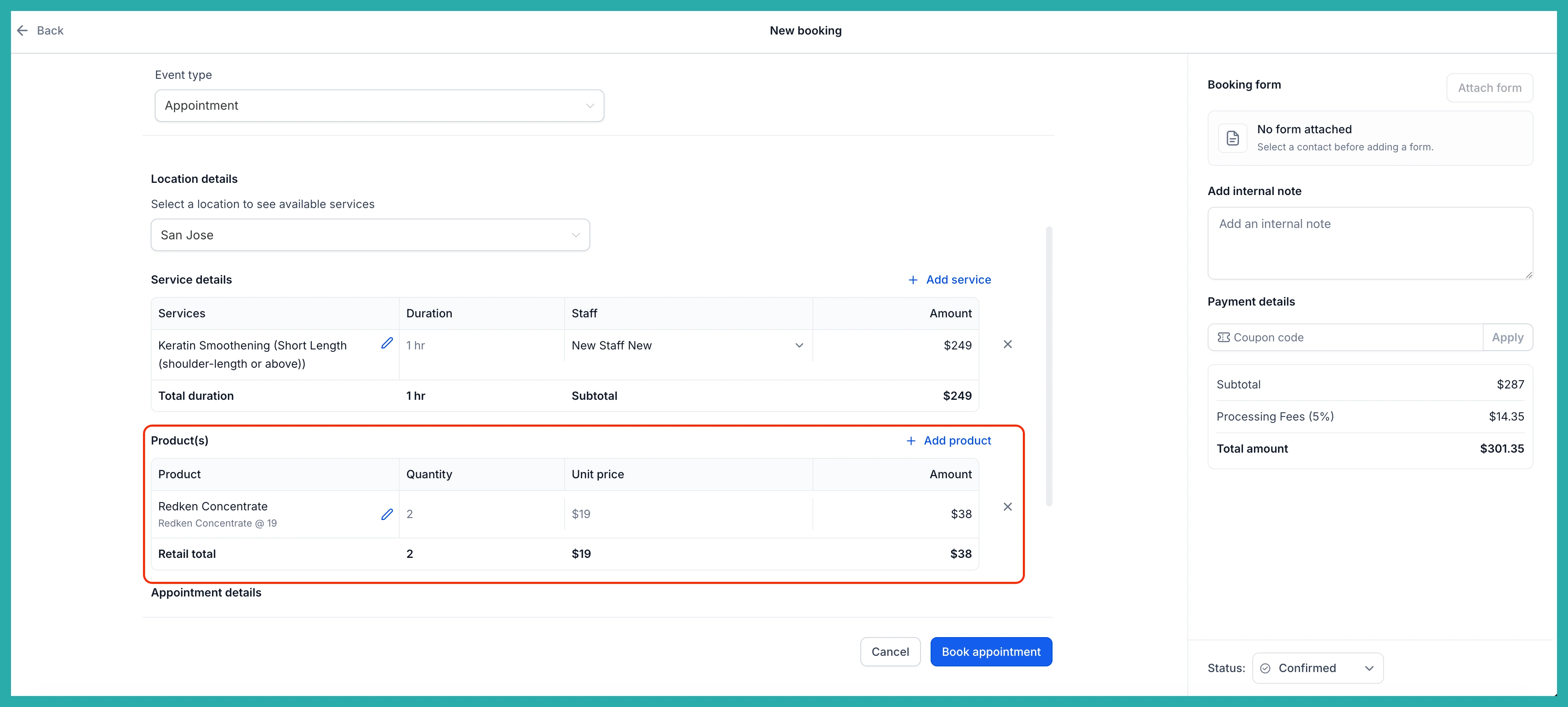
Save, then head to the Payments tab to review the full breakdown. If you change products on an appointment that's already been paid, the payment status tells you whether more is due or a refund is owed.
Two things to keep in mind
Your retail products are created and managed under Payments, then Products, not under Services. So if a product isn't showing up in the list, that's the first place to check.
And for now, retail products can only be added in-app, by you or your staff. They won't appear on the customer booking page, so this is for selling during the visit rather than online self-service.
It's a small change that saves you a fiddly extra step, keeps your stock honest, and means a past appointment always shows exactly what was sold, even if your catalog changes later. Go add a product to your next booking and see how much tidier it feels.
