
Keep Each Contact's Documents Tidy With Folders (And A 60-Day Safety Net)
If you store documents against your contacts, you'll know how fast that section fills up. Contracts, intake forms, invoices, the lot, all in one long list you have to scroll through every time.
That's now sorted. You can create folders on each contact, tuck files away where they belong, move things around whenever you like, and recover anything you delete by mistake.
What landed
Folders now live inside the documents area on the contact detail page. Everything stays at the individual contact level, so each person's files are organised on their own, independent of everyone else.
There are two kinds of folders. System folders come built in and can't be deleted, so the basic structure always stays put. Custom folders are the ones you create, rename, and remove as you need them.
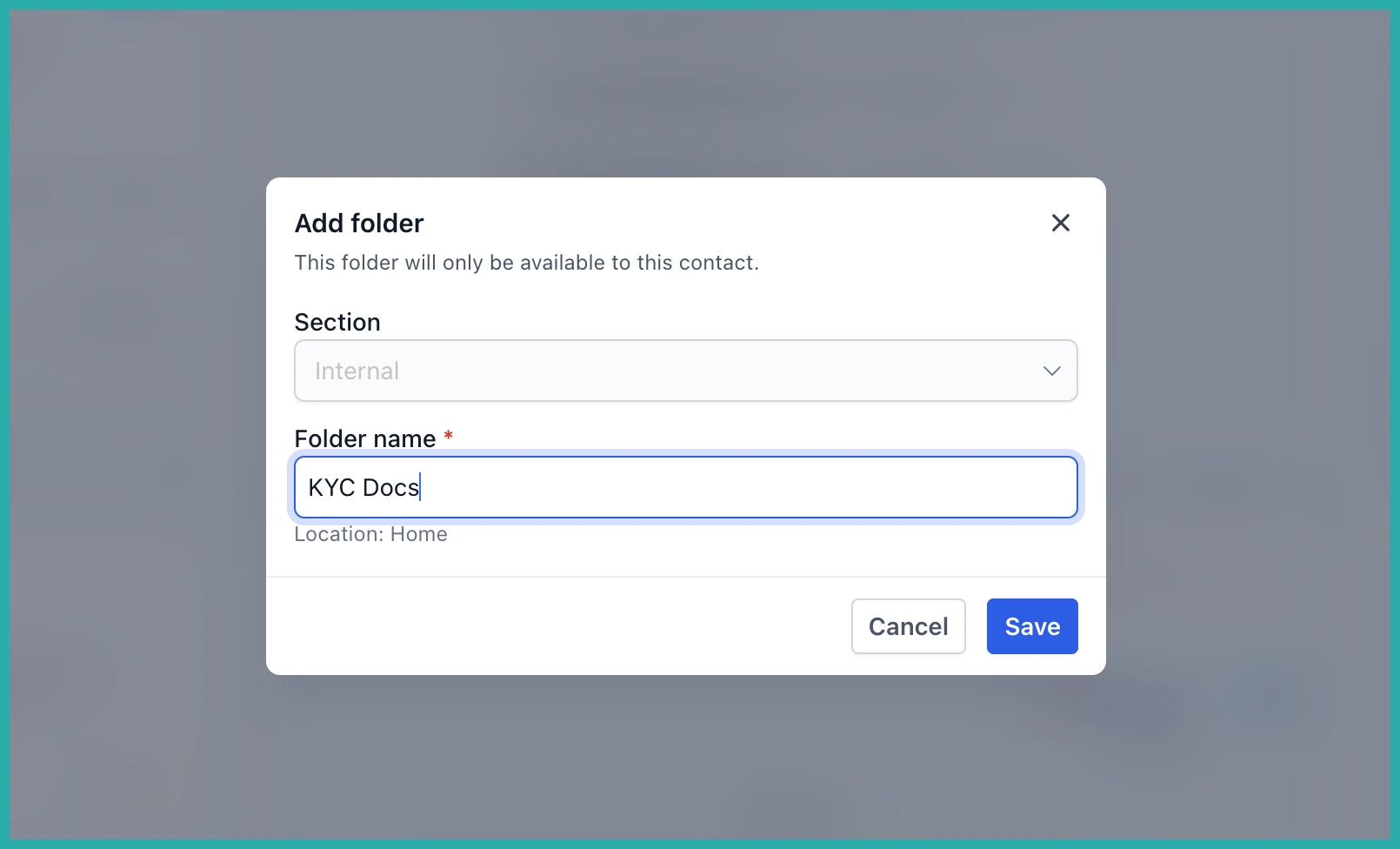
Create a folder
Open a contact, head to their documents, and create a new folder. Give it a name that makes sense to you - Contracts, Onboarding, Receipts, whatever fits how you work.
You can nest folders inside folders too, so if you want a parent folder with a few sub-folders underneath, go for it. Build the structure that matches how your brain already looks for things.
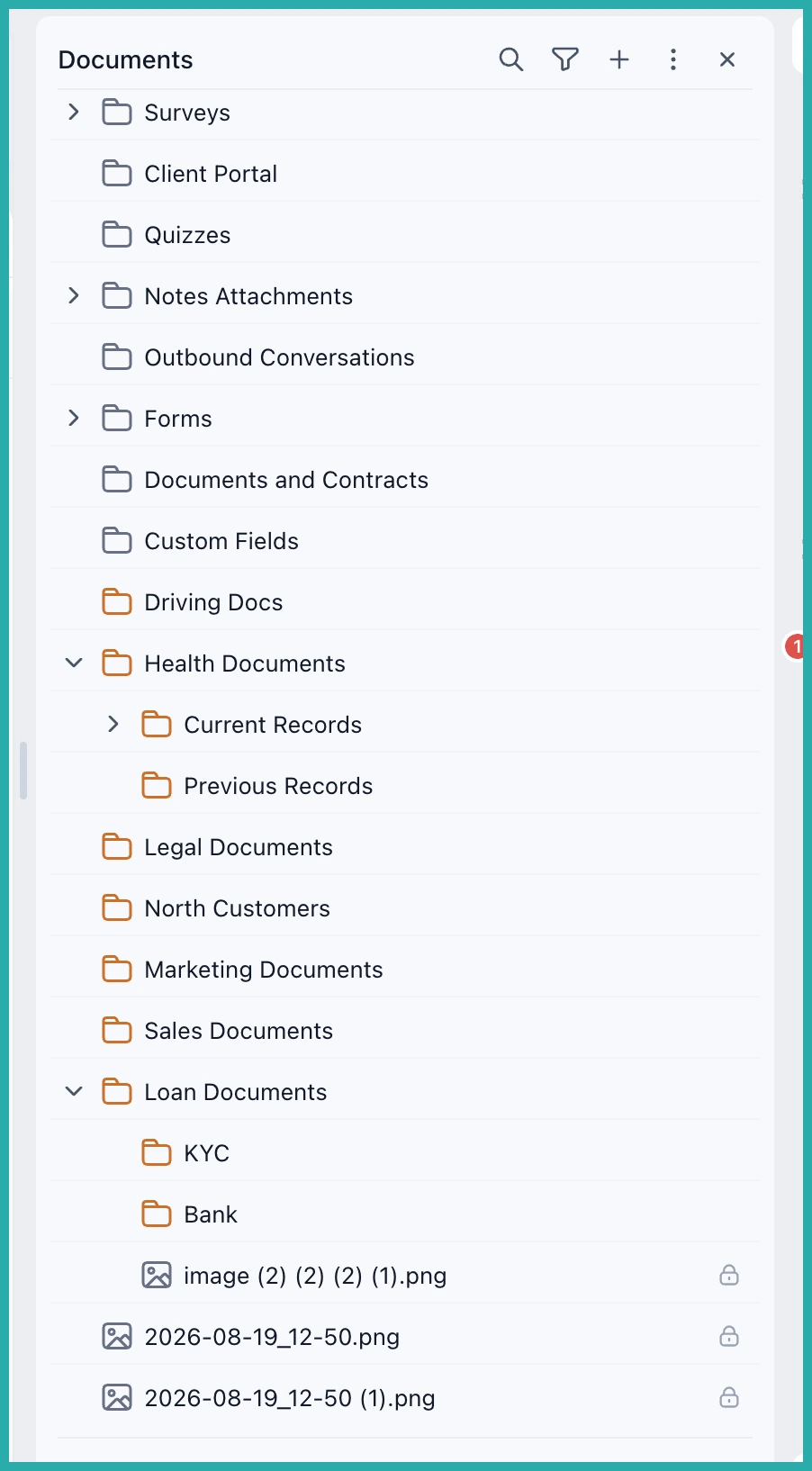
Move files without re-uploading
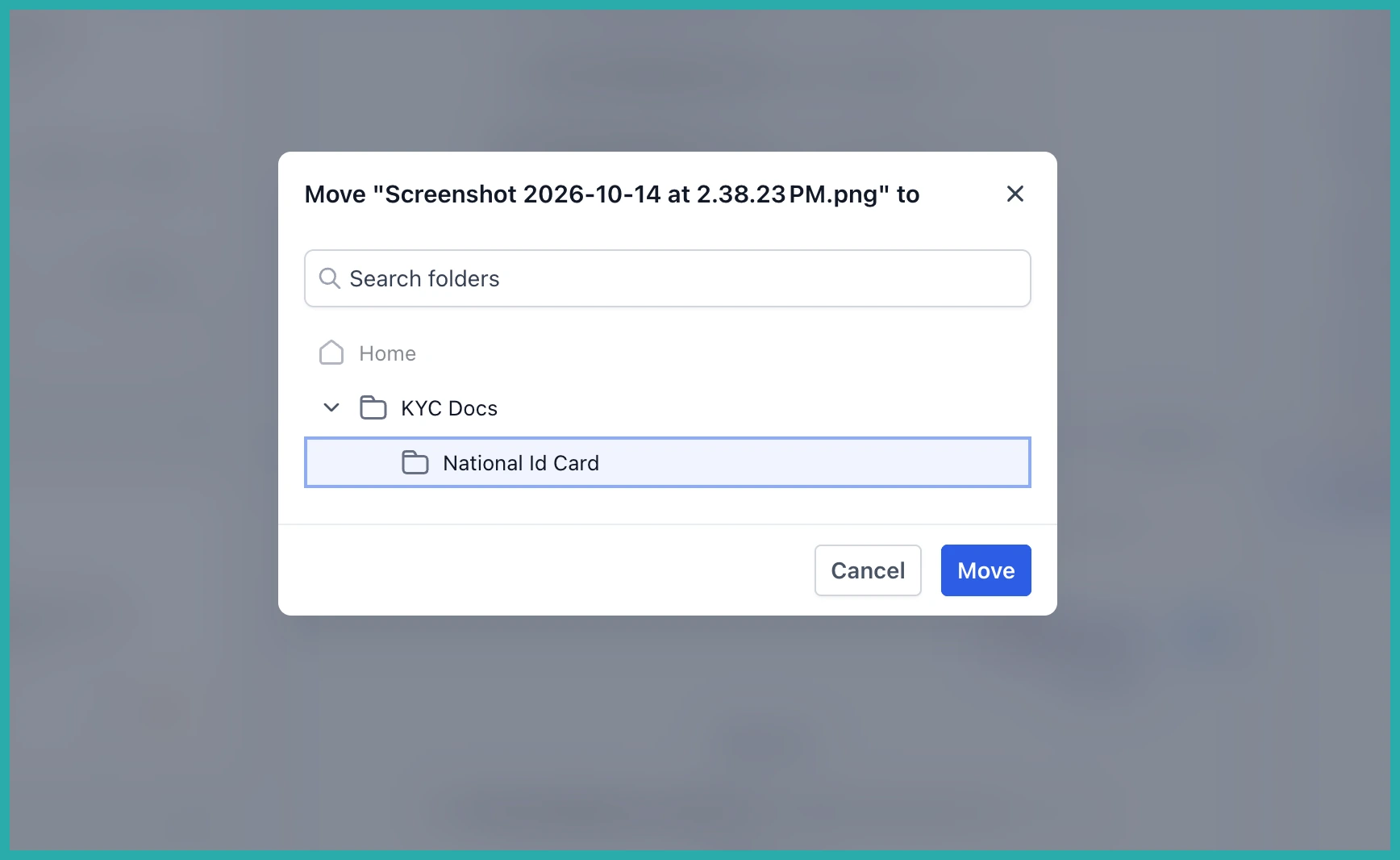
Already got documents sitting loose, or in the wrong spot? You don't have to download and upload them again.
Just move the file straight into the folder you want. You can move whole folders around too, shifting them to a different level when you're reorganising. Related documents stay together and the whole section stays clean.
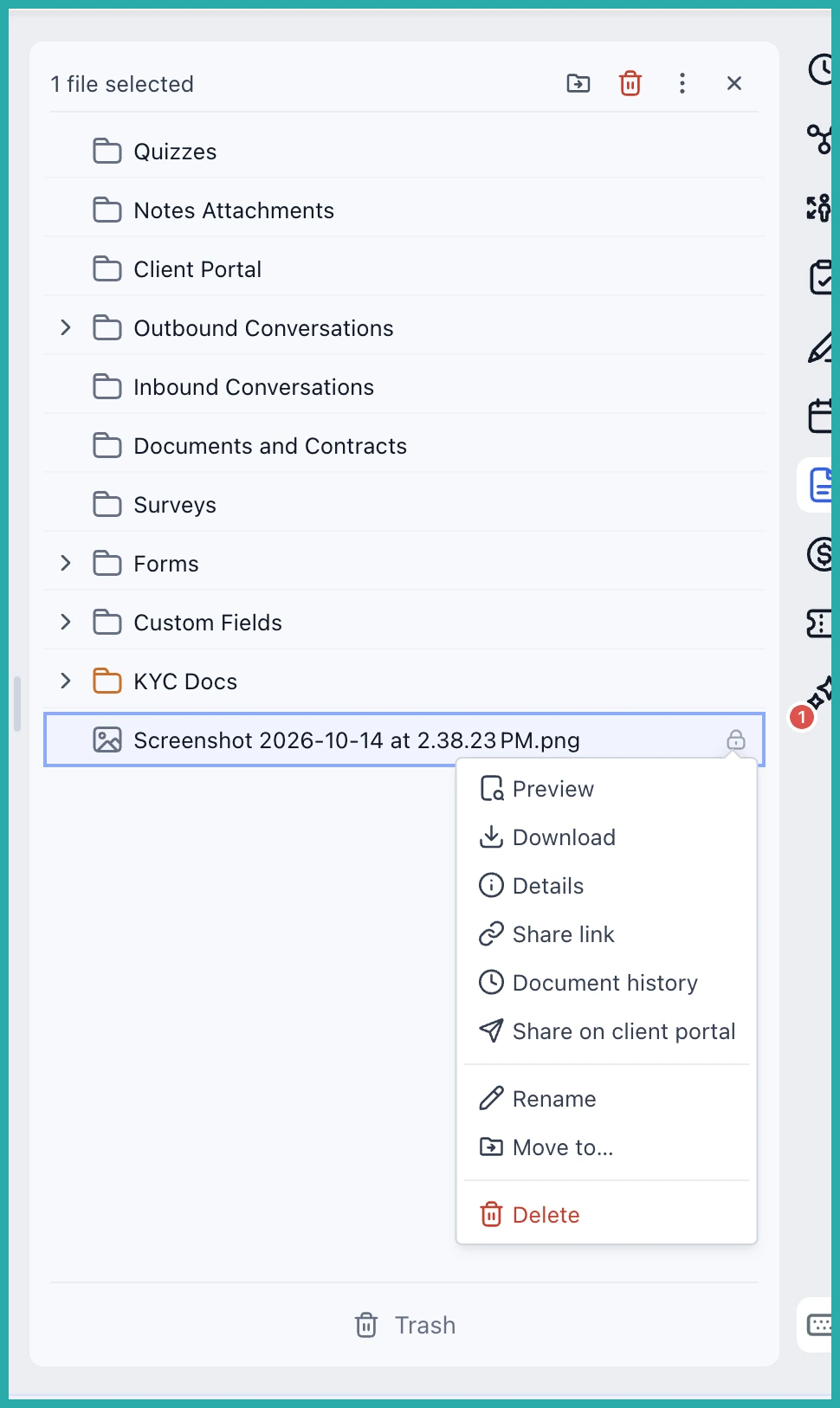
Delete what you don't need
When a file or a custom folder has outlived its use, delete it to keep things uncluttered. Delete a custom folder and its contents go with it.
System folders stay protected, so you can't accidentally wipe out the built-in structure. For now, files sitting inside system folders are protected too, though the ability to delete those is coming.
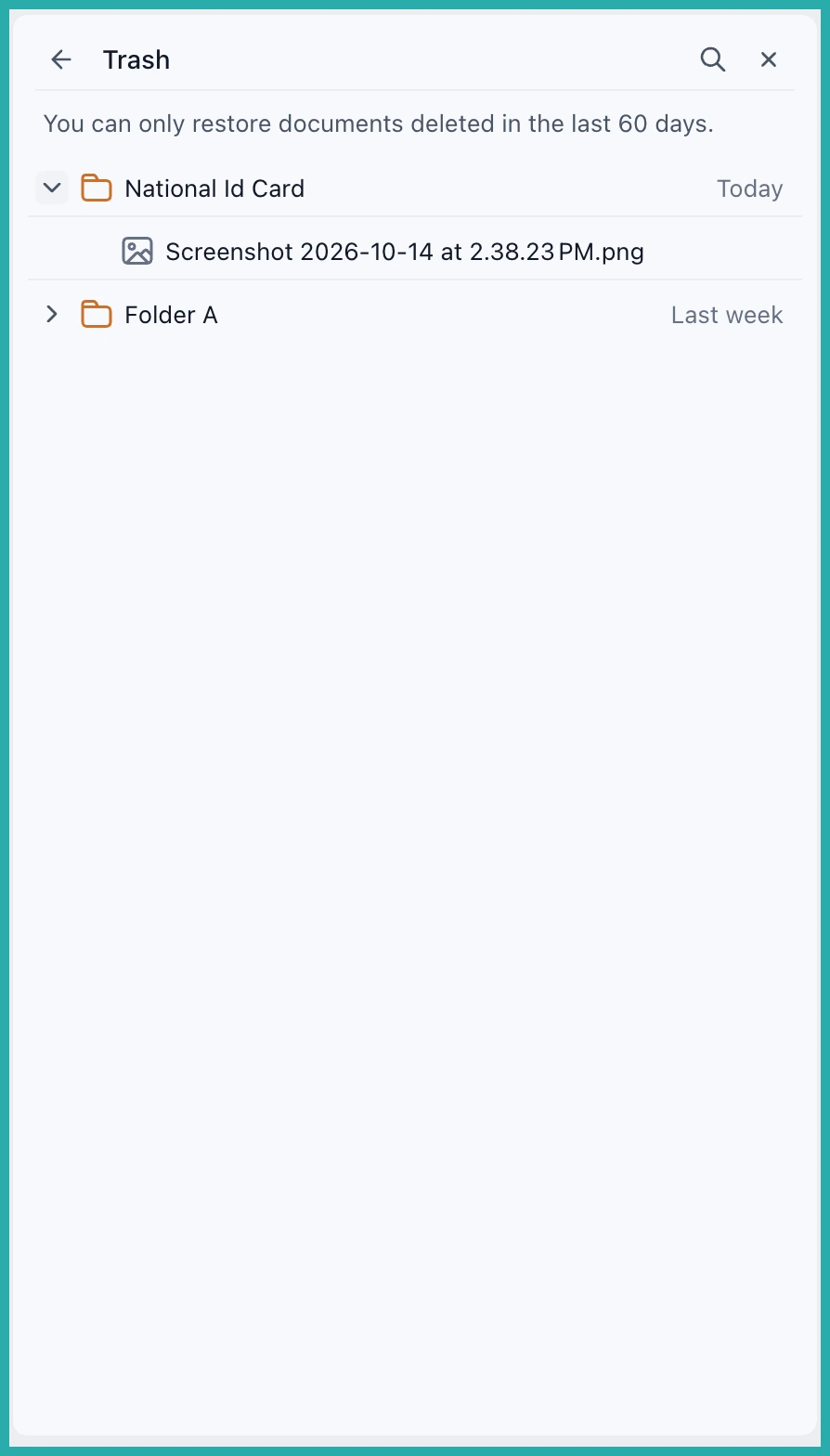
Deleted something by mistake? Check Trash
This is the part that takes the worry out of tidying up. Anything you delete doesn't vanish on the spot. It goes to Trash first.
From there you can restore individual files or entire folders within 60 days, and when you recover a folder its contents come back with it. After 60 days it's permanently gone, so Trash is your safety net, not forever storage.
Try it on your next contact
Open a contact you work with often, create a couple of folders, and drag their documents into place. Once you see one contact tidied up, you'll want to do the rest. And with Trash sitting behind you, there's no harm in experimenting.
