
Add Icons, Emojis and Illustrations Straight Into Your Pages - No More Hunting Elsewhere
You're building a page, you want a tidy little icon next to a button, and off you go to some third-party site to find one, download it, then upload it back in. Three detours for one small graphic.
That whole dance is over. A proper Graphic Library now lives right inside your builders.
What landed
Over 11,000 icons, emojis and illustrations are now built in, with browsing by category and a search bar so you can find what you need fast. You can drop a graphic on its own, or attach it to something you already have, like a leading icon on a button or heading.
Icons can be recolored to match your page. And when the library doesn't have the exact thing you're picturing, you can generate a custom illustration with AI or upload your own.
It's available now in the Funnel, Website, Store and Webinar Builders.
Where to find it
Open any page in one of those builders. You can reach the Graphic Library three ways: from the left panel, from an element's settings, or simply by typing a colon ":" while you're editing text.
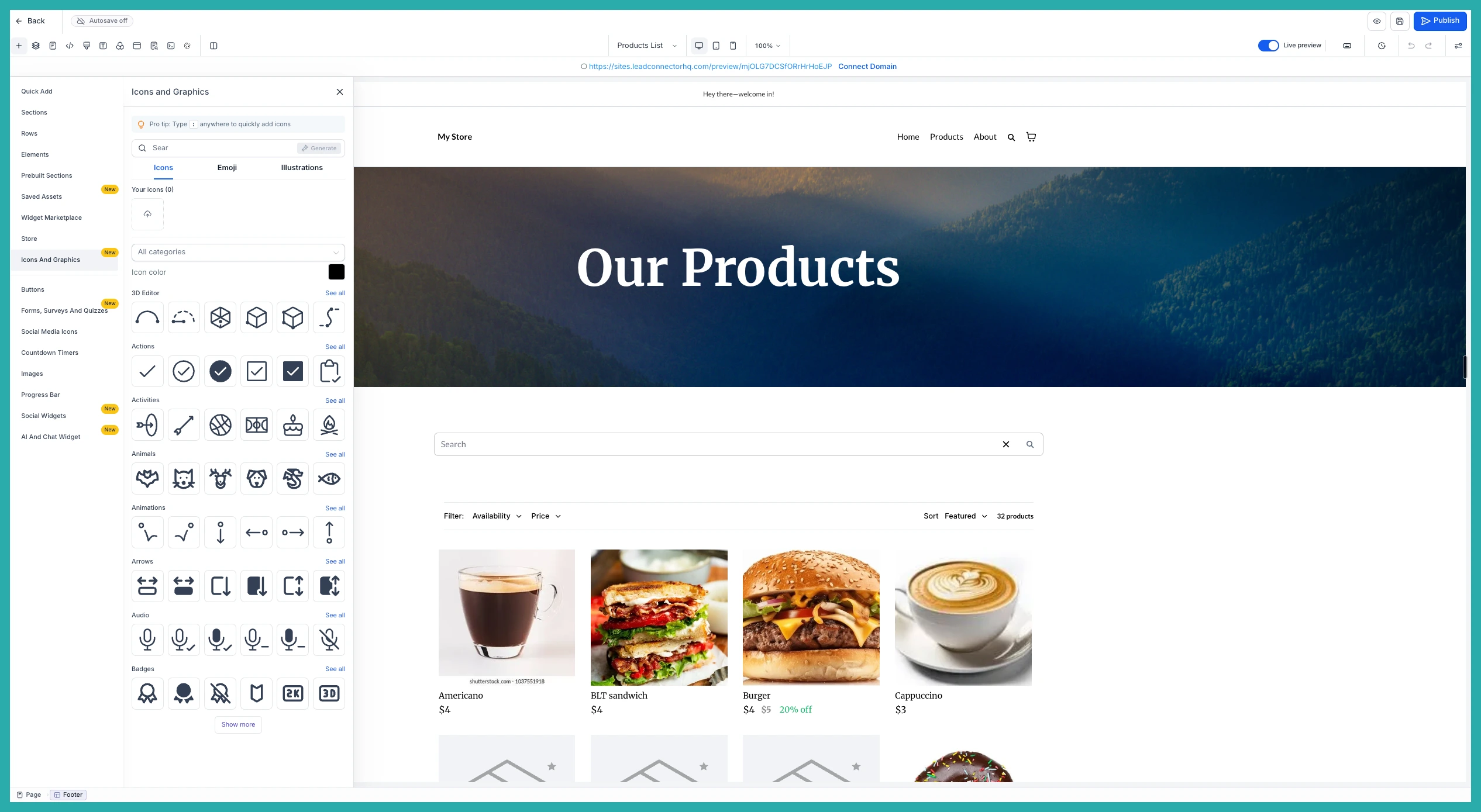
Once it's open, switch between the Icons, Emojis and Illustrations tabs. Browse by category or type what you're after into the search.
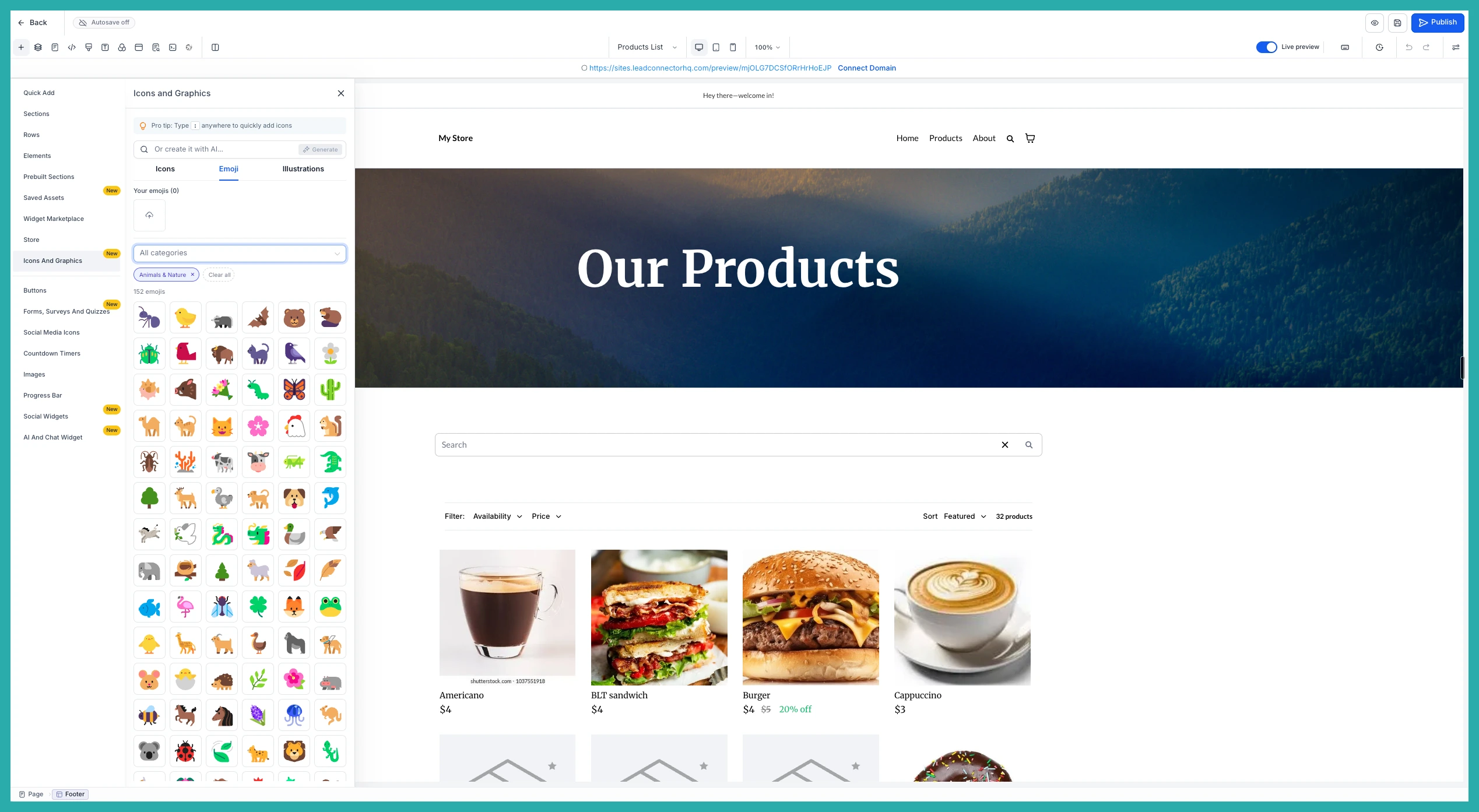
Adding a graphic to your page
- Click or drag the graphic you want onto the canvas, or onto an existing element to attach it.
- If it's an icon, change its color to suit your design.
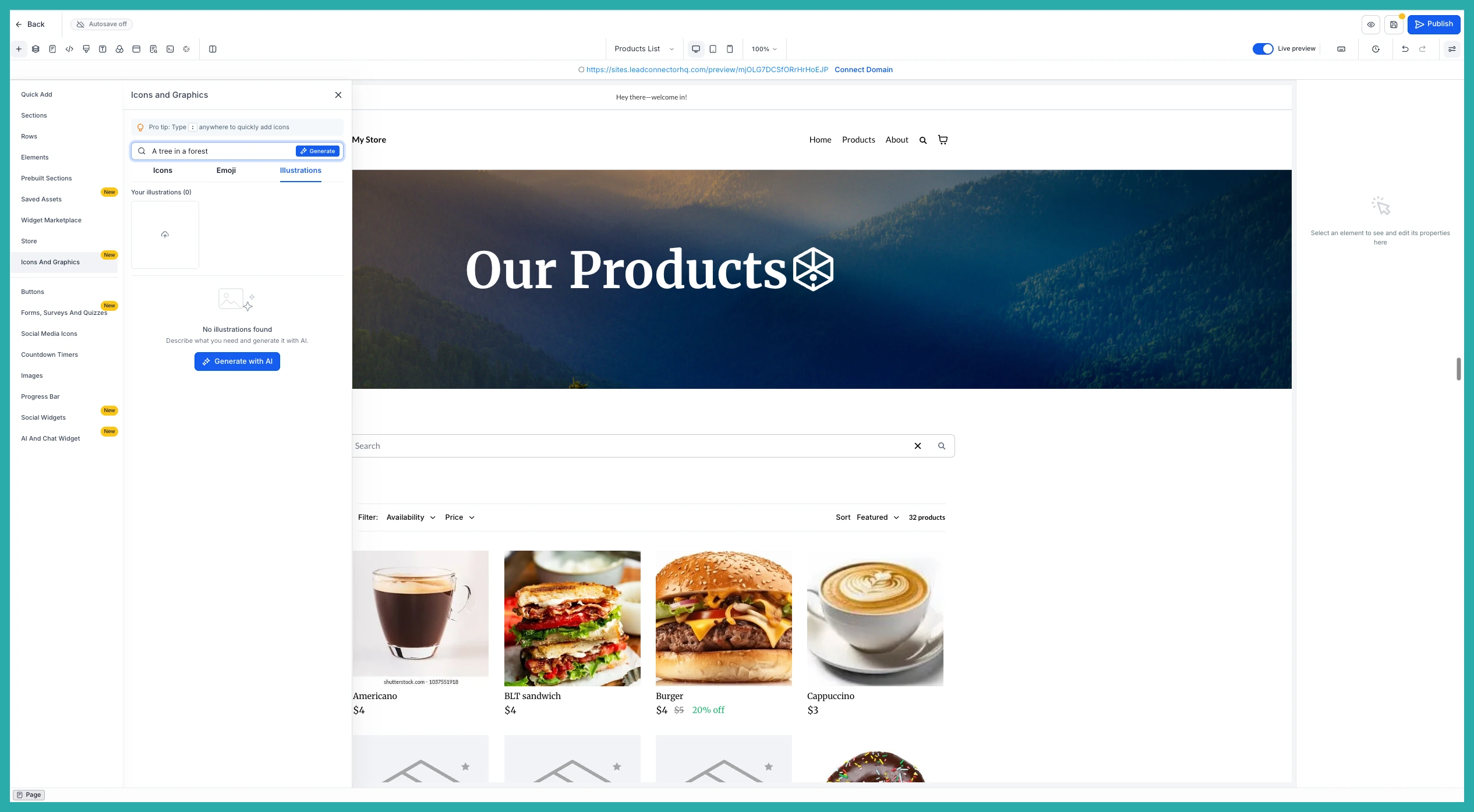
- Need something the library doesn't have? Generate a custom illustration with AI, or upload your own graphic.
In the screenshot below, you'll see the Generate with AI button for when you want something made to order.
A couple of honest notes
- Color customization works for icons only, not illustrations.
- This is live in the Funnel, Website, Store and Webinar Builders now, with more builders including emails coming soon.
Next time you're laying out a page, have a play with it. One small icon in the right spot can make the whole thing feel finished, and now it's just a click away.
