
Set Up Your Brand Colours Without Leaving the Email Builder
You're mid-way through building an email, you reach for your brand colour, and realise you haven't set one up yet. The old way sent you off to a whole new tab to sort it out, and let's be honest, a lot of us never made it back to finish the email.
That detour is gone.
What landed
You can now create a brand board right inside the email builder, in a little pop-up window, without losing your place. Paste your website address to pull in your colours, logo and fonts automatically, or pick a ready-made style to start from. Then your brand colours show up as swatches in the colour picker straight away.
How to use it
Open the email builder and head to the colour picker. If you don't have a brand board set up yet, you'll see a "Create brand board" option. Click it.
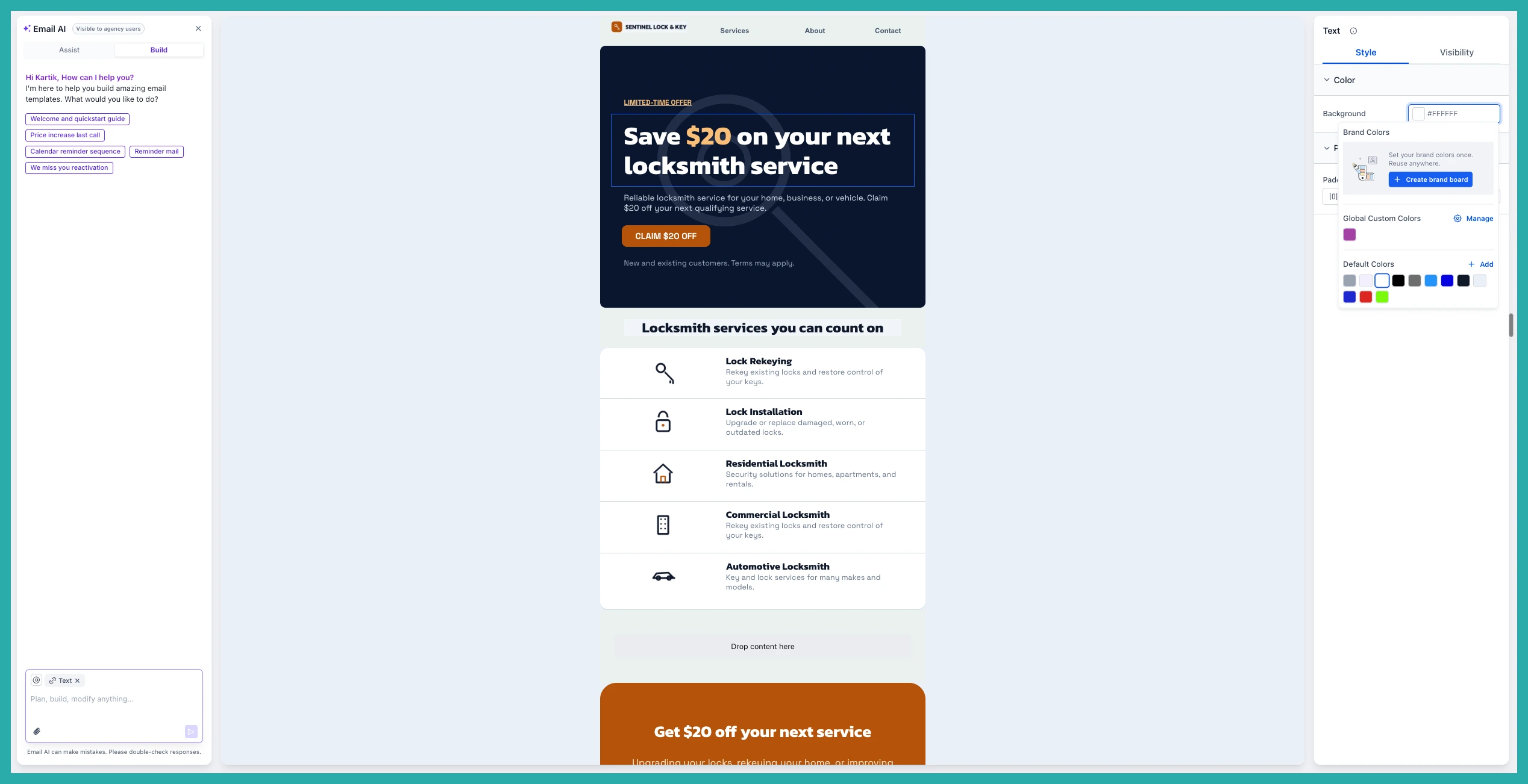
The quick-create window opens right there. From here you have two easy ways to begin. Paste in your website URL and the system pulls your brand colours, logo and fonts in for you, or choose one of the ready-made style presets (or start from blank if you'd rather build it yourself).

Once you've picked a starting point, use the tabs on the left to fine-tune everything. Adjust your brand colours, add your fonts, and upload your logo - all in the same window.
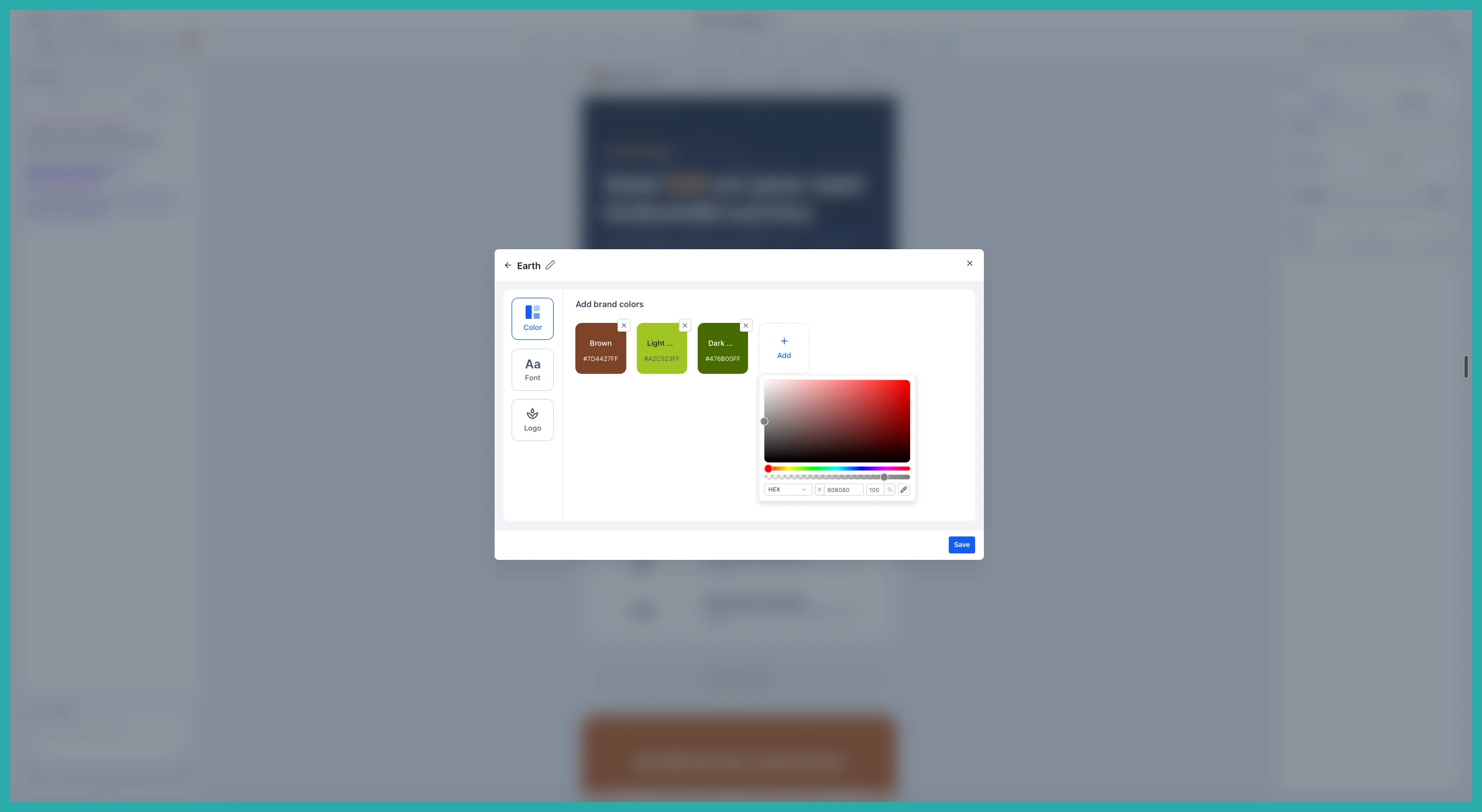
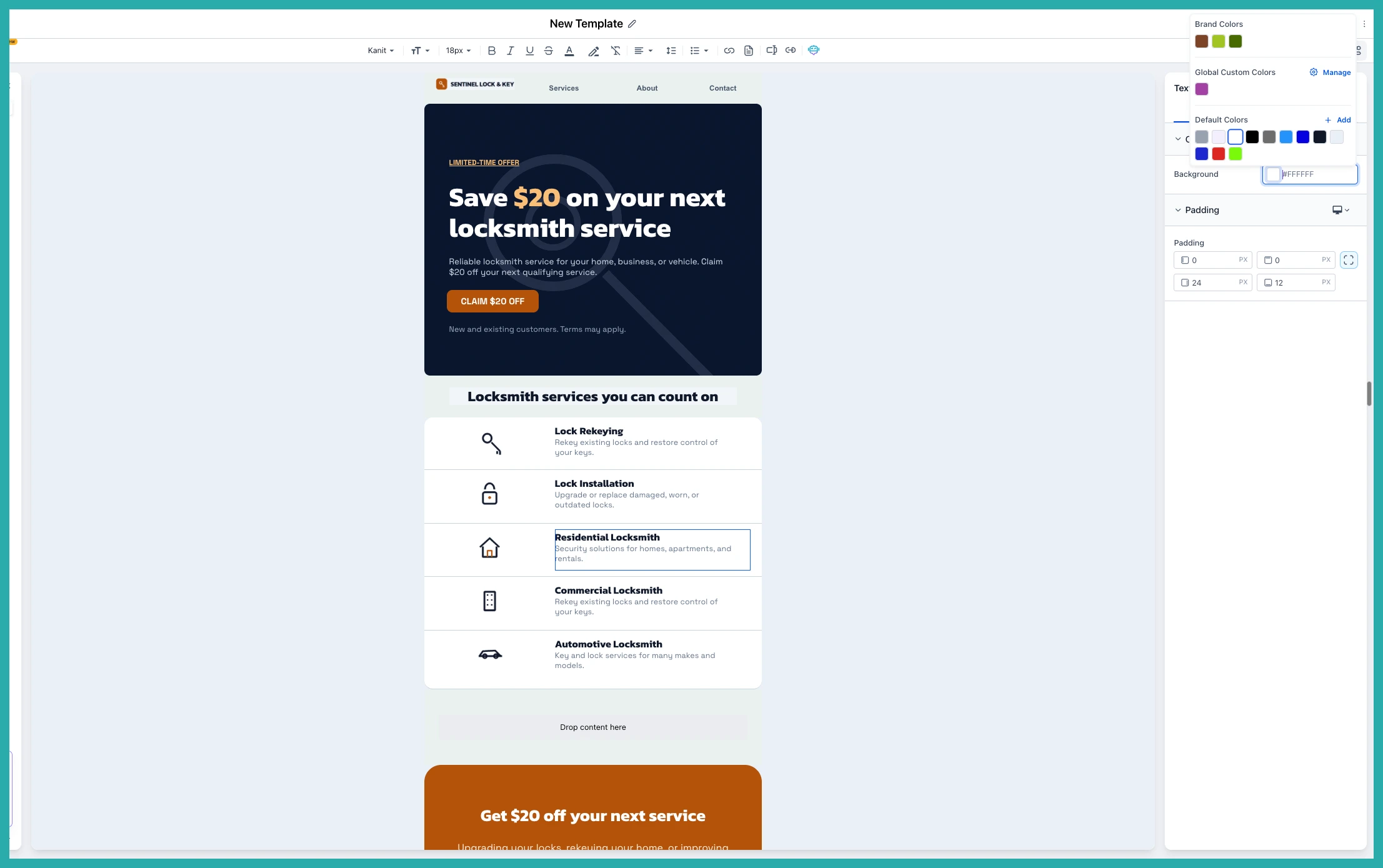
When it looks right, hit Save. Your brand colours now appear as swatches in the colour picker, ready to use in the email you were already working on.
A couple of honest notes
For now this lives in the email builder's colour picker. The same thing for Websites, Funnels and Forms is on the way. Editing a board and switching between multiple boards are coming in the next releases too.
If you've been meaning to set your brand colours up, this is the easiest it's been. Give it a go next time you're building an email - it only takes a few clicks.
