
Match Your QR Codes to Your Brand Colors in One Click
You make a QR code, pop it on a flyer or a sign, and it comes out in plain black and white. Fine, but it never quite looks like it belongs to your brand.
The old fix was fiddling with hex codes, trying to remember your exact brand shade, and hoping you got it right.
Now your colors are already there, ready to click.
What you get
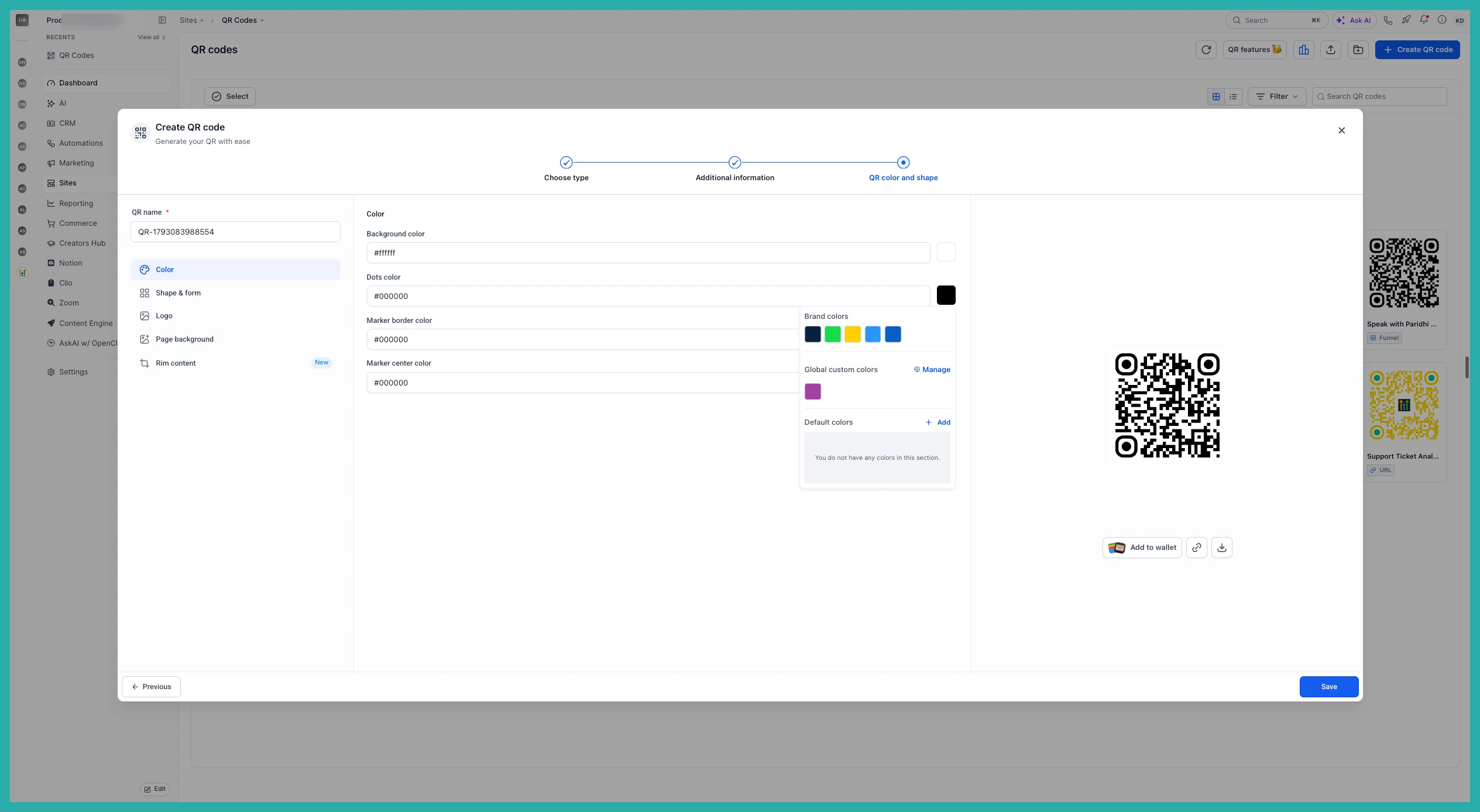
The QR Code section now shows your Brand Board colors as selectable swatches. No hex codes, no guessing - just pick the shade you already use everywhere else.
Your saved custom colors show up too, right alongside your brand colors. So the full set you work with across the builder is there in one place.
QR codes tend to land on printed materials, signage and marketing bits where looking consistent actually counts. This lets you color-match them to your brand in seconds.
How to use it
- Open the QR Codes section.
- Select a QR code to edit, or create a new one.
- In the color picker, choose from your Brand Board swatches or your saved custom colors.
In the screenshot below, you'll see your brand and custom color swatches sitting right in the color picker, ready to apply.
That's the whole thing. Next time you print a code, give it your brand color and let it look the part.
