
Your AI Copilot's Computer Now Works From Your Phone
You've probably used Ask AI's Computer on web - the private cloud machine that browses in a real Chrome, fills in forms, runs code and handles files for you, while you watch along.
Now it's in your pocket too. The exact same Computer, running on the ESC Hub mobile app. You can start a task from any chat, watch the screen live, step in with a tap, and hand it back - all from your phone.
What landed
Ask AI Computer is now on the mobile app. Everything you rely on from web carries over: the live view, taking control, approvals, Secure Store for logins, and your files and results right in the chat.
And your sign-ins stay private here too. When a site needs a login, you type it into a private form that goes straight to the page. Ask AI never sees it.
Starting a task from any chat
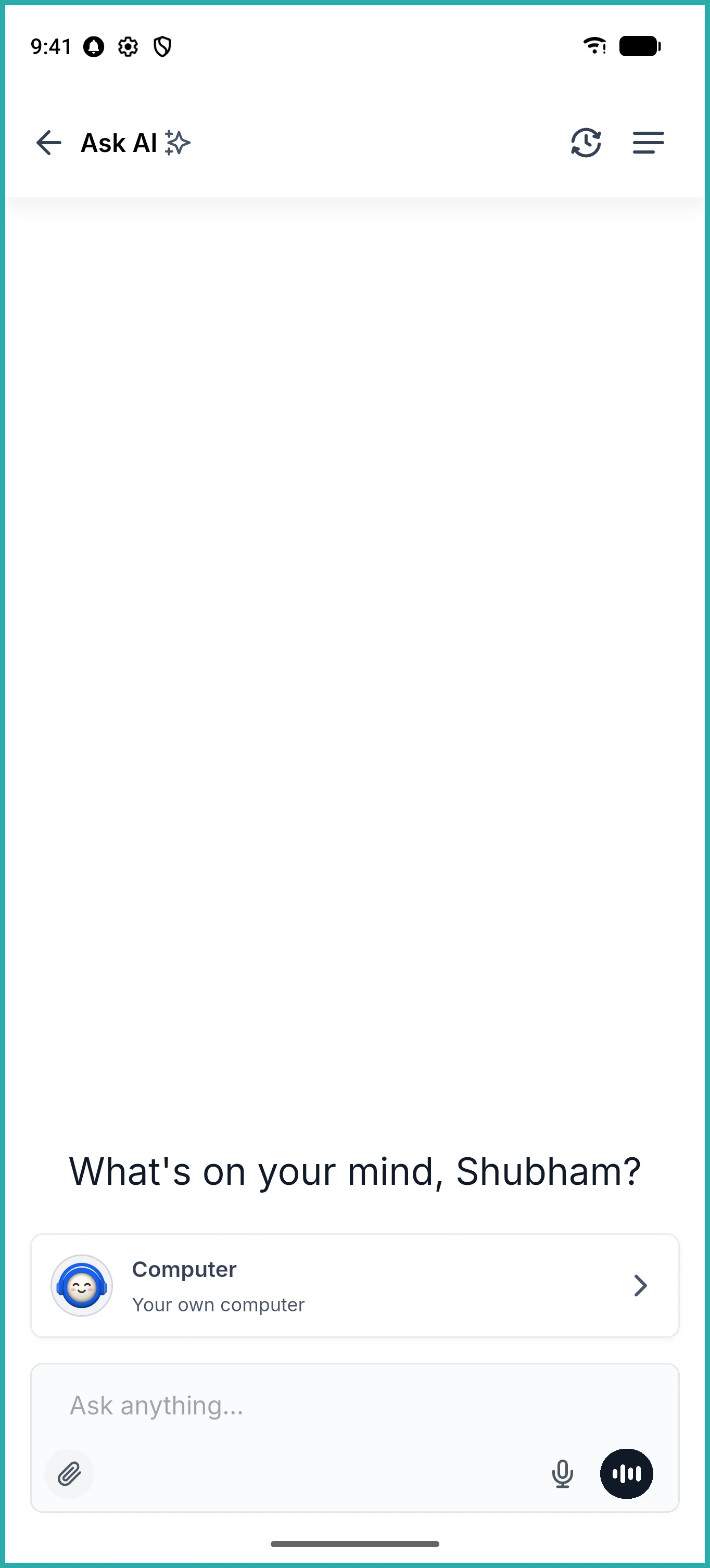
Open any chat and you'll see a Computer row sitting just above where you type. One tap and you're off. The Computer also keeps its own chat, which you'll find in your History if you want to pick things back up.
In the screenshot below, you'll see the Computer row ready to go above the composer.
Watching it work, live
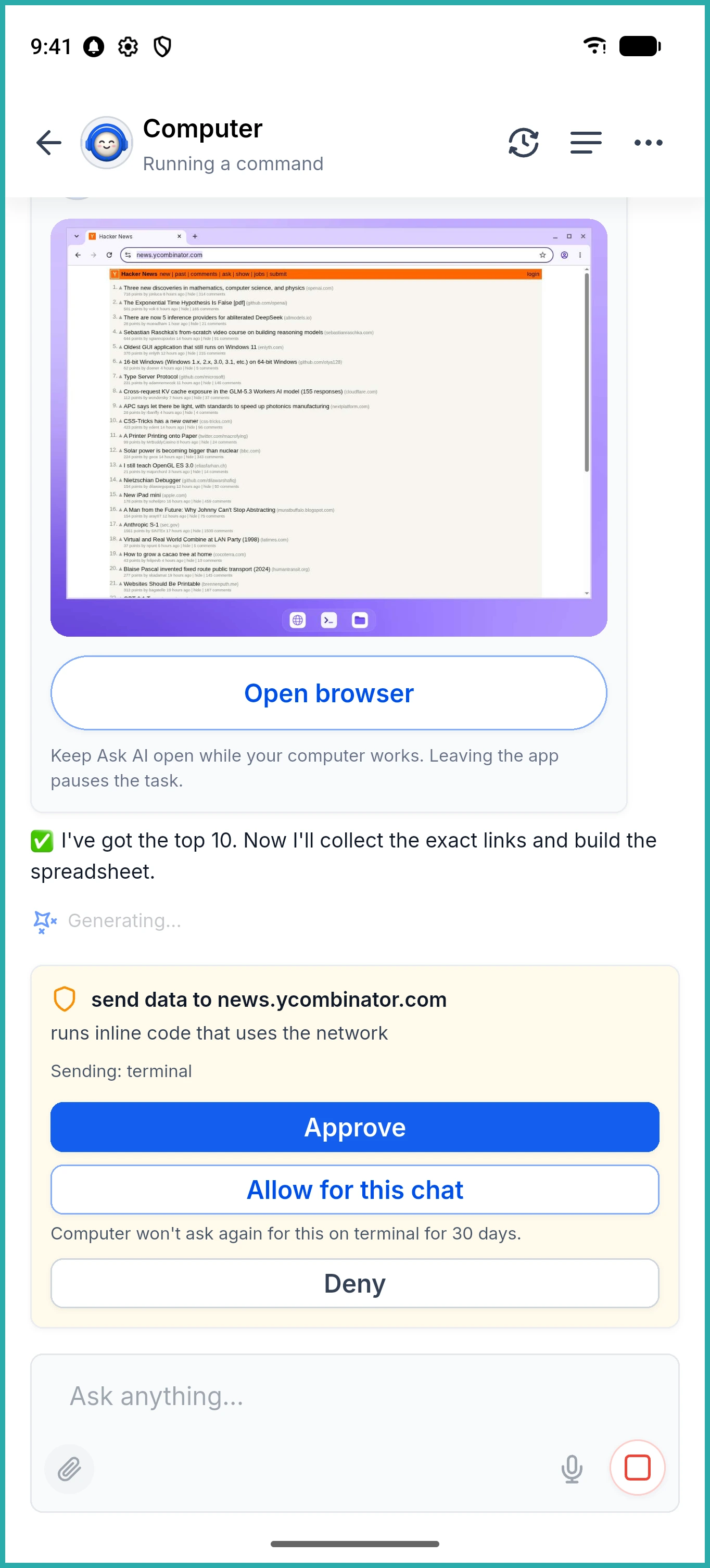
Tap to open the browser full screen and you'll see the real desktop, exactly what it's doing. A status line tells you where things stand: working, idle, done, needs you, or that you're in control.
You don't have to sit and stare at it either. A live status pill follows you to any other chat. Keep working, and tap the pill whenever you want to jump back to the Computer.
Taking over when you need to
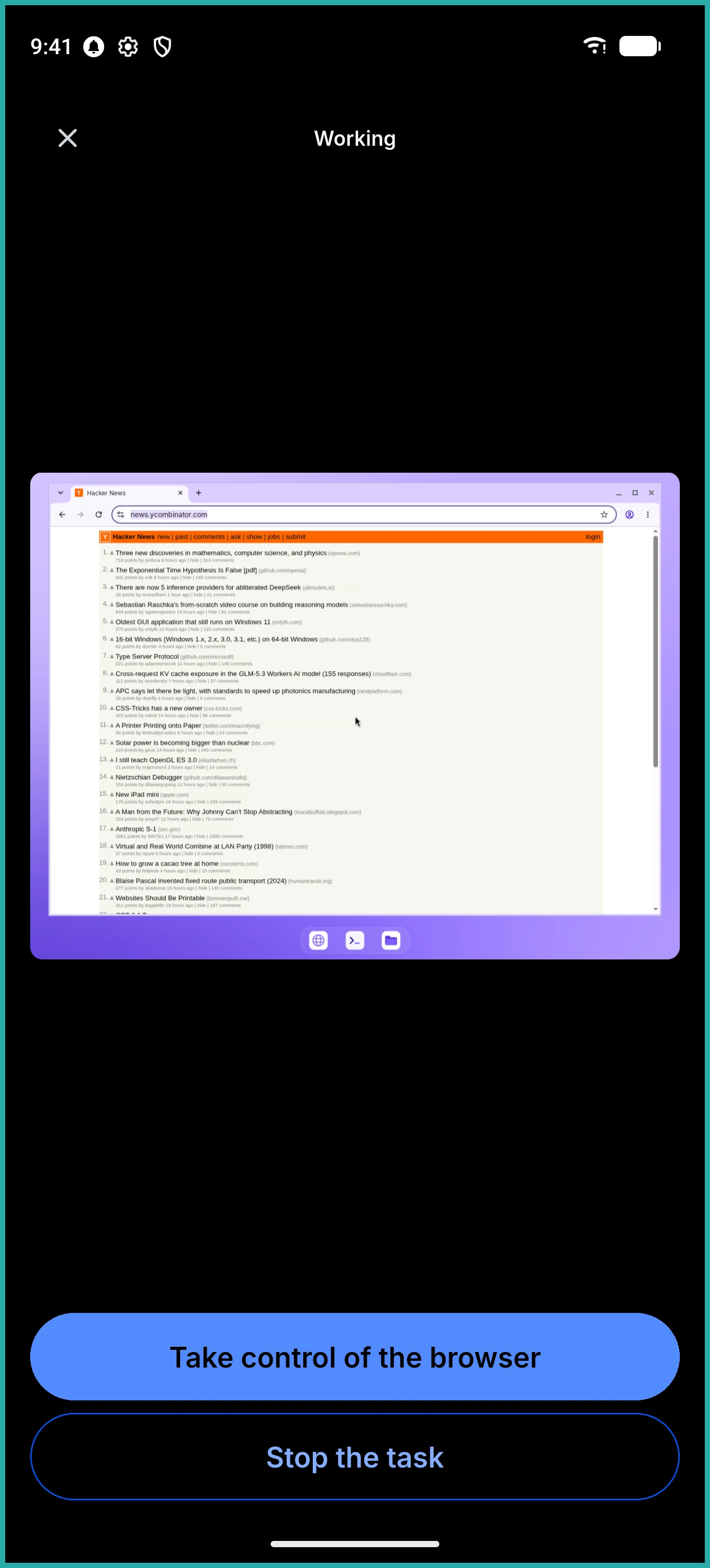
Sometimes a task hits a step only you can do - a one-time code, a quick decision. When that happens, just take control from your phone:
- Tap to click
- Drag with two fingers to scroll
- Type with your phone's keyboard
When you're done, hand it back and the Computer picks up right where you left off.
Answering it on the spot
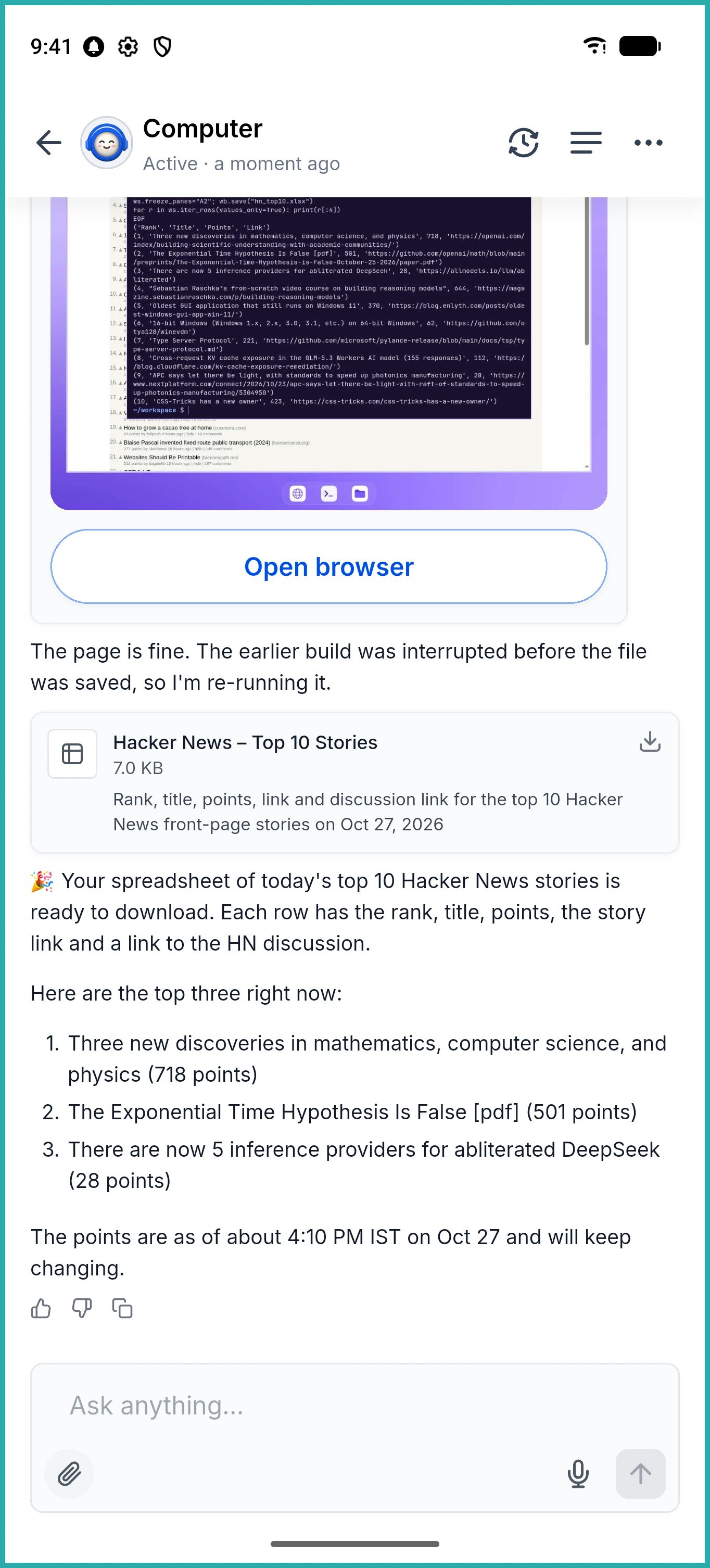
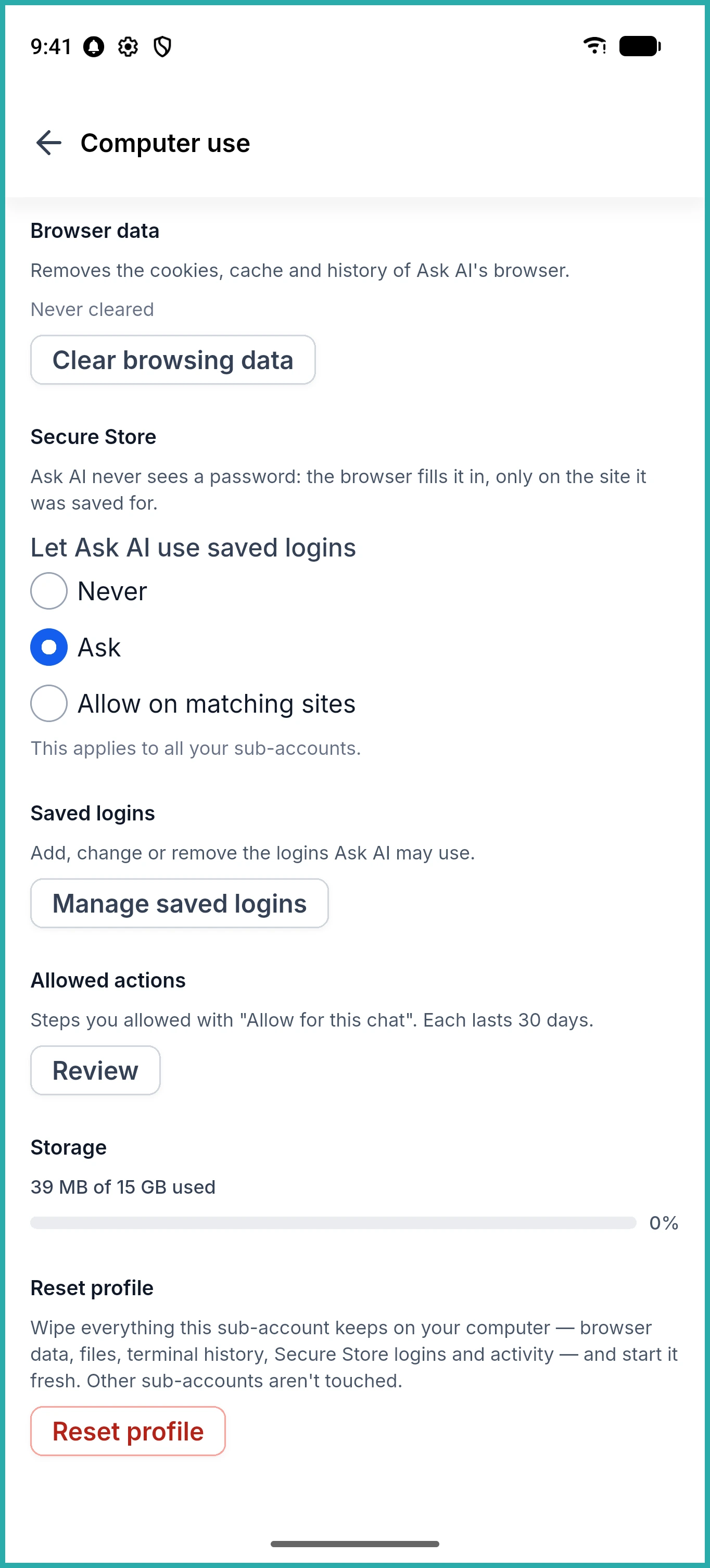
When the Computer pauses to ask permission, you can approve, deny, or choose Allow for this chat, which lasts 30 days on that site. You'll find all of these under Allowed actions in Settings, where you can revoke them one at a time or all at once.
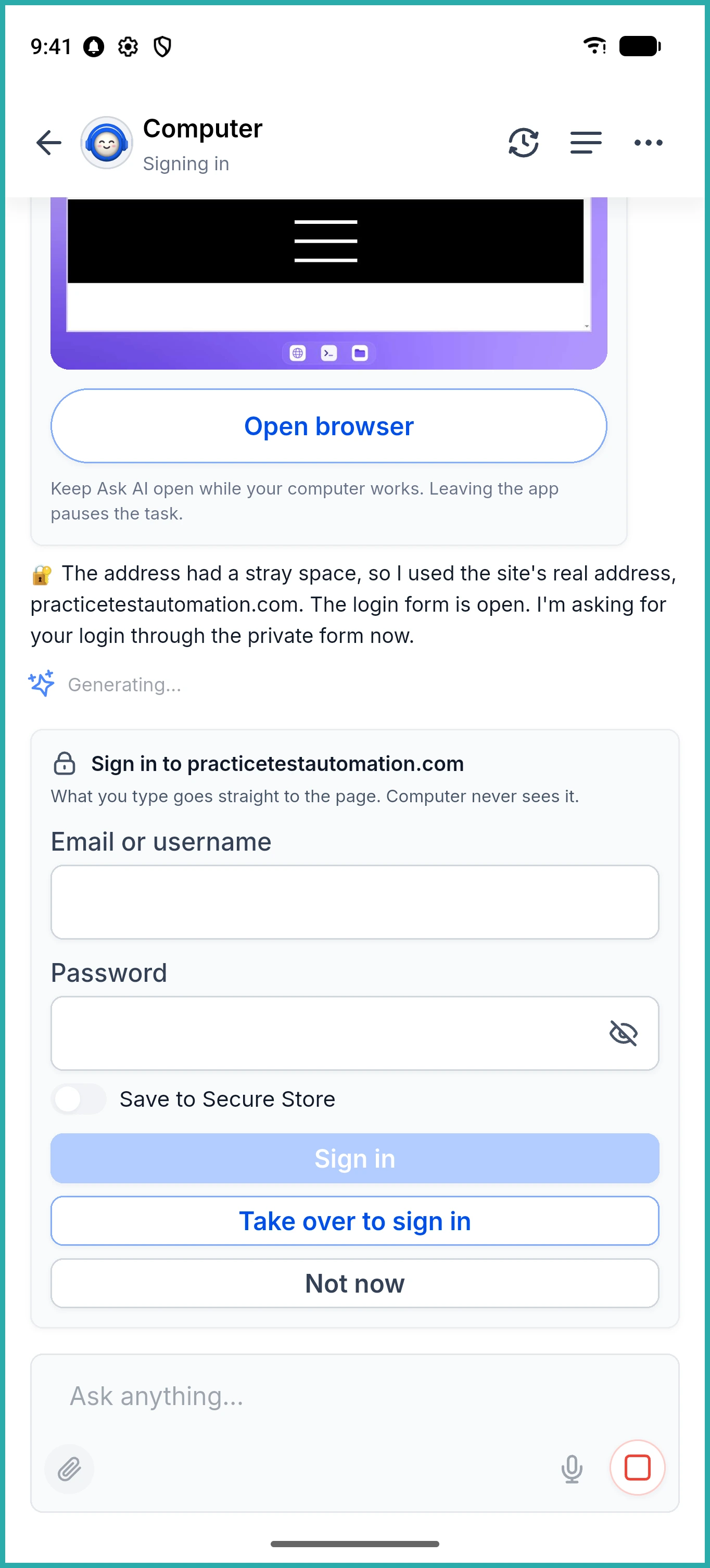
Logins that stay safe
You can save a login to Secure Store, then decide how it's used: never, only after asking, or automatically on matching sites. It won't fill a saved password on a look-alike site, so you're protected from the obvious traps.
On mobile you can add, edit and delete saved logins for each account, and under Settings then Computer use you can clear browsing data, set your saved-login rules, review allowed actions, check your storage, or reset one account's profile without touching the others.
One conversation, every device
Turns you send on web show up in your mobile chat the moment you open it. If the screen is already open on another device, tap Show here to bring it across to your phone.
It also looks after itself. If the Computer is asleep, Turn on wakes it with your files and sign-ins still in place. If the connection drops, it reconnects. If a task got cut off, tap Resume.
A real example
Say you start a statement pull on web, then head out the door. The Computer gets to the bank's one-time code step and your phone shows Needs you. You open the browser, take control, type the code, and hand it back. Task unblocked, without going near your desk.
Next time something needs doing while you're out, you don't have to wait until you're back at the laptop. Start it, watch it, step in if you need to - all from your phone.
