
Add Cleaning, Service and Other Mandatory Fees to Your Rental Bookings
If you run any kind of rental through your account - a holiday property, equipment, a venue - you've probably had the same awkward problem. You want to charge a cleaning fee or a service fee, but there was no clean way to do it. So you either baked it into the nightly price and hoped nobody noticed, or you built a whole duplicate listing just to carry the extra cost.
That workaround is done. Rentals now supports Additional fees - mandatory charges that get added to every booking automatically, shown to the customer before they pay.
What you get
You can now build reusable fee templates once and attach them to as many listings as you like. Cleaning fees, resort fees, service fees, damage waivers - set them up a single time and reuse them everywhere.
Each fee can be a flat dollar amount or a percentage of the rental subtotal. Flat fees can be charged once per booking, or per unit (per night, day, week or month). You can override the amount for one specific listing without touching the template, and you can apply tax to fees separately from the base rental price.
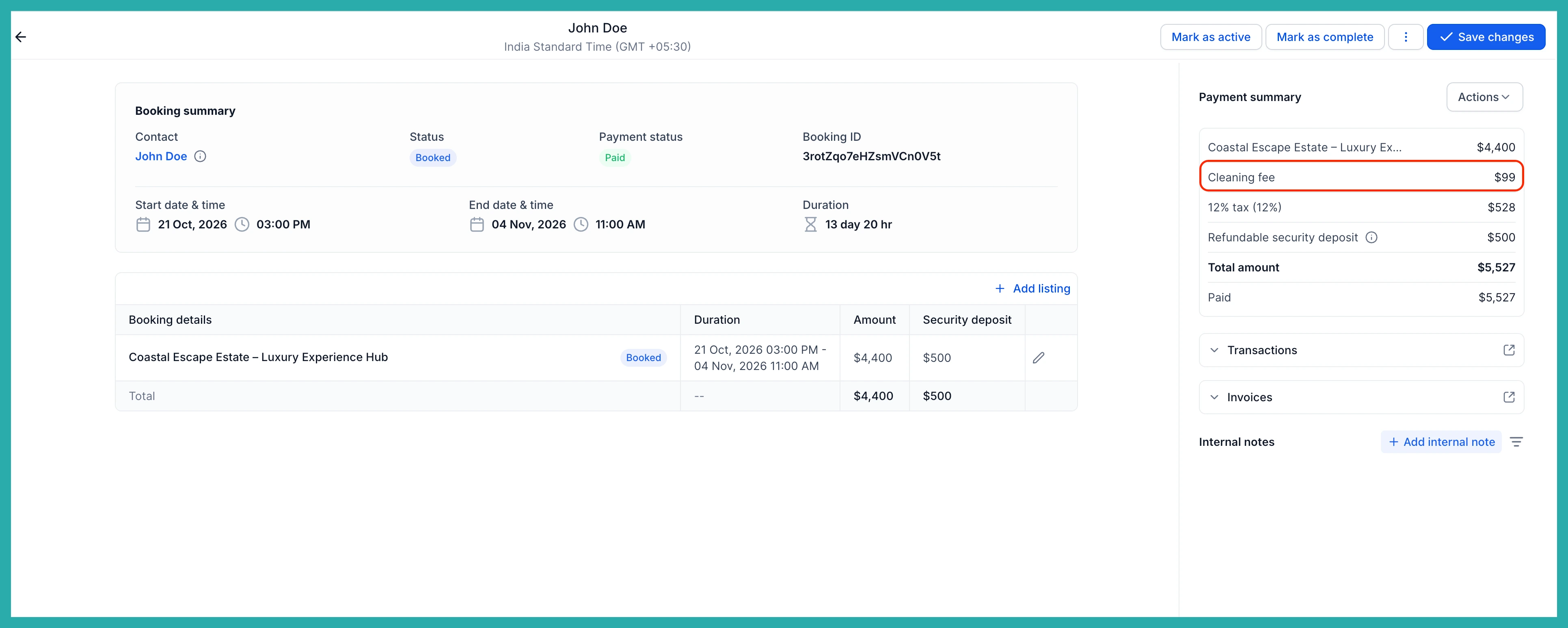
Best of all, customers see every fee upfront in the booking widget and as its own line item on the invoice. No surprises at checkout, fewer disputes.
Creating your first fee
Head to Calendars, then Calendar Settings, then Rentals, and open Additional fees. This is your global catalog - every fee template lives here.
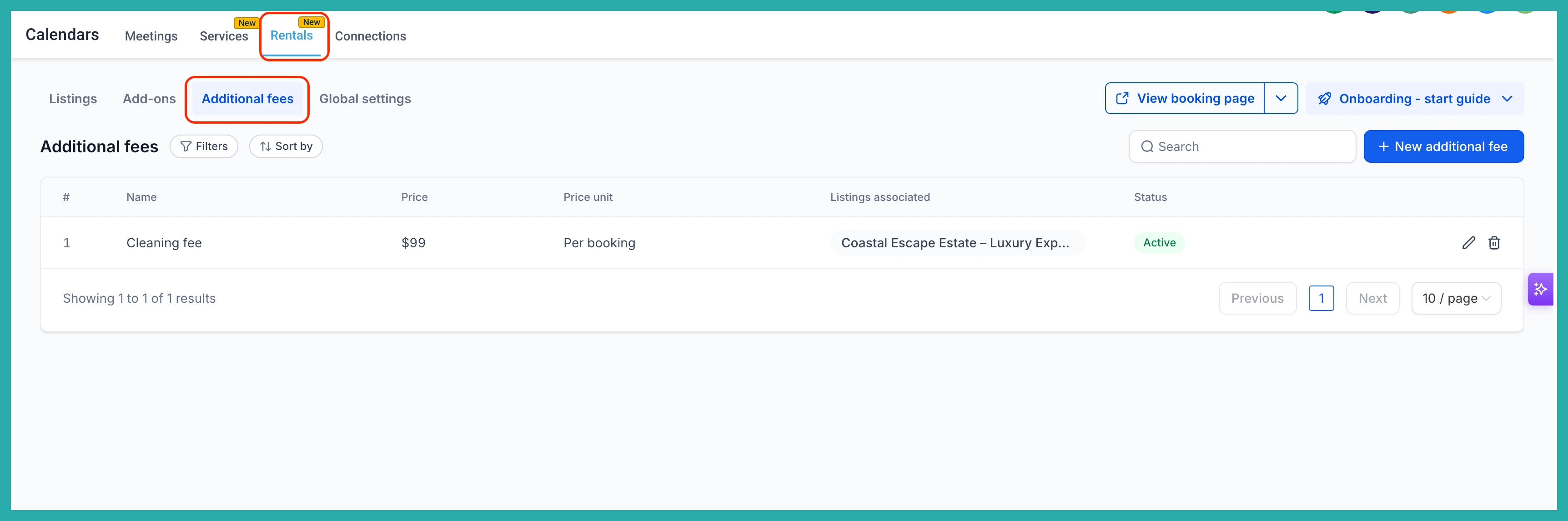
Click + New additional fee. Give it a name your customers will understand, like "Cleaning fee" or "Service fee".
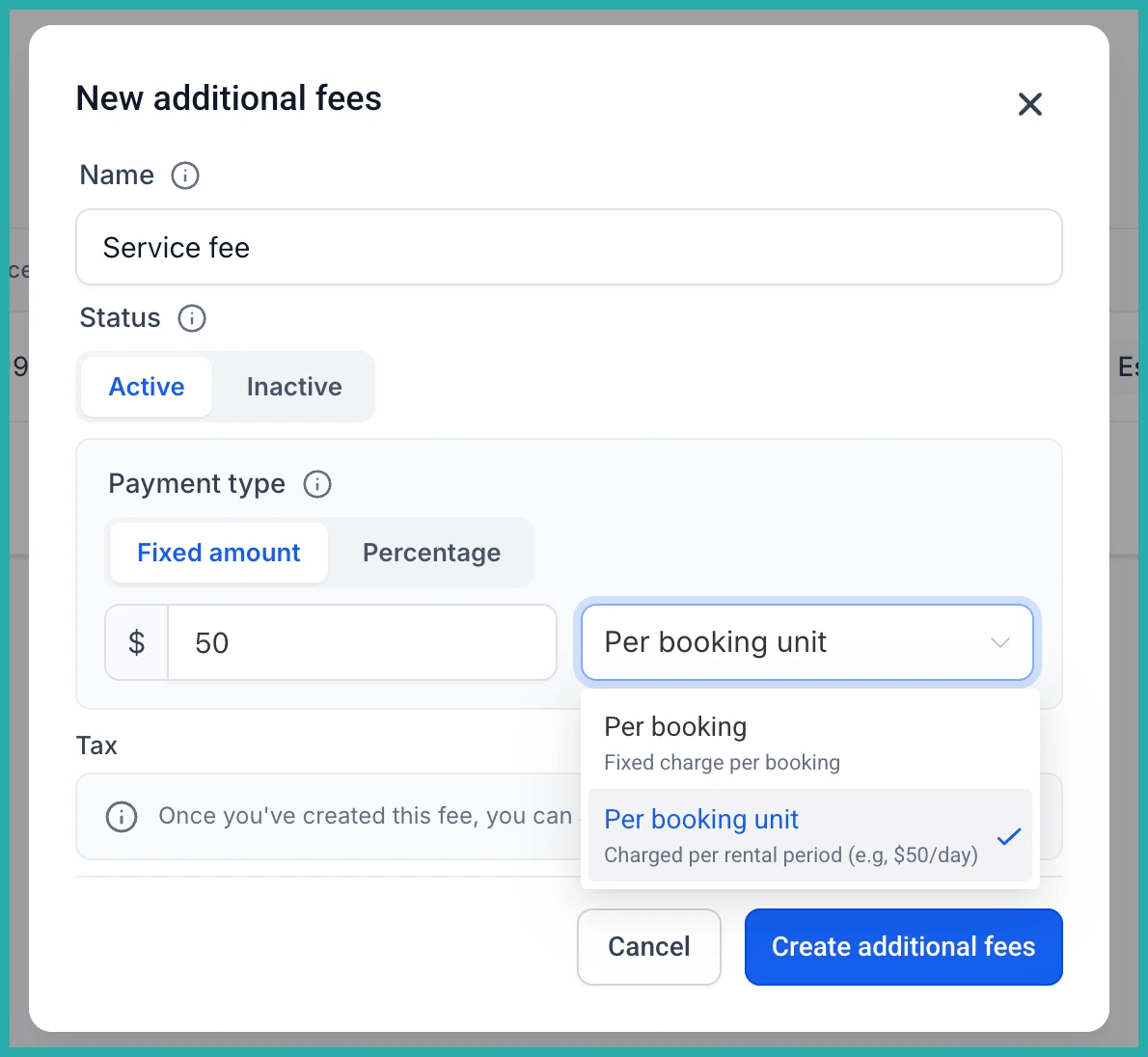
Now choose your pricing type:
- Flat amount - a fixed dollar charge. You can set this to be charged once per booking, or per booking unit (per hour, day, week or month, depending on how that listing is booked).
- Percentage - a percentage applied to the base rental subtotal.
In the screenshot below, you'll see where you set the amount and the pricing unit.
Adding tax to a fee
If the fee needs tax applied, edit the fee and click Configure tax. The tax is calculated on the fee amount and shown as its own separate line item, which keeps your fee amounts and your tax reporting clean and accurate.
Attaching a fee to a listing
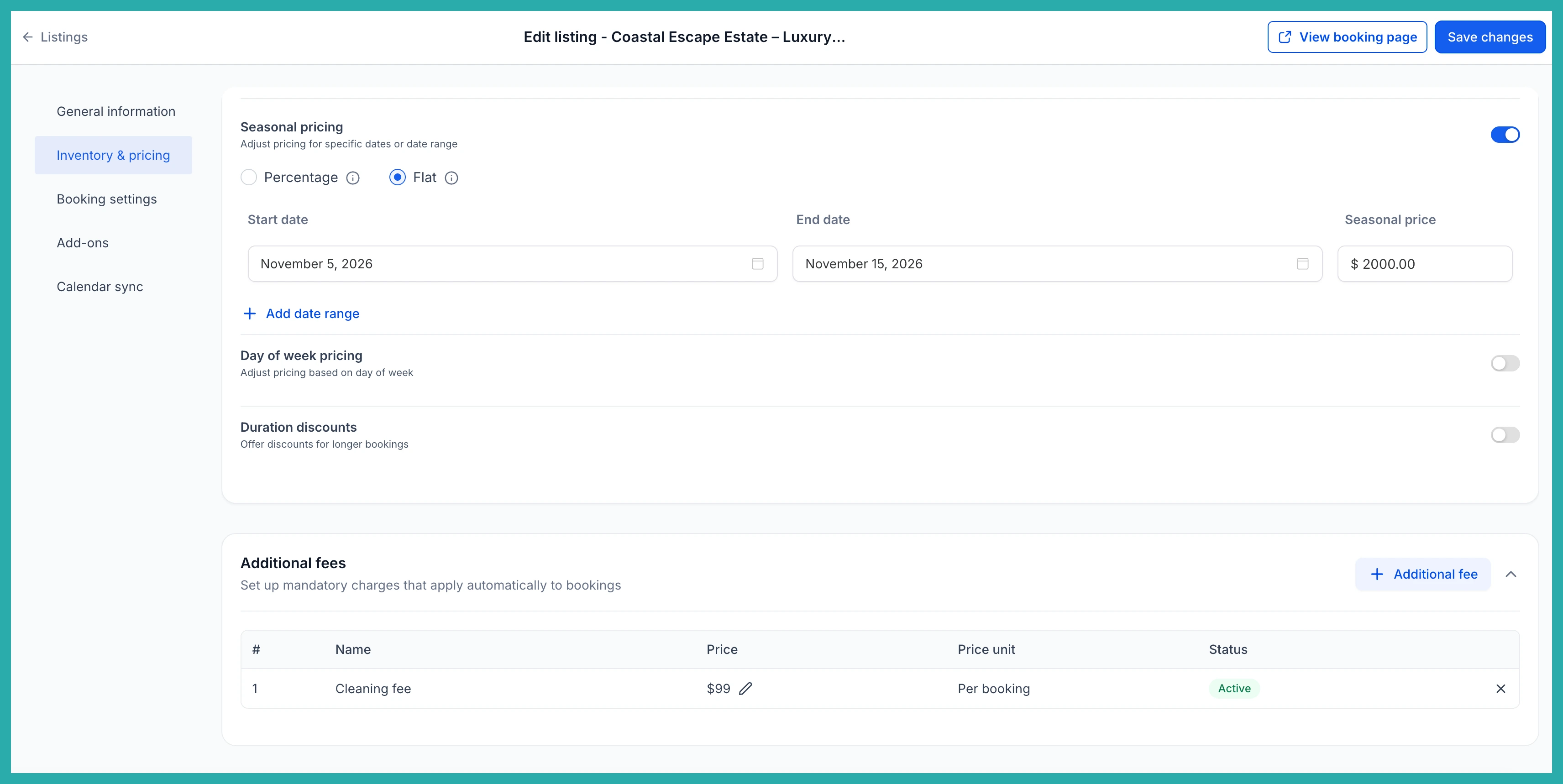
A fee in the catalog doesn't do anything until you attach it to a listing. Click the Edit icon for the listing you want, go to the Inventory & pricing tab, and scroll down to the Additional fee section.
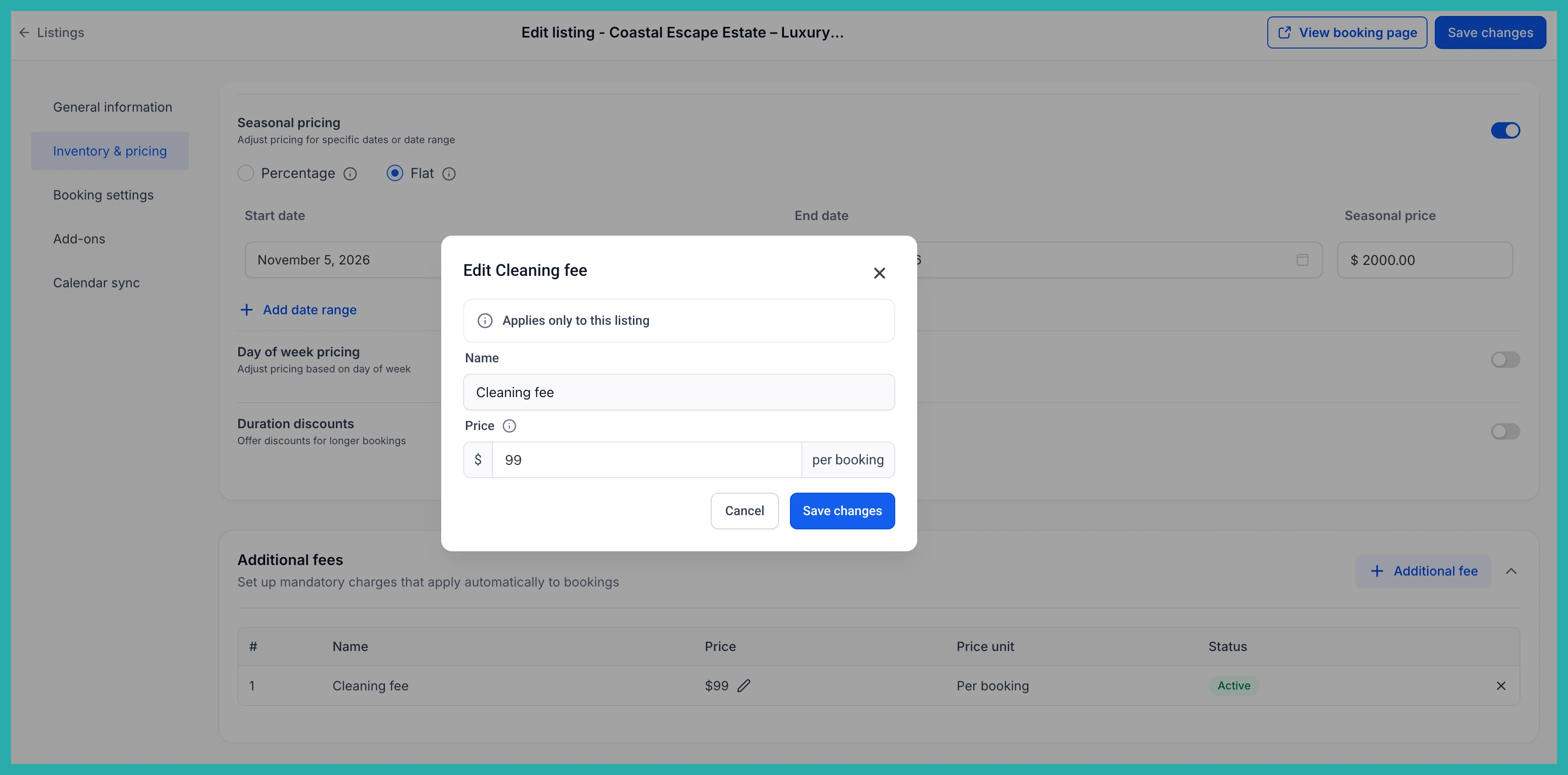
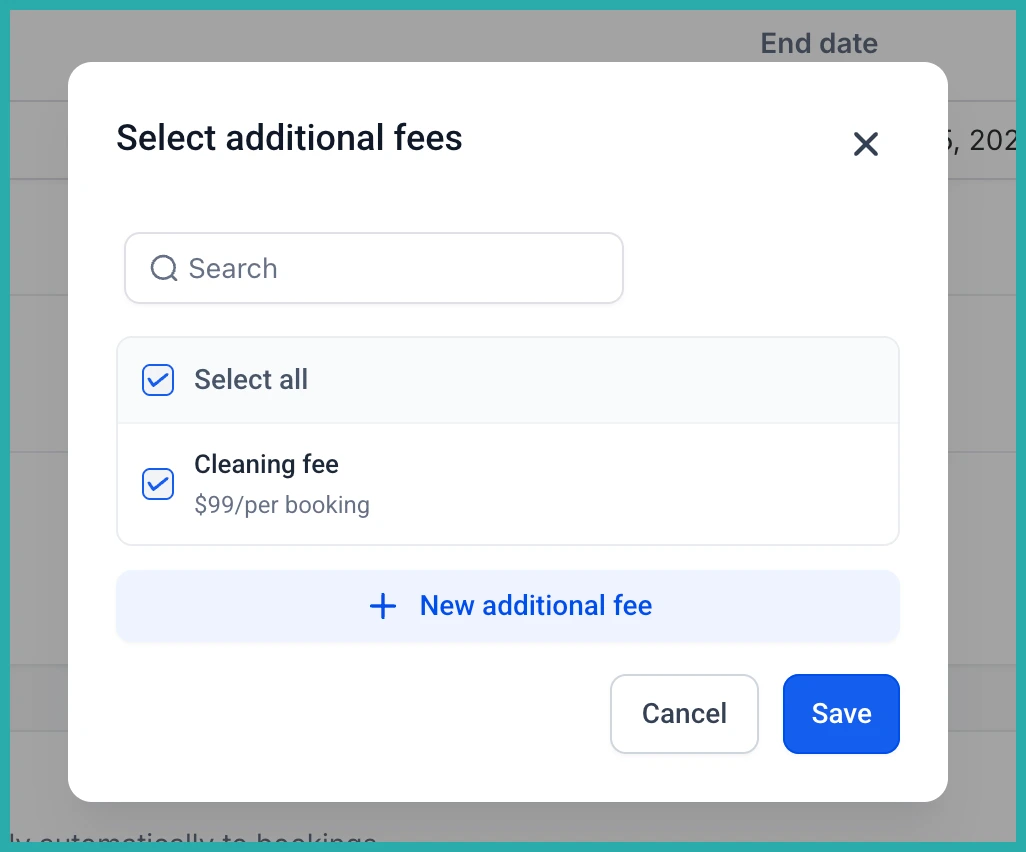
Click + Additional fee and pick the fee you created. You can attach as many as you need to a single listing.
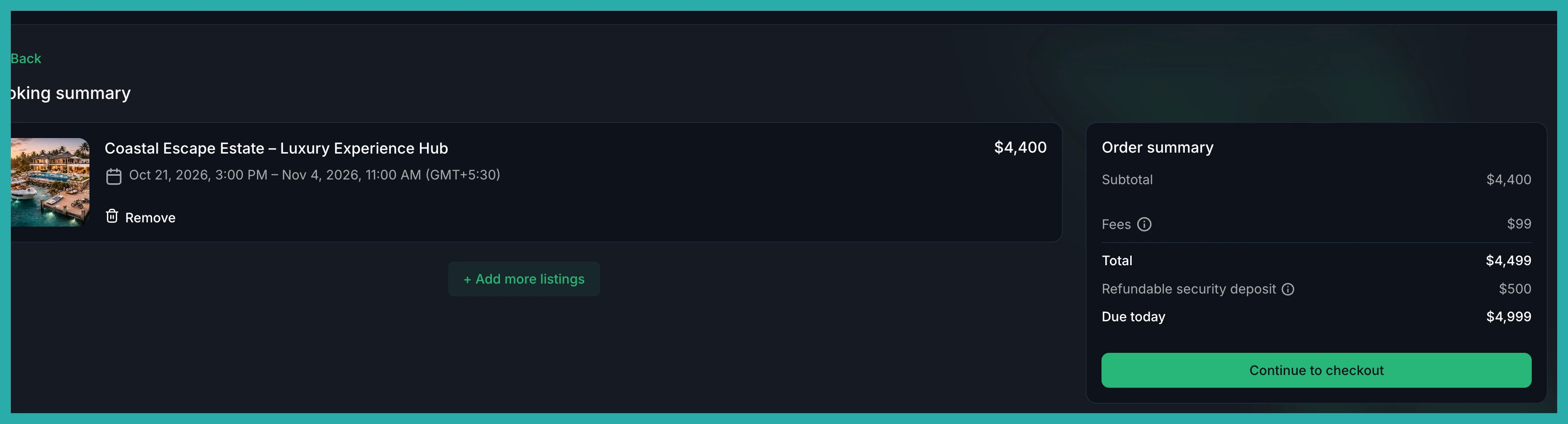
Overriding a fee for one listing
Say your cleaning fee is usually $80, but one larger property needs $120. You don't have to make a whole new template. In that listing's Inventory & pricing tab, find the fee under Additional fees and click the edit icon on the amount. The new figure applies to that listing only, and your global template stays untouched.
This is one of those gaps that held the Rentals module back without much notice, and now it's closed. Go set up your cleaning fee once, attach it where it belongs, and let the system handle the rest on every booking.
