
Your WordPress Sites Now Have Built-In Antivirus That Finds and Fixes Problems in One Click
If you run a WordPress site, security is one of those things you know you should stay on top of, but it rarely makes the top of the list. Until something goes wrong.
Now every WordPress site in your account has Antivirus built in. It scans for harmful files and the usual security gaps, explains what it finds in plain language, and fixes most of it in one click. No jargon, no guessing.
Where to find it
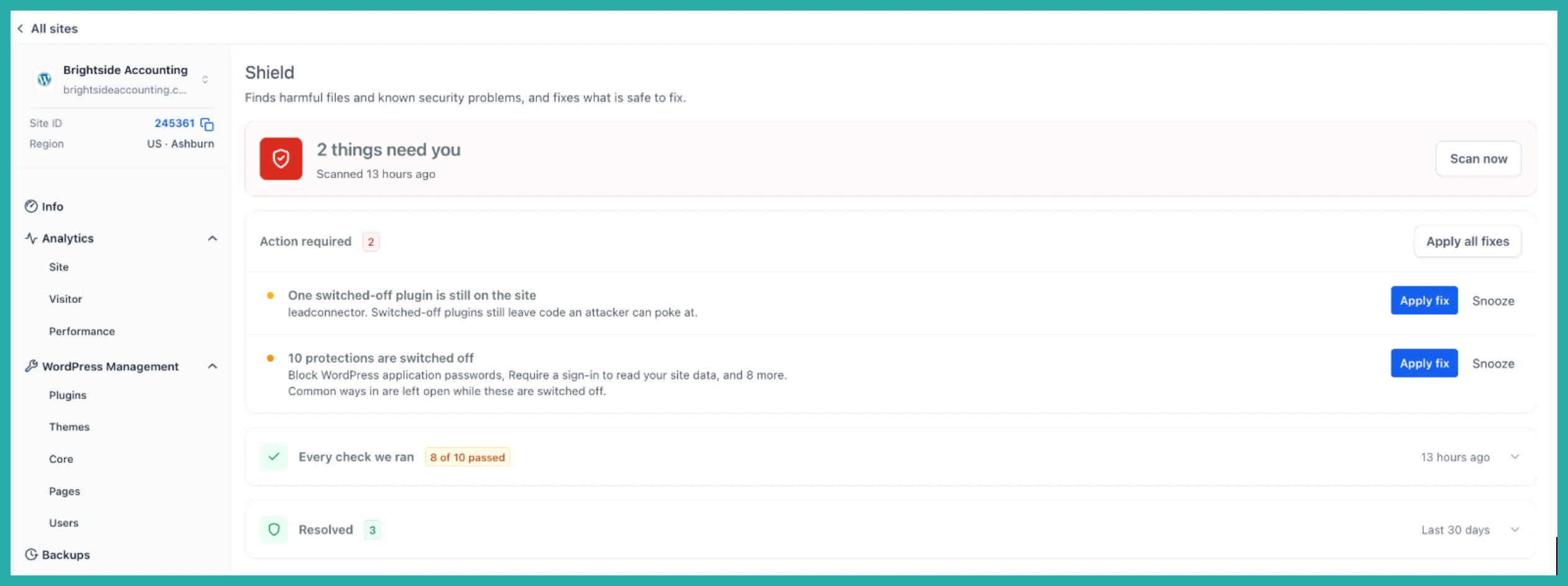
Go to Sites, then WordPress, and open the site you want to check. Inside, open Antivirus, then Shield.
- Sites, then WordPress
- Open a site
- Antivirus, then Shield
Scan, review and fix
Shield is your starting point. It shows how many things need your attention and when the site was last scanned. Hit Scan now any time to run a fresh check.
Under Action required, you'll see each problem listed with a short note on why it matters. You can click Apply fix on a single item, or Apply all fixes to clear the list in one go.
Not ready to deal with something? Snooze it until the next scan, for 7 days, or for 30 days. And anything you've already sorted sits in Resolved, where the last 30 days of fixes are kept.
See every check it ran
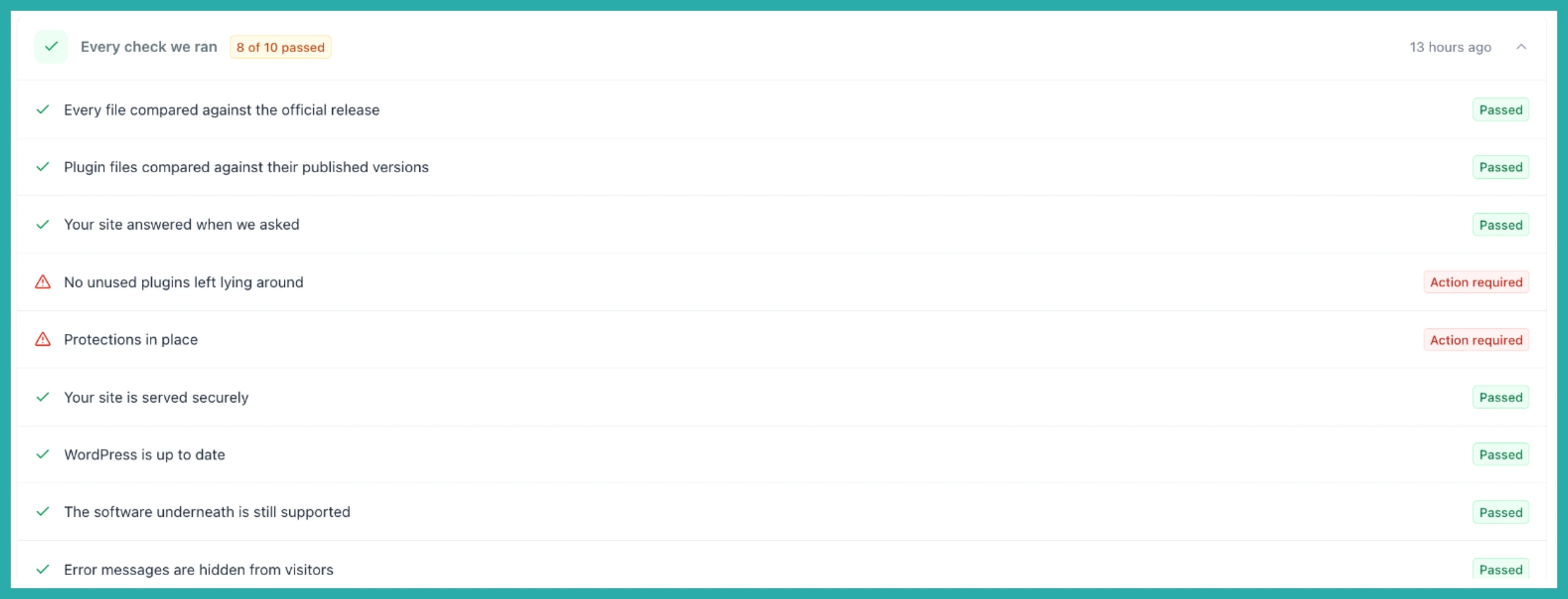
Antivirus runs ten checks, each with a clear Passed or Action required result. That includes comparing your core and plugin files against their official versions, flagging unused plugins and switched-off protections, and checking things like HTTPS, your WordPress version, and supported server software.
It also catches the small stuff that's easy to miss, like hidden error messages and whether your site is visible to search engines when it shouldn't be.
Fixes you can trust, with a backup ready
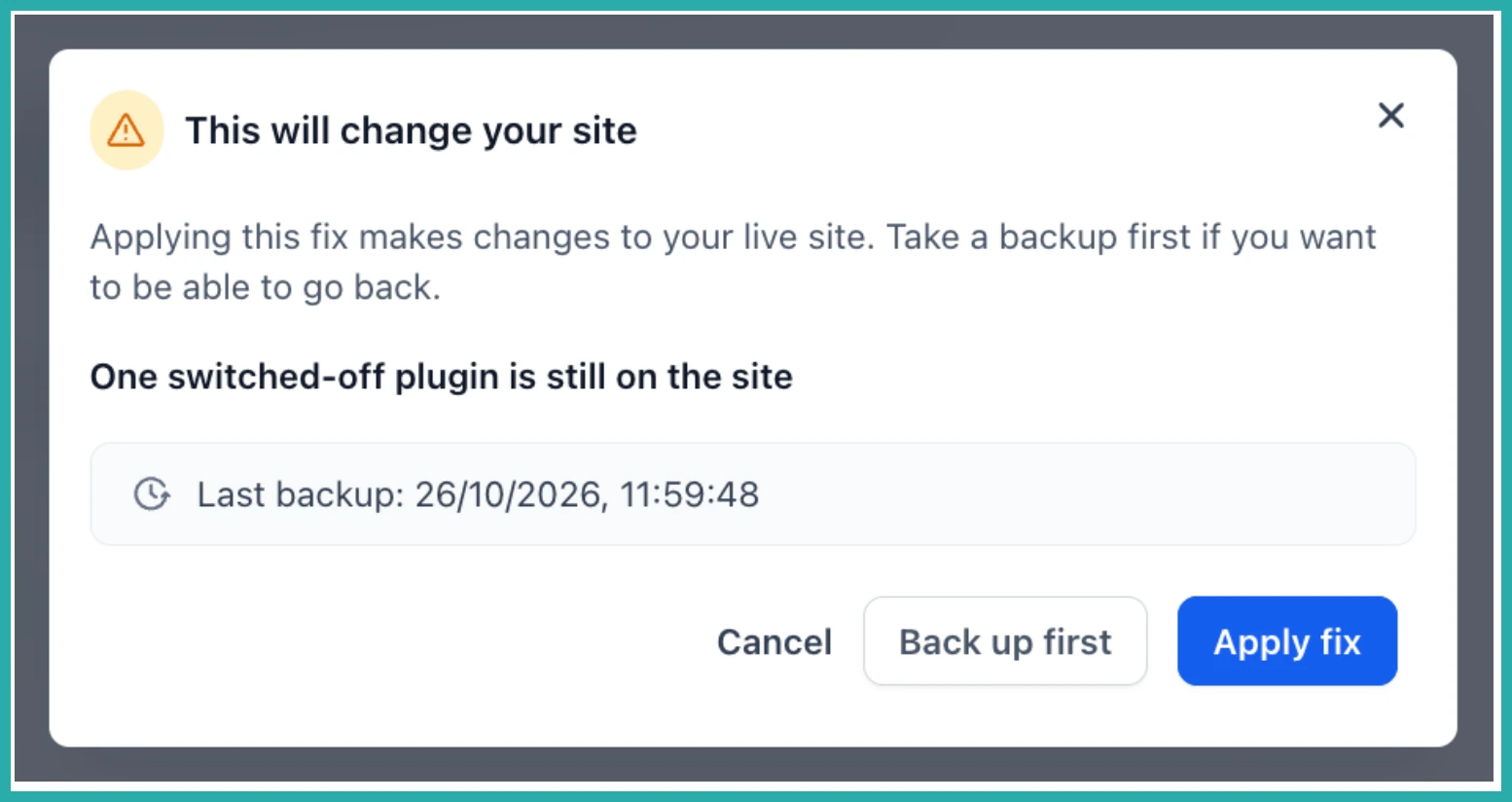
Every fix asks you to confirm first. Before you say yes, it shows when your last backup was taken, and offers a Back up first option right there.
That means you can fix with confidence, knowing you can roll back if you ever need to. One honest note: applying a fix changes the live site, so if you want the safety net, take that backup first.
Close the usual ways in with Hardening
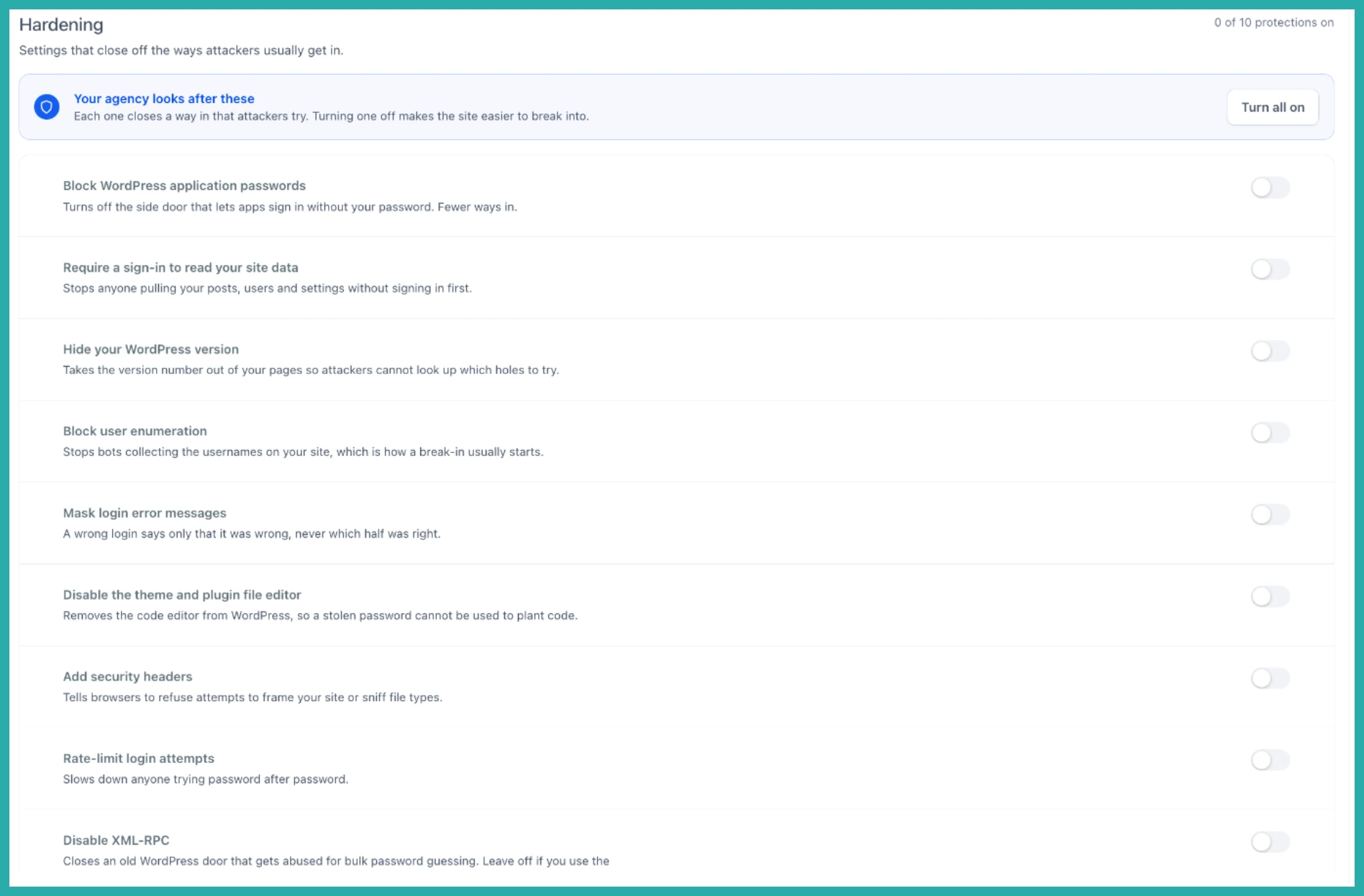
Open Antivirus, then Hardening, and you'll find ten one-click protections, each explained in a single line. You can turn them on individually, or use Turn all on.
- Block application passwords and user enumeration
- Hide the WordPress version and mask login errors
- Disable the file editor and XML-RPC
- Add security headers and rate-limit login attempts
- Harden .htaccess
One thing to watch: if you use the WordPress phone app, leave Disable XML-RPC switched off, or the app won't connect.
Watch every site from one list
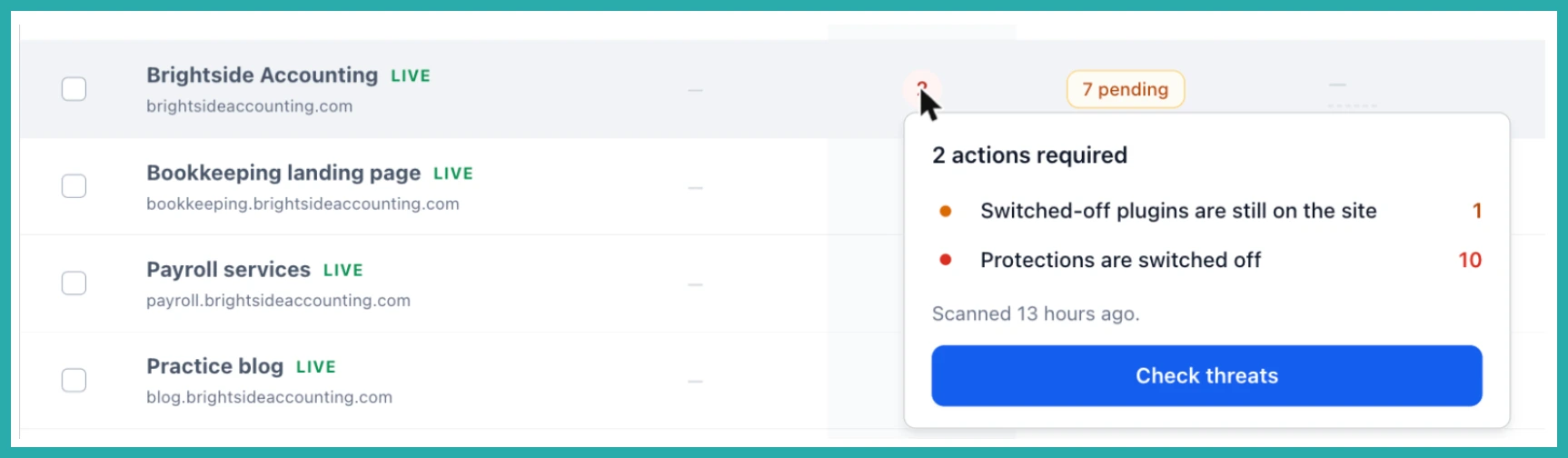
If you manage more than one WordPress site, there's now a Threats column on the WordPress sites list. Hover over a count to see what was found, then click Check threats to dig in. You can also Scan all sites in one click, so you're never guessing which client site needs you.
One last reminder: Antivirus finds common problems and closes common gaps, but it doesn't replace keeping things updated and backed up regularly. Think of it as a helpful second pair of eyes that's always on.
Go run a scan on one of your sites now. It takes a minute, and you might be surprised what it catches.
