
Re-import from HubSpot and Update Records You Already Have
Moving your data across from HubSpot is rarely a one-and-done job. You import, then keep working in HubSpot for a bit, then fix a few records, and now the version in your account is out of date.
Until now, re-importing just skipped anything that already existed, so your updates never came across. You'd be stuck deleting records first or editing them by hand.
That changes now.
What you get
The HubSpot importer can now update records that are already in your account. When you run another import, you choose to overwrite the matching records with the latest data from HubSpot. Anything with no match is still created as new, exactly as before.
It covers a lot: Contacts, Deals (your Opportunities), Companies, Tasks and Notes, plus Custom Fields, Custom Folders and Pipelines.
HubSpot values replace any that differ. Fields that aren't part of the import are left alone, so you won't lose data that lives only in your account. Matching is based on your duplicate rules, which always include the HubSpot record ID, so the right records get updated.
How to use it
- Go to Contacts, Companies or Opportunities, then Import, then Import data, and choose Import from HubSpot.
- Pick your objects and data as usual.
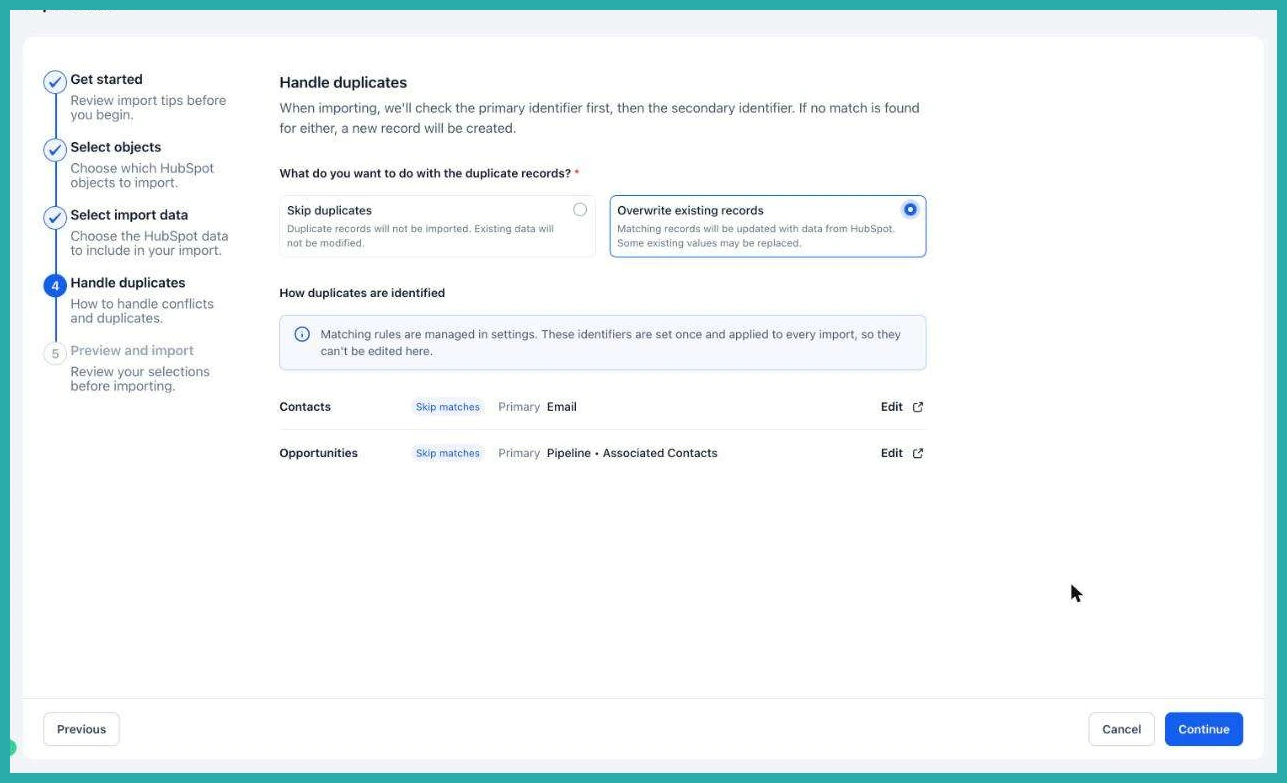
- On the Handle duplicates step, select Overwrite existing records.
- Check the counts on Preview and import, then click Confirm and start import.
- When it finishes, open Import details from your Import history to see what happened.
In the screenshot below, you'll see the new choice on the Handle duplicates step - Skip duplicates, which is still the default, or Overwrite existing records.
Your Import details now show exactly how many records were Created, Updated and Skipped, and you can filter the Record view by Updated to see precisely what changed.
A few things worth knowing
Skip duplicates stays selected by default, so your imports work just as they always have unless you deliberately choose Overwrite.
Overwrite replaces existing values and can't be undone. If your team has edited imported records in your account, export a backup first so nothing valuable gets written over.
Custom fields keep their original field type, and pipeline stages keep their order, so your setup stays intact.
One handy tip: use a HubSpot Last Modified Date filter so you only update the records that have actually changed since your last import. Less to process, and nothing touched that didn't need to be.
If you're mid-move from HubSpot, this takes a lot of the stress out of it. Keep working where you are, then re-import to bring across just what changed.
