
Tag Your Courses So Learners Can Actually Find Them
If you've built out more than a handful of training courses, you already know the problem. Learners open your library, see a wall of course cards, and can't tell which one is for them.
Now you can label them properly. Course Tags let you mark each course by language, difficulty, and topic, and your learners can filter the library to land on the right one in seconds.
What you get
Three tag types you can add from a course's settings: Language, Difficulty, and Topic. Once they're on, a few things happen automatically.
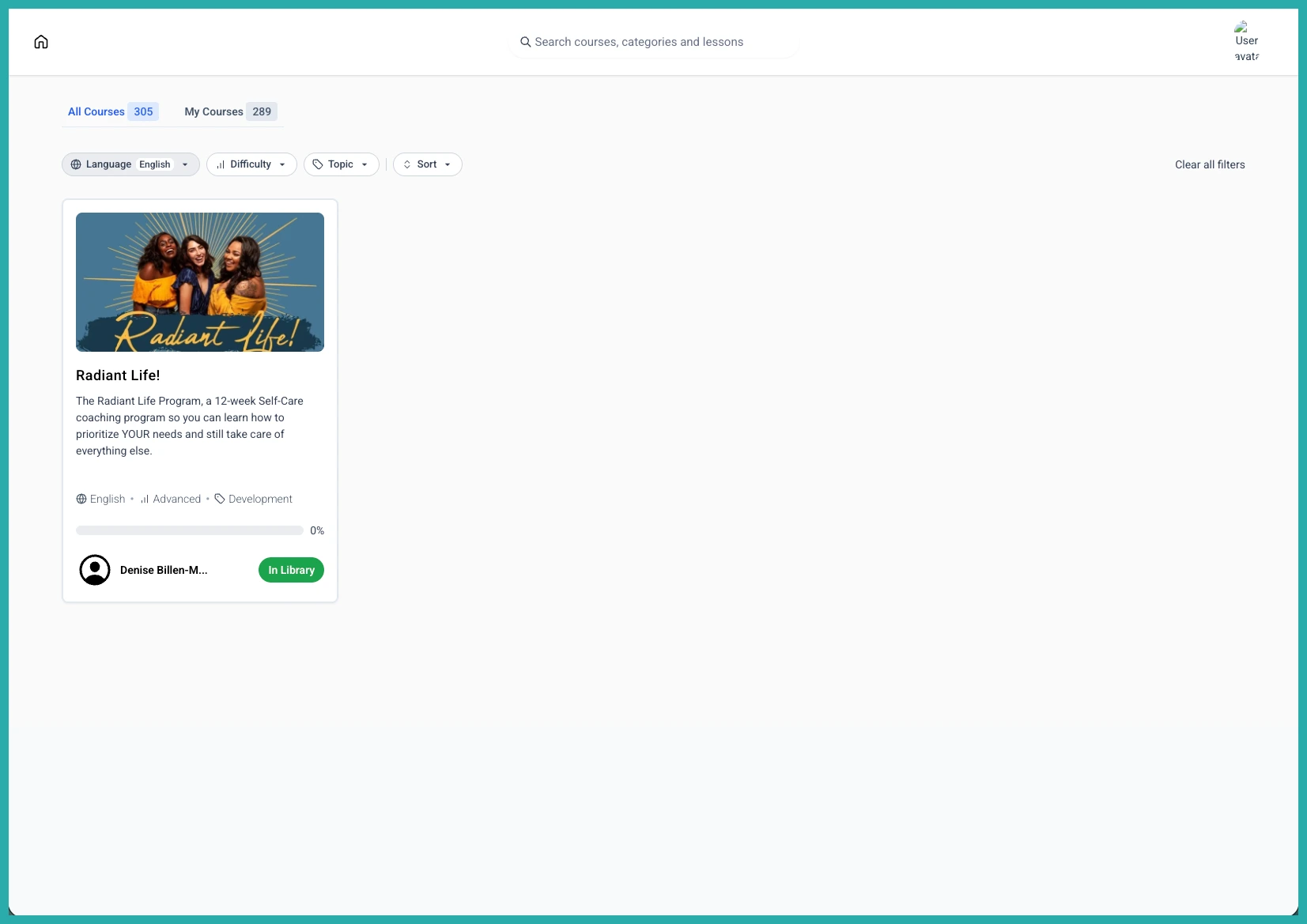
- The tags show right on the course card, so people can spot the right course at a glance.
- Learners can filter your library by any of those tags to narrow things down.
- The tags are standard, predefined options, so your categories stay consistent across every course.
- It all works in both the All Courses and My Courses views.
No more leaning on custom fields or fiddly manual sorting. Your library starts to feel like a proper catalog, which is exactly what it should feel like inside the Client Portal.
How to set it up
Head to Memberships, then Courses, then open the Settings for the course you want to tag.
Under Course Tags, pick the appropriate Language, Difficulty, and Topic. In the screenshot below, you'll see where those options sit.
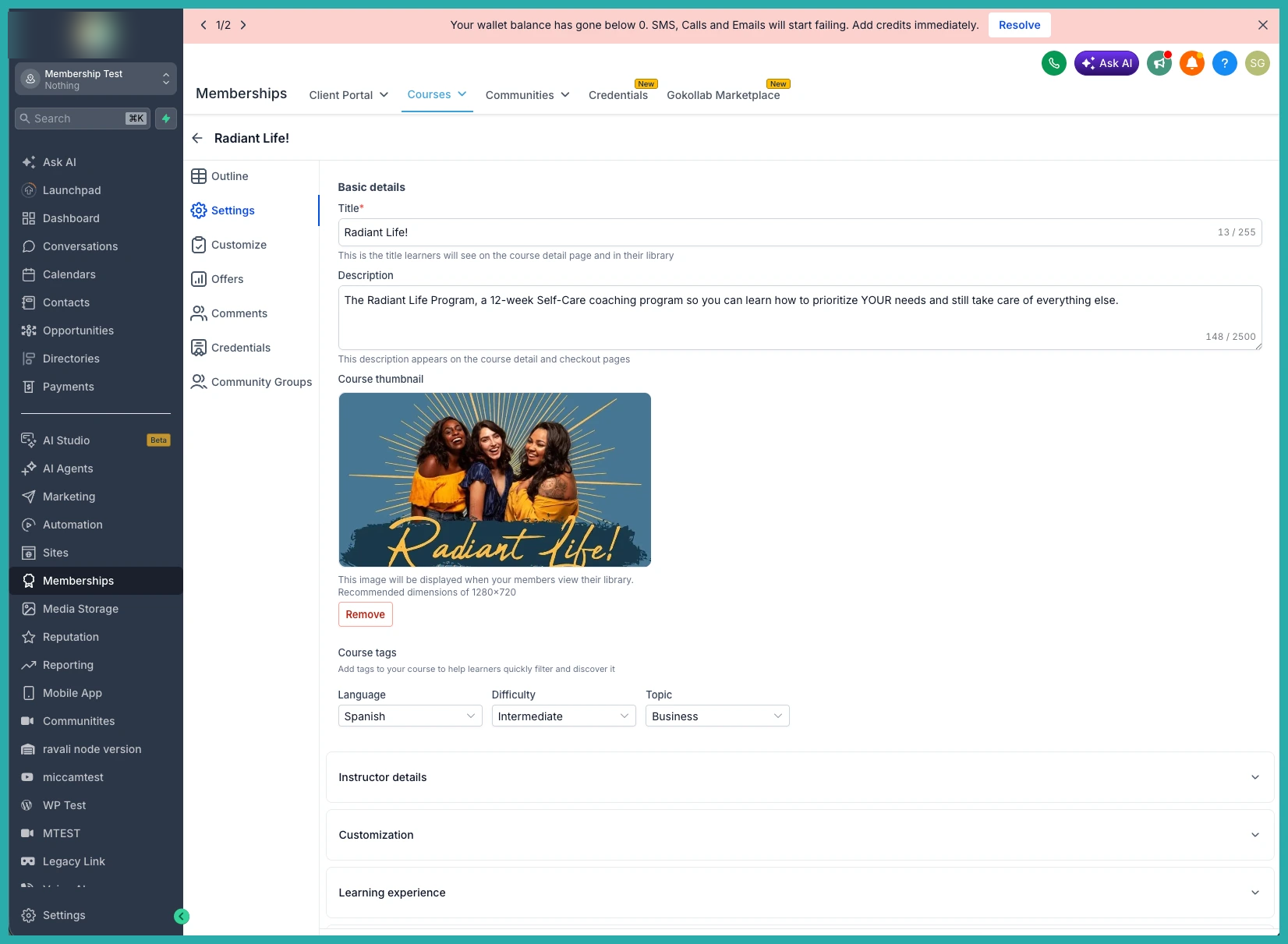
Save the course, and that's it. The tags go live straight away.
Once they're saved, your learners see the filters and tagged cards immediately. In the screenshot below, you can see how the tags appear on the course card in the library.
What's coming
Right now you're choosing from the built-in tag options. The ability to create your own tags is on the way, so you'll be able to categorise things exactly how your business thinks about them.
Got a course library that's grown a bit messy? Spend five minutes tagging your top few courses and watch how much easier they are to find.
